To black out and redact text in a PDF using MobiPDF, open your document, select Mark for Redaction, highlight the text or area you want to remove, and click Apply Redaction to permanently erase the content.
Redacting a PDF is essential when you need to share documents that contain sensitive information like personal data, financial details, or confidential content. Unlike simply covering text with a shape, proper redaction removes the information completely so it cannot be recovered.
This guide walks you through how to black out text securely, redact specific sections, and make sure your document is safe before sending it to others.
How redaction works in PDFs
To redact text in tools like MobiPDF, you first mark the content for removal and then apply the redaction. Unlike the Edit feature, redaction permanently deletes the selected content from the document rather than simply modifying it.
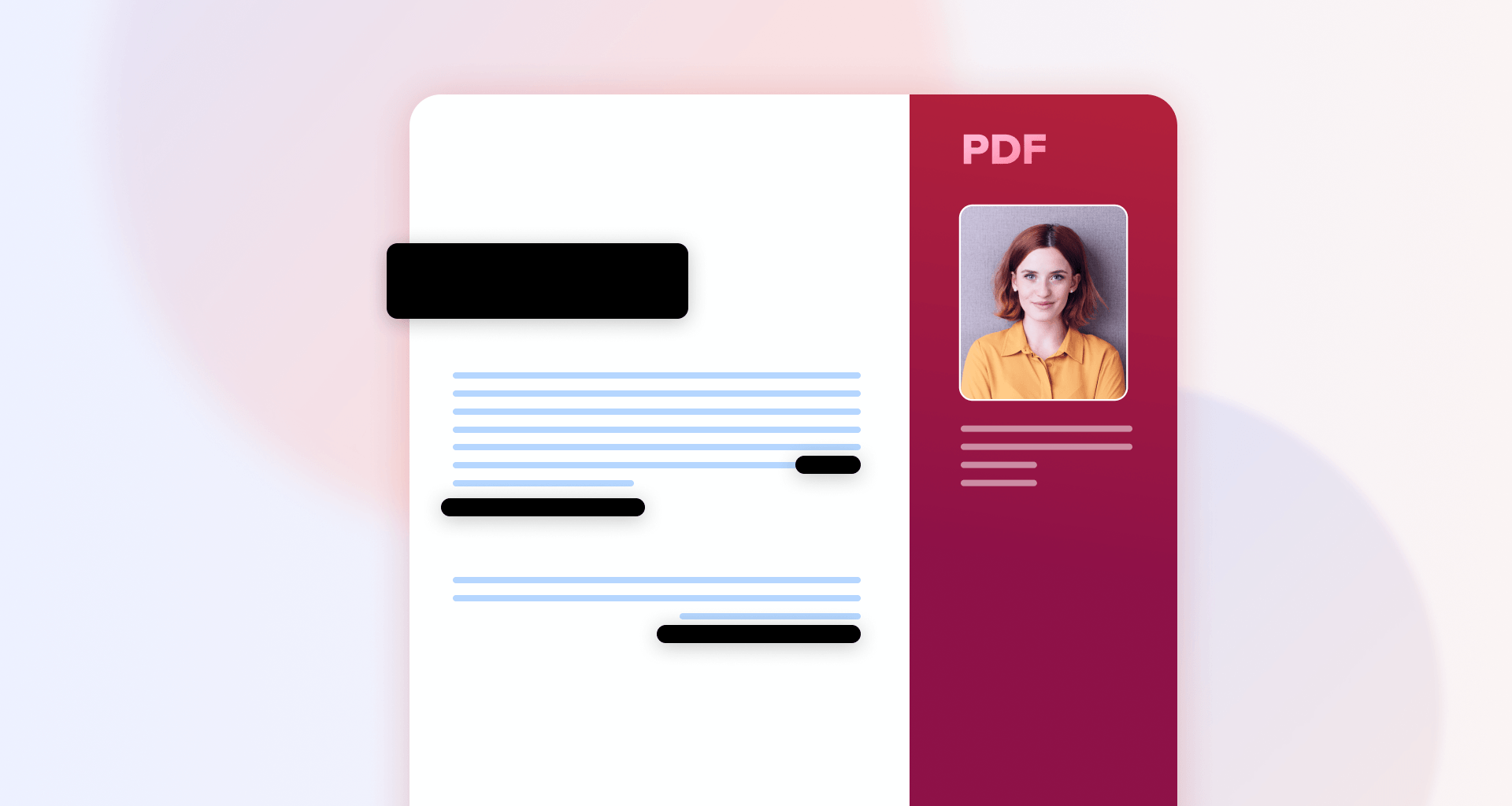
Redaction in a PDF removes the underlying data from the file structure, meaning the content cannot be copied, searched, or extracted later. By contrast, placing a black box over text only hides it visually. The original content still exists underneath and can often be revealed.
MobiPDF’s redaction tool ensures that once applied, the selected content is completely erased and replaced with a solid black block.
Different ways to black out and redact text
Depending on your needs, you can redact small pieces of text, multiple sections, or entire areas of a page. MobiPDF gives you precise control over what gets removed.
Redact a single word or phrase
To redact a single word or phrase, use the Mark for Redaction tool to select exactly what you want to remove.
Follow these steps in MobiPDF:
Open your PDF file in MobiPDF.
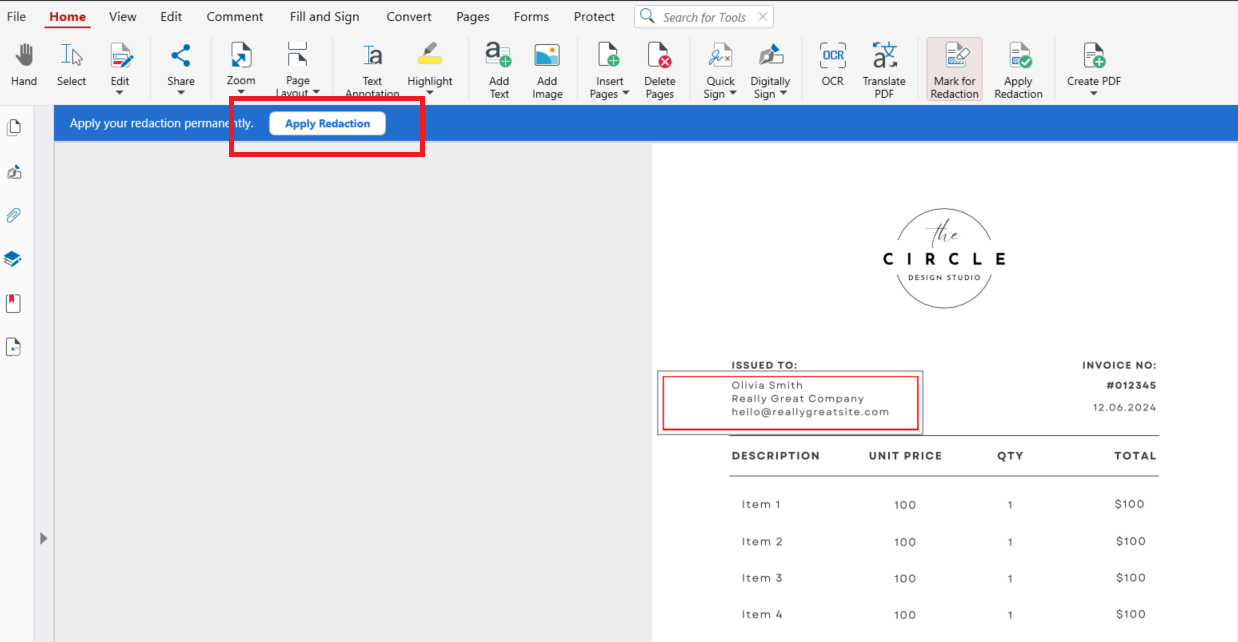
Go to the Home tab and click Mark for Redaction.
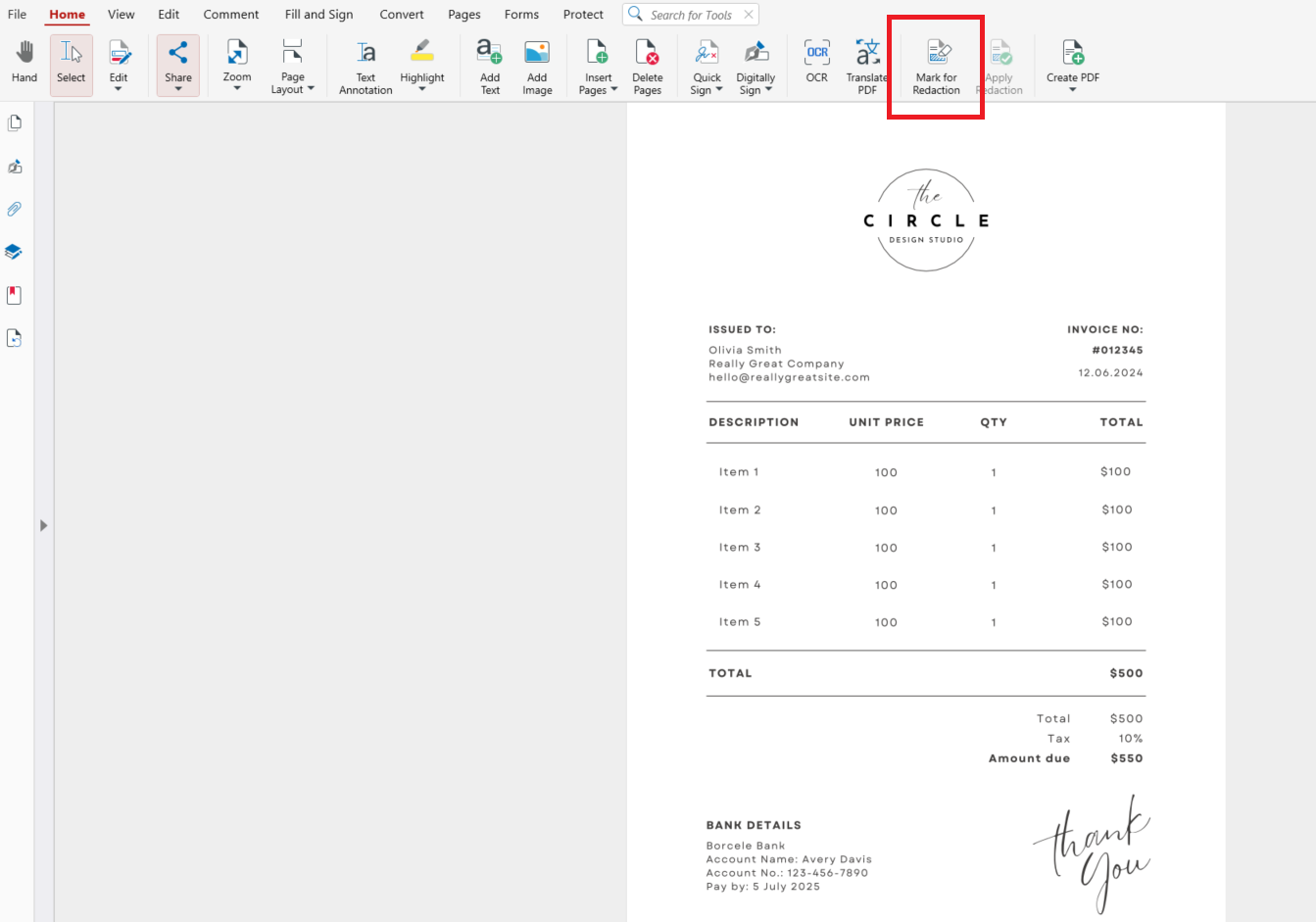
Select the word or phrase you want to remove.
Click Apply Redaction in the top bar. You will be asked to save your redacted file.
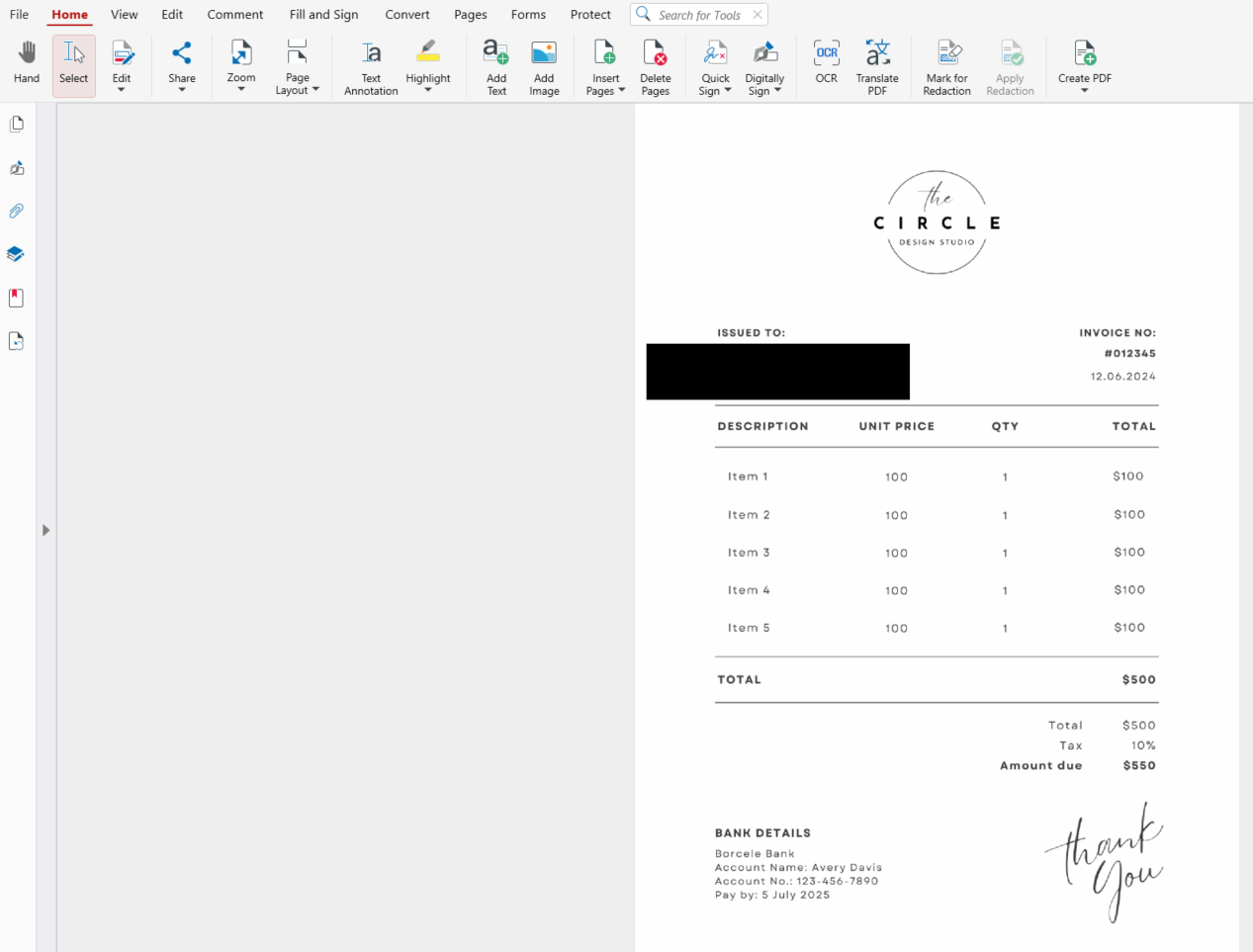
The selected text is permanently removed and replaced with a blacked-out area.
Redact multiple sections at once
To redact multiple sections, mark several areas first, then apply redaction in one step.
Open your PDF in MobiPDF.
Click Mark for Redaction.
Highlight all the text or areas you want to remove across the document one after the other – once a section is selected, it stays that way until you go to the next step.
Click Apply Redaction. You will be asked to save your redacted file.
That way, all the selected sections are permanently erased at once, making this method efficient for longer documents.
Redact entire areas or blocks of content
To redact larger sections like paragraphs, charts, or images, you can select entire areas instead of individual text, going through the same steps we did in the last paragraphs and clicking and dragging to select the area you want to black out.
This is ideal for removing sections like tables, graphics, or grouped information without editing line by line.
Want to protect your documents before sharing?
How to check that your redaction is permanent
After redacting your document, it’s important to verify that the information is fully removed. Try selecting or copying the redacted area. If nothing can be copied, the redaction worked.
You can also search for words you removed to confirm they no longer appear. A properly redacted document leaves no trace of the original information behind.
Tips for safe and effective PDF redaction
When handling sensitive documents, a few best practices can prevent costly mistakes.
Always apply redaction
Marking content is only the first step. You must click Apply Redaction to permanently remove it and save your newly redacted file afterwards.
Double-check before sharing
Review your document carefully to ensure no sensitive information remains.
Frequently asked questions
Can I black out text without redacting it?
Yes, but it’s not secure. Covering text with shapes only hides it visually and does not remove the underlying content.
Is redaction permanent?
Yes. Once you apply redaction, the content is permanently blackened and cannot be visible again.
Can someone recover redacted text?
No, not when proper redaction is applied with Apply Redaction. The selected content is completely removed from the file.
Will redaction affect the rest of my document?
No. Only the selected content is removed. The rest of the document remains unchanged.
Redact PDFs securely with MobiPDF
Knowing how to black out and redact text in PDFs gives you full control over what you share. Whether you’re removing personal details, financial data, or confidential content, MobiPDF makes the process simple and secure.
Ready to share your PDFs with confidence? Use MobiPDF to redact sensitive information safely and permanently.