
This article was updated on March 16, 2026
To delete a pivot table in MobiSheets, right-click on the sheet where the pivot table is then choose Delete Sheet to remove it completely. If the pivot table is in the same sheet as the source data, highlight all rows and columns of the pivot table, then choose Clear PivotTable. These actions only affect the pivot table itself, not the underlying data it references.
Deleting a pivot table removes the summary view while leaving your source data intact. Understanding how to properly delete pivot tables prevents accidental data loss and keeps your spreadsheets organised. This guide explains how to delete pivot tables, remove fields, clear calculated fields, and manage filters in MobiSheets–a modern, Excel-compatible spreadsheet app.
How to delete a pivot table
To delete a pivot table in MobiSheets, locate the pivot table first. Once located, right-click on the sheet or highlighted area of a sheet and choose Delete Sheet or Clear PivotTable. This removes the entire pivot table structure while preserving your source data in its original location.
Follow these steps:
Open your spreadsheet in MobiSheets.
Find the pivot table to be deleted.
If the pivot table is in a separate worksheet, right-click on the worksheet’s name then choose Delete Sheet.
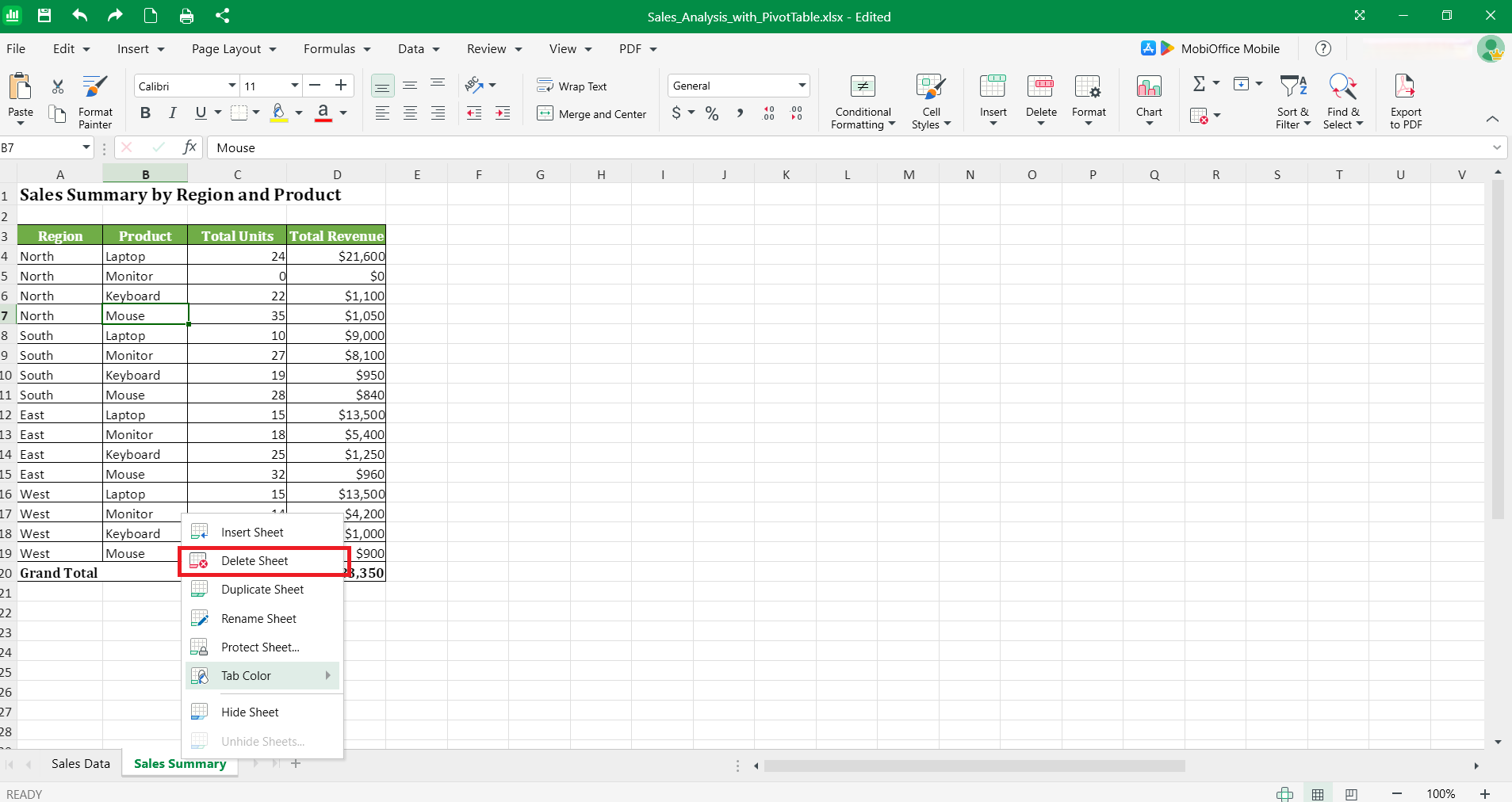
If the pivot table is within the same worksheet as the source data, highlight the entire table then right-click and choose Clear PivotTable.
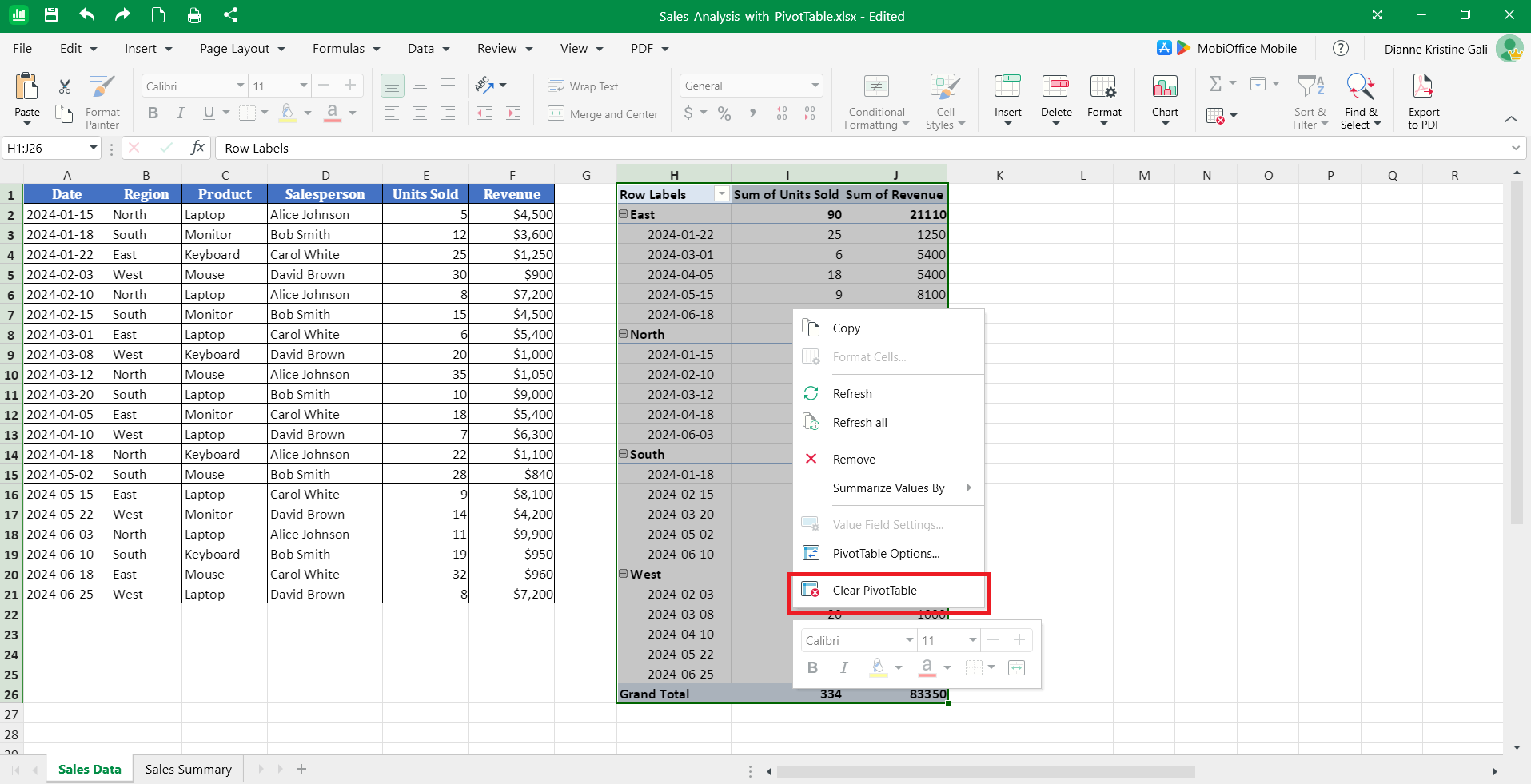
Confirm the deletion when prompted.
The pivot table disappears immediately, leaving only blank cells where it previously displayed. Your source data remains unchanged in its original worksheet or range.
When you should delete a pivot table
Delete a pivot table when it's no longer needed for analysis, when you're restructuring your workbook, or when you need to replace it with a different summary method. Outdated pivot tables consume file space and processing power without providing current insights.
Common scenarios for deletion include:
Replacing dynamic pivot tables with static values for final reports
Removing test or prototype analyses after completing your actual report
Clearing space in workbooks that have become slow or bloated
Eliminating pivot tables that reference deleted or moved source data.
Before deleting, verify that no formulas in other worksheets reference the pivot table. Breaking these connections can cause errors throughout your workbook.
How to remove a pivot table but keep the data
To remove a pivot table but keep the data, convert the pivot table to static values first, then delete the pivot table object. This preserves the summarised information as regular cells while removing the dynamic pivot table functionality.
This approach is essential when you need to:
Share final reports without allowing recipients to modify the analysis
Preserve a snapshot of data at a specific point in time
Archive reports that no longer need to refresh.
Converting a pivot table to values before deletion
Converting a pivot table to values creates a permanent copy of the current summary that won't change when source data updates. In MobiSheets, select the entire pivot table, copy it, then paste as values to replace the dynamic table with static cells.
Follow these steps:
Select the entire pivot table range then copy the selection (Ctrl+C or right-click > Copy).
Choose another cell or worksheet where you will copy the table.
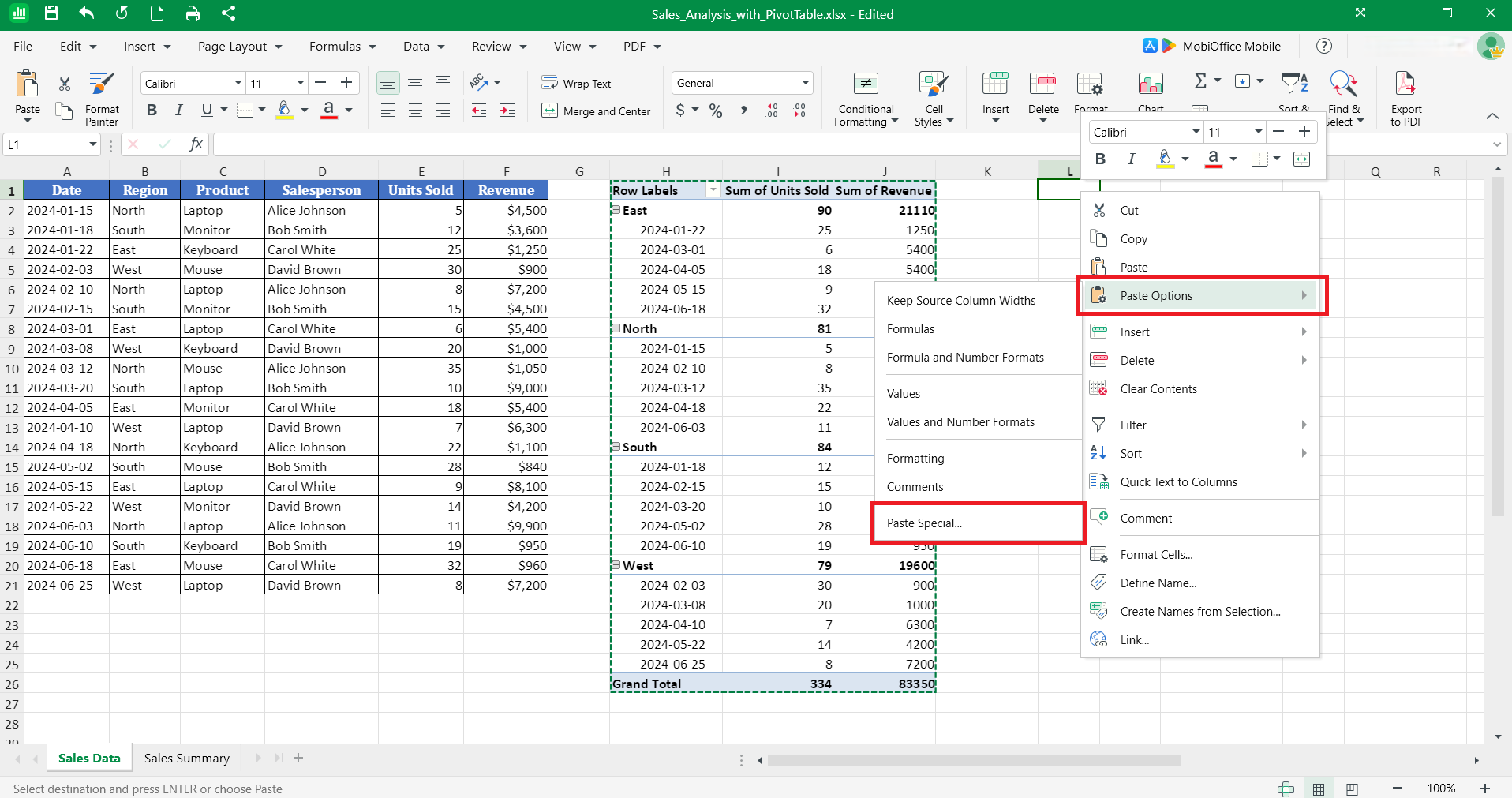
Right-click on the cell then choose Paste Options → Paste Special.
In the dialogue box, choose the specific elements you want to copy from the pivot table. You can select the default All to copy all elements.
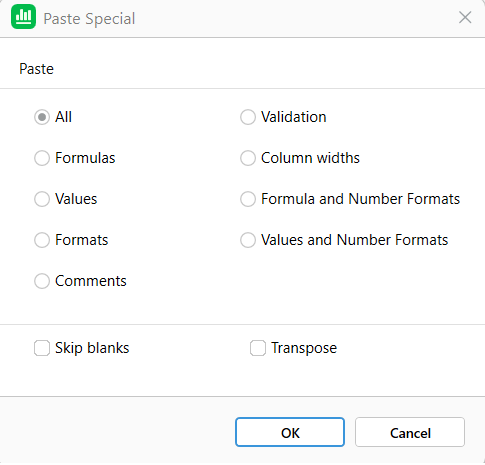
Click OK.
The pivot table converts to regular cells containing the same numbers, text, and formatting. You can now safely delete any remaining pivot table objects without losing the displayed data. After conversion, the data becomes static and won't update when source data changes.
Want faster pivot table management with familiar Excel workflows?
How to delete a calculated field in a pivot table
To delete a calculated field in a pivot table, right-click on the table to access the Pivot Table options menu, then select the calculated field you want to remove from the list. This removes the field without affecting the pivot table structure or other fields.
Calculated fields are custom formulas you've added to perform operations on existing data. Removing them cleans up your pivot table when calculations are no longer needed or contain errors.
Removing calculated fields safely
Removing calculated fields safely requires carefully identifying which fields you want to remove from the table.
Follow these steps to remove calculated fields:
Right-click on any cell in the pivot table then choose PivotTable Options.
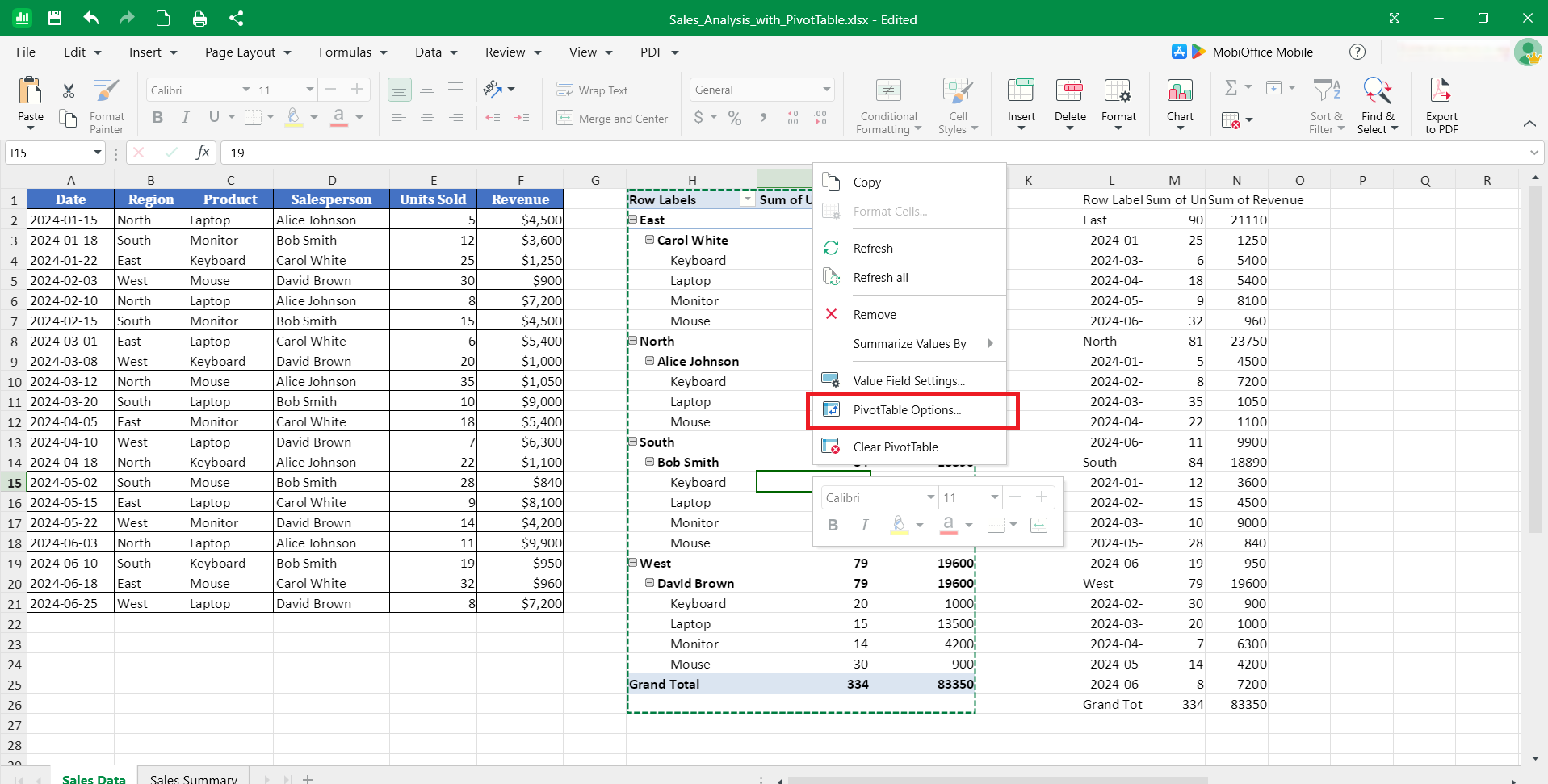
In the Fields tab, navigate to Filters, Columns, Rows, and Values section.
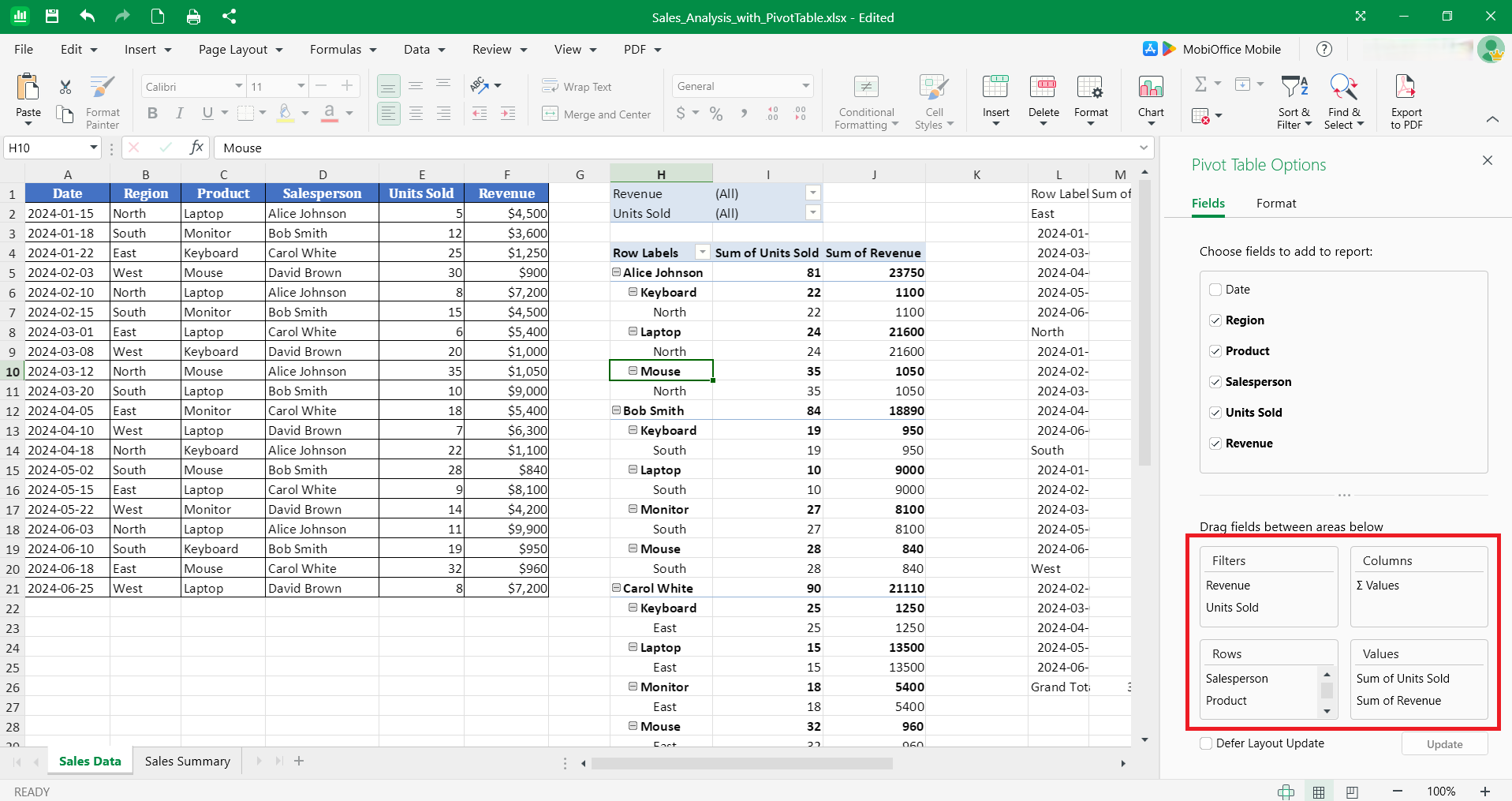
Right-click on the field you want to remove then click Remove field.
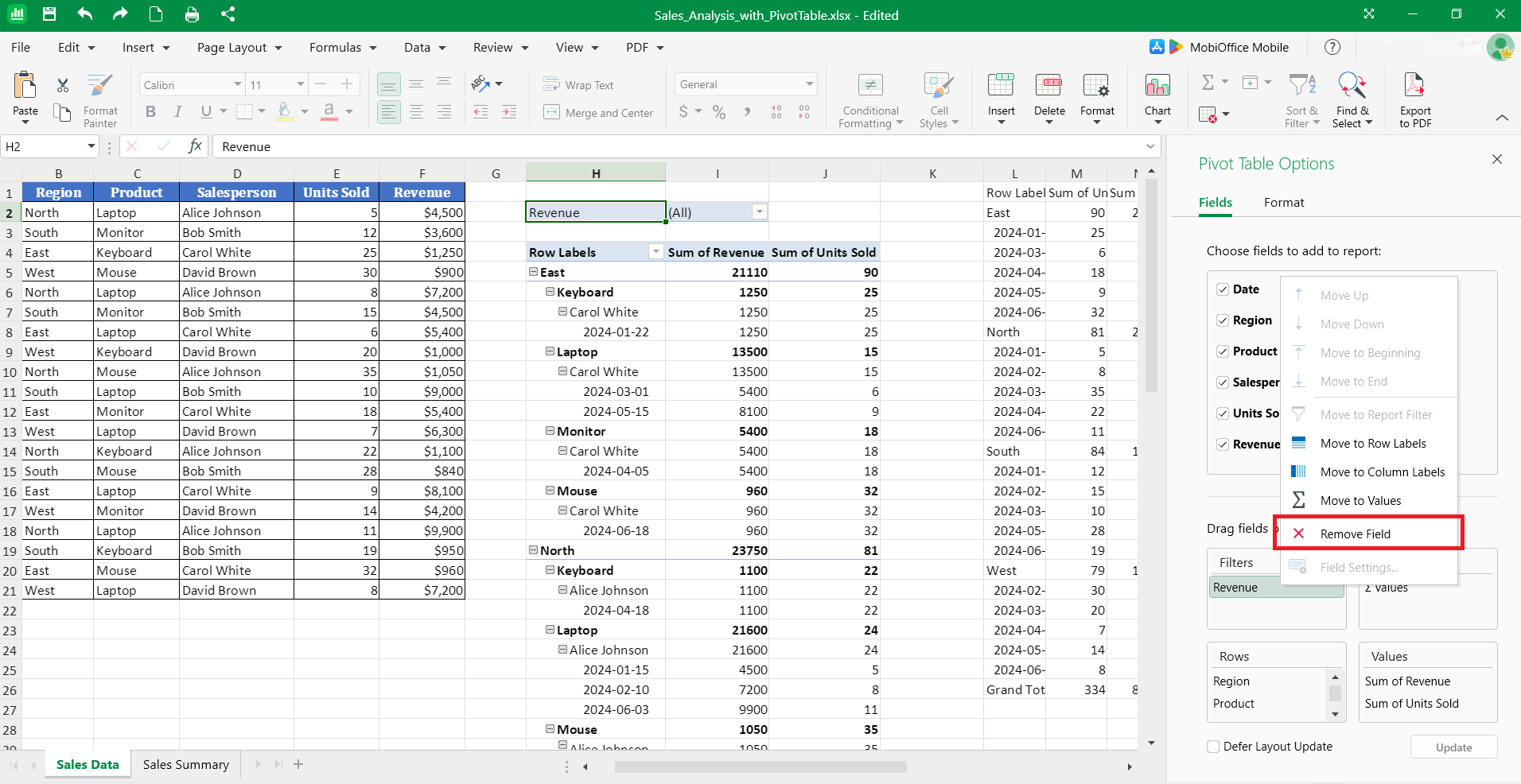
The calculated field disappears from your pivot table immediately. Any values it displayed are removed, and the pivot table adjusts its layout accordingly.
How to delete a field in a pivot table
To delete a field in a pivot table, locate the field in the field list panel, then drag it out of the Filters, Columns, Rows, and Values area. This removes the field from your pivot table display without deleting it from your source data.
Removing fields simplifies your pivot table by focusing on relevant dimensions. You can always add fields back later if needed for different analyses.
Removing row, column, or value fields
Removing row, column, or value fields reshapes your pivot table to focus on different data dimensions. In MobiSheets, the field list panel shows all active fields in the pivot table structure.
Follow these steps:
Right-click on any cell in the pivot table then choose PivotTable Options.
In the Filters, Columns, Rows, and Values section, right-click on the field you want to remove then click Remove.
Alternatively, you can uncheck the field name in the field list.
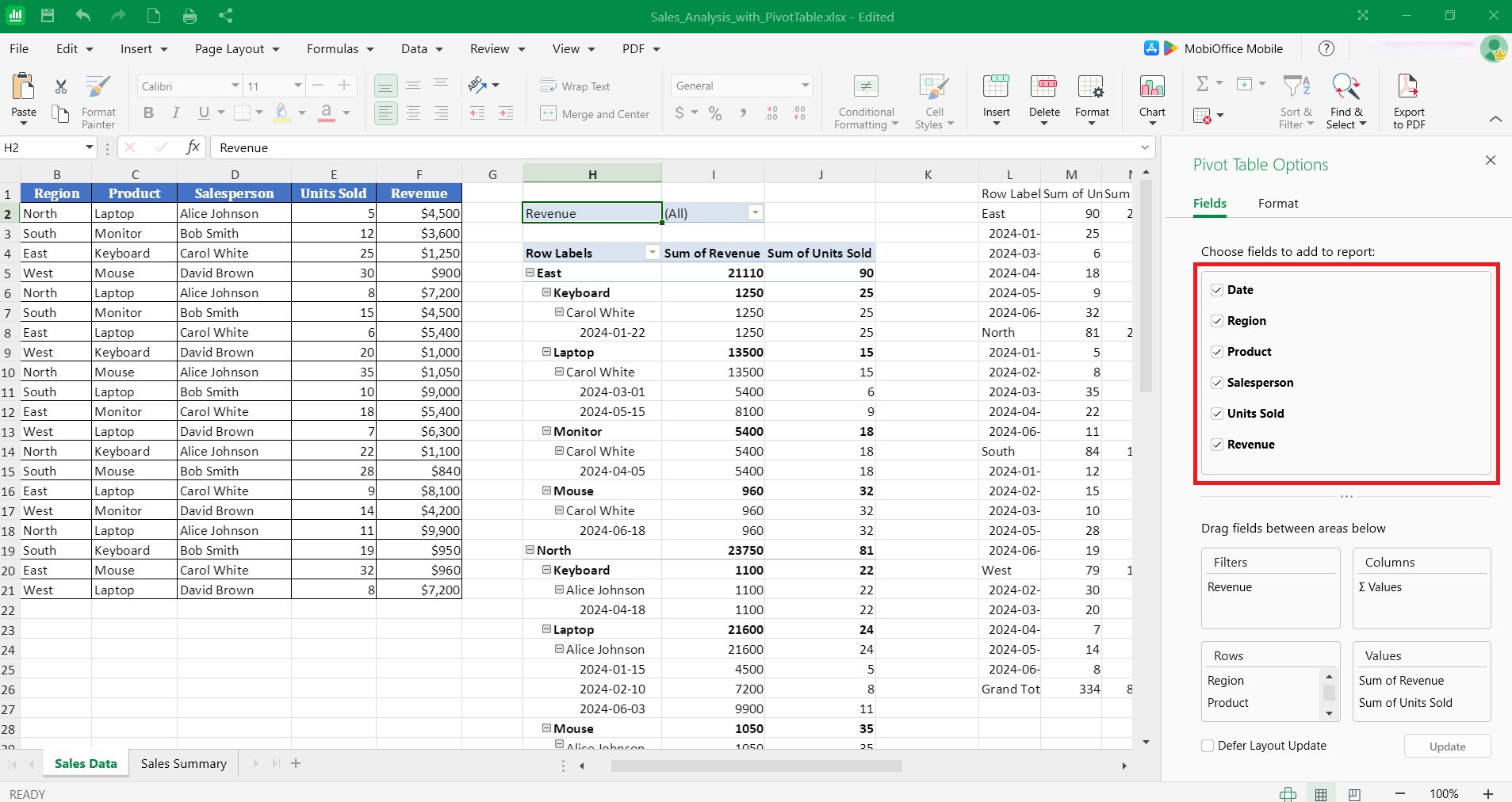
The pivot table immediately updates to remove that dimension. Data reorganizes to reflect the remaining fields.
How to remove filters from a pivot table
To remove filters from a pivot table, locate the filter in the Filters, Columns, Rows, and Values section of the PivotTable Options menu then right-click on the filter and choose Remove Field. This restores the full dataset view without any filtering restrictions.
Filters limit which data appears in your pivot table. Removing them reveals all available data again, which is useful when you need complete visibility or want to start fresh with different filtering criteria.
Clearing or removing pivot table filters
Clearing or removing pivot table filters eliminates that filtering capability entirely.
To remove a filter:
Right-click on any cell in the pivot table then choose PivotTable Options.
In the Filters section, right-click on the filter you want to remove then click Remove.
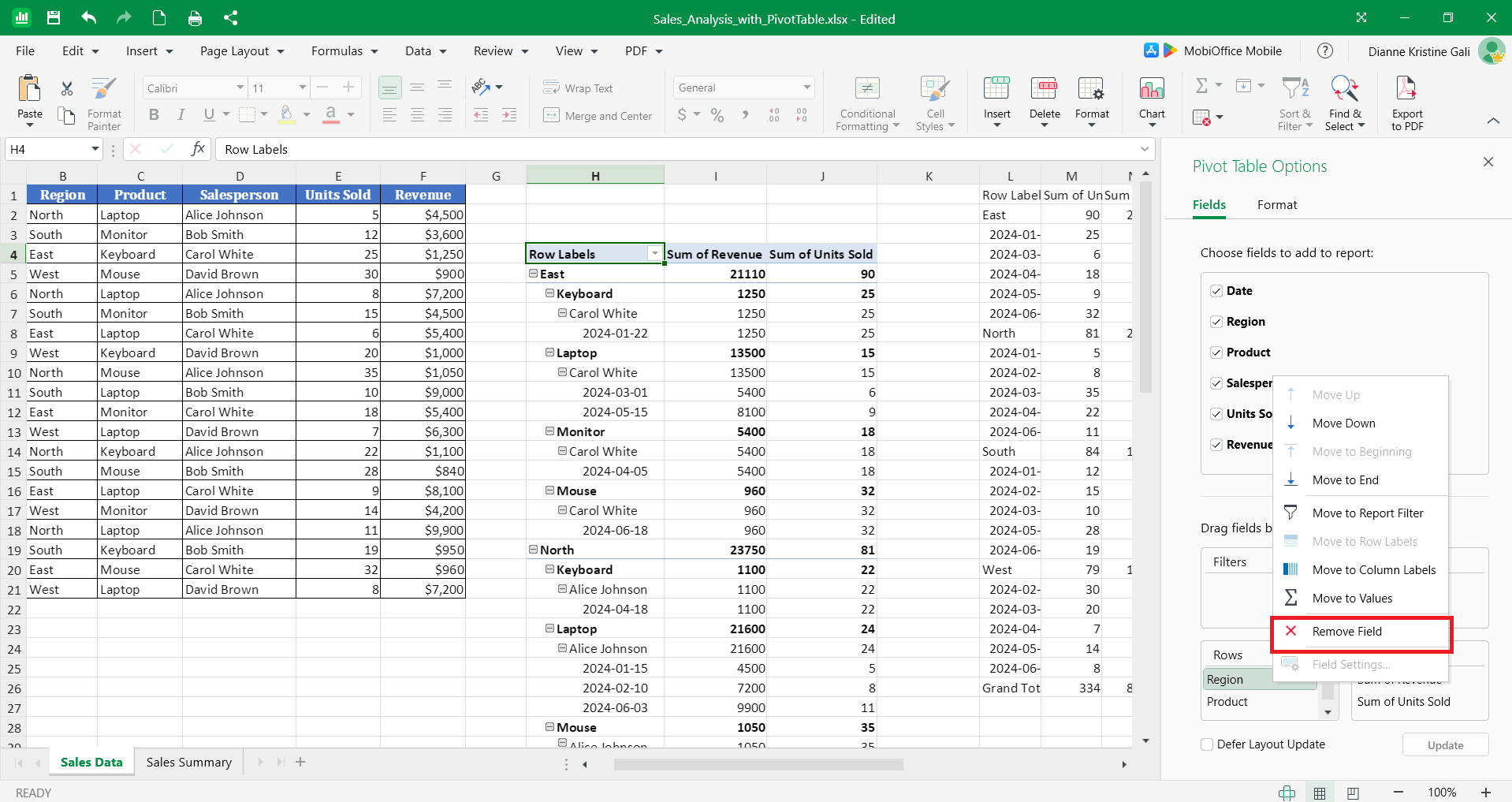
Clearing filters is reversible – you can reapply filters immediately by re-adding them from the field list if you need that filtering capability again.
Frequently asked questions
How do I delete a pivot table in Excel without deleting the source data?
Click any cell in the pivot table, go to the PivotTable tab, and select Delete or Remove PivotTable. This removes only the pivot table object while leaving all source data unchanged in its original location.
How do I remove a pivot table but keep the data?
Select the entire pivot table, copy it, then use Paste Special → Values to convert it to static cells. This preserves the summarized information while removing the dynamic pivot table functionality completely.
How do I delete a calculated field in a pivot table?
Go to the PivotTable tab, click Fields, Items & Sets, select Calculated Field, choose the field you want to remove, and click Delete. The calculated field and its values disappear from the pivot table immediately.
How do I remove a field from a pivot table?
Open the PivotTable Field List panel, locate the field in the Rows, Columns, Values, or Filters section, and drag it out of that area. The pivot table updates instantly to remove that dimension from your analysis.
How do I remove filters from a pivot table?
Click the filter dropdown arrow and select Clear Filter to remove filtering from one field, or go to the PivotTable tab and click Clear → Clear Filters to remove all filters at once. Your pivot table refreshes to show unfiltered data.
Manage pivot tables efficiently with MobiSheets
Understanding how to delete pivot tables, remove fields, and clear filters gives you complete control over your data analysis. Whether you're cleaning up workbooks, converting dynamic tables to static values, or restructuring reports, proper deletion methods prevent data loss and maintain workbook integrity.
MobiSheets provides a modern, Excel-compatible environment for managing pivot tables with familiar workflows and reliable performance. Work offline to keep your data secure, use intuitive controls for faster pivot table management, and maintain complete compatibility with Excel files.
Download MobiSheets to streamline your spreadsheet work with powerful pivot table tools and clean, controlled data handling.