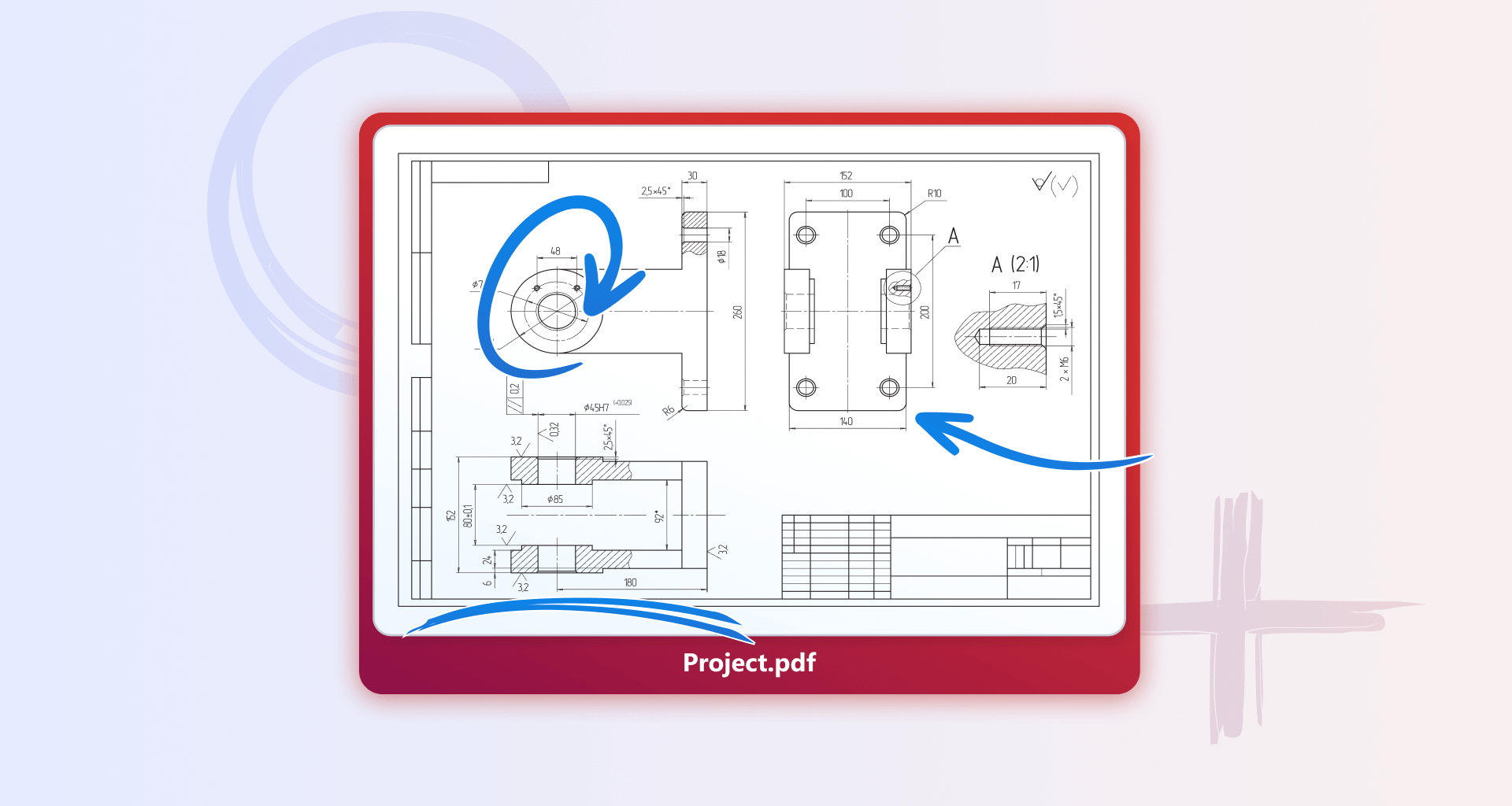
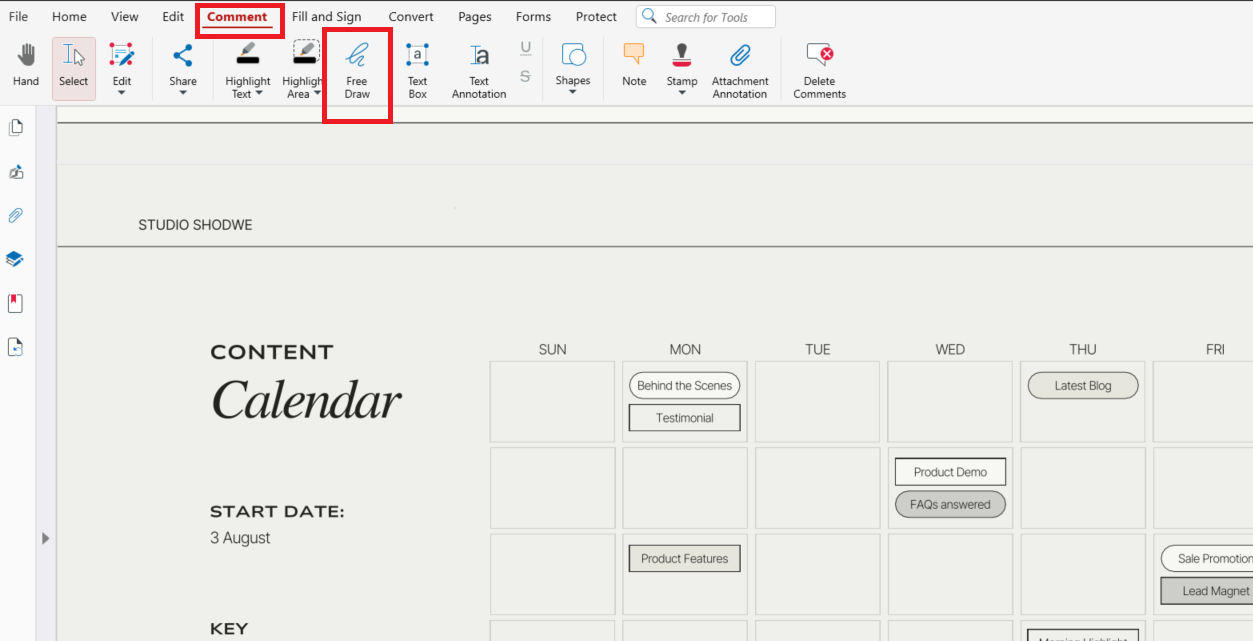
If you have a PDF document you want to draw on, you can do it in seconds: just open it in MobiPDF, go to Comment and click Free Draw.
In the following guide, we've expanded the details about how drawing on a PDF helps you add visual notes, sketch ideas, highlight important sections, or give precise feedback directly on the page. It removes the need for additional design tools and keeps all markup inside the original document. MobiPDF provides a streamlined environment where you can draw, highlight, insert shapes, and customise annotations with intuitive controls. So, let's dive in.
Key takeaways
Drawing on a PDF helps communicate ideas visually and improves collaboration.
MobiPDF supports freehand drawing, highlighting, shapes, and text annotations in one interface.
Customisation options allow precise control over colours, thickness, and opacity.
The workflow is simple, consistent, and suitable for both quick notes and detailed markups.
What drawing on a PDF means
Drawing on a PDF involves adding freehand lines, sketches, or visual marks directly onto the document.
Unlike standard annotations, drawing allows users to express ideas more flexibly by tracing over diagrams, circling important details, or adding handwritten input. It is particularly useful in educational, design, technical, and review of workflows. MobiPDF supports freehand drawing, highlighting, shapes, and text-based annotations, giving users the flexibility to combine visual and written communication within the same document.
How to draw on a PDF using MobiPDF
MobiPDF provides a clear and intuitive workflow for drawing directly on PDFs. The drawing tools are grouped logically, allowing you to switch seamlessly between different styles of markup depending on your needs.
Steps to draw on a PDF with MobiPDF:
Install MobiPDF and open your document.
Go to Comment → Free Draw.
Click anywhere in the document to open a side panel where you choose the properties of your drawing's appearance. You can also fill out your information so it's clear you are the author and/or lock it.
Draw freely in the document.
Save your document. You're done!
This workflow makes sketching and marking documents fast and consistent.
How to highlight or emphasise content with the Highlight tool
In MobiPDF you can highlight text or a whole area, so you can make sure key points are emphasised. To highlight text in MobiPDF, follow the easy steps below.
Steps to highlight in MobiPDF:
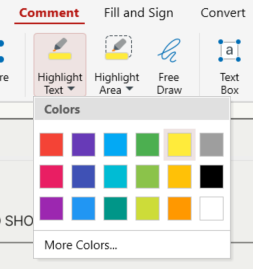
Go to Comment → Highlight text.

Choose a colour for your text.
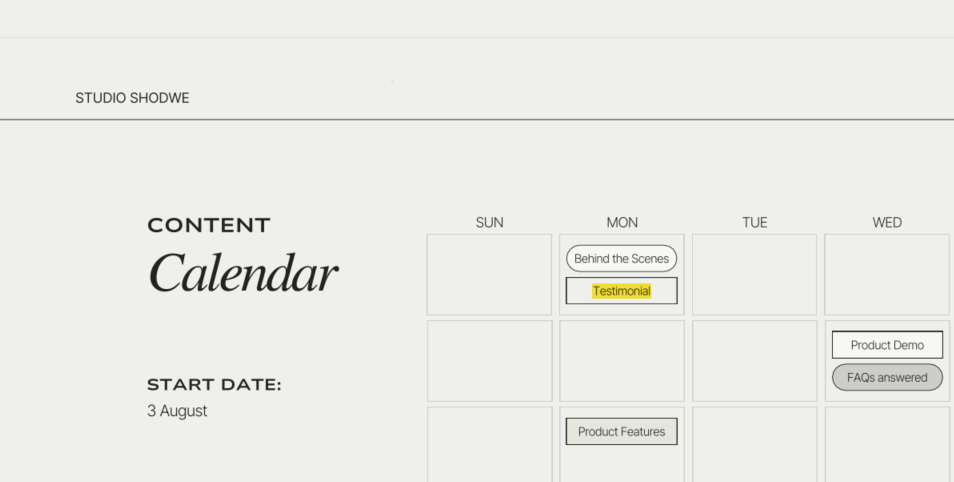
Double-click on the text you want to highlight.
To highlight a whole area in your document, you simply:
Go to Comment → Highlight area
Choose a colour.
Select an area to highlight - it will automatically fill with the colour you've chosen.
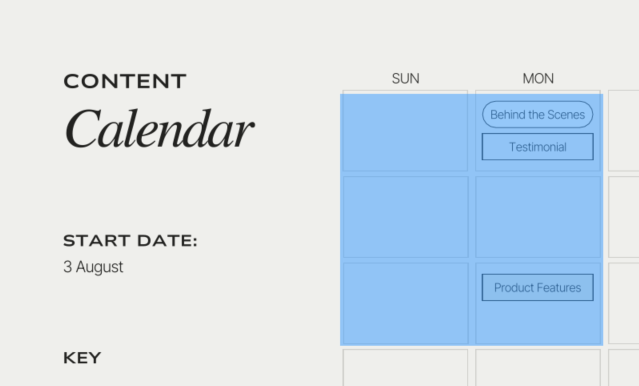

And you're done!
This kind of editing in a document is ideal for study notes, article reviews, and collaborative feedback.
How to add shapes when drawing on a PDF
To add shapes in MobiPDF, open your document, go to Comment and select Shapes.
Shapes provide clean, structured markup that’s ideal for diagrams, technical documents, forms, and presentations. MobiPDF lets you add and customise geometric elements to create clear, precise annotations without relying on external design tools.
Here is how to draw shapes in MobiPDF.
Go to Comment and click on Shapes.
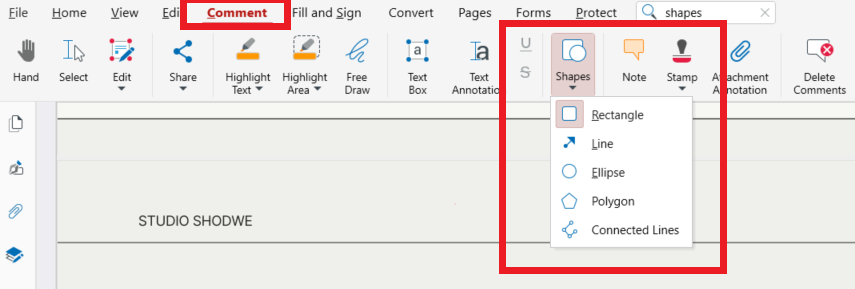
Choose from several options - Rectangle, Line, Ellipse, Polygon, Connected Lines.
Click anywhere to place your shape and then resize it or move it freely in the document.
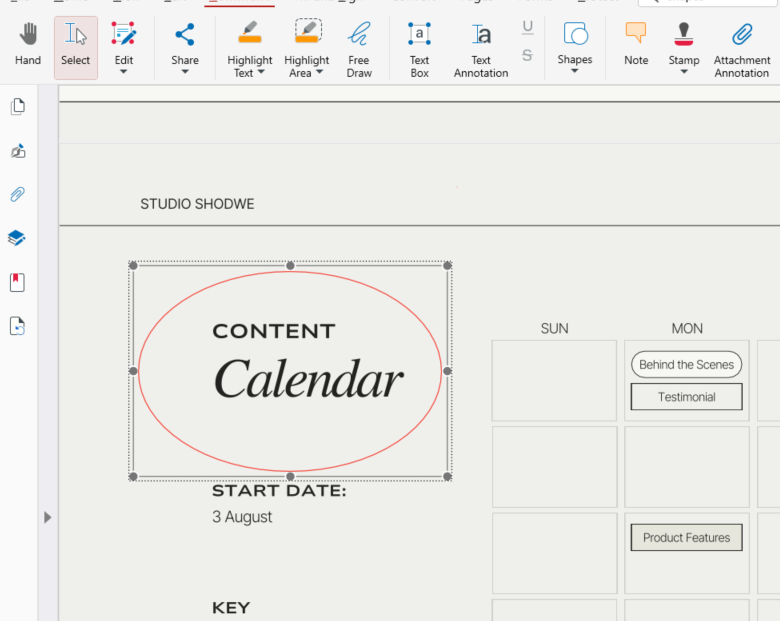
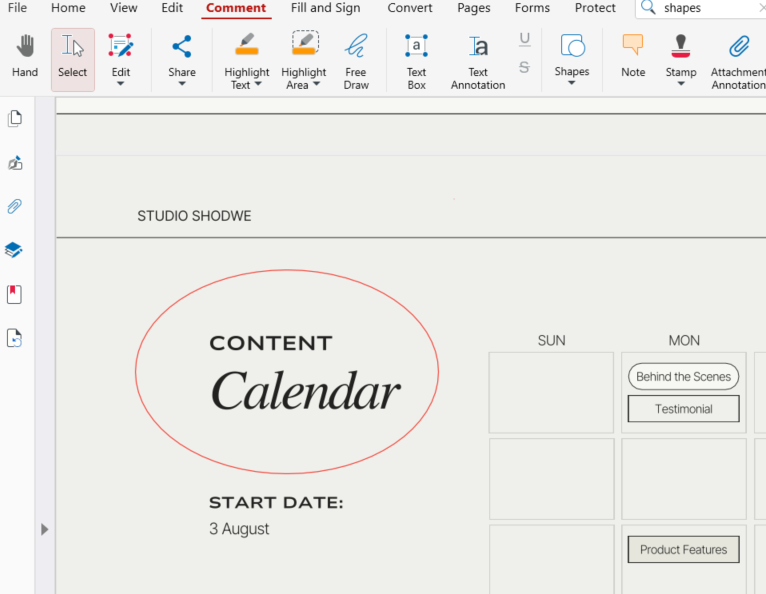
You're done!
Shapes make it easy to indicate areas of interest or build simple visual elements within a PDF.
How to add text annotations when drawing isn’t enough
To quickly add text annotations in MobiPDF, go to Comment and choose Text Annotation.
Text annotations are ideal when handwritten notes aren’t clear enough or when you need structured, readable feedback.
Here are the full steps to add text annotations:
Go to Comment → Text Annotation.
Click anywhere in the document - a box will appear.
Write directly in the box, then move it or change the appearance of your text from the side panel on the right.
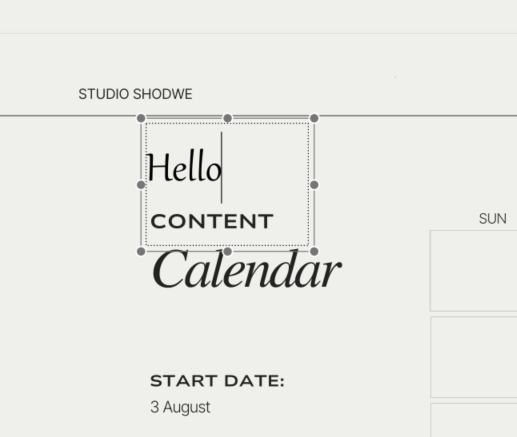
You're done! This is useful for reviews, instructions, or any situation where clarity is essential.
How to customise drawing tools in MobiPDF
Customisation helps users express ideas more clearly. MobiPDF allows fine control over visual attributes such as pen colour, line thickness, and opacity. This ensures that annotations match the style of the document and remain easy to read.
Available customisation options:
Colour selection for pen, shapes, and highlights
Line style for precise or bold strokes
Opacity for subtle or strong markup
Font size and colour for text annotations
These settings help produce professional, consistent visual notes.
Frequently asked questions
Can I draw multiple pages of the same PDF?
Yes. MobiPDF allows drawing on any page, and you can apply different tools on each page independently.
Will drawing on a PDF change the original text?
No. Drawings and annotations are added as separate layers, so they do not alter or overwrite the original document's content.
Can I customise colours, opacity, and line thickness when drawing?
Yes. MobiPDF provides settings for colour, stroke thickness, and opacity, allowing you to personalise every type of annotation.
Can I export a PDF so that drawings become part of the final document?
Yes. MobiPDF allows exporting a version where all drawings and annotations are flattened into the PDF for consistent viewing.
Conclusion
Drawing on a PDF helps communicate visually, highlight key information, and enhance collaboration. MobiPDF brings all essential drawing tools into one streamlined interface, offering freehand input, shapes, highlighting, and text annotations with full customisation.