
To start a new line in an Excel cell, double-click the cell, click where you want the break and press Alt+Enter on Windows or Control+Option+Return on a Mac. On an iPhone, iPad or Android device, tap and hold in the cell and choose New Line. Press Enter only when you have finished typing.
How to start a new line in an Excel cell
In Microsoft Excel on Windows, you start a new line in a cell by entering edit mode and pressing Alt+Enter where you want the break. Pressing Enter on its own confirms the entry and moves you to the cell below, so a line break needs its own shortcut.
Double-click the cell, or select it and press F2.
Click where you want the line to break.
Press Alt+Enter.
Type the next line, then press Enter to finish.
Excel turns on Wrap Text for the cell when you add a line break this way. Both lines usually show right away. If the second line is missing or looks cut off, the row is too short, and the fixes section below covers it.
Press Alt+Enter again for every extra line. One cell can hold a short address, a list of names, or a note with several points, all without spilling into the next column. Line breaks work together with alignment, borders, and the other options in our guide to formatting cells and data entry.
New line in a cell on Mac, the web, iPhone, iPad and Android
On phones and tablets there is no shortcut: you tap and hold where the break goes and choose New Line. Microsoft’s Mac shortcut list also gives Option+Return for a new line in the same cell. Here is the method for each device.
Want to try the same steps in a Microsoft Office alternative? MobiSheets works with Excel files on Windows, Mac, and mobile.
Line break vs Wrap Text
A line break puts the break exactly where you choose, while Wrap Text breaks lines wherever the column ends. Microsoft treats them as two separate options, and each fits a different job.
Use a line break when the layout matters: an address on three lines, one item per line, or a label above a value.
Use Wrap Text when you only need long text to stay inside the column and don’t mind where each line ends. You’ll find it under Home > Wrap Text.
The difference shows when you resize the column. Wrapped text reflows to the new width, while a line break stays where you put it. You can also combine them: a cell with manual line breaks needs Wrap Text on to display every line.
How to add a line break in a formula
To add a line break in a formula, join the pieces with CHAR(10), the line feed character, and turn on Wrap Text for the cell. Without Wrap Text, the break is in the cell, but you see the text on one line. This helps when you combine data from several columns, for example to build mailing labels or contact cards from a list.
Say column A holds a name, column B a street, and column C a city. This formula builds a three-line address in one cell:
=A2&CHAR(10)&B2&CHAR(10)&C2
With Wrap Text on, the cell shows:
Maria Lopez
14 Harbor Street
Springfield
For a longer range, TEXTJOIN is shorter to write:
=TEXTJOIN(CHAR(10),TRUE,A2:C2)
The TRUE argument skips empty cells, so a missing street doesn’t leave a blank line. TEXTJOIN works in Excel 2019 and Microsoft 365, on Windows and Mac. In Excel on Mac, CHAR(10) works the same way.
If the formula returns an error instead of text, our explainer on the #VALUE! error walks through the usual causes.
How to remove line breaks
To remove line breaks, replace the line feed character with a space, either with Find & Replace or with the SUBSTITUTE function. You’ll need this most after importing data, when each line of an address lands in one cell.
With Find & Replace:
Select the cells you want to clean.
Press Ctrl+H.
Click the Find what box and press Ctrl+J. The box looks empty, but it now holds the line break.
In the Replace with box, type a space.
Click Replace All.
With a formula: =SUBSTITUTE(A2,CHAR(10)," ") returns the text of A2 on one line and leaves the original cell as it is.
Imported data often needs more than one cleanup step. Once each record sits on one line, it’s easier to spot and remove duplicate rows.
New line not working? Fixes
If a new line in a cell doesn’t work, you are usually not in edit mode, or the break is there but hidden. Here are the fixes for the most common cases.
Alt+Enter moves to the next cell. You’re not in edit mode yet. Double-click the cell or press F2 first, then press Alt+Enter.
The break is there, but you only see one line. Turn on Wrap Text under Home > Wrap Text. Then fit the row to the text with Home > Format > AutoFit Row Height.
The second line is cut off. The row has a fixed height. Use AutoFit Row Height as above, or drag the bottom border of the row down until every line shows.
The Mac shortcut does nothing. Alt+Enter is the Windows shortcut. In Excel on Mac, double-click the cell and press Control+Option+Return.
The formula shows no break. Wrap Text is off for that cell. Turn it on, and the CHAR(10) breaks appear.
Shift+Enter moves up instead of adding a line. That’s expected: Shift+Enter completes the entry and selects the cell above. Use Alt+Enter for the next line in a cell.
New Line doesn’t appear on an iPhone or iPad. Tap the keyboard toggle to open the numeric keyboard first, then tap and hold where you want the break.
Alternative: MobiSheets
MobiSheets is the spreadsheet app in MobiOffice, a Microsoft Office alternative that works with Excel files. On Windows, the shortcut is the same as in Excel:
Open your spreadsheet in MobiSheets and double-click the cell.
Click where you want the line to break.
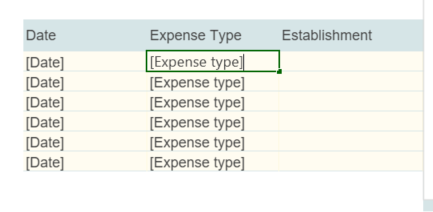
Press Alt+Enter, type the next line, and press Enter to finish.
MobiSheets turns on Wrap Text for the cell and makes the row taller, so both lines show right away. You’ll also find Wrap Text on the ribbon, next to Merge and Center.
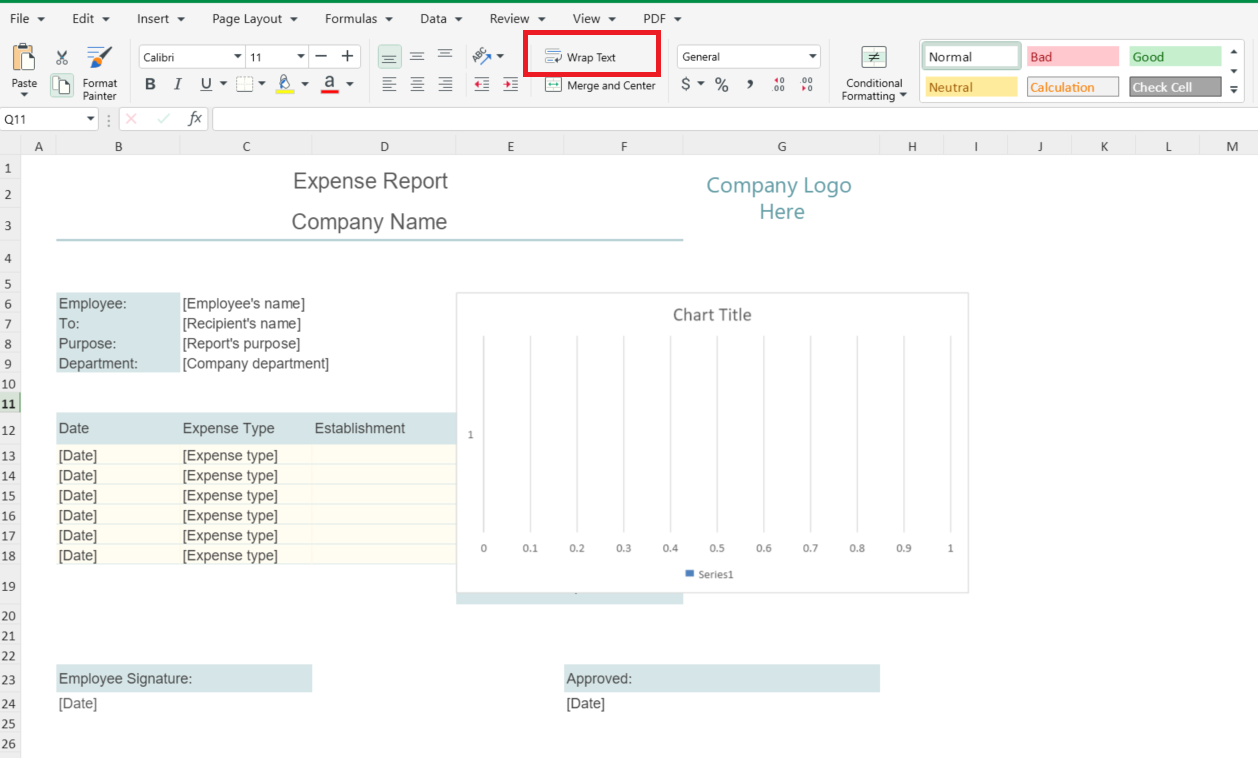
If you build cell text with formulas, our guide to formulas and functions shows how to enter them in MobiSheets.
Ready to see how it handles your own spreadsheets? Get MobiOffice on your device.
Frequently asked questions
Double-click the cell, or select it and press F2, to enter edit mode. Click where you want the break and press Alt+Enter on Windows or Control+Option+Return on a Mac. Type the next line and press Enter when you’ve finished.
The shortcut is Control+Option+Return. Double-click the cell first, click where you want the break, then press the keys. Microsoft’s shortcut list for Excel on Mac also gives Option+Return for a new line in the same cell.
Usually, the cell isn’t in edit mode, so Alt+Enter acts like Enter and moves on. Double-click the cell or press F2 first. If the break is there but you can’t see it, turn on Wrap Text and AutoFit the row height.
Join the text with CHAR(10), for example =A2&CHAR(10)&B2, or use TEXTJOIN with CHAR(10) as the delimiter for a range. Turn on Wrap Text for the cell, or the break won’t show.
Select the cells and press Ctrl+H. In the Find what box, press Ctrl+J, type a space in the Replace with box, and click Replace All. With a formula, =SUBSTITUTE(A2,CHAR(10)," ") returns the text on one line.
Tap the keyboard toggle to open the numeric keyboard. Then tap and hold where you want the line break and tap New Line in the menu that appears. Keep typing on the new line and tap outside the cell when you’ve finished.
Final thoughts
A new line in an Excel cell takes one shortcut: Alt+Enter on Windows and the web, or Control+Option+Return on a Mac, after you double-click the cell. On phones and tablets, tap and hold, then choose New Line. For text built with formulas, use CHAR(10) with Wrap Text on, and when imported data arrives full of breaks, Find & Replace or SUBSTITUTE puts it back on one line.
If you’d like a spreadsheet app with Wrap Text right on the ribbon, MobiSheets is part of MobiOffice.