
This article was updated on March 4, 2026
Pivot tables help you turn raw data into structured, meaningful reports. They allow you to summarize, compare, and analyze information in seconds, without complex formulas. Why? Well, spreadsheets are powerful tools, but large datasets can quickly become overwhelming. Rows of numbers rarely provide clear answers on their own.
In this guide, you’ll learn what pivot tables are, why they matter, how they work, and how to create them using MobiSheets.
What is a Pivot table?
A pivot table is a spreadsheet feature that summarizes and reorganizes large amounts of data into clear reports. Whether you’re preparing business reports, tracking expenses, or studying trends, pivot tables help you work faster and more accurately.
Pivot tables let you:
Group data by category
Calculate totals, averages, and counts
Compare values across multiple dimensions
Rearrange reports instantly
Your original data remains unchanged.
Why are pivot tables important?
Pivot tables save time, reduce errors, and improve decision-making. They are especially useful for business professionals, analysts, students, and anyone working with large datasets.
They help you:
Create reports in minutes
Reduce manual calculations
Spot trends and patterns
Improve data accuracy
Present information clearly
What problems do pivot tables solve in spreadsheets?
Information overload
Large spreadsheets are difficult to read. Pivot tables condense thousands of rows into clear summaries.
Manual calculations
Formulas can be time-consuming and error-prone. Pivot tables automate calculations.
Limited data visibility
You can view the same data from multiple perspectives without duplicating sheets.
Slow reporting
Pivot tables let you change report layouts instantly.
How do pivot tables work?
Pivot tables organize your data into four main areas.
Rows
These define what appears vertically, such as products or dates.
Columns
These organize information horizontally, like regions or categories.
Values
This area contains calculations, including sum, average, count, and percentage.
Filters
Filters let you focus on specific parts of your dataset.
How data is processed
When you create a pivot table, the spreadsheet:
Reads your source data
Groups similar values
Applies calculations
Displays the summary
The original dataset is never modified.
How to create a Pivot table (step-by-step)
Creating pivot tables in MobiSheets is simple.
Step 1: Open the Insert menu
Open your spreadsheet in MobiSheets.
Select any cell within the data range you want to analyze.
From the top menu, click Insert.
Choose PivotTable from the dropdown menu.
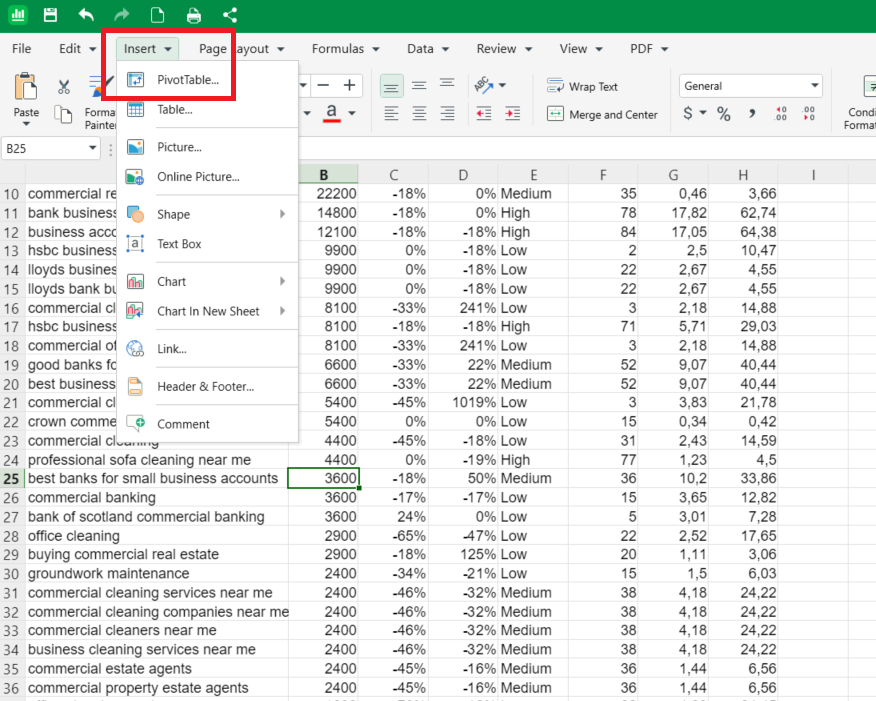
Step 2: Select the data source
In the Insert PivotTable dialog, locate the Table/Range field.
Confirm that the correct cell range is selected (for example, Sheet1!$A$1:$Y$78). If needed, manually adjust the range or select it directly from the sheet.
Step 3: Choose where to place the Pivot Table
Under Destination, choose one of the following:
a. New Worksheet – places the Pivot Table on a separate sheet.
b. Existing Worksheet – places the Pivot Table in the current sheet.
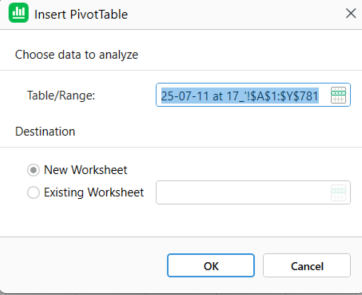
Click OK to create the Pivot Table.
Step 4: Build the Pivot Table layout
A blank Pivot Table placeholder appears in the worksheet.
The Pivot Table Options panel opens automatically on the right.
Step 5: Add fields to the Pivot Table
In the Fields list, select the columns you want to include (for example: Keyword, Avg. monthly searches, Three month change).
Drag and drop fields into the appropriate areas:
Rows – displays data as row labels.
Columns – displays data as column headers.
Values – applies calculations such as Sum or Count.
Filters – allows filtering the Pivot Table data.
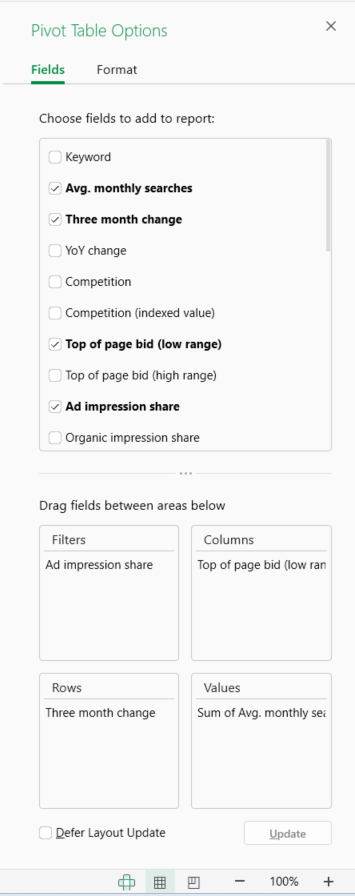
If Defer Layout Update is enabled, click Update to apply the changes.
Step 6: Review the Pivot Table results
The Pivot Table updates automatically based on the selected fields and layout.
Aggregated values (such as sums or averages) appear in the table, grouped by your chosen row and column fields.
After that, you can adjust your Pivot table and save your document.
Common use cases for Pivot Tables
Pivot tables are used across many fields.
Business and sales
Revenue reports
Performance tracking
Customer analysis
Finance
Budget summaries
Expense tracking
Profit analysis
Marketing
Campaign evaluation
Traffic reports
Lead analysis
Education
Survey analysis
Test results
Research data
Personal use
Household budgets
Travel planning
Event management
Pivot Tables vs spreadsheet formulas
Pivot tables and formulas both analyze data, but they serve different purposes. Here’s a table where you can easily see the differences.
Feature
Pivot Tables
Formulas
Setup
Visual
Manual
Speed
Fast
Slower
Flexibility
High
Limited
Error Risk
Low
Higher
Best Use
Reports
Custom logic
When to use each
Use pivot tables for summaries and reports. Use formulas for custom calculations. Many users combine both for best results.
Best practices when working with Pivot Tables
Follow these tips to improve accuracy and performance.
Keep source data clean
Use clear column headers
Refresh data regularly
Avoid merged cells
Save templates for recurring reports
These habits prevent errors and save time.
Common Pivot Table issues and how to fix them
Not updating
Refresh the pivot table after changing data.
Incorrect totals
Check value field settings and formats.
Missing rows
Verify the source range includes all data.
Duplicate results
Remove duplicates from the dataset.
Slow performance
Limit unnecessary fields and filters.
Frequently asked questions
What is a pivot table used for?
A pivot table is used to summarize and analyze large datasets quickly. It helps you group data, calculate totals or averages, and compare values without manually sorting or writing complex formulas.
Are pivot tables difficult for beginners?
No, pivot tables are beginner-friendly. Most spreadsheet tools use a visual, drag-and-drop interface that makes it easy to build basic reports with minimal learning.
Do pivot tables update automatically?
Pivot tables usually need to be refreshed to reflect changes in the source data. This ensures your summaries and calculations stay accurate after updates.
Can you create multiple pivot tables from one dataset?
Yes, you can create multiple pivot tables from the same dataset. This allows you to analyze the same data in different ways without duplicating it.
What’s the difference between pivot tables and spreadsheet formulas?
Pivot tables are designed for fast summaries and reporting, while formulas are used for custom, cell-level calculations. Many users combine both for more advanced analysis.
Are pivot tables suitable for large datasets?
Yes, pivot tables are built to handle large datasets efficiently. They summarize data instead of displaying every row, which improves performance and readability.
Can pivot tables be used for dashboards?
Yes, pivot tables are commonly used in reports and dashboards. They provide dynamic summaries that can be filtered, updated, and visualized with charts.
Analyze data faster with MobiSheets
Pivot tables help you turn complex spreadsheets into actionable insights. With MobiSheets, you can easily create, customize, and manage pivot tables across devices.