You probably don't need any convincing when it comes to the benefits of using cloud services. After all, they are all around us already – from popular video streaming services like YouTube to on-demand music apps like Spotify, smart car and home systems, and everything in between, it's clear that cloud tech is the way to go.
But what if you were to get cloud storage for work or even for personal files like your latest ad-hoc iPhone vacation photoshoot? Well, you're still in good company as there are dozens of brands that offer you free storage space, but then there's the problem of which one to choose.
While on our blog you will find other articles that offer deep dives into all the cloud storage options out there, today we are going to be focusing on our proprietary cloud storage solution – MobiDrive.
So, what is MobiDrive and how can you use it in your day-to-day and business life? Let's find out!
What exactly is MobiDrive?
Initially introduced as a web service in 2018 under the name MobiSystems Web Drive, in 2021 MobiDrive also became available on Windows, iOS, and Android. Blazing-fast, simple to use, and offering decent free storage and affordable upgrade plans, it aims to provide users with a sensible alternative to the rather bloated Google Drive and Microsoft OneDrive ecosystems.
But while the 20 GB of free storage and seamless cross-platform support are great things to have, those are far from MobiDrive's only selling points. For you see, the original idea for the cloud service was never to compete with other providers directly but to ensure a seamless user experience between MobiSystems' other available flagship products – MobiOffice and MobiPDF.
While we will briefly touch on these cross-product features, this is a whole other topic that we will cover in another article, so for the sake of brevity, let's take a look at what the standout features of MobiDrive are and whether they would be enough for you to make it your daily driver (pun most certainly intended).
The core MobiDrive features at a glance
Why should you go for MobiDrive if services like Google Drive already exist? Well, as we mentioned before, there's more to our cloud offering than mere storage as it also offers deep integrations with all existing MobiSystems products and some innovative features like a built-in file converter.
To gauge if this cloud service is right for your workflow, here is where MobiDrive truly shines:
Ample free storage: every new account gets 20 GB of free cloud storage with no strings attached, which is 5 GB more than most services out there are willing to provide, Google included.
File synchronization: with MobiDrive, you can effortlessly sync all your data across multiple devices – Windows, iOS, and Android – and access your files at any time through any browser.
Version history: MobiDrive will keep a copy of your original file, so even if you make any changes and it uploads the new version, you will still be able to download the old version if you want to.
Built-in file converter (mobile-only feature): instantly convert to 1200+ file formats right from within MobiDrive.
Reliable cloud backups: simply select which folders you want MobiDrive to access and sit back as the app timely updates your backups to ensure you always have a copy of your important files.
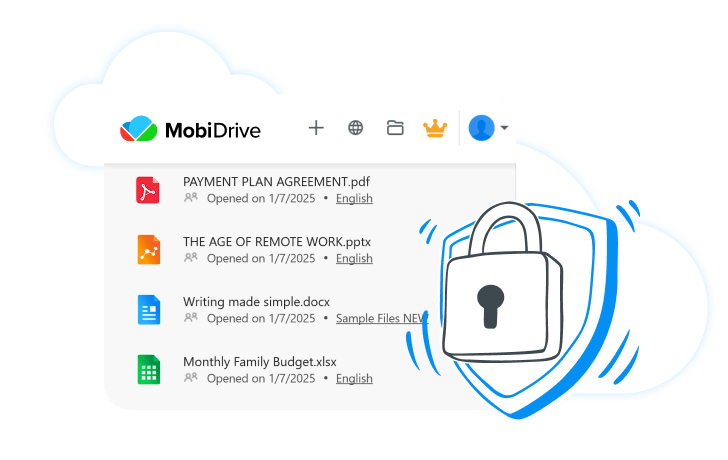
Secure service: share files as read-only links over an encrypted connection or mark everything as private for ultimate peace of mind.
Deep cross-product integration: upload, autosave, and open files directly in any of the MobiOffice apps (Sheets, Slides, Docs), and MobiPDF.
Work on files even offline (mobile-only feature): select any file and enable Available Offline to use them even without an internet connection.
Getting started with MobiDrive
How to create a free MobiSystems account
In our more than 20 years of developing products, the goal of making them as simple to use as possible never really changed. MobiDrive is no exception here – all you need to do to start using it without restrictions is create a free account by following the simple steps outlined below.
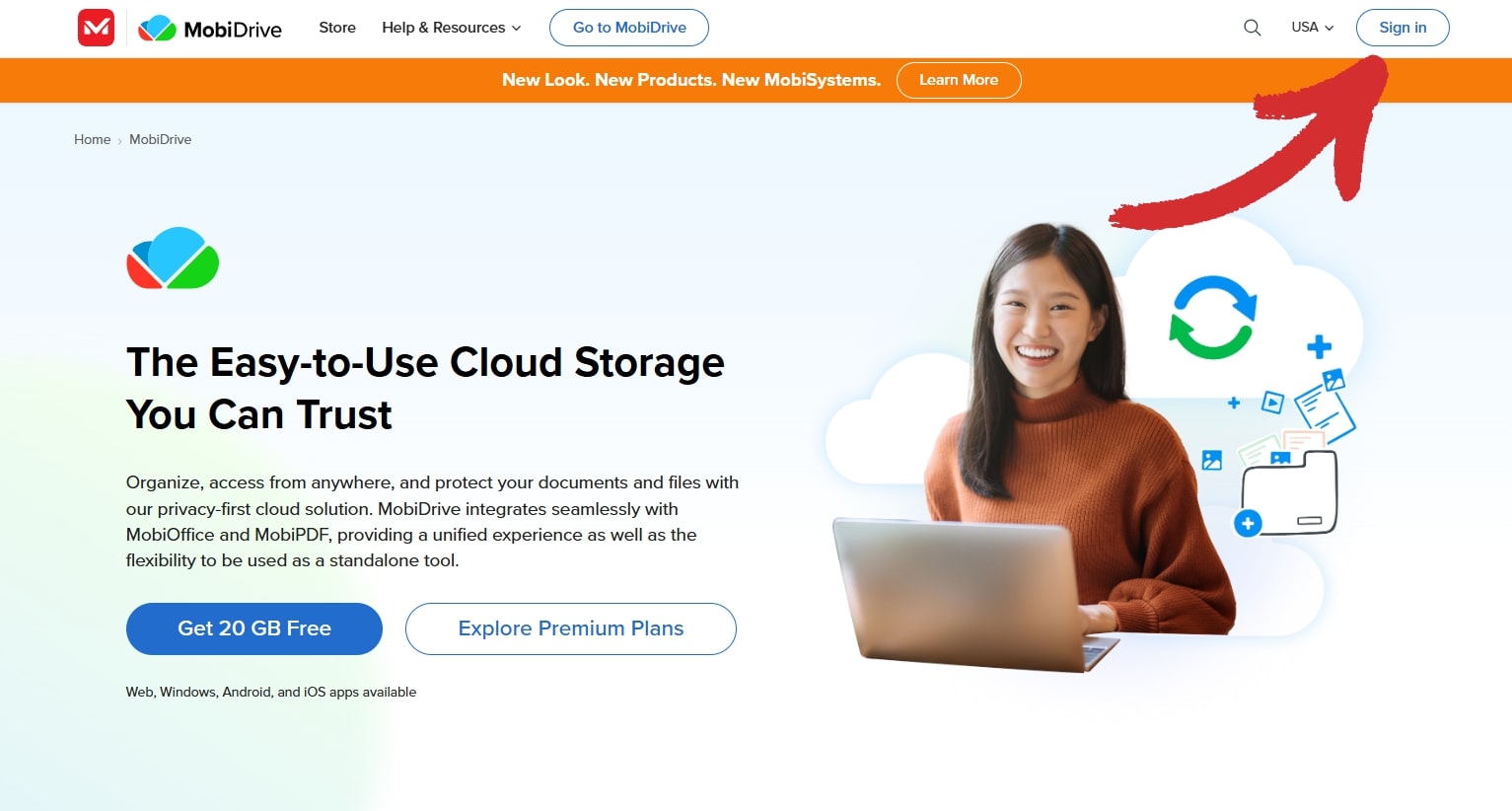
Visit our official website or the MobiDrive home page.
Click Sign in in the top right corner.
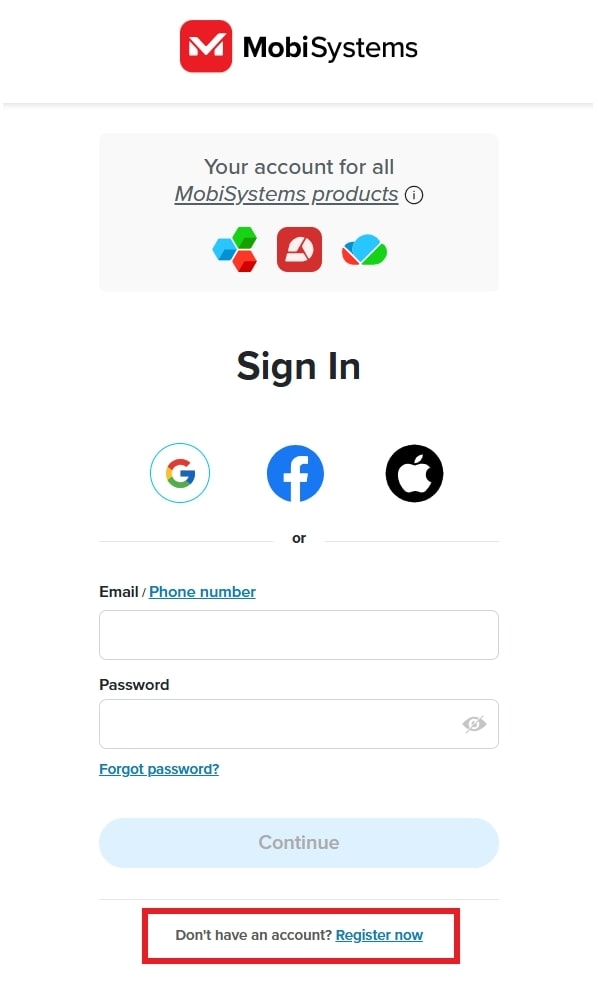
3. Click on the blue Register now link at the bottom to create an account. Alternatively, you can also log in with an existing Google, Facebook, or Apple account.
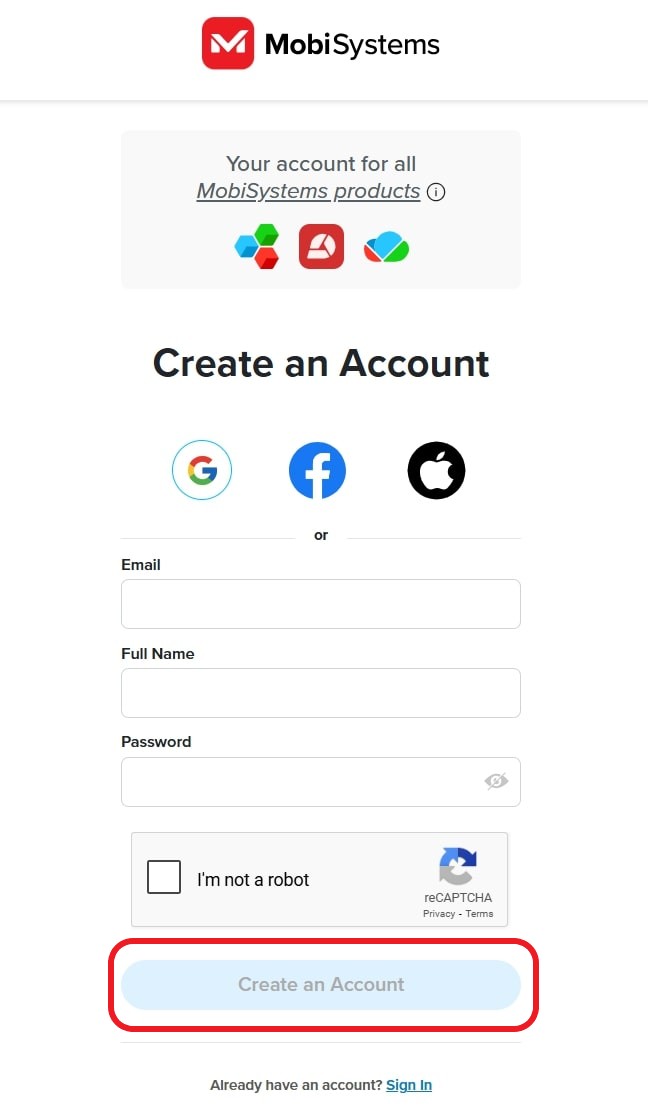
4. Fill in your account credentials, tick the I'm not a robot verification, and click Create an Account.
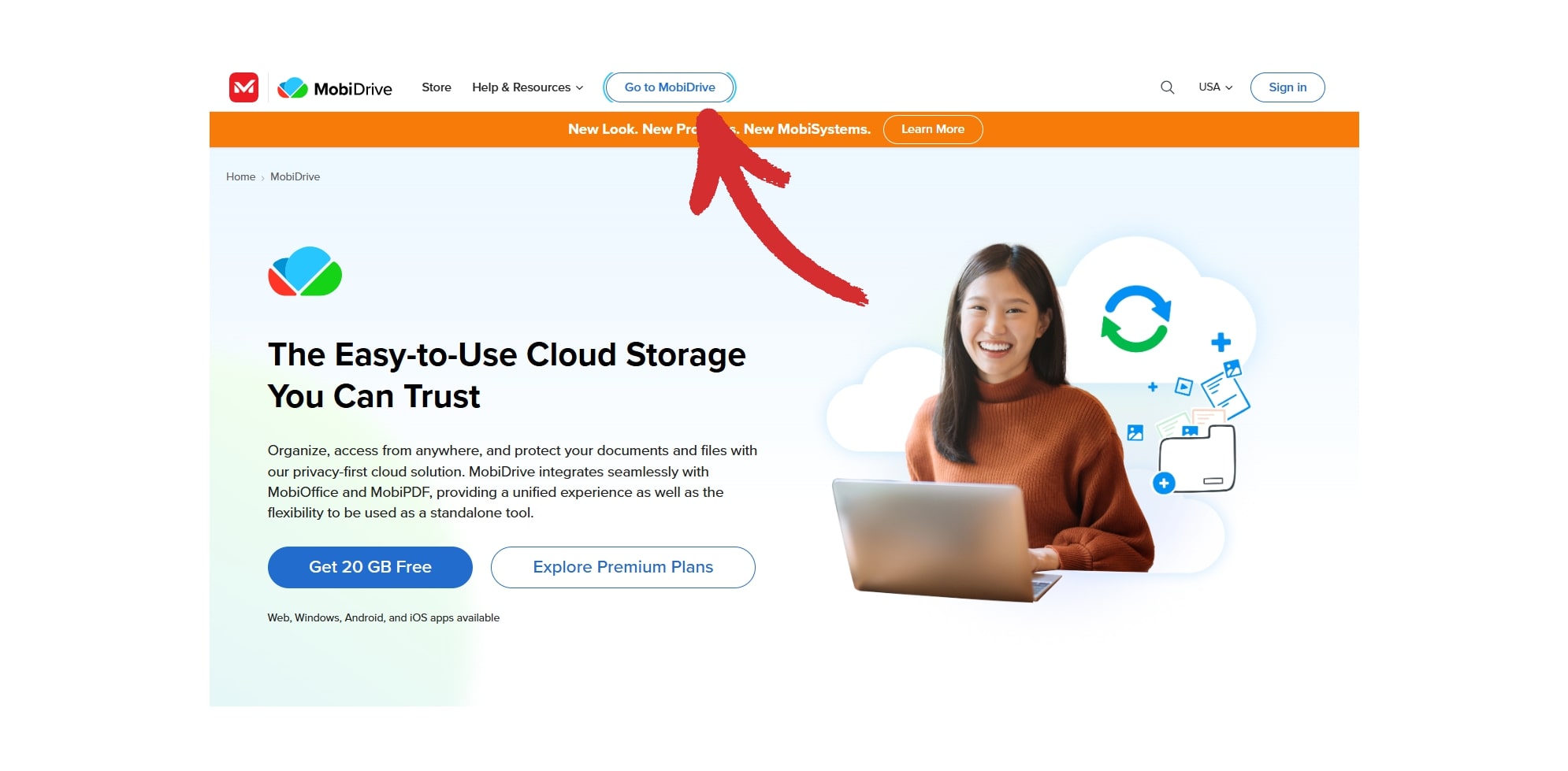
5. Return to the MobiDrive web page and click Go to MobiDrive.
6. Type your credentials to immediately take advantage of your 20 GB of free cloud storage!
Top four MobiDrive features to try as a new user
While not as overwhelming as Google Drive, OneDrive, or any other popular cloud storage providers, MobiDrive does have quite a few features, so it helps to know where to start. Here are the top 4 features you'll likely want to integrate into your workflow from day one, featured in no particular order.
1. Quickly edit office files and images
Remember when we talked how deeply MobiDrive integrates with our other apps? While the cloud service itself lacks any editing capabilities, you can easily get to work by double-clicking on any document, presentation, spreadsheet, image, or PDF file, make your changes with the associated app, and then save the new version right within MobiDrive – simple as that!
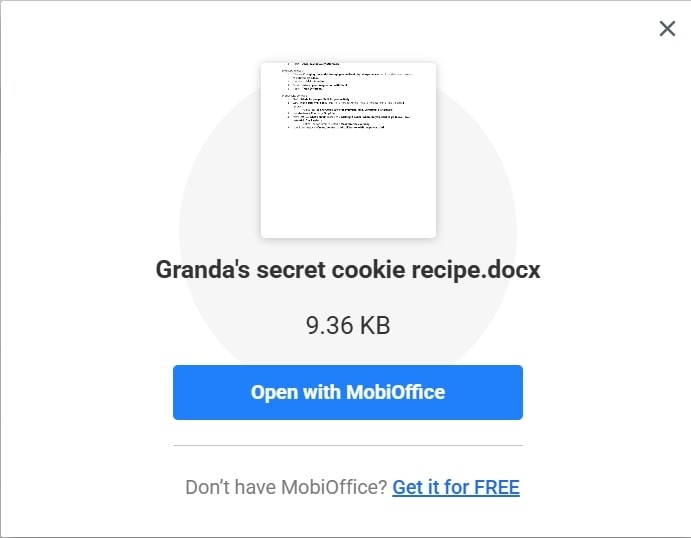
Here are the apps that MobiDrive will open by default, depending on the type of file you work on:
DOCX and all related file formats → opens MobiDocs, part of MobiOffice
XLSX and all related file formats → opens MobiSheets, part of MobiOffice
PPTX and all related file formats → opens MobiSlides, part of MobiOffice
PDF files → opens MobiPDF, an all-in-one PDF editor, page organizer, and converter.
2. Convert files with MobiDrive
Need to turn a PDF into an image or a Word file into a presentation? Instead of wasting time trying third-party apps, you can get the job done right from within MobiDrive.
Here is how it's done on Android and iOS.
How to convert files with MobiDrive for Android
Tap the hamburger menu in the top left.
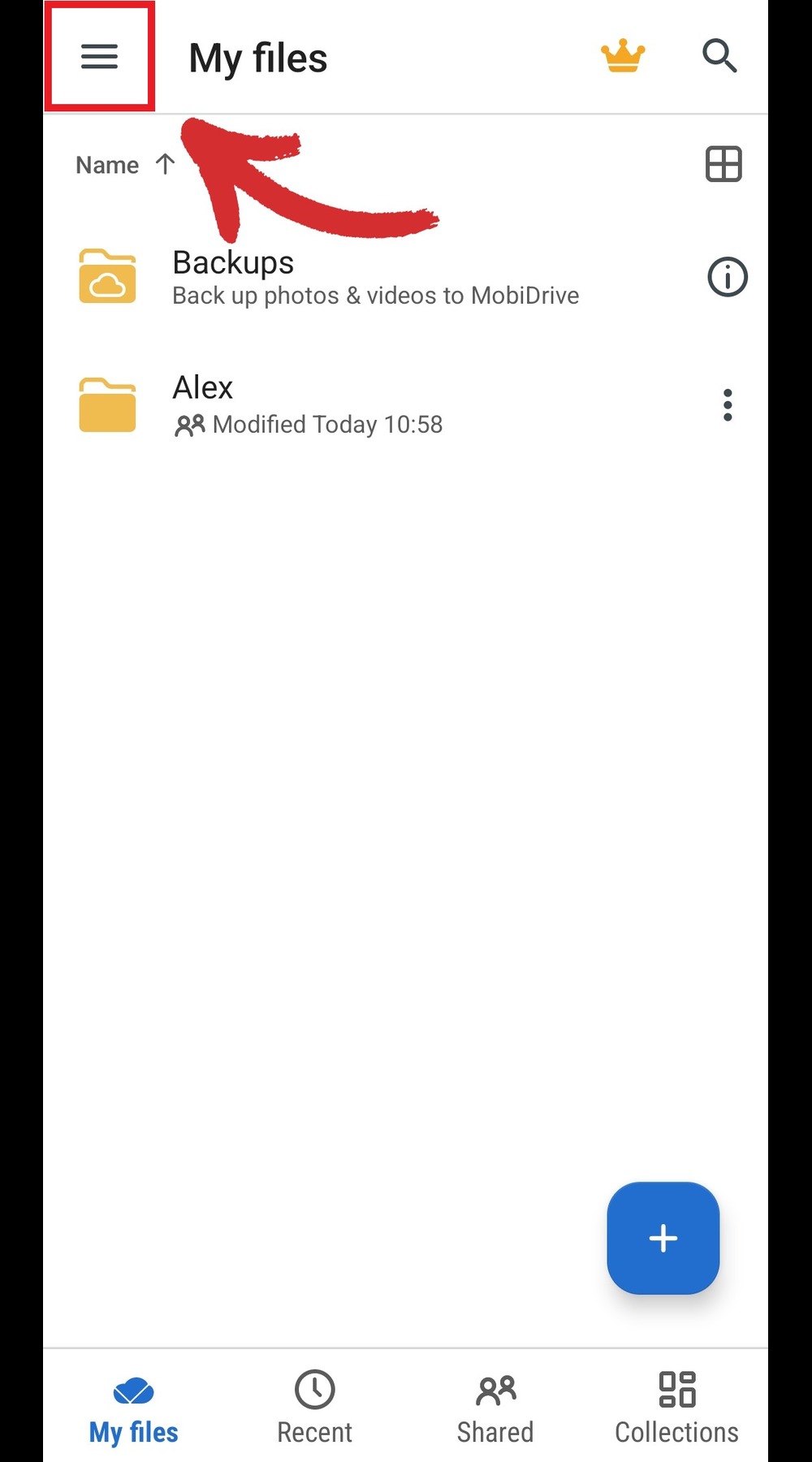
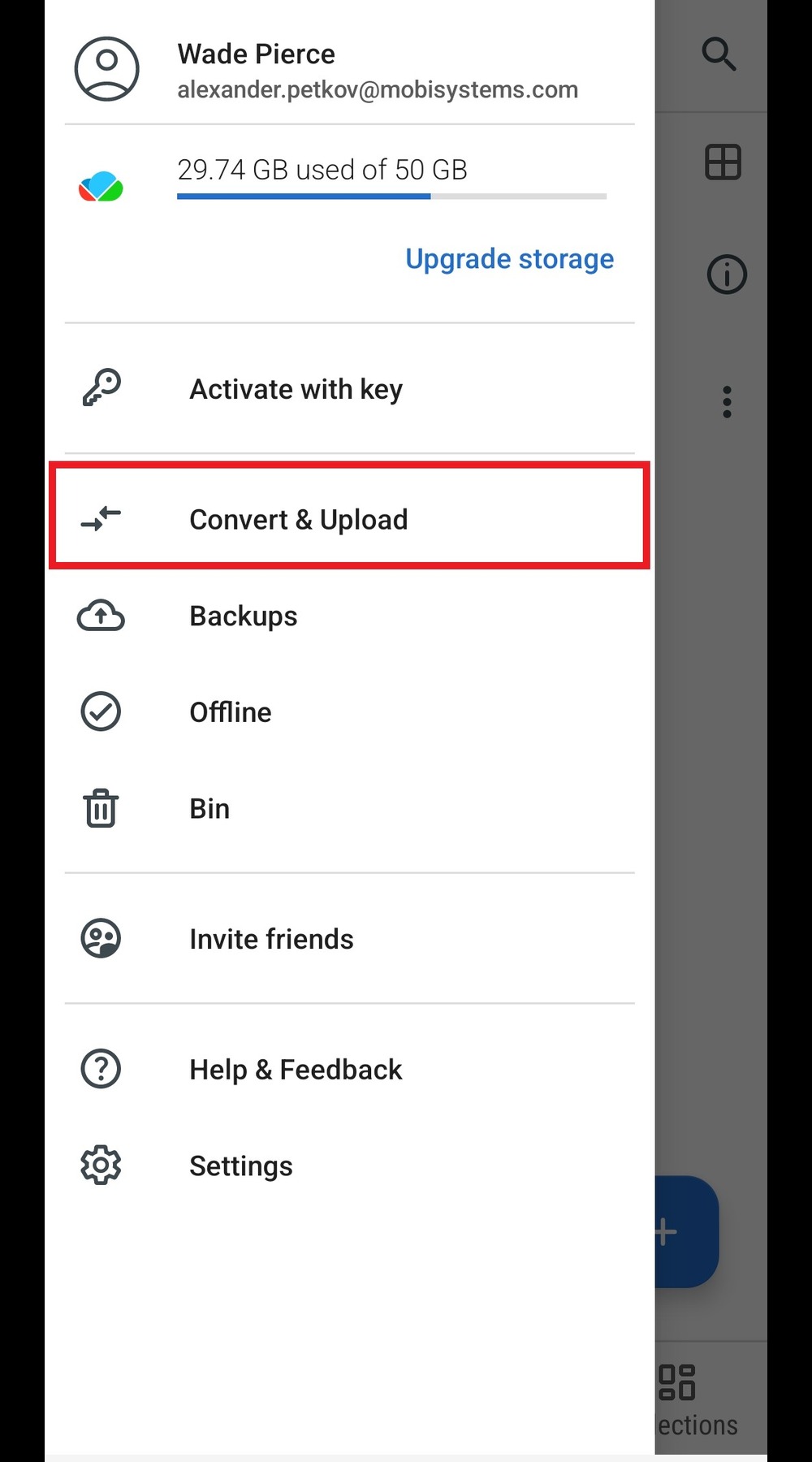
2. Tap Convert & Upload.
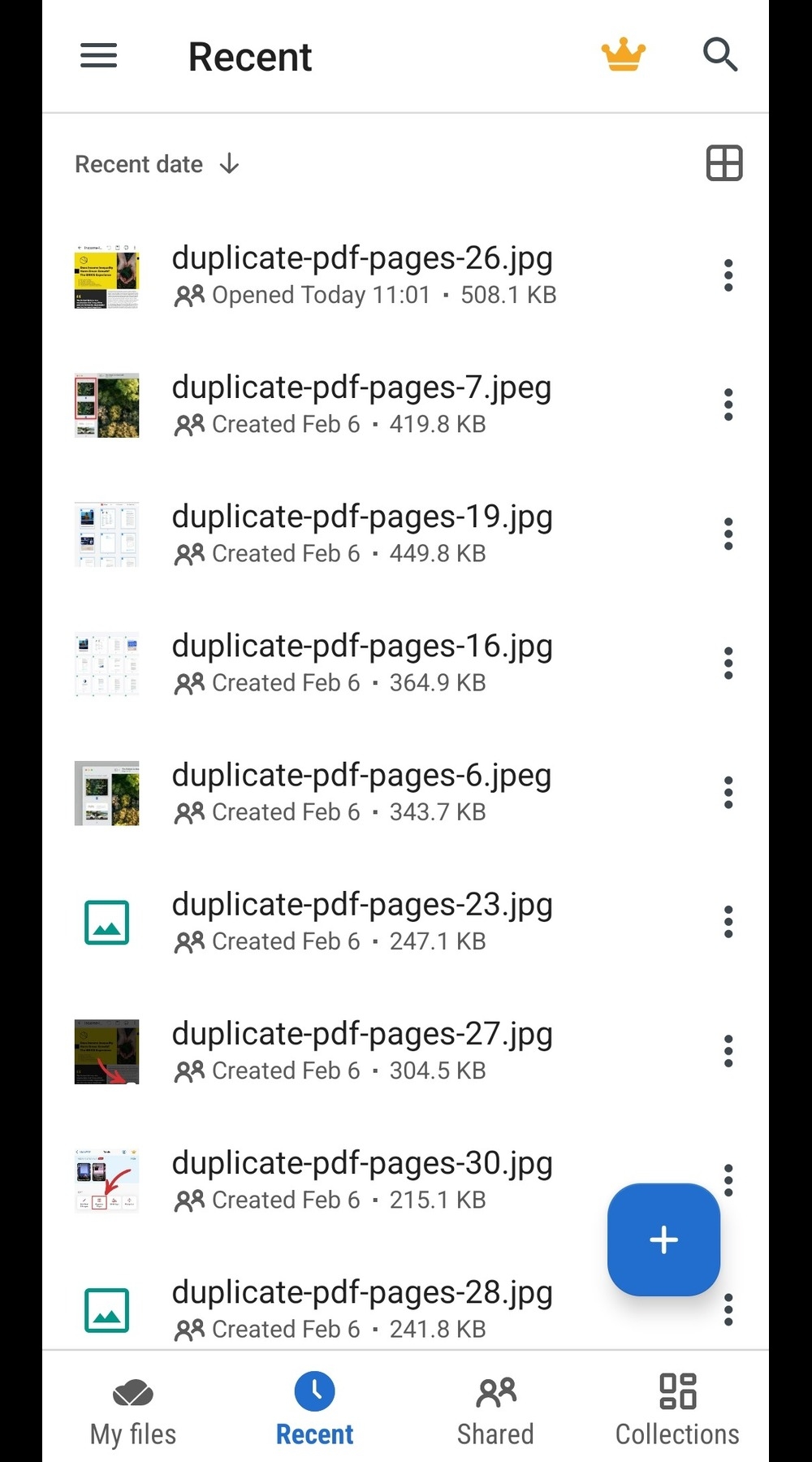
3. Choose which file you want to convert.
4. Choose the desired output file type.
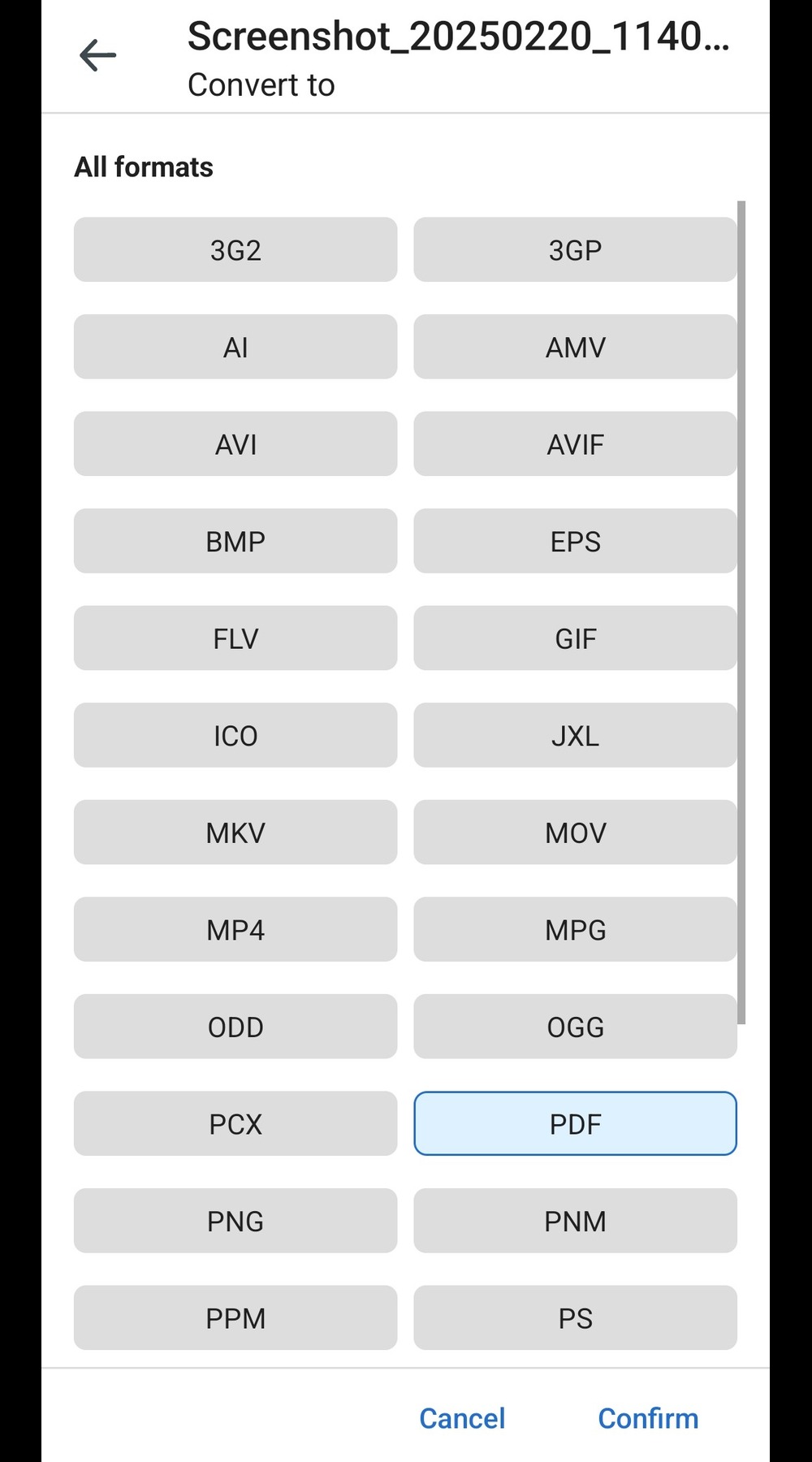
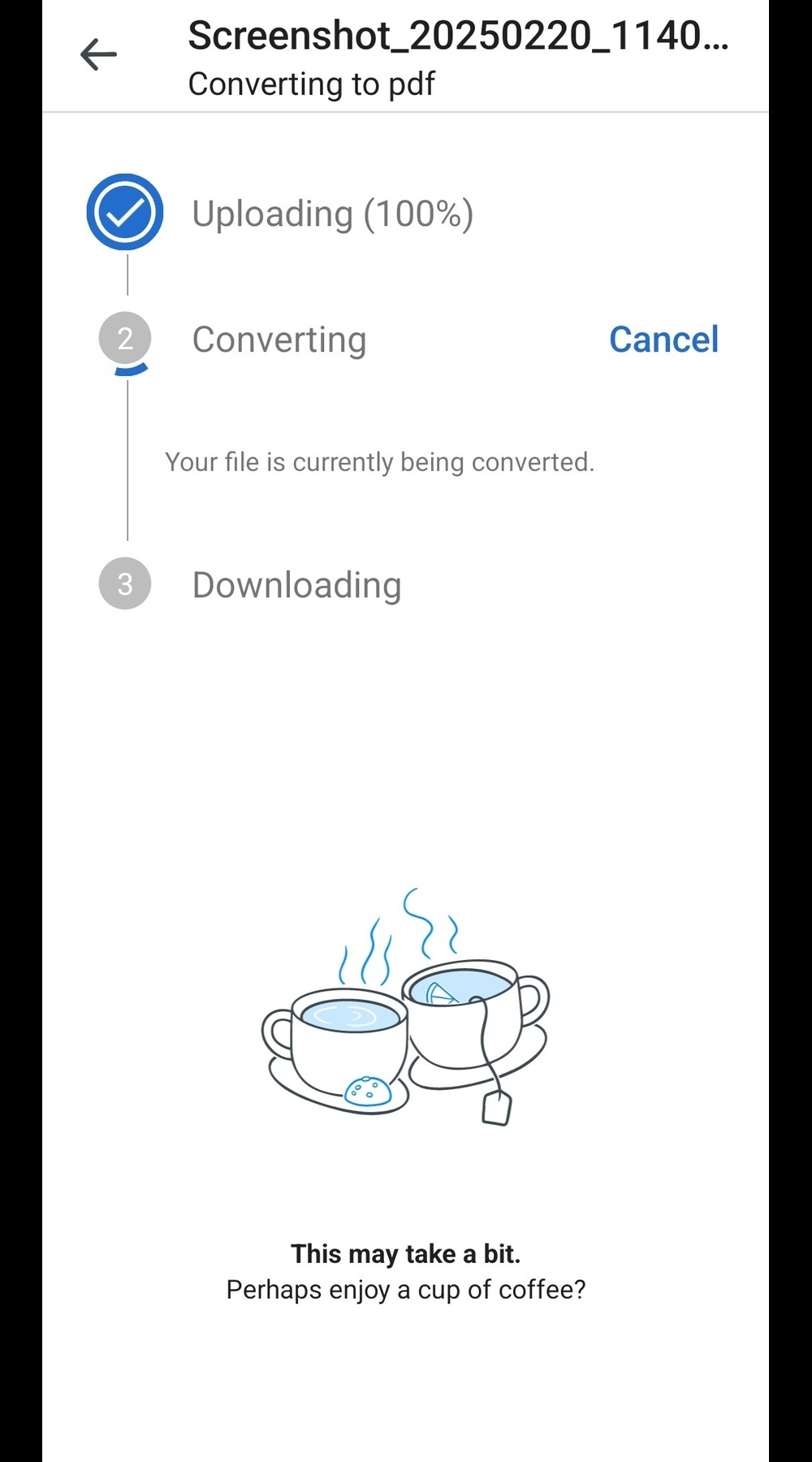
5. Wait for the conversion to finish.
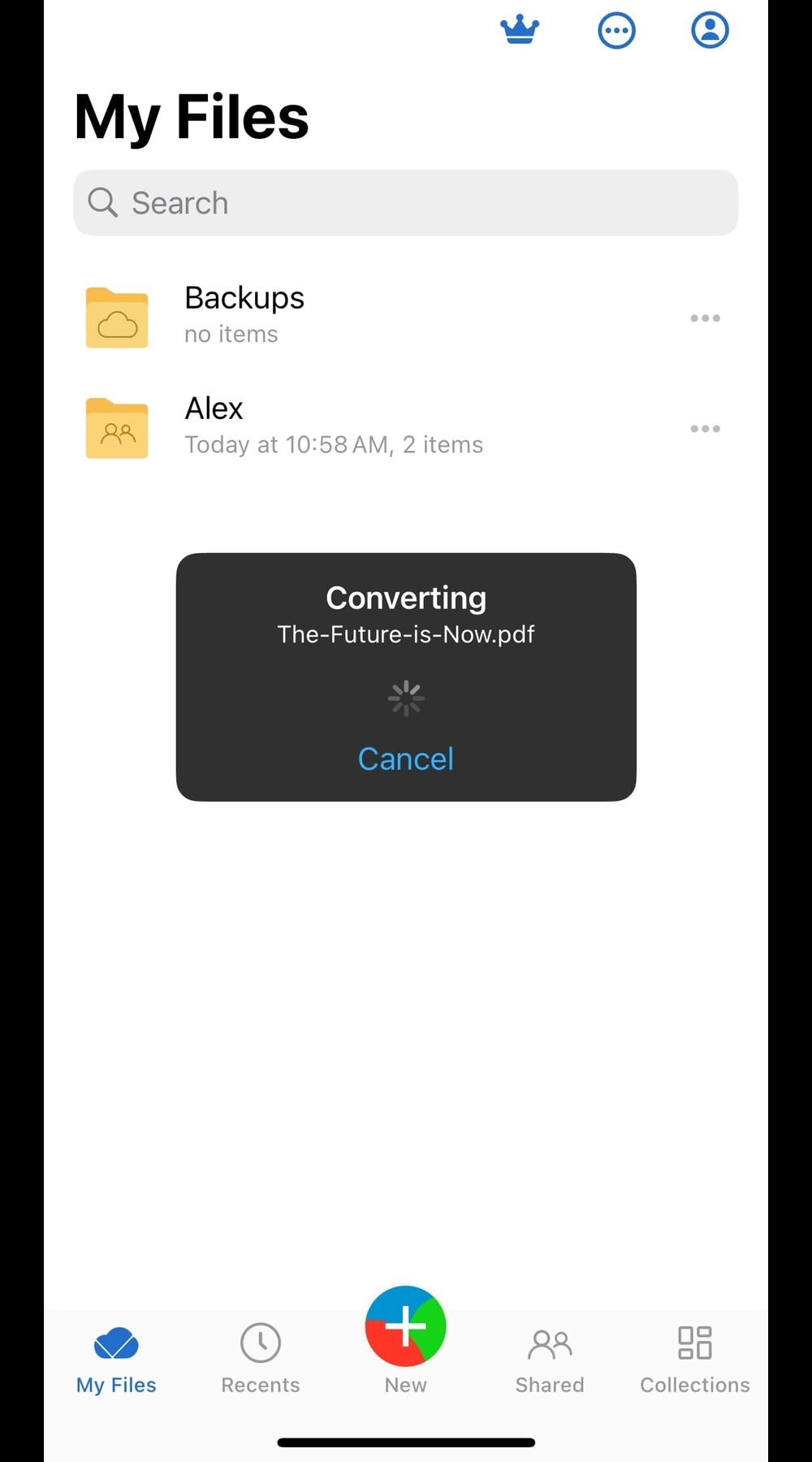
How to convert files with MobiDrive for iOS
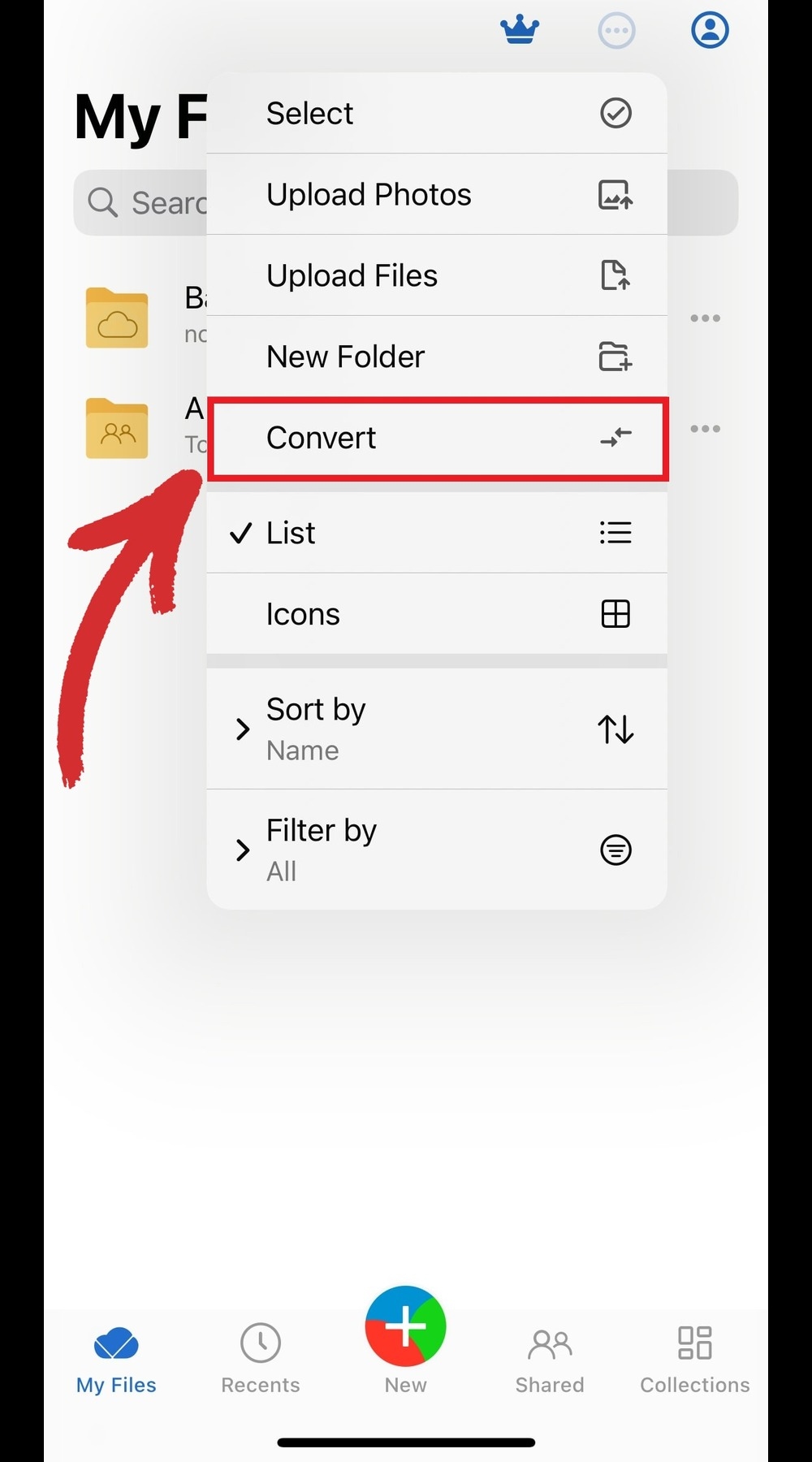
Tap the three dots menu next to the profile icon and then Convert.
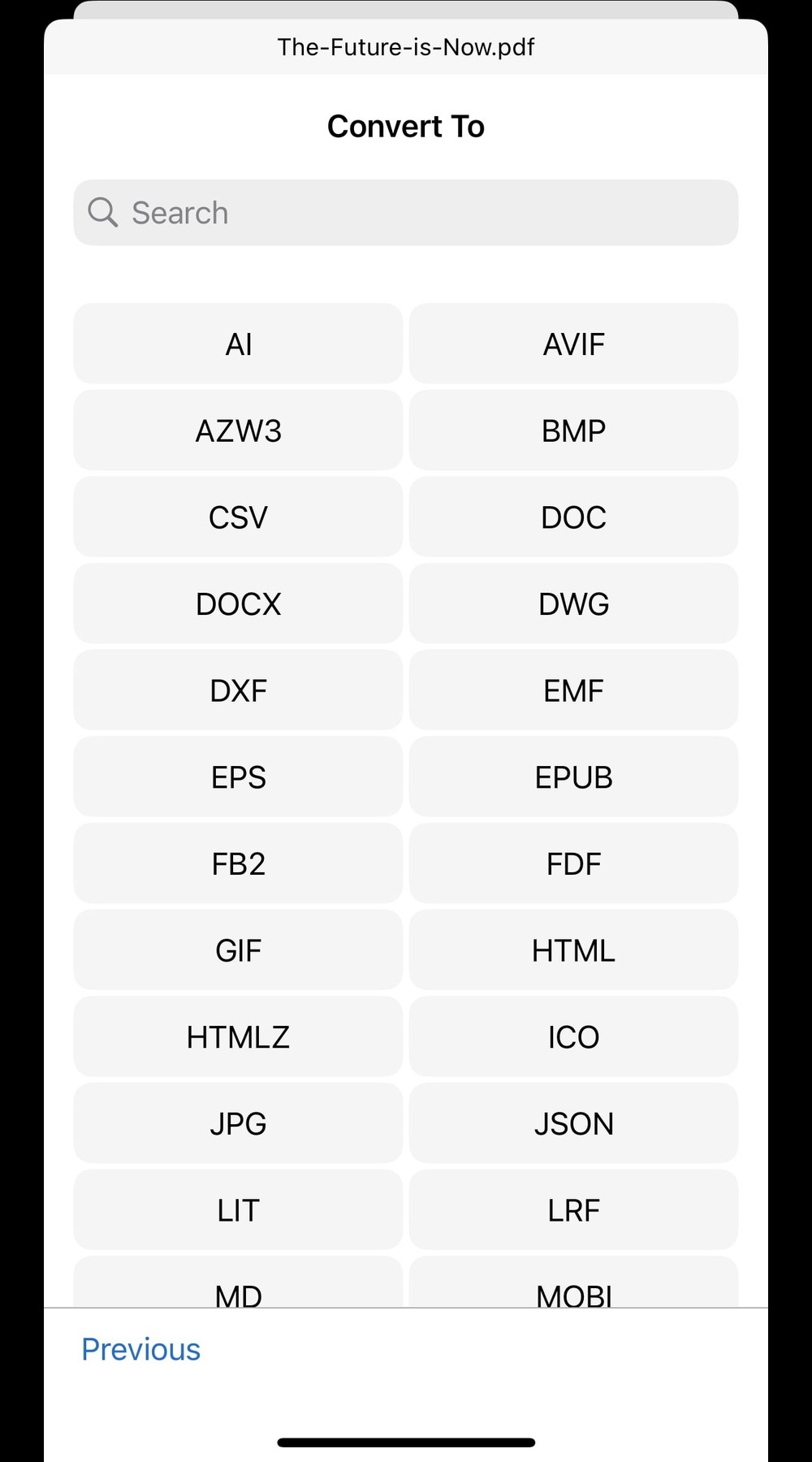
2. Choose the desired output file type.
3. Choose which file to convert and then tap Convert.
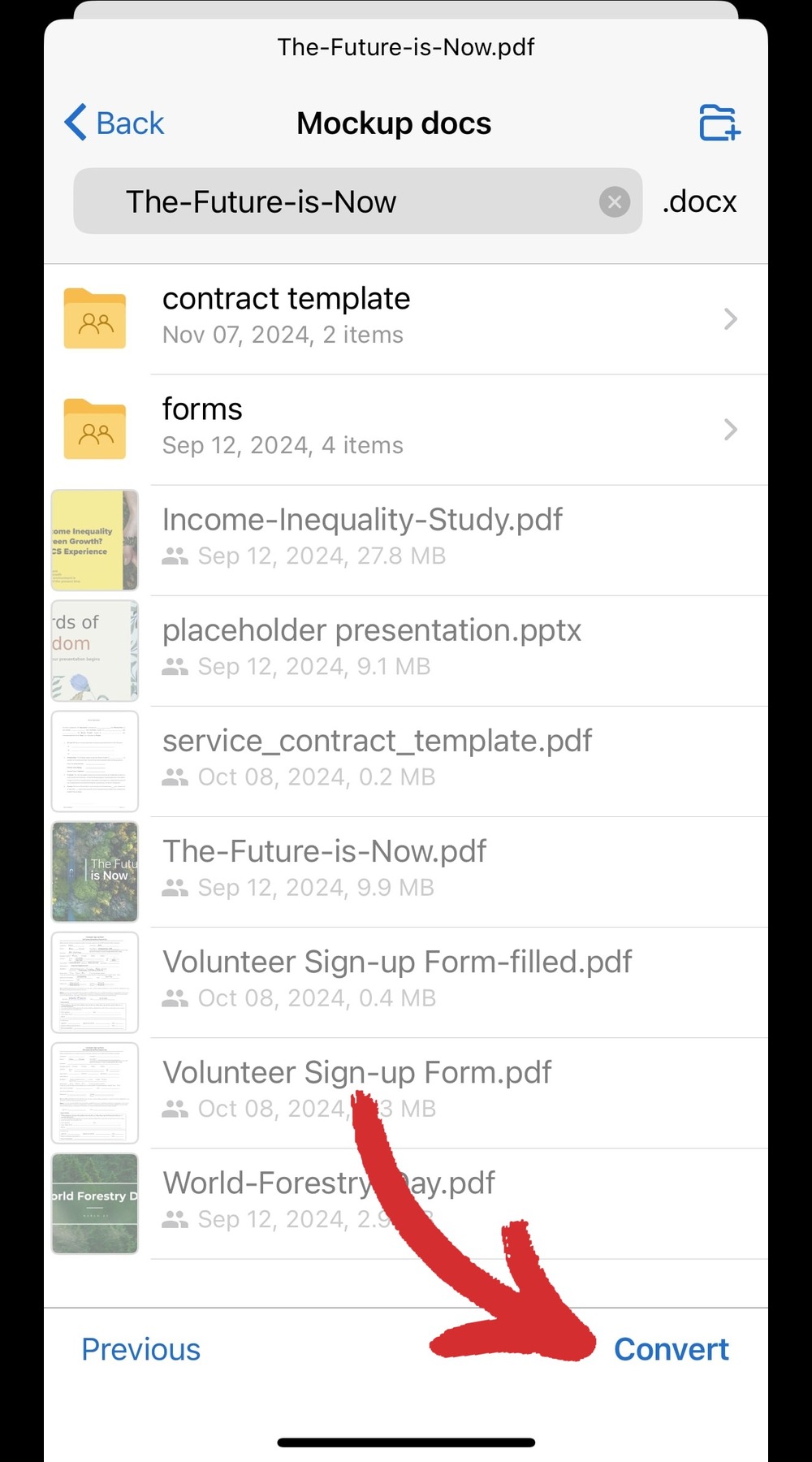
4. Wait for the conversion process to finish.
3. Create a backup for all your files
Sure you could manually upload your work every now and then to keep your cloud copy current, but that's a very easy way to either miss something or misplace it in a completely irrelevant folder. Instead, MobiDrive offers you an elegant solution that differs slightly depending on the device you're using.
How to backup files with MobiDrive for Windows
Download the secure file sharing app from the official MobiDrive home page.
Follow the steps to install the software on your Windows 10 or 11 device.
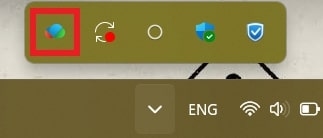
Click the Show hidden items Windows arrow in the bottom right corner.

4. Click the MobiDrive logo to open the user panel and access your online storage.
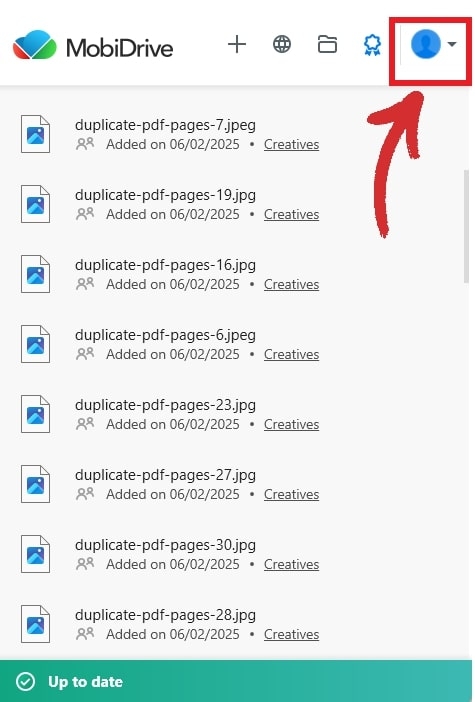
5. Click the profile section and then on Preferences.
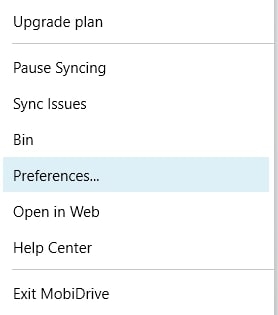
6. Choose where to create your MobiDrive folder and which folders it should include.
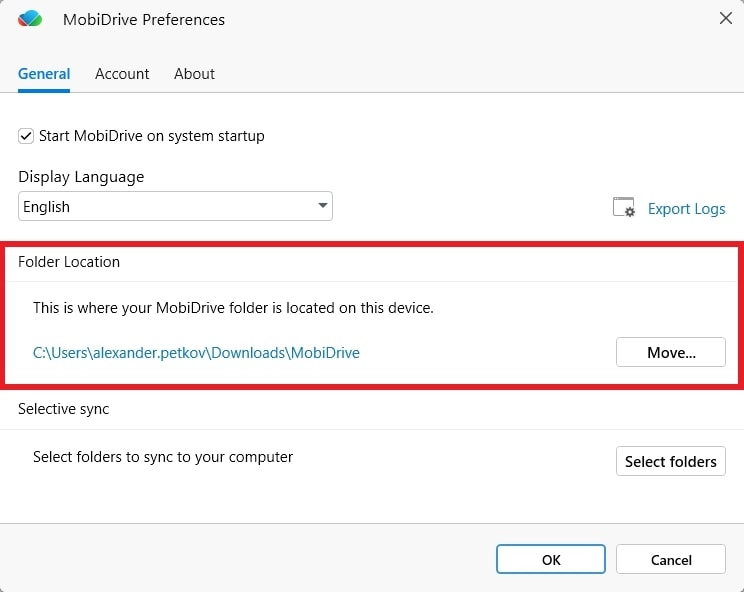
You can choose to sync the entire content within the MobiDrive folder or just specific folders.
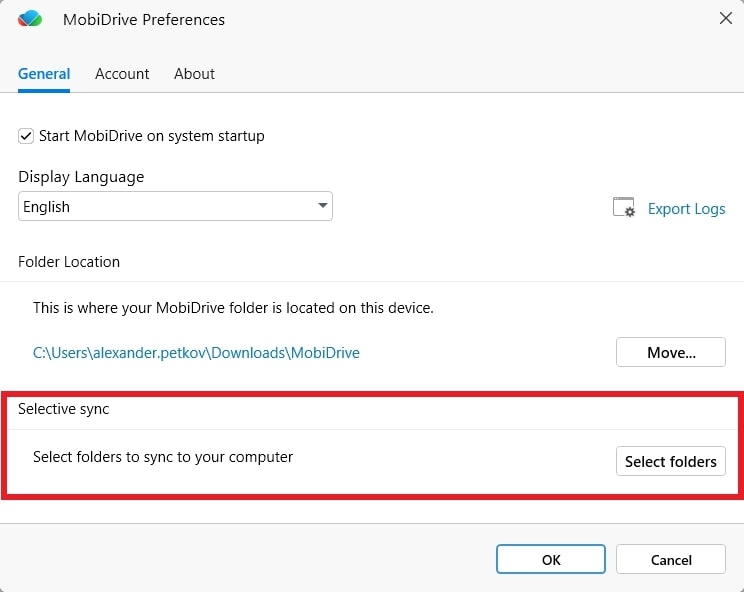
7. You're all set! MobiDrive will now automatically upload all contents to your cloud storage and will monitor it for any further changes to ensure that your copy is as up to date as possible.
How to backup files with MobiDrive for Android
Download and install the app from Google Play.
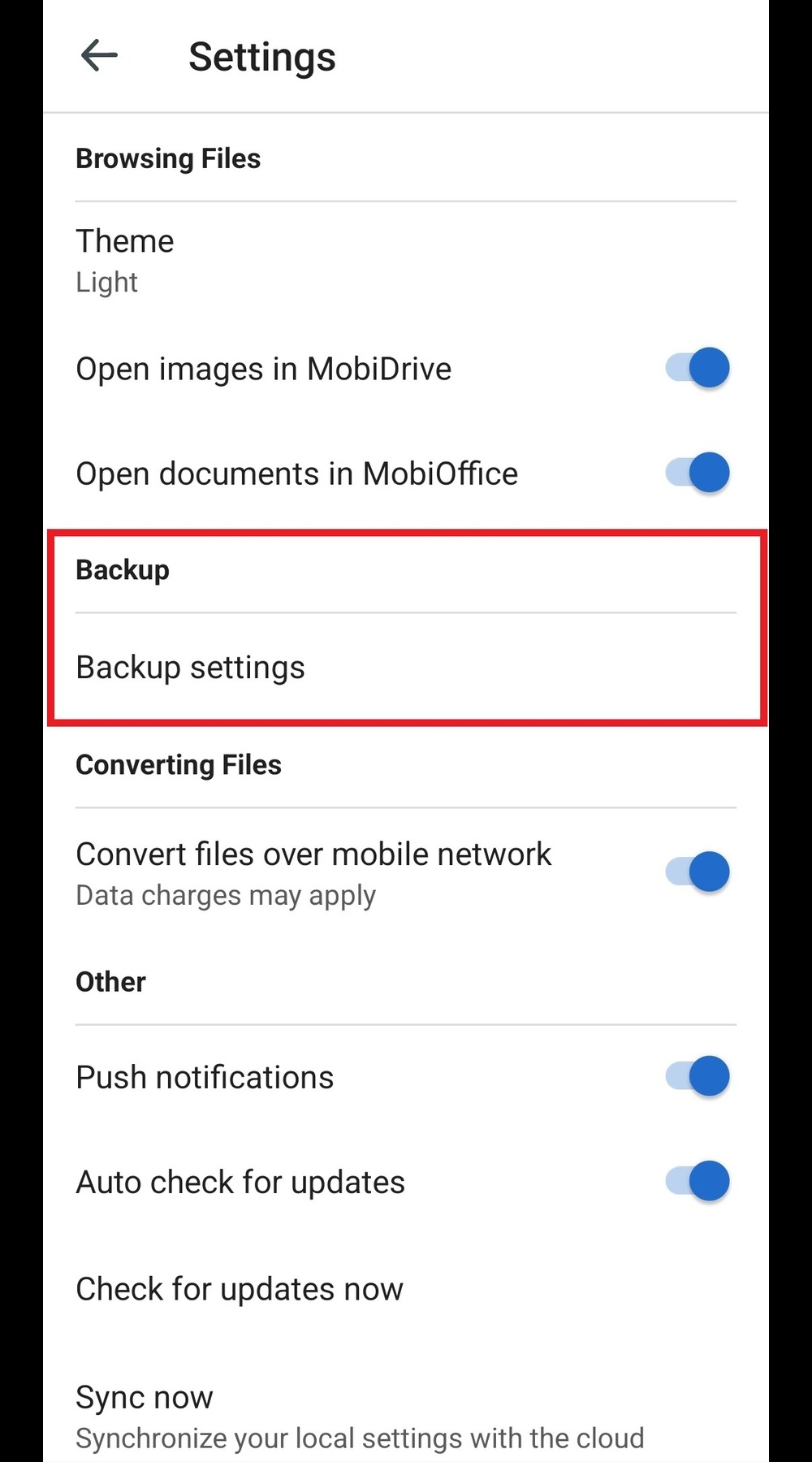
Once inside, tap the profile icon and then Settings.
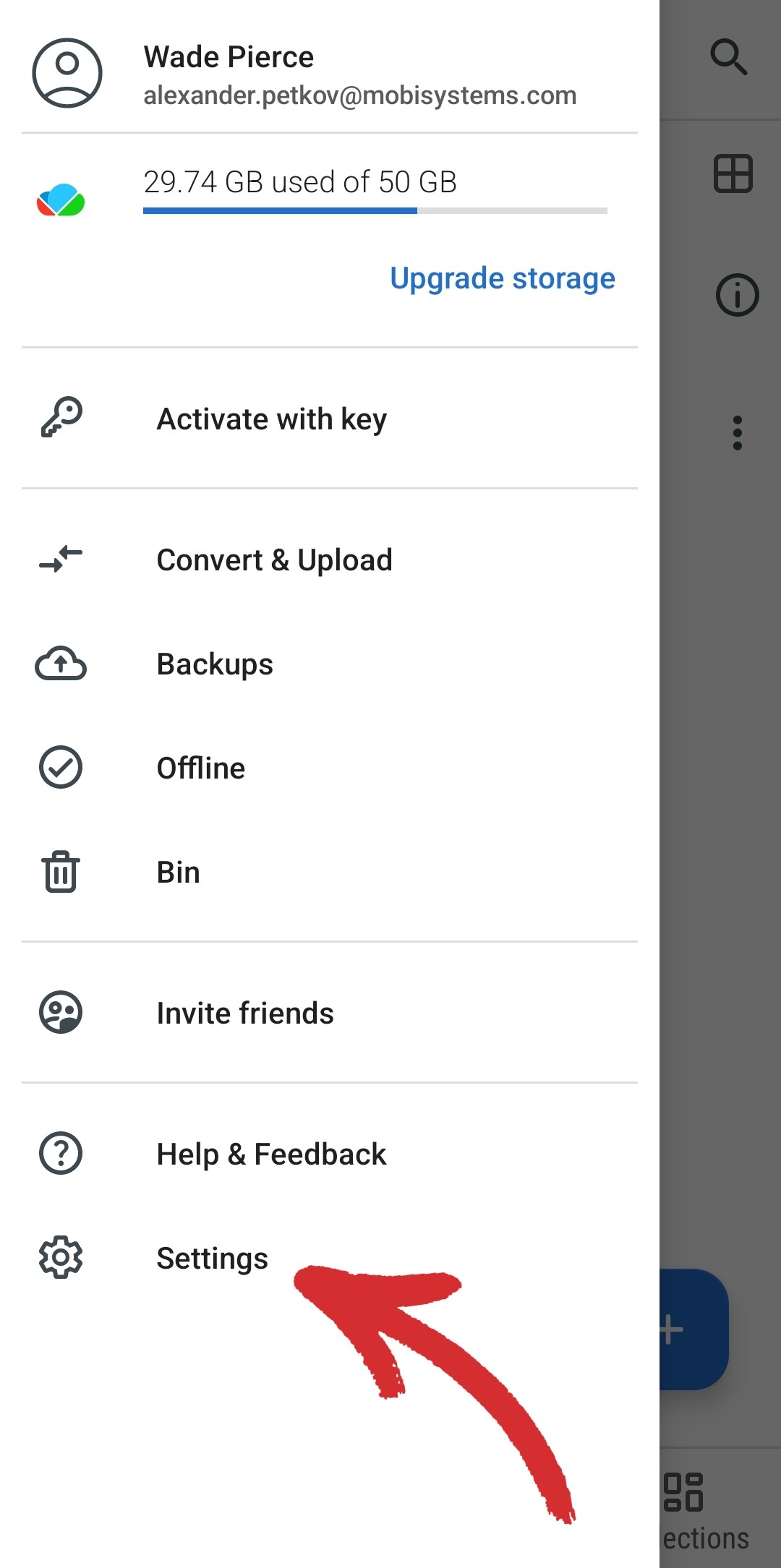
3. Tap Backup settings from the available options.
4. Enable the Backup function and choose whether to backup photos, videos, or both, as well as which folders to back up automatically.
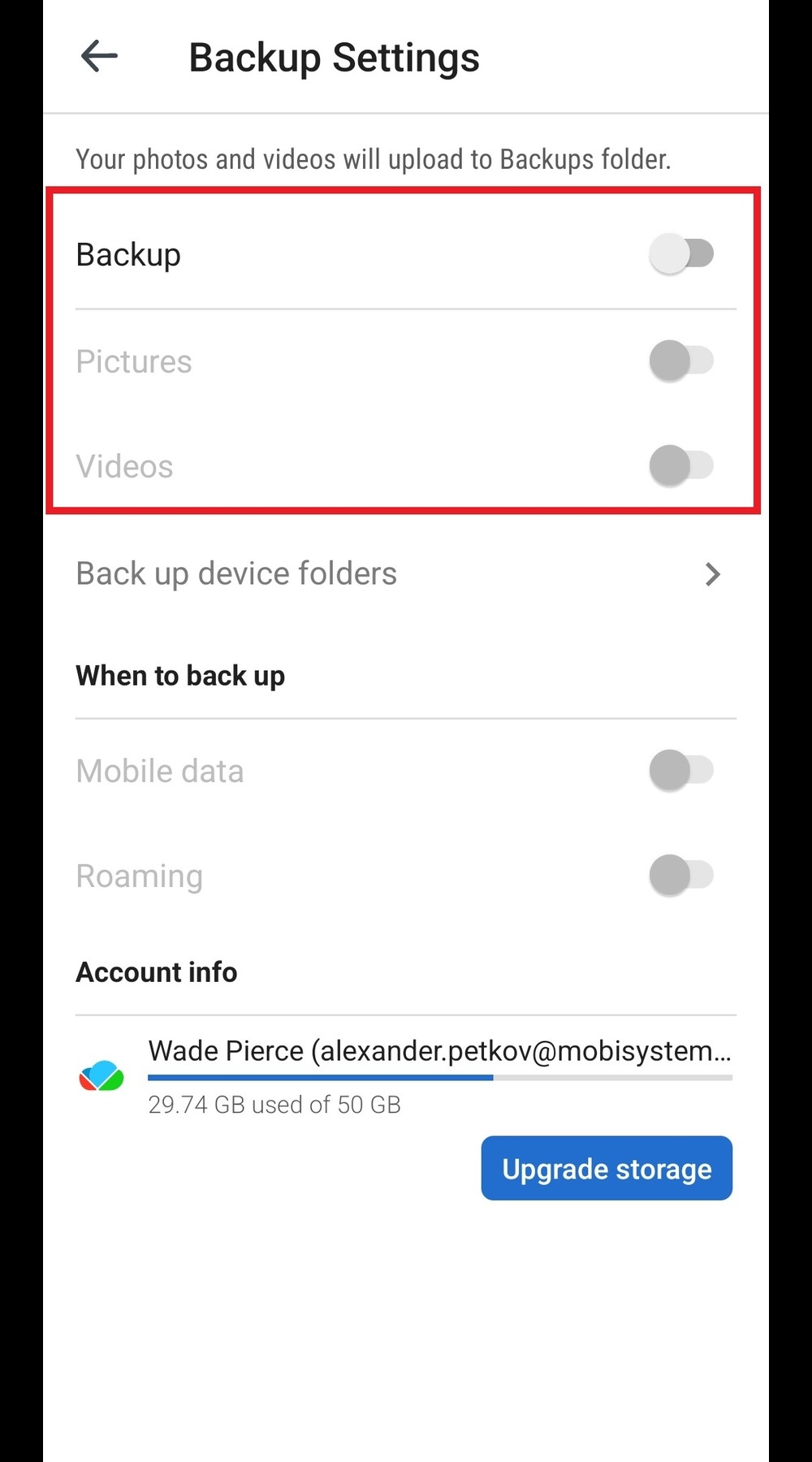
5. That's it – MobiDrive will now maintain a cloud copy of everything you make.
How to backup files with MobiDrive for iOS
Download and install the app from the Apple Store.
Run the app and tap on the Backups folder to open it.
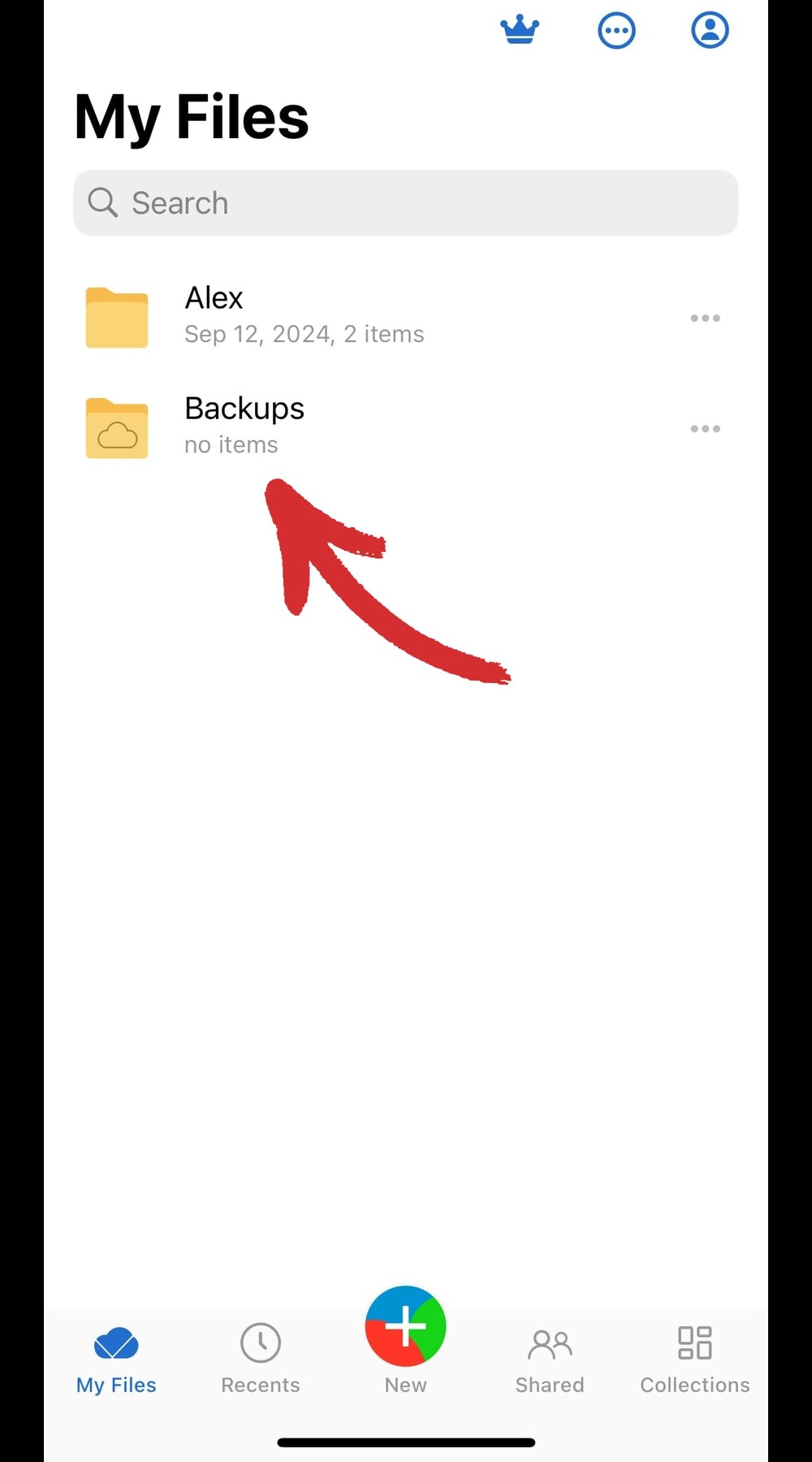
3. Tick the Backup option to enable automatic file syncing.
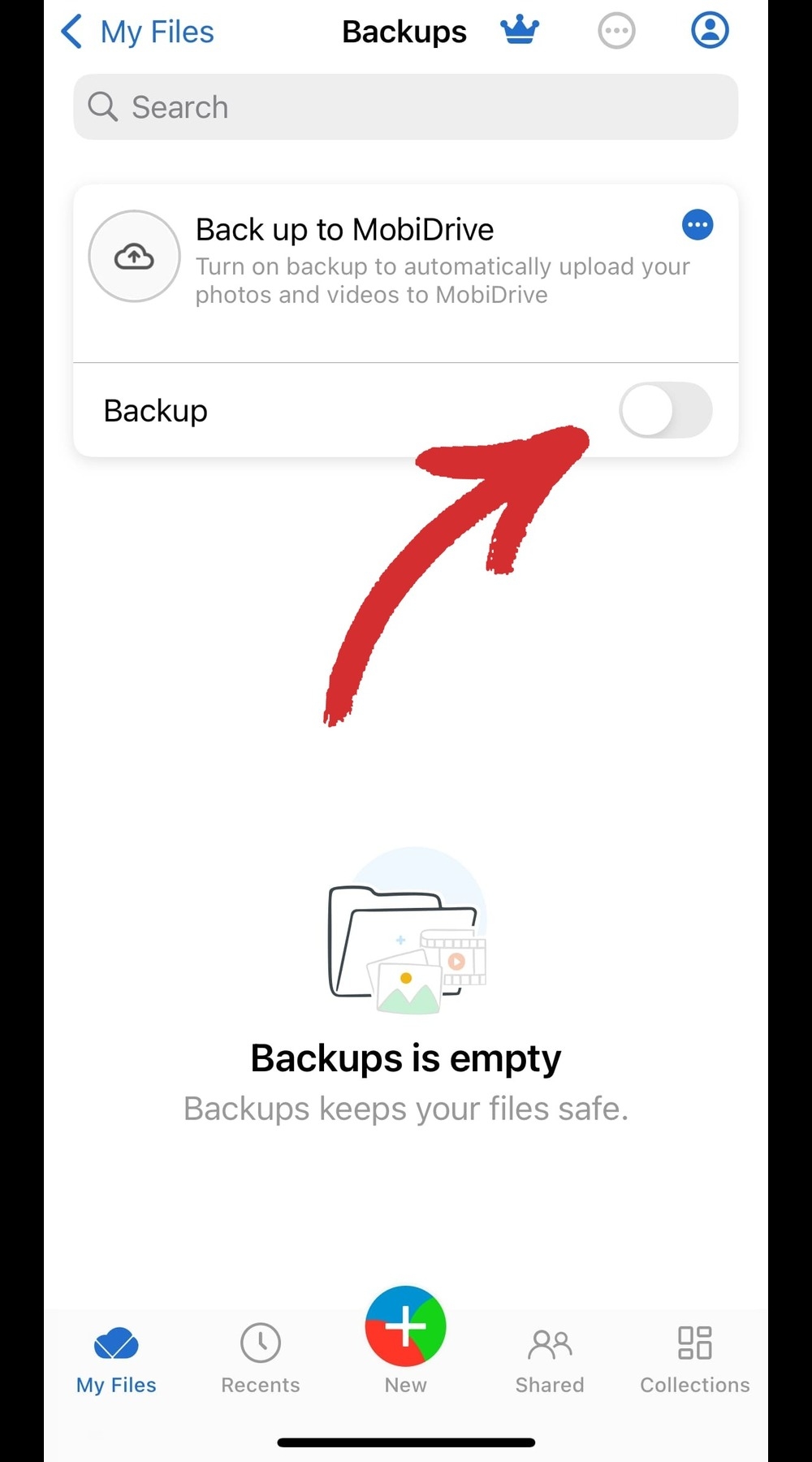
4. Choose whether to backup photos, videos, or both.
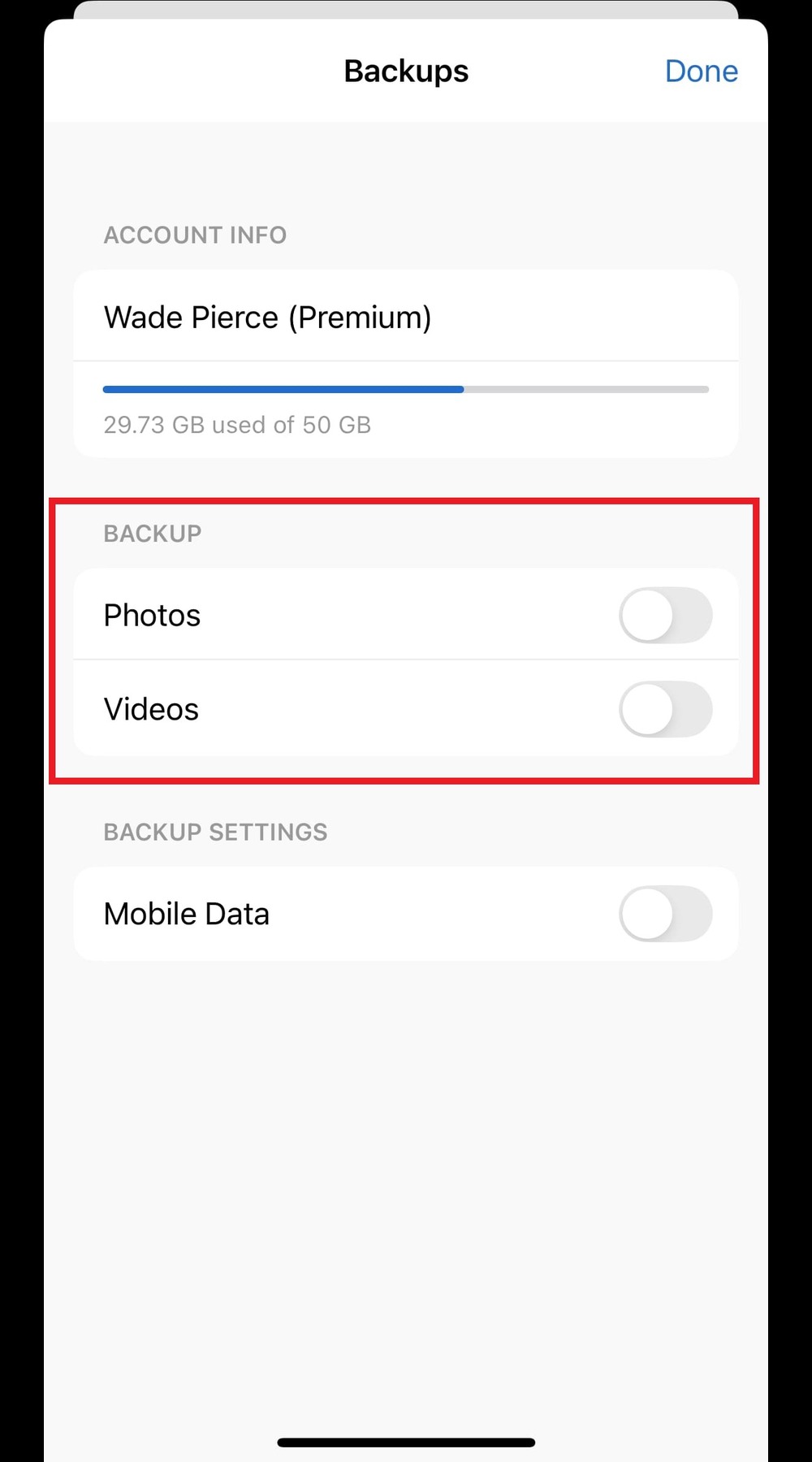
5. Enjoy your day as all your media gets automatically uploaded to MobiDrive.
4. Check your file version history
When you sync files to the MobiDrive cloud, it tracks the file versions in addition to storing the files themselves. So, the next time you make a change to any of your files, it will save a copy of your original document and will update the existing version to match your new changes.
This way, you get to keep both the modified version of your file and its previous versions which you can download at any time.
Here is how to access your detailed file version history through the web version of MobiDrive:
Select the file whose version you want to view.
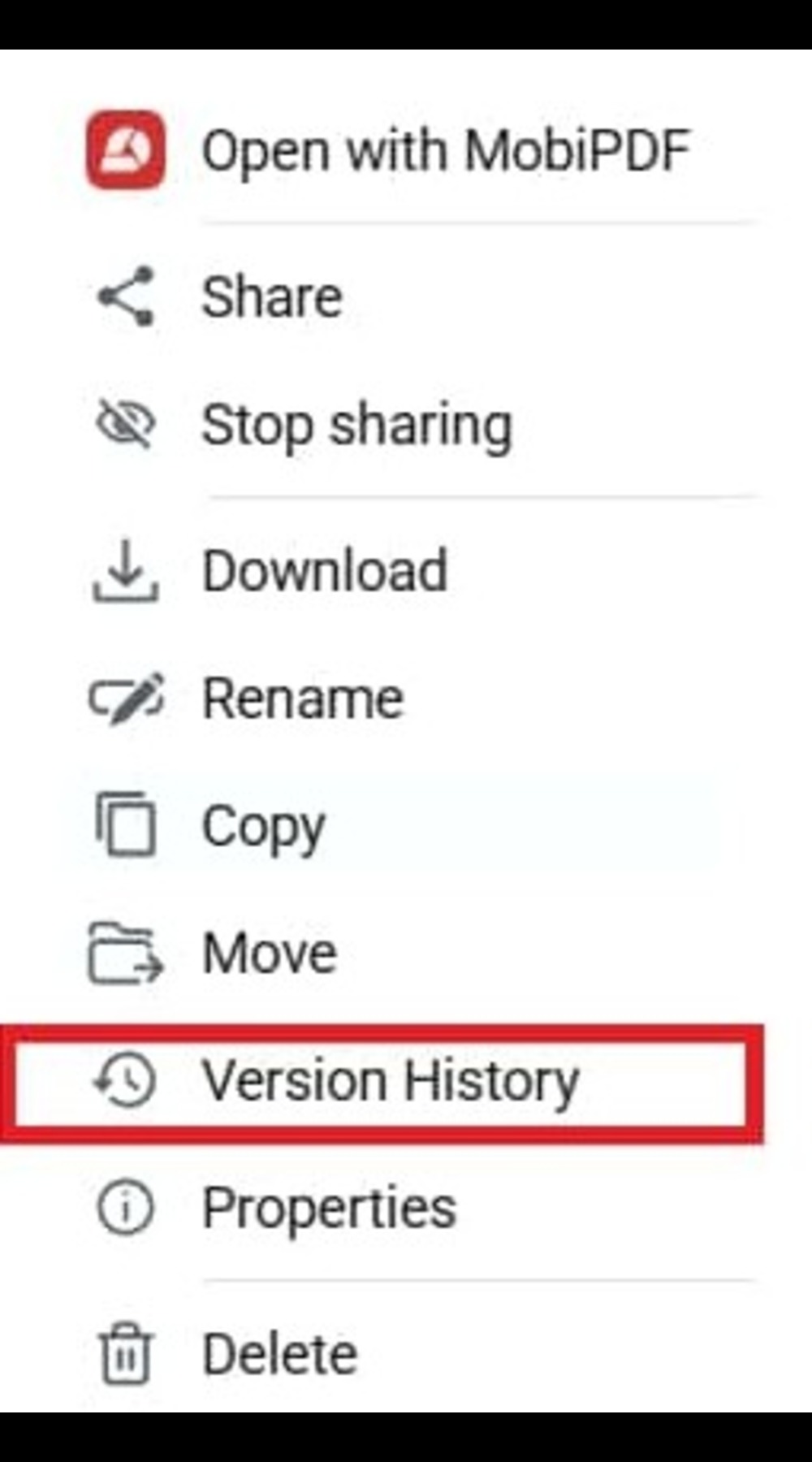
2. The version panel will open detailing the entire history of your file.
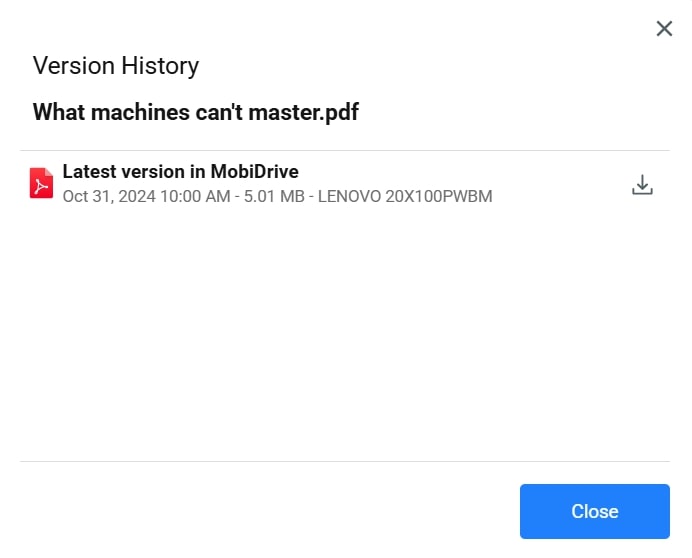
NOTE: If all you see is a single version history, then this means that your file has not been altered since you first uploaded it to MobiDrive.
Frequently asked questions
How much storage space does MobiDrive give for free?
Our easy-to-use app gives you free 20 GB of cloud storage provided you create an account with MobiSystems. If you wish, you can then upgrade your storage space by either purchasing a higher plan or getting one of our other products – MobiOffice or MobiPDF – but none of this is really required.
How do I start using MobiDrive?
This will largely depend on your workflow. If you are looking for a simple solution that works on every device, we suggest starting with the web version of MobiSystems which can be found here: https://mobidrive.com/my-files.
Alternatively, you can also download the app version for Windows offering you the convenience of syncing large amounts of data between the cloud and your local storage, as well as a quick way to create new files in MobiDocs, MobiSheets, and MobiSlides.
Finally, you can also install the Android or iOS app, with which you can convert files on the go and automatically backup your videos and photos to the cloud.
What platforms are supported?
At the moment, MobiDrive is supported on most popular operating systems excluding Linux and macOS, though you can still use the online version even there. You can use MobiDrive with any:
Browser (Chrome, Edge, Firefox, Safari, Opera, etc.)
64-bit Windows device
Android device (Android 7.0 or later)
iOS device (iOS 13.0 or later)
Can I store media on MobiDrive?
You can store any media type of any size. The only thing to note here is that you can only preview images as MobiDrive doesn't yet support video and audio playback. For your convenience, the app will add contextual icons for each content type so you can easily tell at a glance what each folder is storing.

As for documents, spreadsheets, and other work files, MobiDrive will automatically open the relevant MobiSystems app if you have it installed.
How secure is your cloud solution?
We employ the latest encryption methods and technologies to keep your files as safe as they can be, provided you're not sharing your data with other users. In addition, we never review any of the files you upload nor sell your data to third parties.
Can I upgrade my MobiDrive storage?
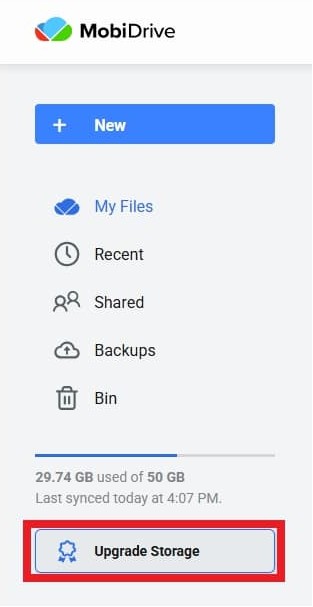
If you find that your needs start to outgrow your freely available storage space, you can quickly move to a higher storage plan by clicking the Upgrade Storage button or simply visiting our official MobiDrive pricing page.
Conclusion
As you can see, MobiDrive is more than just a cloud service – it's an ecosystem offering tight-knit integration with the entire MobiSystems suite, as well as additional perks like 20 GB of free storage, built-in file conversion for the mobile apps, and easy ways to backup your files and review their history.
So, if you've never tried a cloud service before due to security concerns or you're simply fed up with the Microsoft or Google way of doing things, why not give MobiDrive a try? Who knows, it just might be the thing you need to reach your next level of productivity!