To add an image to a PDF in MobiPDF, open your document and select Edit → Add Image in the main ribbon, then choose the file you want to insert, and place it anywhere on the page.
Whether you’re inserting a company logo into a contract, adding photos to a form, or including screenshots in a report, MobiPDF gives you full control over image placement, size, and formatting. Everything happens locally on your device, making the process secure and ideal for professional workflows. So let's dive deeper into our guide.
Key takeaways
MobiPDF allows inserting and editing images such as PNG, JPG, GIF and others.
Images can be moved, resized, rotated, cropped, layered, and adjusted for transparency.
You can place images inside fillable PDFs, including ID photos and scanned signatures.
The desktop version provides advanced controls for precision editing.
What does it mean to add an image to a PDF?
Adding an image to a PDF means embedding a visual file directly into the document layout. This includes photographs, logos, diagrams, illustrations, scanned signatures, or screenshots. Unlike basic PDF viewers, a full PDF editor like MobiPDF lets you control placement, alignment, scaling, rotation, cropping, transparency, and layer order. This transforms static PDFs into flexible, design-ready documents suited for professional reports, branded documents, form submissions, or presentations.
How to add an image to a PDF
The easiest way is to open your document in MobiPDF, then select Edit → Add Image in the main ribbon. Still, let’s look at a structured workflow for inserting images into any PDF, whether simple or complex.
Steps to insert an image:
Open the PDF in MobiPDF.
Select Edit → Add Image.
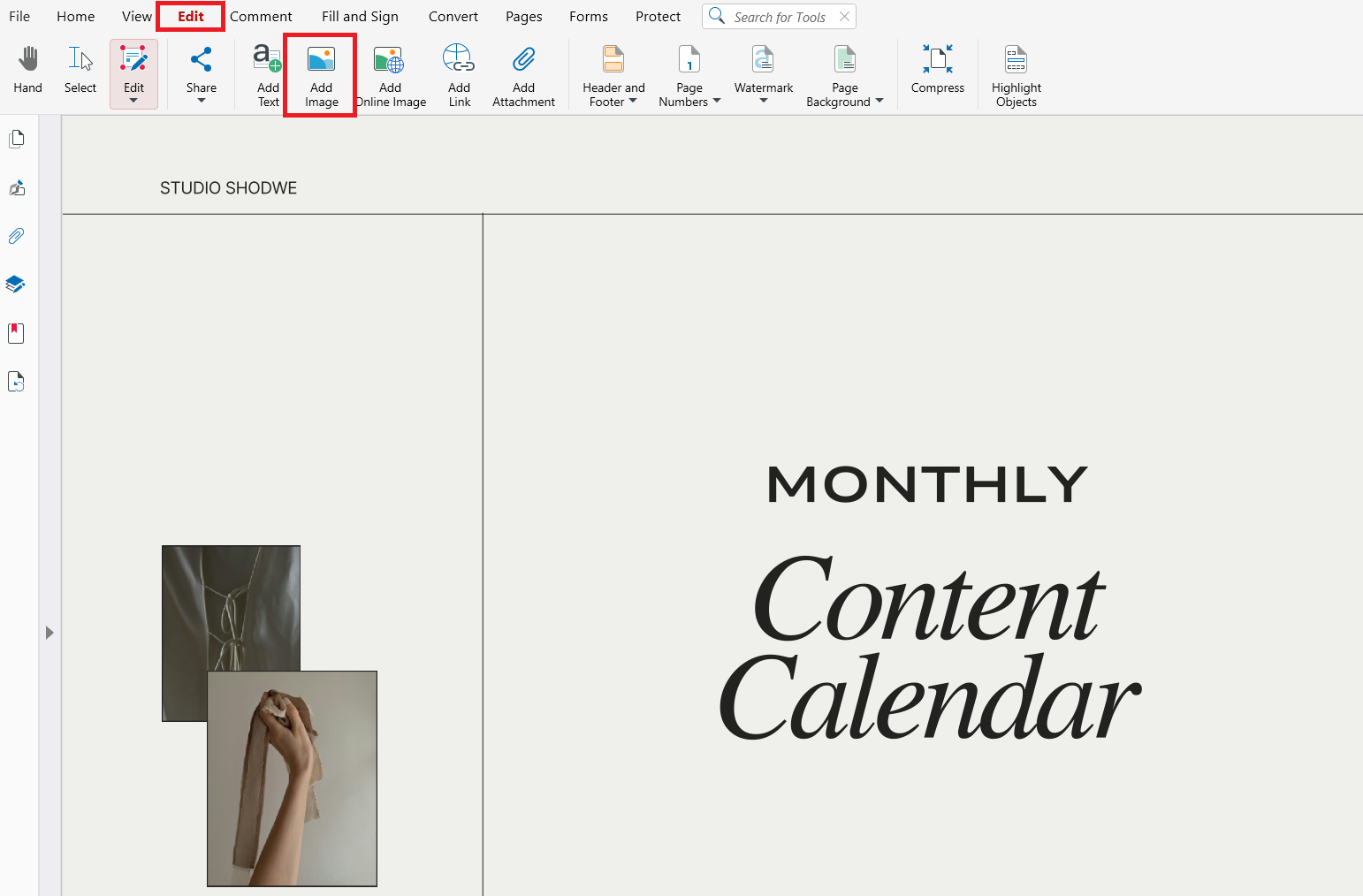
Choose the file you want to insert.
Click on the page to place the image.
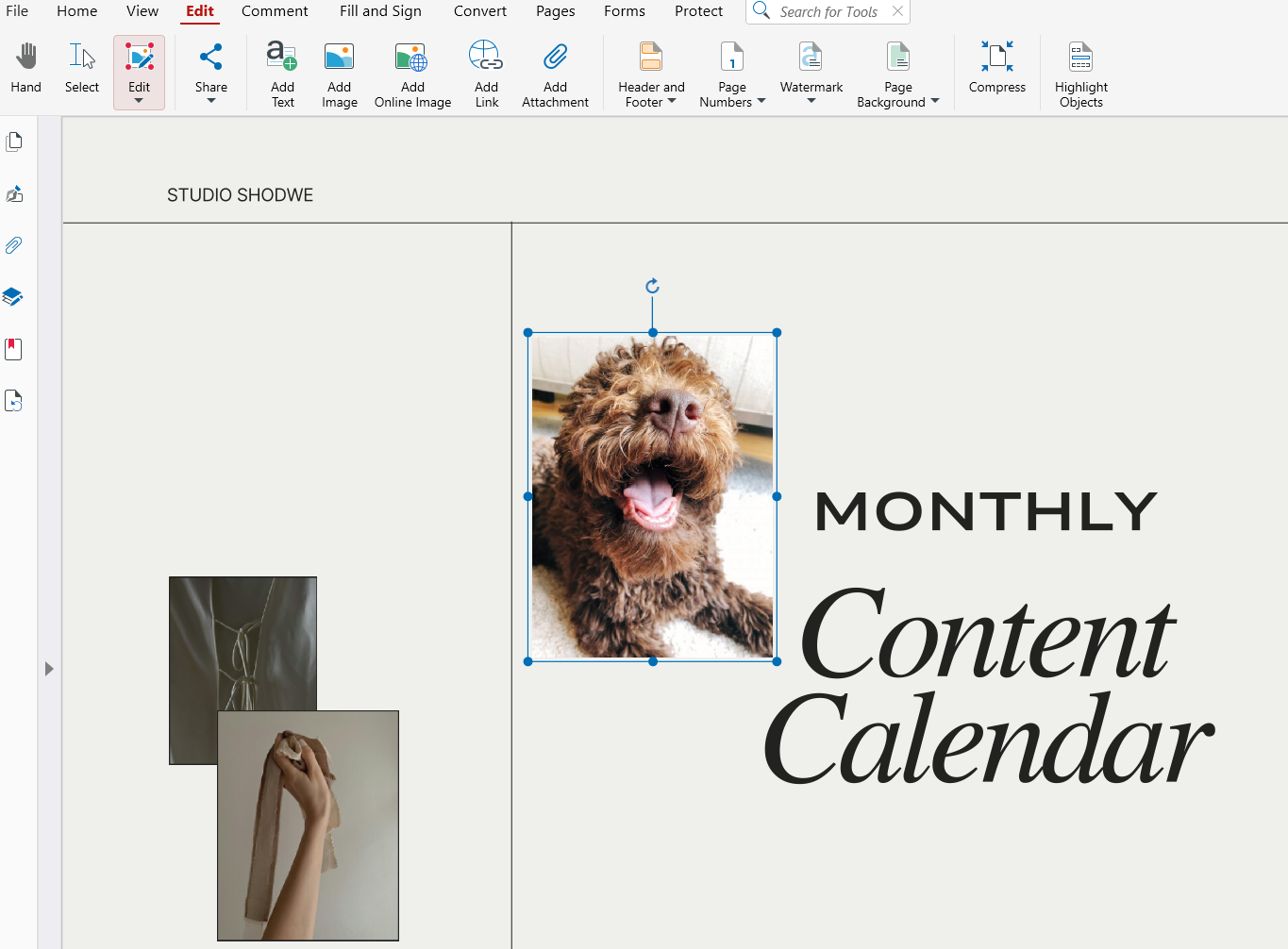
Drag to reposition it or use the corner handles to resize proportionally.
Use additional tools to rotate, crop, or adjust transparency.
Save the updated PDF.
This workflow is optimized for high-resolution graphics and multi-page documents, giving you full control over image placement and appearance.
Adding an image from the web
In MobiPDF you can also add an image directly from the web.
Here’s how.
Go to Edit → Add Online Image

Search an image by keyword – the images will appear in the pop-up window.
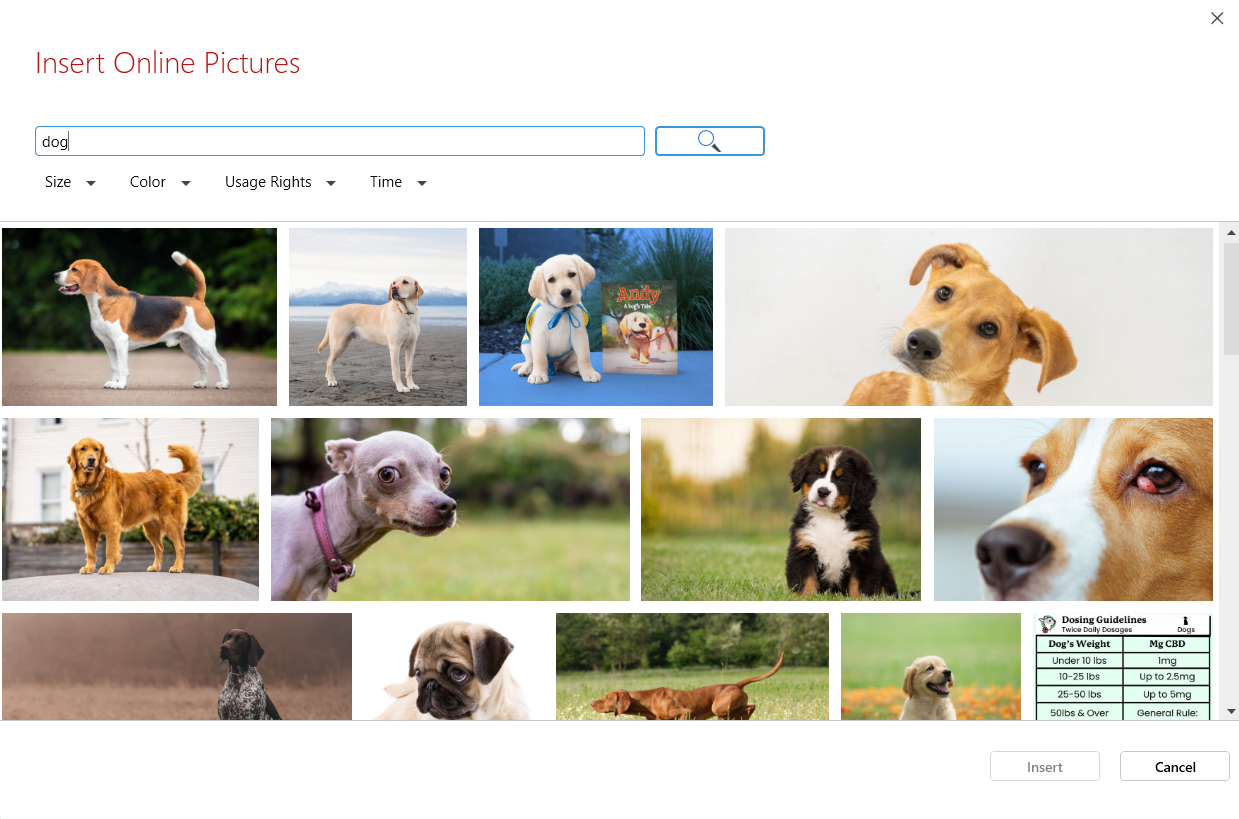
Select an image and place it.

You’re done! You can now again reposition, resize, or use additional tools to rotate, crop, or adjust transparency.
Supported image formats and when to use them
MobiPDF supports the most widely used formats, including:
JPG/JPEG – suitable for photographs or detailed images.
PNG – ideal for screenshots, logos, or images requiring transparency.
GIF – useful for simple graphics or icons.
If your image is in a different format like WebP or HEIC, convert it to PNG or JPG before inserting.
How to edit an image after inserting it
Once an image is added, MobiPDF lets you refine its placement and appearance with full editing controls.
You can:
Resize using corner handles.
Move the image anywhere on the page.
Rotate it to 90°, 180°, or custom angles.
Crop unnecessary parts.
Adjust opacity to create watermark-style effects.
Replace the image without rebuilding the layout.
Delete it if no longer needed (using Delete on the keyboard or in the right-click menu).
These tools allow you to build clear, professional layouts without exporting the PDF to external software.
Working with layers (place image above or below text)
When a document includes multiple visual elements, layer control becomes essential. MobiPDF assigns each image to a separate layer, allowing you to reorder them.
Examples:
Place a logo on top of a header.
Send a watermark behind the text.
You can select what should go in front or behind another element and rearrange to your liking.
Adding an image to a fillable PDF form
MobiPDF also supports image insertion inside forms and scanned documents—ideal for attachments like ID photos, receipts, certificates, or signatures.
Steps:
Open the fillable PDF in MobiPDF.
Select Insert Image.
Choose your photo or scanned image.
Place it inside the designated form area.
Resize it to fit.
Save or export the file.
This makes form submissions and document completions faster and more accurate.
Tips for best results
Use high-resolution images for professional documents.
Choose PNG for logos and transparent backgrounds.
Use cropping to remove unnecessary details and keep the layout clean.
For scanned text, combine image insertion with OCR to maintain searchability.
Optimize final export to keep file size manageable.
Frequently asked questions
Can I insert multiple images into the same PDF page?
Yes. MobiPDF lets you add as many images as needed, and each can be edited independently.
Will inserting images affect PDF quality or file size?
Using high-resolution images may increase file size, but MobiPDF provides export options that balance quality and compression.
Can I insert transparent images like PNG logos?
Yes. Transparent PNGs are fully supported for overlays, branding, and watermarks.
Can I replace an image without repositioning everything?
Yes. The Replace Picture feature allows you to swap photos while keeping the same position and size.
Can I add images on mobile (Android or iOS)?
Yes. Mobile versions of MobiPDF allow selecting an image from your device or camera, placing it in the PDF, and resizing it.
Conclusion
Image insertion turns PDFs into flexible, visually rich documents. With MobiPDF, you can add photos, diagrams, logos, screenshots and signatures with precision, adjust their appearance, and manage layout through layers, cropping and transparency tools.