
This article was updated on 16 December 2025
To combine multiple PDF files into one, open a PDF tool like MobiPDF, upload your documents, arrange the page order, and export a single merged file. This way, you can reorder pages, remove any you don't want, and keep full quality across all pages.
Combining PDF files is one of the easiest ways to organise documents, prepare paperwork, or share information in a single file. This guide will show you exactly how to combine PDF files quickly, securely, and with high quality using MobiPDF.
What does it mean to combine PDF files?
Combining PDF files is the process of bringing multiple PDFs into a single document. This is one of the most common tasks people look for, as it makes sharing, organising, and archiving information easier across different devices and workflows.
Merging PDFs is helpful whether you're working with Word, Excel, PowerPoint, or image files, as PDFs often start from mixed formats. A good PDF combiner should let you merge several files at once, rearrange pages, and handle both regular and scanned PDFs.
It's also important to know about the technical differences between tools. Some apps limit how many files you can merge, struggle with password-protected or digitally signed PDFs, or fail to keep orientation, metadata, and formatting. These details matter – and not all PDF merging tools deal with them well.
For this, you'll want a tool that supports multi-file input, page reordering, protected document handling, and high-quality output, so you get a polished, reliable way to combine PDFs for any use case.
How do I combine multiple PDF files into one?
To combine multiple PDF files into one, open a PDF combiner tool, upload or drag in your files, arrange the page order, and export a single merged PDF. That way, you can combine unlimited files, adjust pages, and sync your merged document straight away. If you’re using MobiPDF, that can happen using MobiDrive cloud storage.
Let’s now go through the process step by step.
How to combine PDF files on Windows: step-by-step guide
Here is a fast, reliable way to combine PDFs with drag-and-drop simplicity:
Install and open the programme.
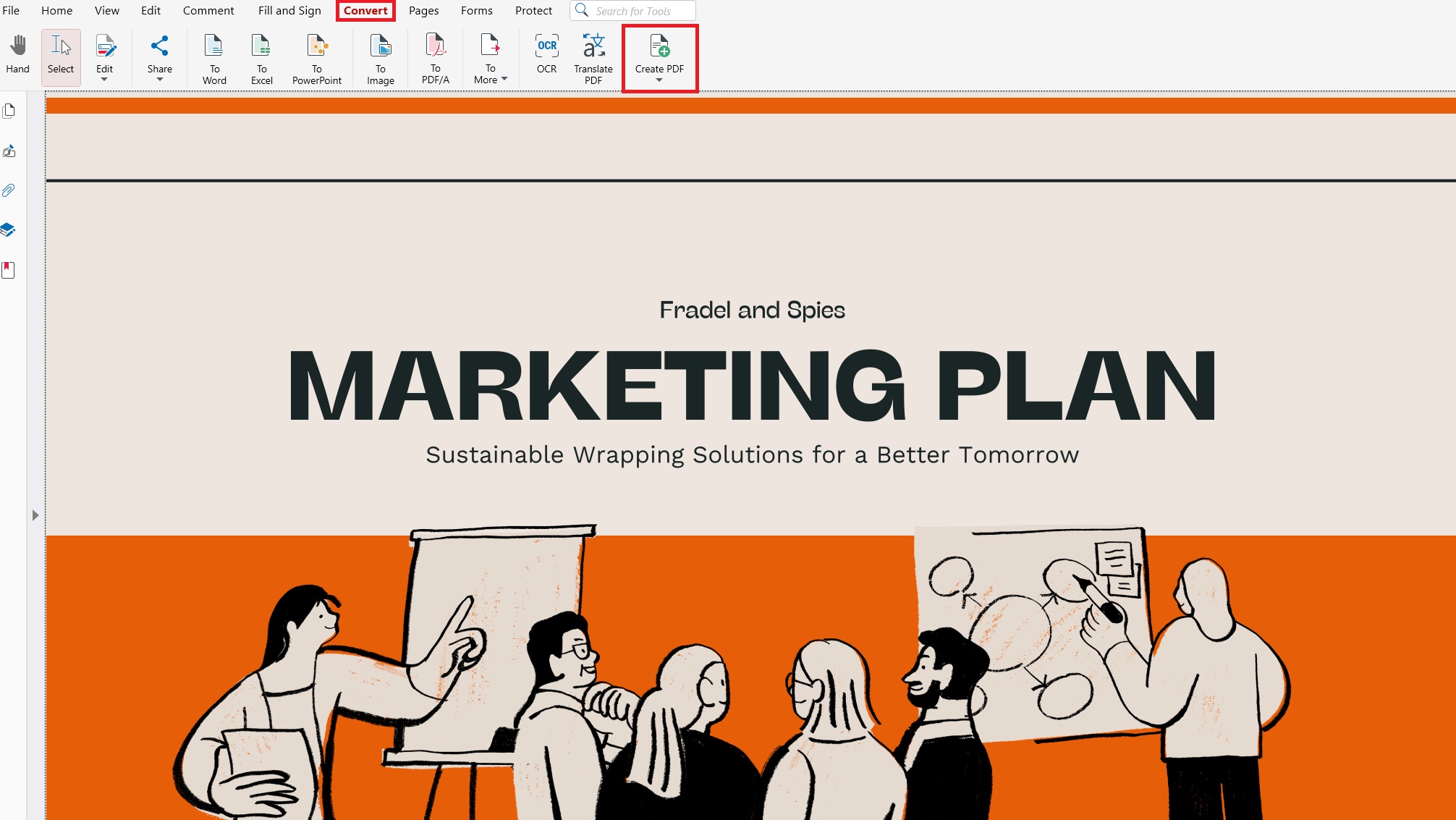
Choose Convert and click on Create PDF.
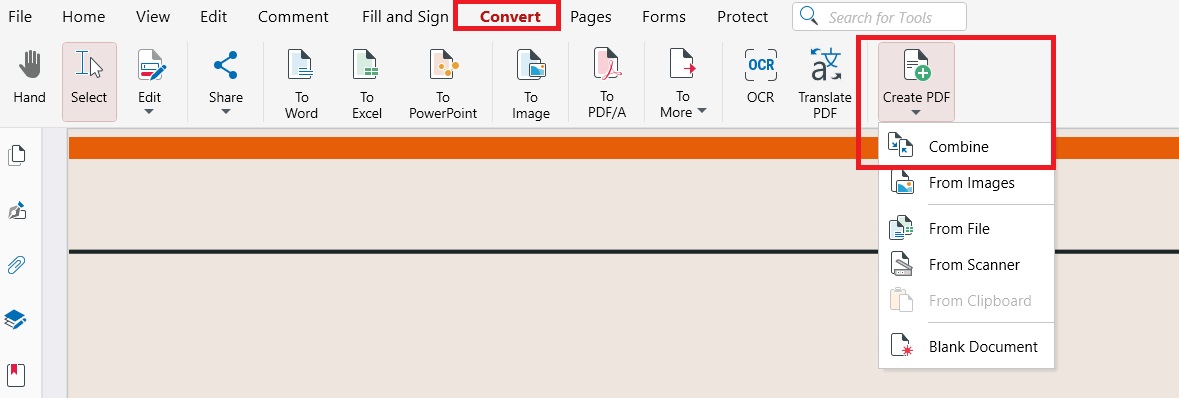
From the drop-down menu, choose Combine.
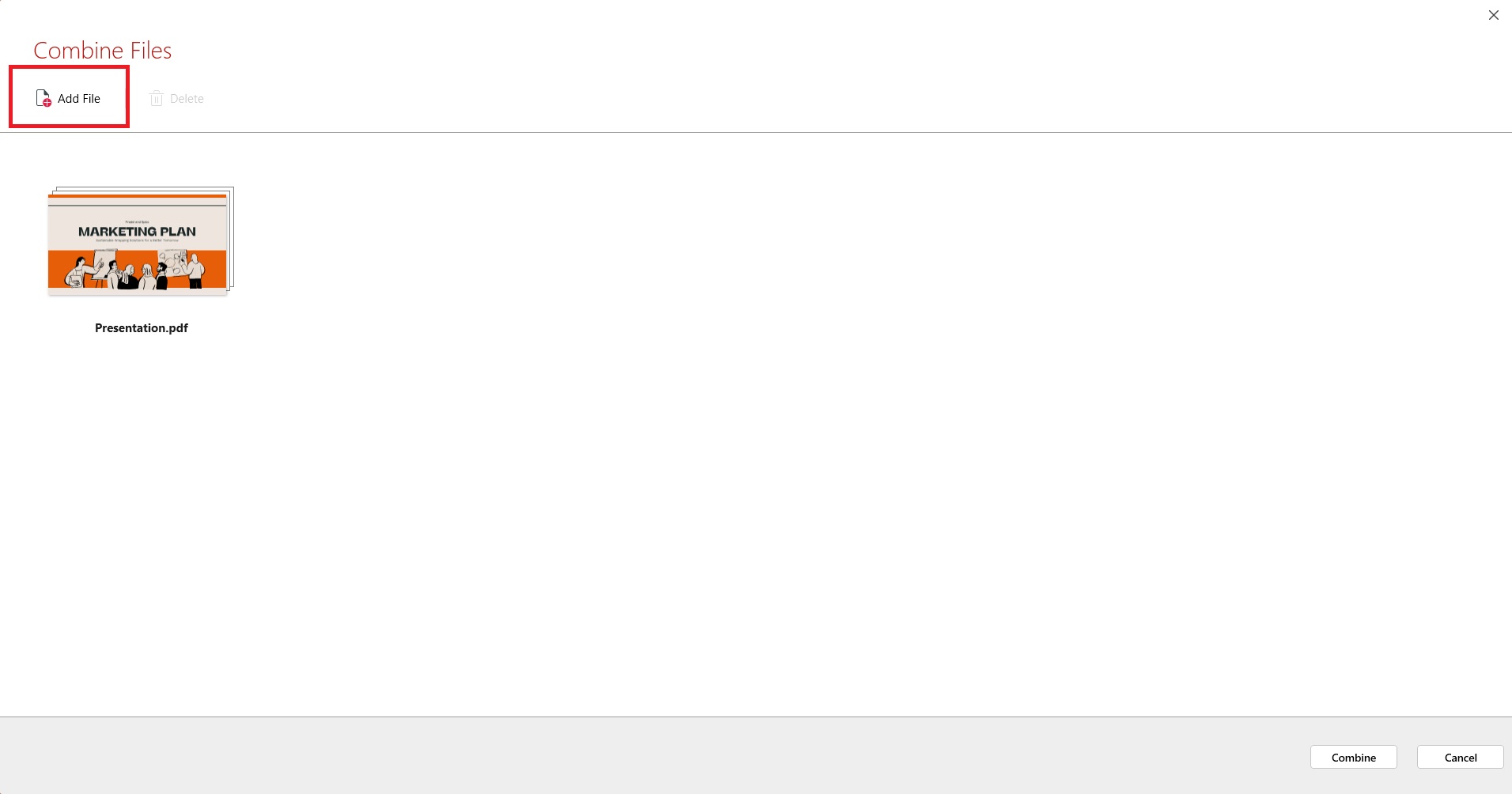
Drag and drop your PDFs, or add them manually using the Add File button, or pick from previously uploaded files.
Click Combine to generate a high-quality PDF.
Your merged file will automatically sync to MobiDrive so you can easily access it across your devices.
So, for example, if you’re preparing documents for a job application – a CV, cover letter, certificates – you can merge everything into one professional-looking PDF for online submission.
Another way to combine files on Windows is:
Visit our website and install the app.
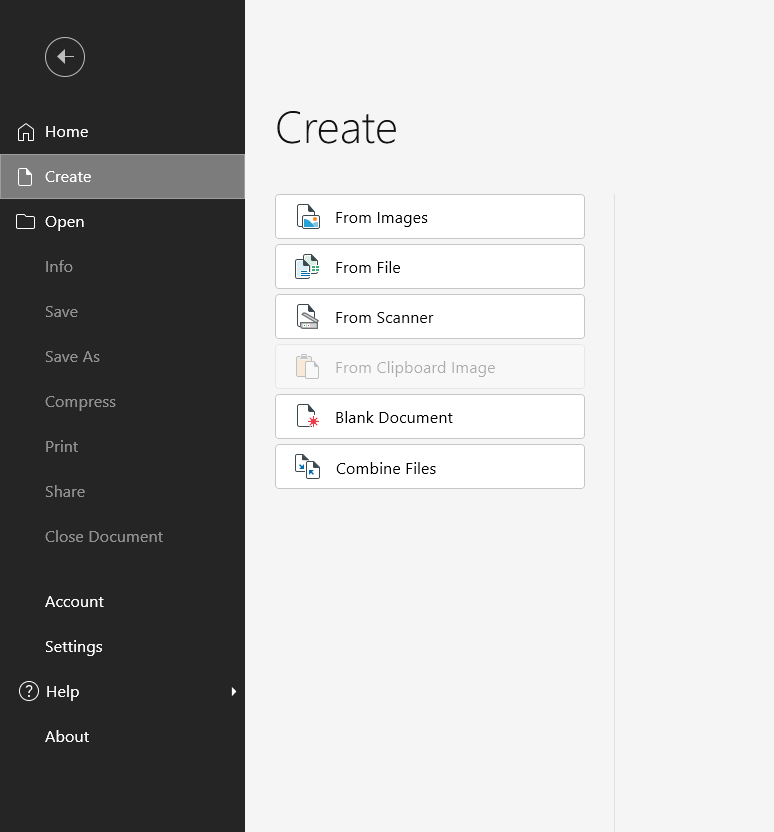
When you open the app, you'll see the Home Screen. Once there, click Create.

Click Combine Files.
Use our Drag & Drop UI to arrange the pages just how you want them (or just click Add File to add files manually from your device).
Once you’re done and you’ve set up your final PDF, just click Combine.
The resulting file will be opened in MobiPDF straight away, ready to sign, share, or save (registered users receive 5GB of free cloud storage with MobiDrive).
How to Combine PDFs on a Mac?
If you’re a Mac user, you can still use MobiPDF by downloading Wine which is a free tool that lets apps designed for Windows work on your Mac or Macbook! Alternatively, you can get Virtualbox to access the entire Windows experience (but virtualised) and still enjoy MobiPDF’s combiner.
If you’re in a pinch and need minimal functionality, newer versions of macOS (starting 2019 with Catalina) offer some built-in functions for combining in both the Finder and Preview macOS apps which you might find handy.
How to combine a PDF file with the Preview app on macOS
Duplicate a single file you intend to use as input – this is essential as Preview saves the files as you go and could overwrite your input files without you noticing!
Open the duplicate in Preview.
Drag all extra PDF files you want into the Preview sidebar. If you like, you should be able to rearrange the files or delete some from the sidebar.
Once you’re happy with the results, click File → Export to PDF.
Why is combining PDF files handy?
Combining PDF files is handy as it lets you organise several documents into one clear, easy-to-share PDF. This cuts down on clutter, makes it easier to work with others, and means your files open smoothly across devices and apps – just one reason why searches for how to combine PDF files and combine PDF files free keep going up.
Merging PDFs is especially useful when you’re working with mixed formats such as Word docs, Excel sheets, images, or scanned pages. A single combined PDF is easier to upload, save, and send for work or personal use.
Main reasons people combine PDF files:
Easier sharing: Send one PDF instead of a stack of attachments.
Tidier organisation: Keep related docs together for quick access.
Better compatibility: Older apps and signing platforms work best with just one file.
Cost savings: Digital signing tools often charge for each uploaded document.
Quicker workflows: Review, mark up, and store one file rather than many.
Whether you’re getting contracts ready, handing in assignments, or packaging reports, combining PDF files into one makes your workflow smoother and more efficient – and helps you avoid mistakes or extra steps.
What should I know before combining PDF files?
Before you combine PDF files, it’s important to know how different tools deal with merging, page order, and document integrity. High-quality PDF combiners like MobiPDF let you take full control of pages, previews, and formatting so your final merged file looks just the way you want it.
Combine vs. merge: What’s the difference?
While lots of people use “combine” and “merge” as if they’re the same, not all software handles them in the same way.
Merge usually just means putting one PDF after another.
Combine should let you rearrange, remove, or add pages before making your final file.
MobiPDF acts as a complete PDF solution PDF combiner, so you can fine-tune the page order and choose exactly which content to include or leave out.
What types of files can I merge into a single PDF?
With MobiPDF, you can merge PDFs, JPG/PNG images, and scanned pages. The app turns each file into a single PDF before merging them together.
Supported formats include:
PDF
PNG / JPG / TIFF
Scanned documents
Mixed-format bundles
This makes it perfect for contracts, reports, schoolwork, or business documents.
Can I preview files before merging them?
Previewing is a must if you want to check the order of pages or see what’s inside each PDF. Surprisingly, many free tools don’t have this feature. MobiPDF lets you:
View page thumbnails
Open a full-screen preview
Rearrange, rotate, add, or delete pages instantly
This means you’ll always know what your merged PDF will look like in the end.
Best practices for safe PDF merging
To prevent data loss or breaking key documents, keep in mind:
Back up your original files before merging.
Use a tool that never overwrites your original files.
Check your pages carefully, especially when merging scans or multi-page files.
We handle multi-file import, page editing, and format protection so you always get a reliable and accurate merge.
Frequently Asked Questions
How can I merge multiple PDF files into one?
Open a PDF combiner like MobiPDF, upload your files, choose the page order, and export a single, merged PDF.
Does merging PDFs affect file quality?
No, quality PDF tools like MobiPDF keep your fonts, images, and formatting when merging.
How do I change the page order when merging PDFs?
Use the page thumbnails to drag, rotate, add, or delete pages before exporting your finished file.
Can I split merged PDFs later?
Yes, MobiPDF has a Split PDF tool so you can separate pages or ranges from a merged file.
Conclusion
Merging PDF files is one of the easiest ways to keep your documents organised, share information quickly, and make your digital workflow a breeze. With the latest 2026 version of MobiPDF, you can quickly merge PDFs and fully control page order, quality, and formats – whether on desktop, mobile, or in the cloud. Whether you’re putting together professional paperwork or everyday files, MobiPDF gives you a fast, secure, and reliable PDF combiner for every need.