This article was updated on 16 Dec 2025
If you’ve ever wondered how to annotate a PDF, the process is easier than you might think – and can completely change the way you read and edit documents. Whether you’re editing for work or study, annotation tools help you highlight, explain, and share ideas directly in your PDFs.
What is PDF annotation software?
PDF annotation software lets you add notes, comments, highlights, and other visual elements directly on a PDF file. It gives you a way to make your documents more descriptive and actionable without changing the original content.
With MobiPDF, you can annotate your documents quickly and efficiently. You can add comments, highlight text, insert shapes, or even attach extra files to specific pages. This means you can explain your ideas clearly, mark key details, and make sure nothing important gets missed.
Typical annotation options include:
Adding comments or sticky notes to existing content
Highlighting, underlining, or striking through text
Inserting stamps and signatures
Drawing shapes like arrows, rectangles, or circles
Attaching images or supporting files
Adding polygons and connected lines for more advanced mark-ups
A good PDF annotation tool also allows you to make immediate PDF text changes. This includes being able to highlight, strike through, or underline the content you want. This is especially useful when you need to emphasise parts of the content that are essential for context, and you need to direct attention to them. They could also just act as a reminder about what you need to focus on during later edits.
How do I annotate a PDF?
Many users also ask “how can I annotate a PDF document effectively?”, and the answer is by using the right annotation tools built in to MobiPDF.
Here’s how:
Open your file in MobiPDF.
Go to the Comment tab – this is where all annotation tools are found.

Choose the annotation type you need (Notes, Highlight, Shapes, Polygons, Connected Lines, etc.).
Click anywhere on the document where you want to add the annotation.
Type your note, draw your shape, or select the highlight colour.
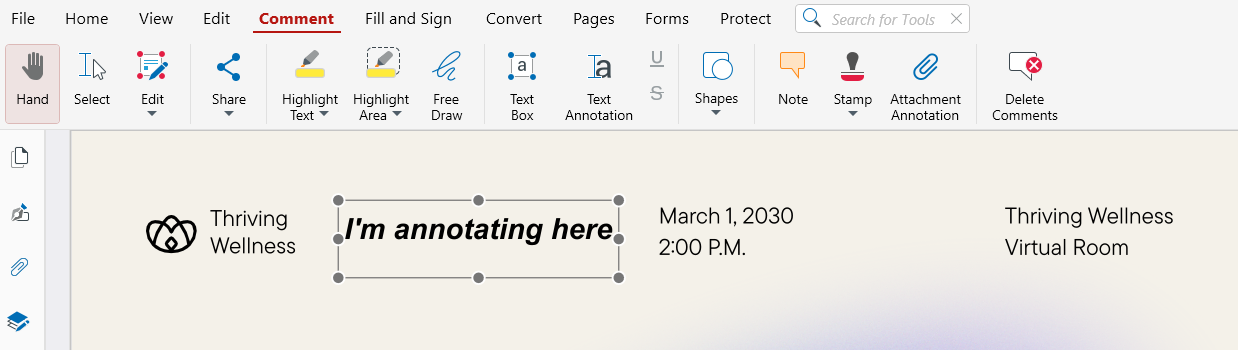
This simple process works both on desktop and mobile, and all annotations are automatically saved and synced to MobiDrive, making sure your edits stay consistent across platforms.
Adding comments, so everything is crystal clear
If you’re wondering how to annotate a PDF, the answer is to include the basics, including the option to add comments to selected parts of the PDF content. This also includes how to add notes to PDF files – a great way to explain ideas or clarify sections for collaborators.
Comments also reduce the risk of misunderstandings and lead to a more productive workflow with collaborators.
What are the advantages of annotating a PDF?
Annotating a PDF document lets you provide extra context and clarity to your readers or collaborators. You can annotate PDFs by adding text boxes, freehand drawings, and file attachments.
Examples of annotation features you can use:
Highlight important data in a report.
Add sticky notes to explain a graph or figure.
Insert comments next to contract clauses for review.
Attach related documents or images for quick reference.
One of the most important reasons to annotate PDFs is to improve communication with others who work with the same document.
How Can I Add a Signature to a PDF?
You can sign with a predefined custom signature, or you can insert a digital signature, available under the Protect tab in MobiPDF.
So, you can add two types of signatures:
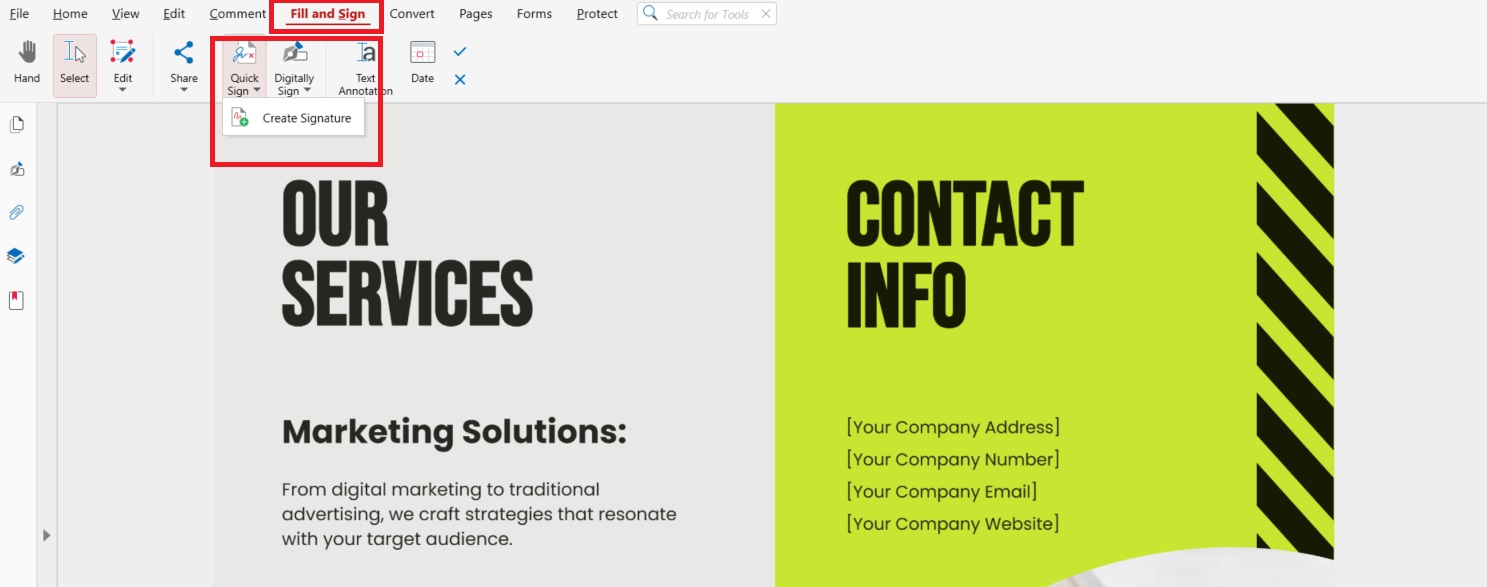
Handwritten or Predefined Signature:
Go to Fill & Sign → Quick Sign.
Create or upload your signature.
Save it for future use.
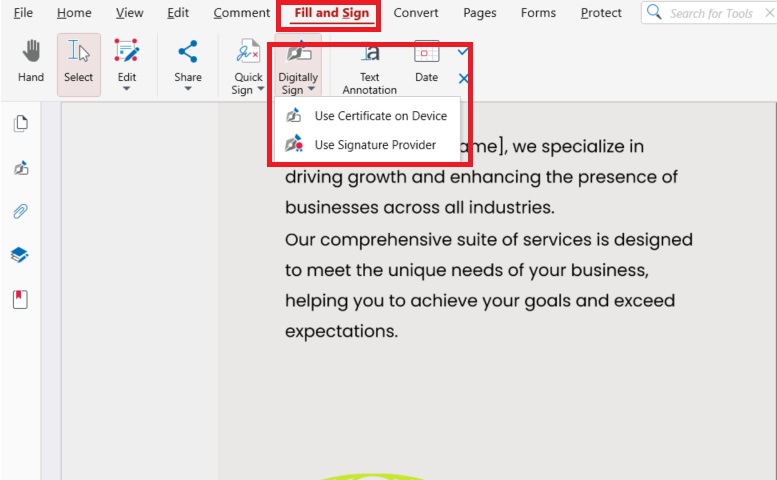
Digital Signature (with Certificate):
Open Protect → Digitally Sign.
Use your unique digital certificate.
Save the document to secure it with encryption.
Digital signatures ensure document authenticity and prevent unauthorised changes – essential for contracts and official forms.
How to annotate PDF files – a step-by-step guide
Annotating a PDF helps you add context, comments, and explanations directly on your document. With MobiPDF, you can easily insert notes, highlight text, or add visual marks to make your content clearer.
Here’s how to add a comment using MobiPDF for Windows:
Open your file with MobiPDF.
Click on the Comment tab.

From the presented options, select Notes.

Click anywhere in the document where you need to insert a comment.
Type the content in the pop-up note and click anywhere outside the note to save it.
For your convenience, Text Annotation can also be accessed from the Home tab.
How to work with texts when annotating a PDF
Sometimes, plain text alone might not be enough when annotating a PDF and you may need to use extra techniques like highlighting, underlining, and so on.
Here is how to annotate a PDF by editing text in MobiPDF:
Click on Select within the Home tab.
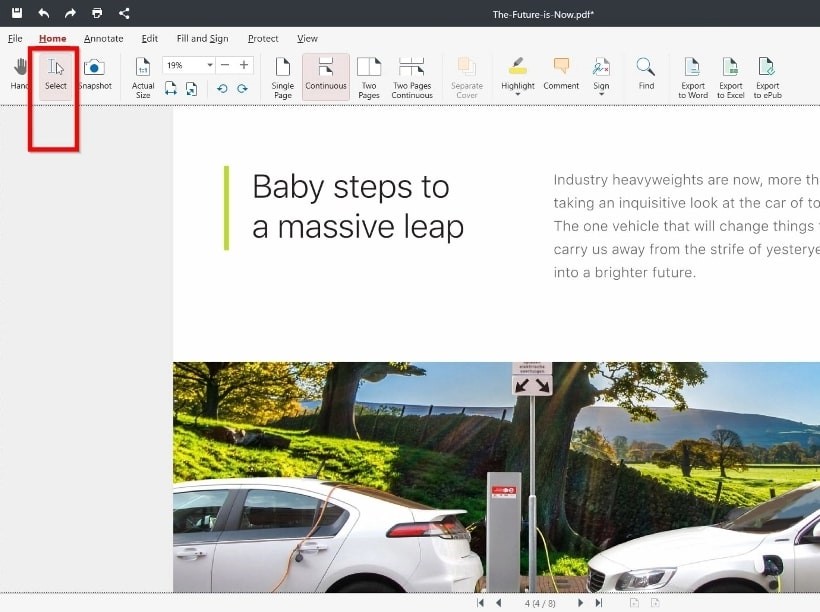
Select the text you want to change and a floating annotation menu should appear automatically.
From the dropdown menu, choose the annotation option that you need.
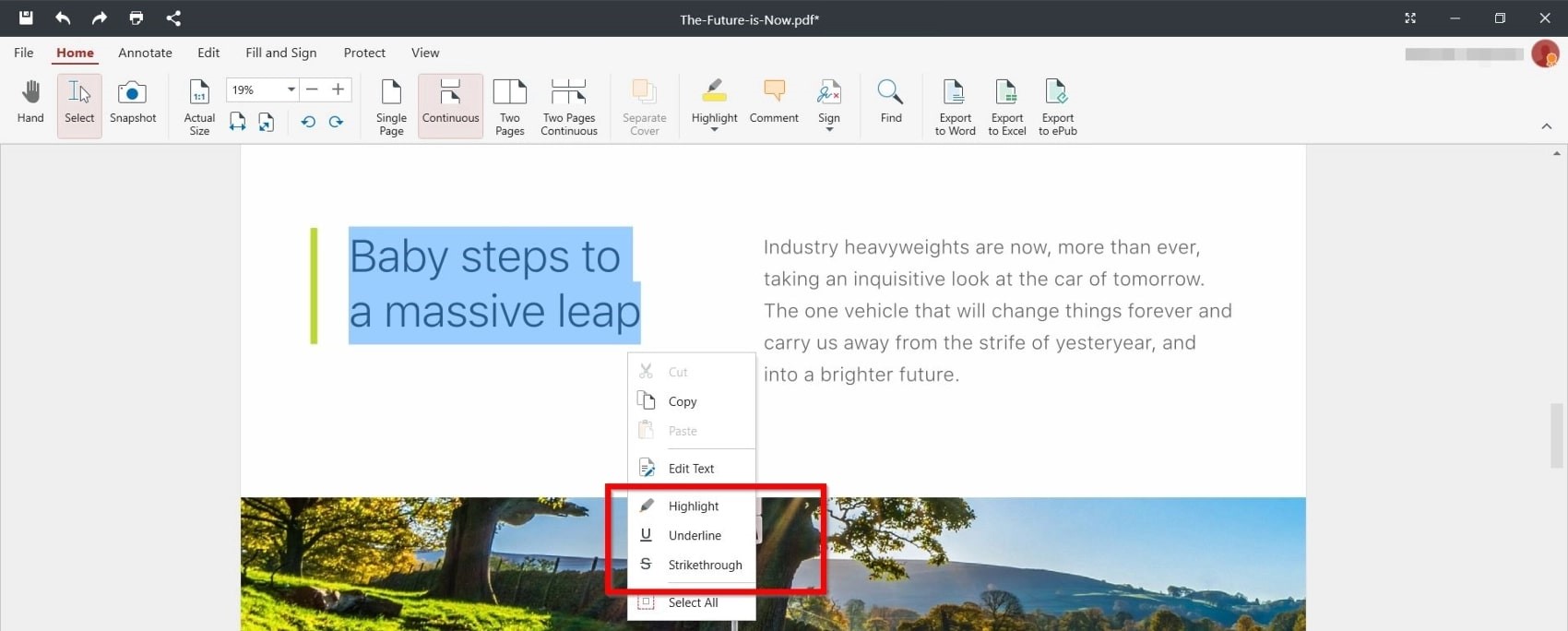
You can cut, copy, or edit the selected text, then adjust its style using Edit Text. You can also hold SHIFT to draw perfectly straight lines when using drawing tools. Change fonts, colours, size, or even rotate the content from the Editing Tools tab to match your layout needs.
How to add stamps to a PDF
Stamps are a quick way to mark a PDF as Approved, Reviewed, or Draft and guide collaborators at a glance. In MobiPDF, you can insert ready-made stamps in seconds and adjust their placement.
To add a stamp:
Open your file with MobiPDF.
Choose Comment, then Stamp.

Click on the spot where you want to position the stamp annotation.
You can use the dragging points to resize the stamp, move it within the document, as well as left-click and drag to your preferred position.
How to add attachments to a PDF
You can easily attach extra files to your PDF in MobiPDF – perfect for adding references, images, or supporting documents.
To attach a file:
Open your document in MobiPDF.
Go to Comment → Add Attachment.

When the directory window opens, select the file you want to attach.
Click Open to confirm your choice.
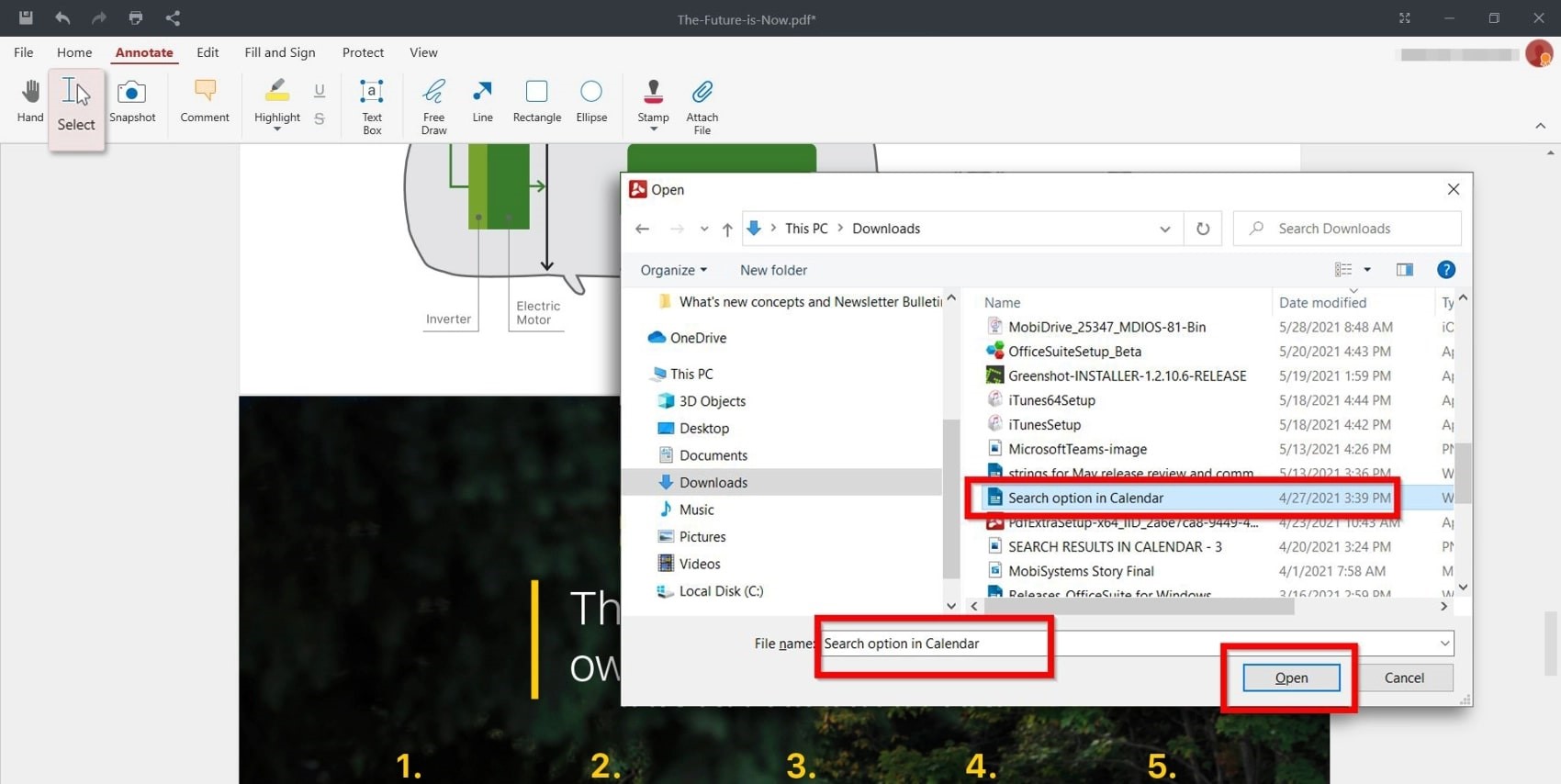
To view all attachments:
Go to the side panel.
Choose Attachments.

FAQs
How to annotate a PDF file?
To annotate a PDF file in MobiPDF, open your document and use the Comment tools. You can add notes, highlights, underlines, or shapes directly on the page to make your PDF more interactive and easier to review.
How to annotate a PDF on a computer?
You can annotate a PDF on a computer using MobiPDF by opening your document, selecting the Comment or Highlight tool, and clicking anywhere on the page to add your note.
How to annotate a PDF on a laptop or tablet?
If you're using a tablet (Android/iOS), open the file in the MobiPDF mobile app and use tools like Highlight, Underline, Notes, or Shapes. Note that the mobile interface of MobiPDF is optimised for touch input so the workflow is a bit different to what it is on a PC.
How to add notes or highlights to a PDF document?
To add notes or highlights to a PDF document, select the Comment or Fill & Sign tool from the menu in MobiPDF. Click on the area you want to mark, type your note, or choose your preferred highlight colour to emphasise important details.
How to annotate a PDF on Mac?
MobiPDF does not currently have a Mac version, but you can annotate your PDFs on Windows or Android/iOS using the same tools and synced files via MobiDrive.
How to annotate a PDF on Windows?
To annotate a PDF on Windows, open your file with MobiPDF and go to the Annotate tab. Choose your desired tool – comment, highlight, underline, or draw – then click anywhere on the document to add your annotation instantly.
Final thoughts
Learning how to annotate PDF documents properly can make teamwork smoother and help everyone stay on the same page. Just a few well-placed hints in the form of texts, comments, or attached files can instantly shine a light on difficult concepts for your readers or teammates.