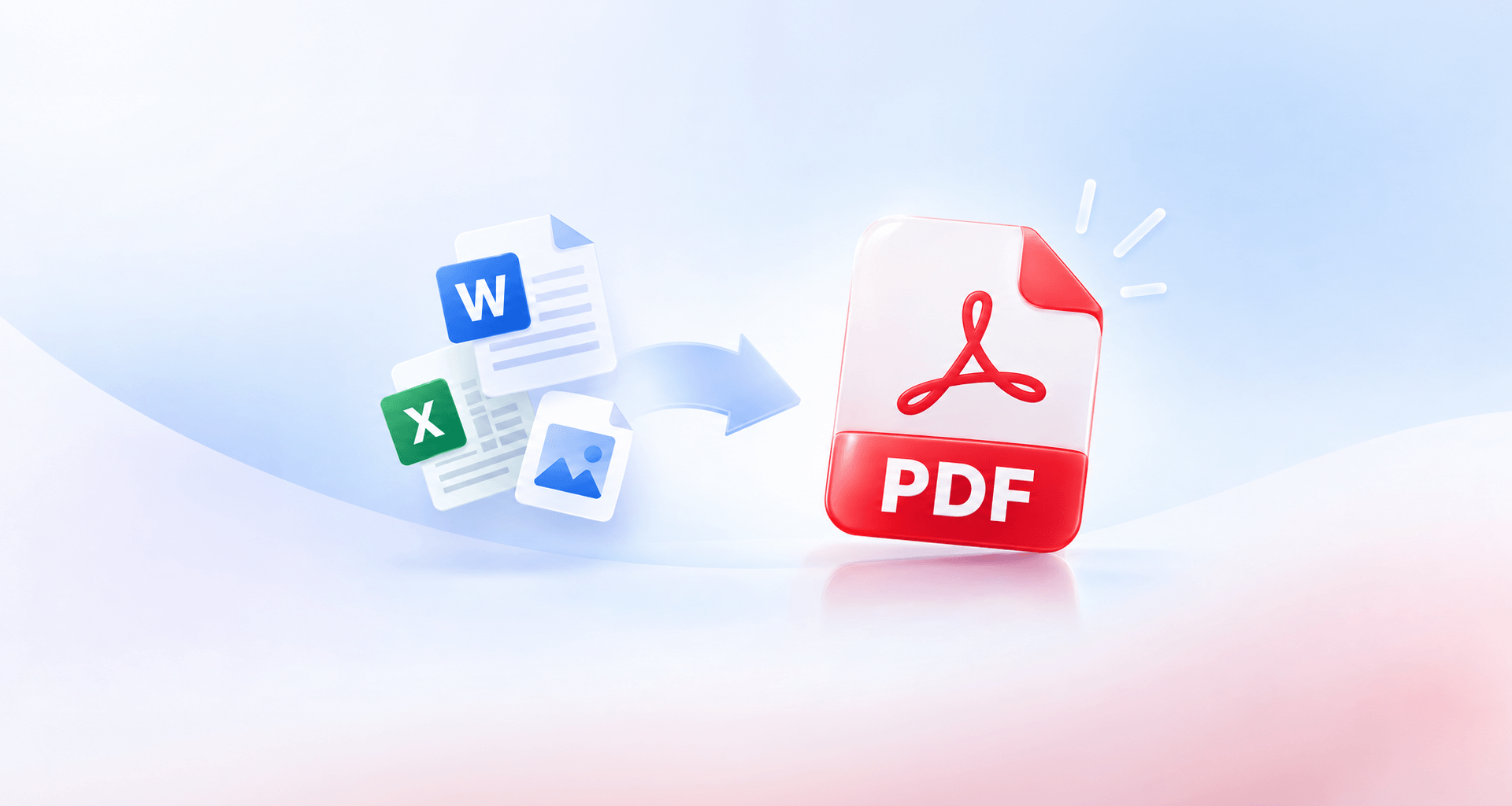
To make a PDF file, open the document and choose File > Save As or Export, then choose PDF. If the app has no PDF option, print it and choose Microsoft Print to PDF on Windows or Save as PDF on a Mac. For images, scans or a screenshot, use a PDF editor that creates PDFs from them.
Save as PDF from the app you are already in
If your file is open in Microsoft Word, Excel or PowerPoint, you can save it as PDF without leaving the app. This is the best method for documents, because the PDF keeps your layout, headings and working links.
To save a Word document as a PDF on Windows:
1. Open the document in Word.
2. Select File > Save As.
3. Choose the folder for the new file.
4. Select PDF (*.pdf) in the Save as type list.
5. Select Save.
File > Export > Create PDF/XPS Document gives you the same result. For a Word document to PDF conversion, save the editable document as well so you can revise it later.
Excel: Choose File > Save As or Save a Copy, then PDF (*.pdf); check which sheets and pages the export includes.
PowerPoint: Choose File > Export > Create PDF/XPS Document > Create PDF/XPS, then publish the presentation as a PDF.
Google Docs: Choose File > Download > PDF Document (.pdf) to save a Google Doc as PDF on your computer.
Saving from Word can preserve working links, but check the finished file before sharing. Export settings and the app version can affect the result.
Make a PDF from any app with Print to PDF
Any app that can print can also make a PDF file, because Windows and macOS include a virtual printer that writes to a file instead of paper.
On Windows:
1. Select File > Print.
2. Choose Microsoft Print to PDF as the printer.
3. Select Print.
4. Name the file and select Save.
On a Mac:
1. Choose File > Print.
2. Click the arrow next to the PDF button at the bottom of the dialog.
3. Choose Save as PDF.
4. Enter a name, choose a location and click Save.
Print to PDF is the method for web pages, emails, receipts and apps with no PDF export. It gives you exactly what would print, including the page size, margins and any headers the print settings add. The trade-off is that links usually stop working.
Which method fits what you start from
Choose PDF export for an existing document, Print to PDF for printable content, and a PDF editor for pictures, paper or a blank page. The starting material also determines whether your PDF contains searchable text or just images.
Use the table to pick a route before you convert anything. If you need to find names, copy figures or follow links afterward, check those features in the finished file.
For images, scans and blank pages on Windows, you can try MobiPDF.
Turn images, scans and screenshots into a PDF
Use an images-to-PDF option for pictures, scan to PDF for paper, or create from the clipboard for a screenshot. These routes put visual content into a PDF; recognizing the words on those pages is a separate step.
Several images: Add your pictures to a PDF editor and set their order before creating the file. When making a PDF from images, check that every page is upright and that small text is readable. For a three-page application, for example, put the main form first and the supporting pages afterward.
Paper: Connect your scanner and choose the editor’s scan-to-PDF option. Enable optical character recognition (OCR), where available, and select the document’s language so the scanned words can become searchable text.
A screenshot: Copy the screenshot, then use the editor’s option to create a PDF from the clipboard. This screenshot to PDF route avoids saving a separate image file first, but only includes what you captured.
A PDF made from pictures has no searchable text until OCR adds a text layer. After recognition, search for a word you can see on the page and try selecting a sentence; review unclear numbers or characters against the image.
Make a PDF on your phone
Use Safari’s sharing options on iPhone or Chrome’s print options on Android to save a webpage as a PDF. The steps below apply to those apps; another app may offer a different export menu.
iPhone: Open the page in Safari, tap the Page Menu button, then Share; some tab layouts show Share directly. Choose Options, choose PDF and tap Save.
Android: Open the page in Chrome and tap More > Share > Print. Open the printer selector, choose Save as PDF, and select where to save the file. Complete the save action shown on your device.
For paper, scanning with an iPhone uses the phone camera instead of a connected scanner. Review the crop and page order before you send the scan.
When your PDF comes out wrong
Fix the part that failed: export again for links, run OCR for image-only text, compress a large file, or organize misplaced pages. Keep the original so you can compare the result and retry without losing your source material.
Links do not work. Printing to PDF may have removed them; return to the original document and use Save As or Export > PDF instead. Open the new PDF and test the links you need, including links to other pages within the document.
You cannot search or select text. The pages may be pictures rather than text. Run OCR with the correct language selected, then check a recognizable word and a short passage.
The file is too big. Compress the PDF and save a separate copy. Check small print and image detail afterward, especially if the file contains scanned receipts or forms.
Pages are in the wrong order or separate files. Reorder the pages in a PDF organizer, or combine the files into one document. Review the complete sequence before sharing so a missing page is not mistaken for a conversion problem.
Alternative: MobiPDF
MobiPDF for Windows lets you create PDFs from files, images, paper, clipboard pictures or a blank document.
On the start screen, choose Create in the left-hand menu to find six options:
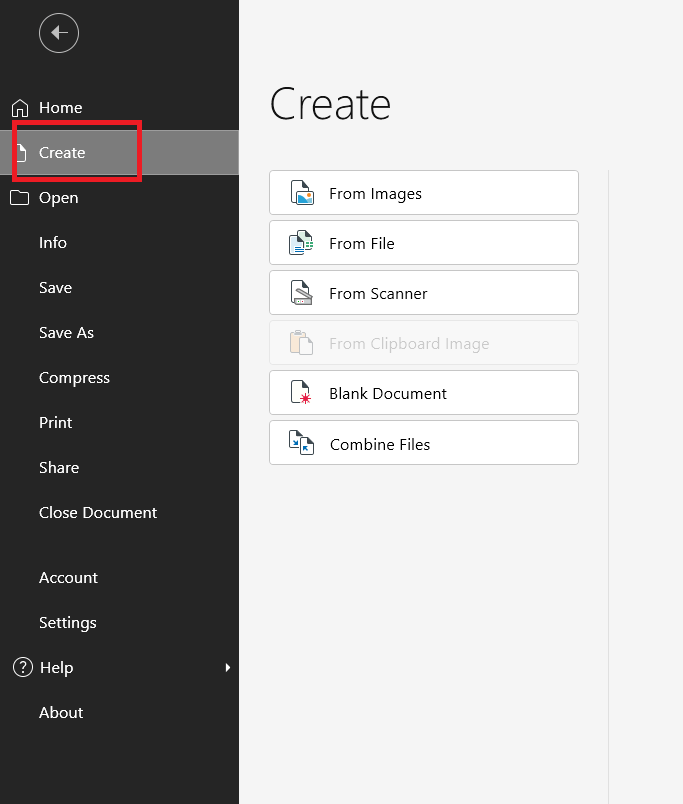
From Images: Put several images into one PDF in the order you set.
From File: Convert one supported file into a PDF that opens in a new window.
From Scanner: Scan paper with a connected scanner; OCR Settings includes a language list.
From Clipboard Image: Create a PDF from a copied screenshot or picture.
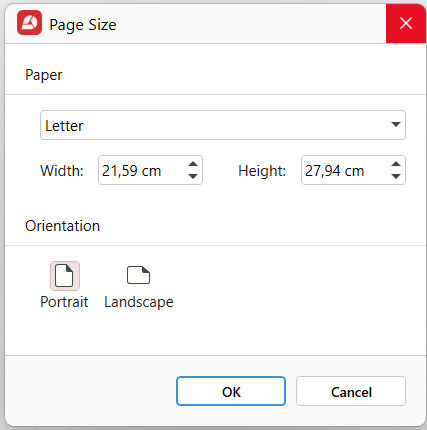
Blank Document: In a dialog box, you will have the option to choose Page Size, exact dimensions and portrait or landscape orientation.
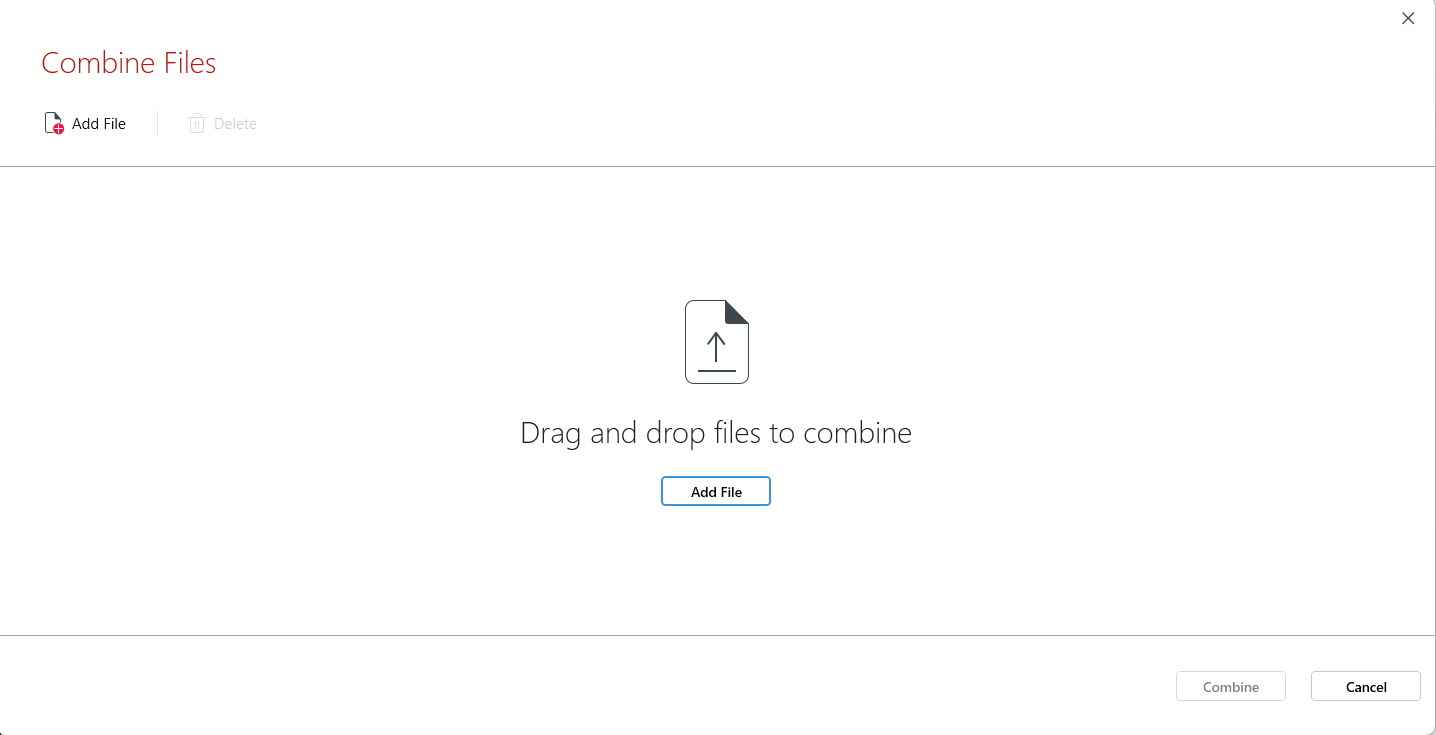
Combine Files: Bring separate files together in one PDF.
After From Images, the bar “This looks like a scanned PDF” offers Perform OCR and Convert to Word.
For creating PDFs in MobiPDF, images, scanner input and blank documents are included in Lifetime and Pro. From File requires Pro; these creation features are not on Free.
FAQ
Open the document and choose Save As or Export, then select PDF. If the app has no PDF export, open Print and choose Microsoft Print to PDF on Windows or Save as PDF on a Mac.
Use Save As or Export > PDF in an Office app you already have. For other apps that support printing, choose Microsoft Print to PDF from the printer list, then name and save the output file.
Use a PDF editor’s images-to-PDF option, add the images, and arrange them in reading order before creating the PDF. Check rotation and readability on each page. If the pictures contain text you need to search, run OCR afterward.
Your PDF may contain pictures of text instead of actual text. This happens with scans, photos and screenshots. Run OCR to add a text layer, then check the recognized words, especially names, dates and numbers.
Usually because the file was printed to PDF: Print to PDF keeps only what would print, so links stop working. Go back to the source document and use Save As or Export > PDF, then test the new file. Link behavior can vary by app and export settings, so saving again is not a guarantee.
Windows and macOS include PDF printing, and Office apps include PDF export without an extra converter, though Office itself may require payment. In MobiPDF, creation from images, scans and blank documents is on Lifetime and Pro; From File conversion requires Pro.
Final thoughts
Start with the file you have: export a document, print from an app, or use a PDF editor for images and scans. Before sharing, open the result and check the page order, text search and any links you expect someone to use.
Keep the editable original for later changes. If the PDF needs a fix, return to that source or use OCR, compression and page organization as needed.
For a Windows app with several PDF creation options, try MobiPDF.