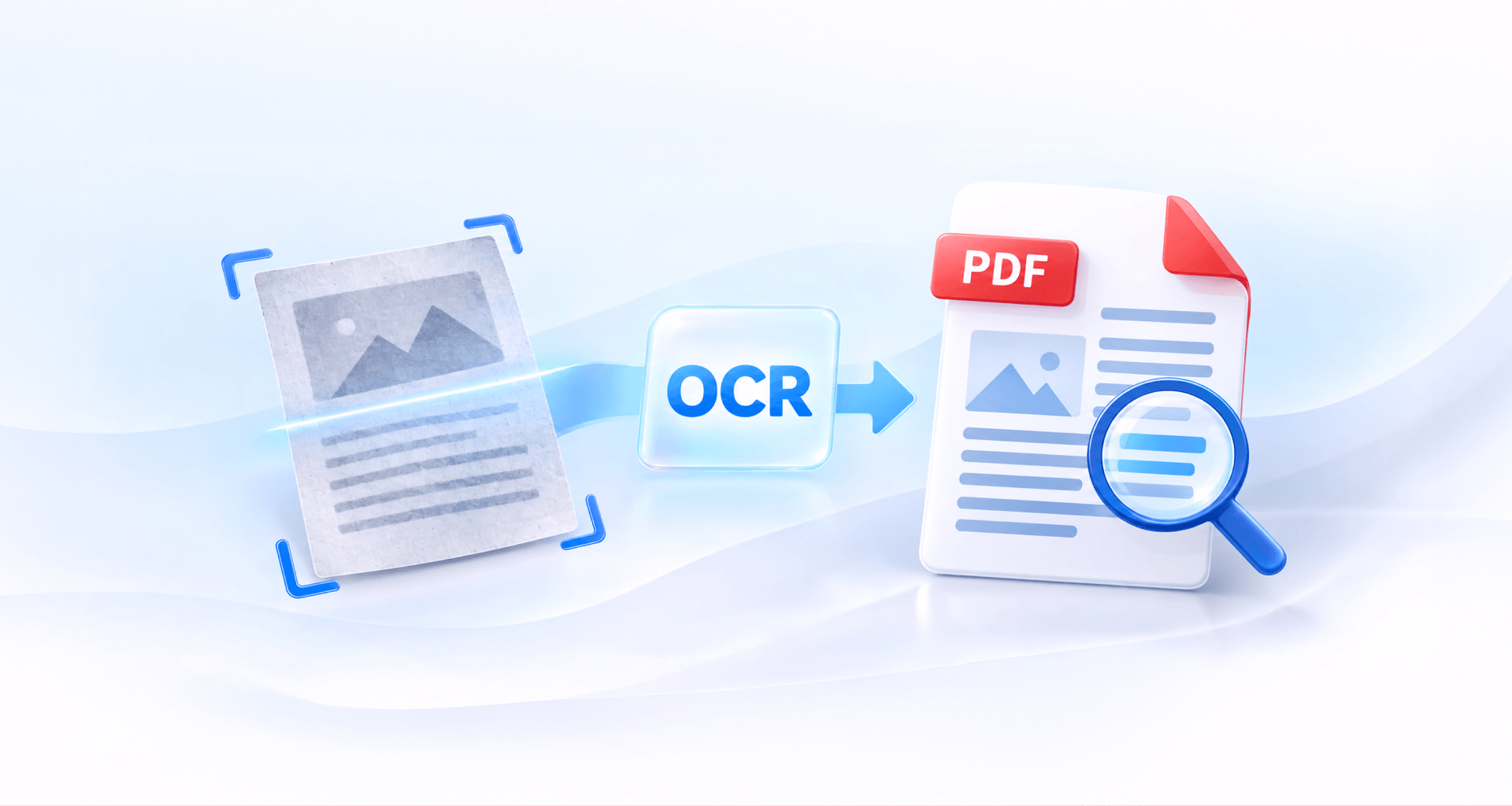
To make a PDF searchable, run OCR (optical character recognition) on it. OCR reads the text in the scanned pages and adds it as a hidden text layer, so you can search, select and copy words while the page looks the same. Set the document's language first, then check the result with Ctrl+F.
Why your PDF is not searchable
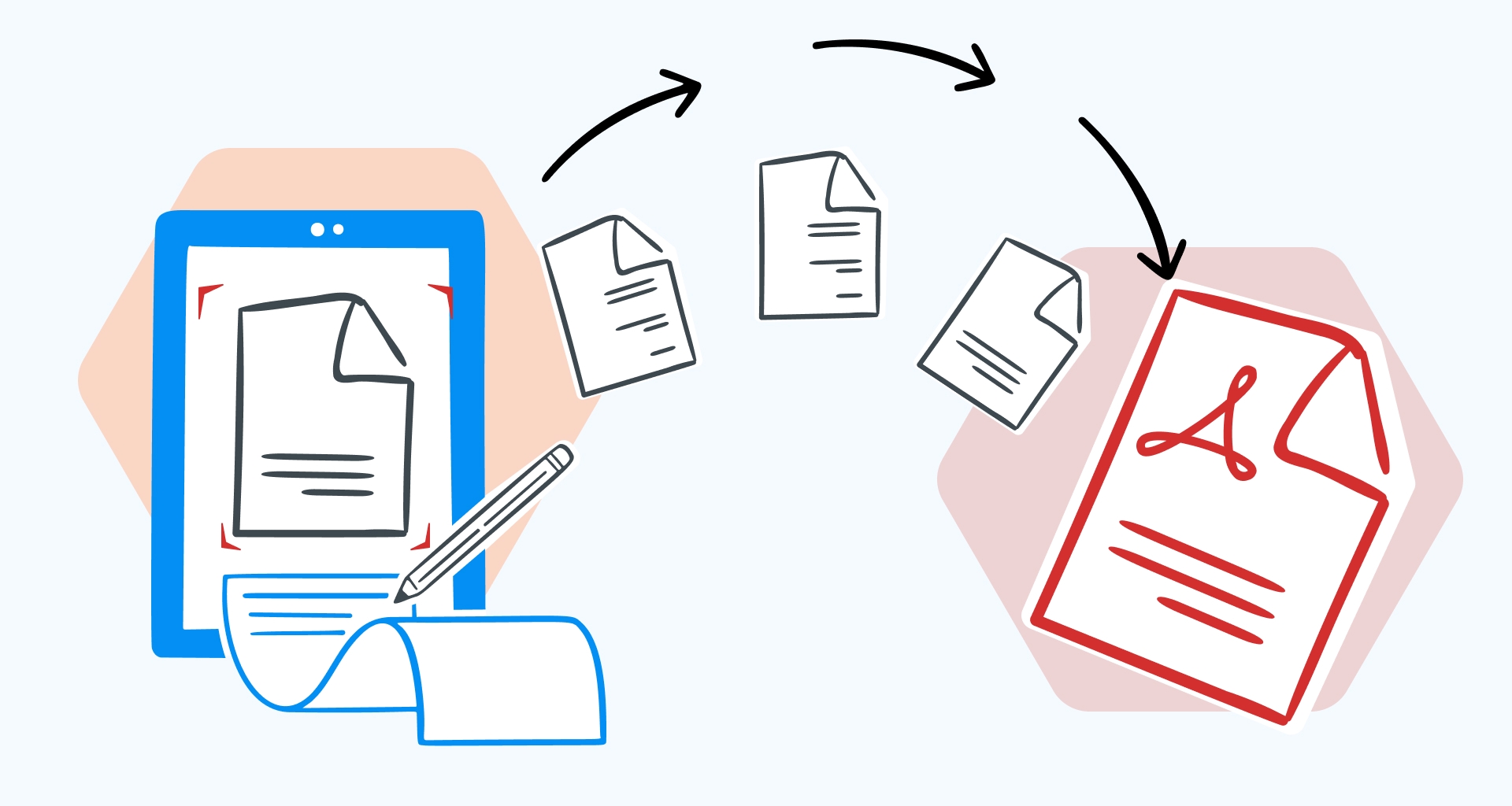
Your PDF is not searchable because its pages are images of text, not text. A scanner, a phone camera or a screenshot tool records what the page looks like, dot by dot. Saved as a PDF, that image shows you words, but the file holds only a picture of them.
Search, select and copy all work on a text layer: the actual characters stored in the file, each tied to its place on the page. A PDF exported from a word processor has that layer from the start. A scanned PDF does not, which is why Ctrl+F finds nothing and your cursor draws a box instead of highlighting a line.
OCR closes the gap. It looks at the shapes on each page, recognises them as letters and words, and writes them into the file as text. If your pages are still on paper, start with converting a scanned copy to PDF, then add the text layer.
How to check whether a PDF is searchable
To check whether a PDF is searchable, press Ctrl+F (Cmd+F on a Mac) and search for a word you can see on the page. If the search finds nothing, the page is an image.
You can also try to select a line of text. On a searchable page, the words highlight as you drag. On an image, nothing highlights, or the whole page is selected as one block.
Check a few pages, not only the first. Some files mix both: a typed cover letter followed by scanned attachments. Once every page has a text layer, searching for words in a PDF works the same way it does in a typed document.
How to make a PDF searchable with OCR
You make a PDF searchable by opening it in a PDF editor with OCR, choosing the language and the type of result, and running recognition on the pages you need. The steps to OCR a PDF are similar in most editors:
1. Open the scanned PDF in a PDF editor that has OCR (like MobiPDF).
2. Start OCR. Many editors offer it as soon as they detect a scanned page; otherwise, look for it in the toolbar or the tools menu.

3. Set the document language. Add every language that appears in the file, not only the main one.
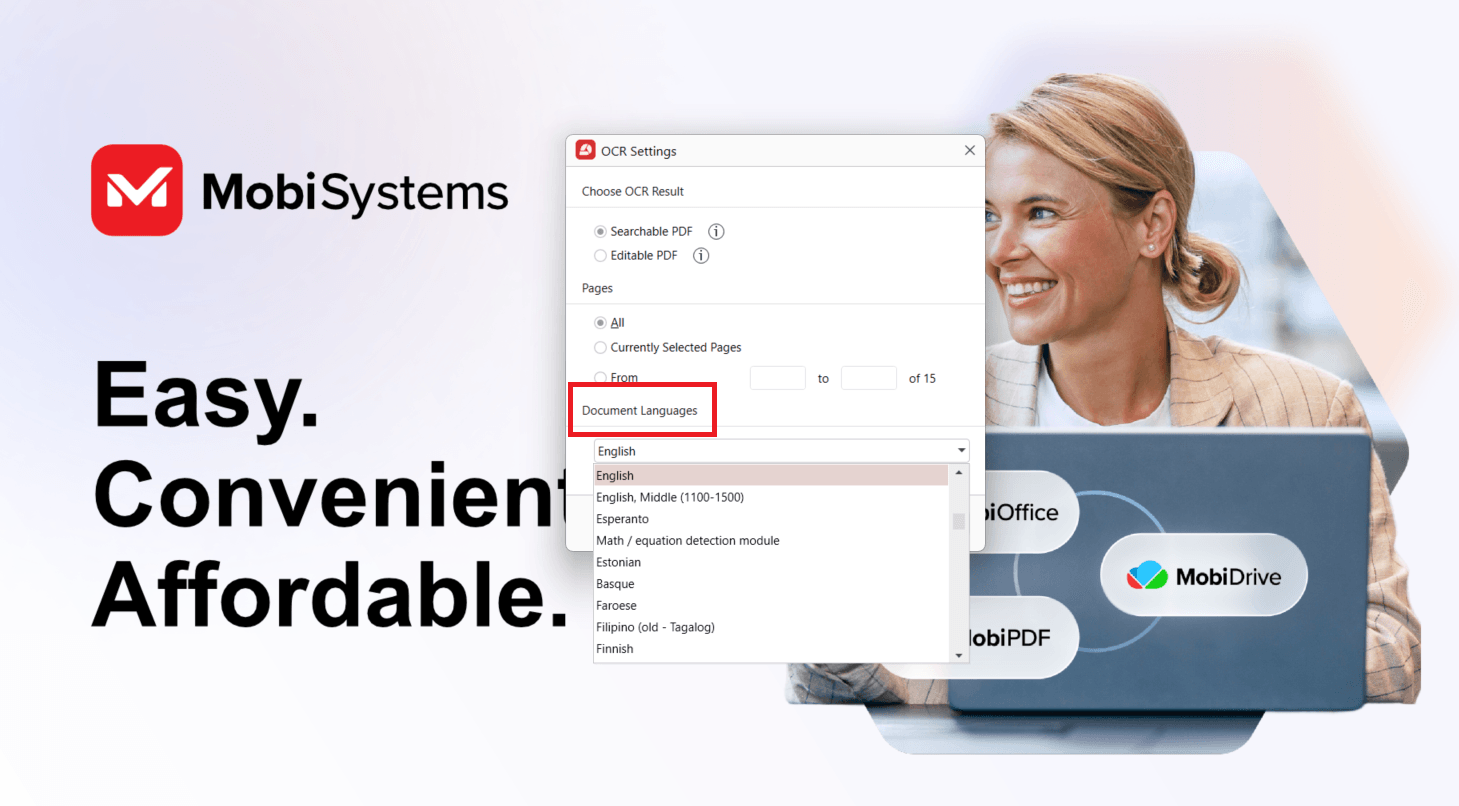
4. Choose the result: a searchable PDF that keeps the page as it is, or an editable PDF you can change.
5. Choose the pages: all of them, the selected pages, or a range.
6. Run OCR and wait for it to finish. Long documents take longer.
7. Check the result: press Ctrl+F and search for a word you can see.
8. Save the file. Use Save As if you want to keep the original scan as well.
For example, say you have a 30-page lease scanned at the office, with a few clauses in Spanish. Set both English and Spanish before you run OCR, and choose the searchable result so the signatures and stamps stay exactly where they are. Then search for “termination” on a few pages to confirm every one came through.
Searchable PDF or editable PDF?
Choose a searchable PDF when the page must look exactly like the original, and an editable PDF when you need to change the words. A searchable result keeps the scan and places an invisible text layer behind it. An editable result rebuilds the page from the recognised text, so tables, columns and mixed fonts may shift. When the real goal is to rework the content, converting the PDF to Word is often the cleaner route.
How to get better OCR results
The best OCR results come from clear, straight scans with readable printed text and correctly selected document languages. Even a capable text recognition tool can struggle when the original image is difficult to read.
A few adjustments can make a noticeable difference:
Scan pages straight. Align the document before scanning. Tilted text can make individual characters harder to recognise.
Use good lighting. When photographing a page, avoid shadows, glare and uneven lighting that obscure parts of the text.
Choose a suitable scan resolution. A normal office scanning resolution, typically around 300 DPI, is a good starting point for printed documents.
Check the document languages. Select every language that appears in the file. Missing language settings can lead to incorrect letters or words.
Crop unnecessary borders. Dark edges, scanner shadows and large areas outside the document can interfere with recognition.
Check small print. Footnotes, fine print and densely formatted tables may need closer inspection after OCR.
If the text is still difficult to recognise, try rescanning the original paper at a higher quality rather than repeatedly processing the same unclear image.
For documents containing several languages, pay particular attention to the language selection. A document that combines English with another alphabet may produce incorrect characters if only English is selected.
These adjustments are especially useful when processing older documents, faded photocopies and pages with small text. Following OCR conversion tips can help you prepare scans before recognition.
OCR problems and how to fix them
Most OCR problems come from a missing language, the wrong type of result, or pages left out of the range. Here is how to spot and fix each one.
Gibberish or wrong letters. A language in the document is missing from the OCR settings, so accented or non-Latin characters turn into look-alikes. Add every language and run OCR again; if errors remain, rescan the page.
The layout moved. The editable result rebuilt the page from the recognised text, and complex layouts don’t always survive that. Run OCR on the original scan again and choose the searchable result, which leaves the page as it is.
Some pages are still not searchable. The page range left them out. Run OCR on just those pages, then check each one with Ctrl+F.
Handwriting is not recognised. OCR is built for printed text, so handwritten notes and form entries may come out wrong or not at all. If you need to find them later, add the key details as typed text.
Alternative: MobiPDF
MobiPDF for Windows lets you turn scanned PDFs into searchable or editable documents using OCR. It can also detect scanned pages and offer text recognition when you open a document.
When you open a scanned PDF, a notification bar appears at the top of the document with an option to run OCR. It can also appear after you go to Create > From Images – again, a notification saying “This looks like a scanned PDF” will appear, offering Perform OCR or Convert to Word.

You can also start recognition manually by selecting OCR on the Home tab of an open document or Recognise Text in the Tools panel on the home screen.
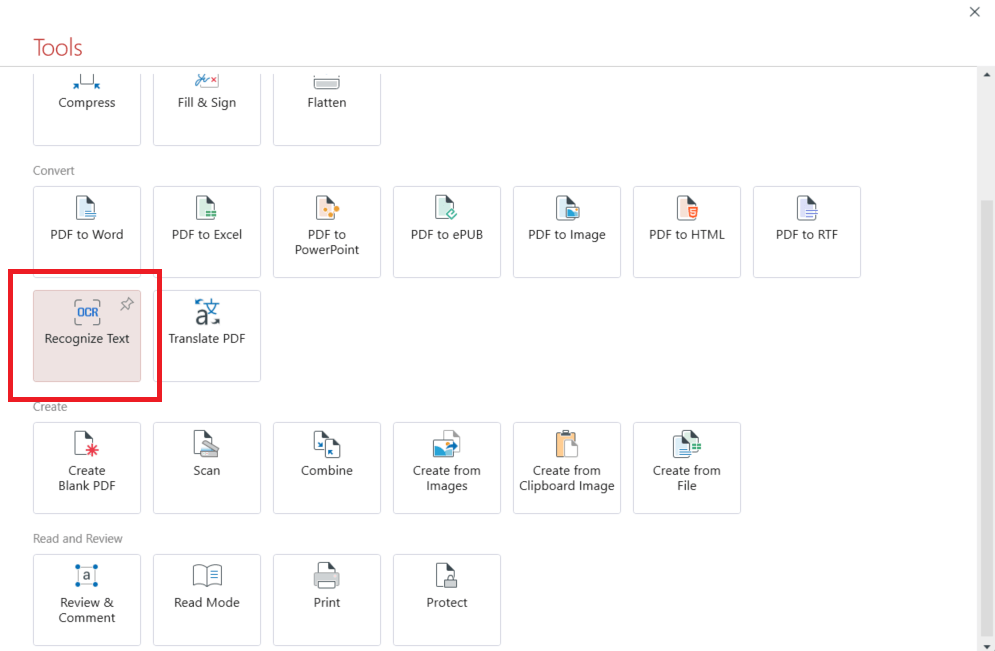
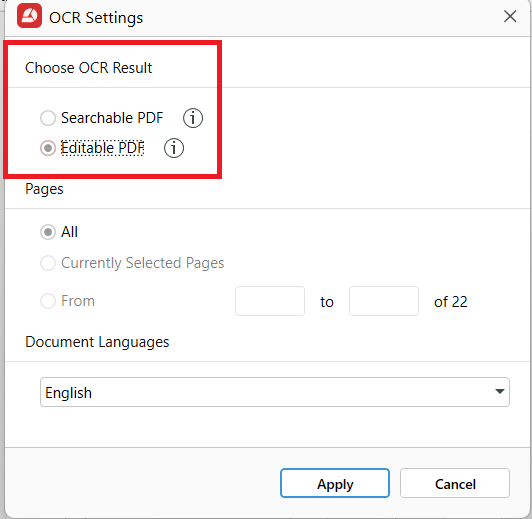
The OCR settings let you choose between:
Searchable PDF, which preserves the scanned page and adds an invisible text layer.
Editable PDF, which reconstructs the content so you can modify the recognised text.
You can select all pages, selected pages or a specific range. Under Document Languages, choose every language present in the file to improve recognition accuracy.
With Create > From Scanner, the Create From Scanner window includes OCR Settings with language selection, allowing you to recognise text during scanning.
You can find more details about OCR in MobiPDF, including how it works with scanned documents.
OCR is available with MobiPDF Lifetime and MobiPDF Pro. It is not included in the Free plan.
To recognise text in your scanned documents, download MobiPDF for Windows.
Frequently asked questions
Use a PDF editor with OCR to recognise the text in scanned pages. Open the PDF, select the document language and choose a searchable output. Run OCR, then press Ctrl+F to confirm that you can find words in the document. Save the recognised PDF when finished.
A PDF can contain either actual text or images of text. A scanned PDF often contains only images, making its contents impossible to search. A searchable PDF includes a text layer that allows you to find, select and copy words while preserving the original page appearance.
Choose a searchable PDF when you want to search and copy text without changing how the document looks. Choose an editable PDF when you need to modify its wording. Editable OCR results reconstruct the page, so formatting, tables and other elements may shift.
OCR may misread characters when the document language is incorrect or the original scan is blurry, tilted or low-contrast. Check the language settings and improve the scan quality before running recognition again. Small print and unusual fonts can also reduce accuracy.
OCR is primarily designed to recognise printed text. Some OCR tools also support handwriting recognition, but accuracy depends on the software, handwriting style and image quality. Neatly written characters are generally easier to recognise than cursive or irregular handwriting.
No. OCR is a paid feature available with MobiPDF Lifetime and MobiPDF Pro. The Free plan does not include OCR for making scanned documents searchable. You can use the MobiPDF Pro free trial to try the feature before choosing a paid plan.
Final thoughts
Making a PDF searchable takes only a few steps when you have an OCR tool. The most important decisions are choosing the correct document languages and selecting the right output format.
For scanned records and documents you want to preserve, a searchable PDF is usually the better option. If you need to change the text, an editable result gives you more flexibility.
Always check the recognised text before saving, especially when working with important information.
With MobiPDF, you can recognise scanned text and make your documents easier to search and use.