To remove a highlight from a PDF in MobiPDF, open the document, click the highlight, and press Delete (or right-click it and choose Delete). To clear every highlight at once, use Delete Comments in the Comment tab. Highlights added as annotations come off cleanly and leave the text underneath untouched — but highlights that were flattened or baked into a scan need a different approach, which we cover below.
This guide shows you how to remove a single highlight, several at once, or all of them — on desktop and on your phone — plus what to do when a highlight simply won't delete.
How highlight removal works in PDFs
Whether a highlight can be removed depends on how it was added, and there are two kinds:
Annotation highlights sit on top of the page as separate markup objects. You can select, recolor, or delete them without changing a single character underneath. Anything you add in MobiPDF (or most PDF editors) is an annotation highlight — these come off instantly.
Flattened highlights are merged into the page itself, like ink on colored paper. This happens when a PDF is flattened, printed and rescanned, or built from images. There's no annotation to select, so the standard Delete won't touch it.
Knowing which type you have tells you which method to use. If you can click a highlight and see a selection border, it's an annotation — keep reading. If nothing selects, jump to the section on highlights that won't delete.
Which method should you use?
Pick by what you're trying to clear:
The built-in Delete Comments button is the fastest route to a clean copy; the Comments panel gives you per-highlight control. The sections below walk through each.
How to remove highlights in MobiPDF (desktop)
On Windows or Mac, you remove highlights right inside MobiPDF's PDF editor — here's every method, from a single highlight to the whole document.
Remove a single highlight
The most precise method when you only need to clear specific markup:
Open your PDF in MobiPDF.
Click the highlight on the page (or find it in the Comments panel on the right).
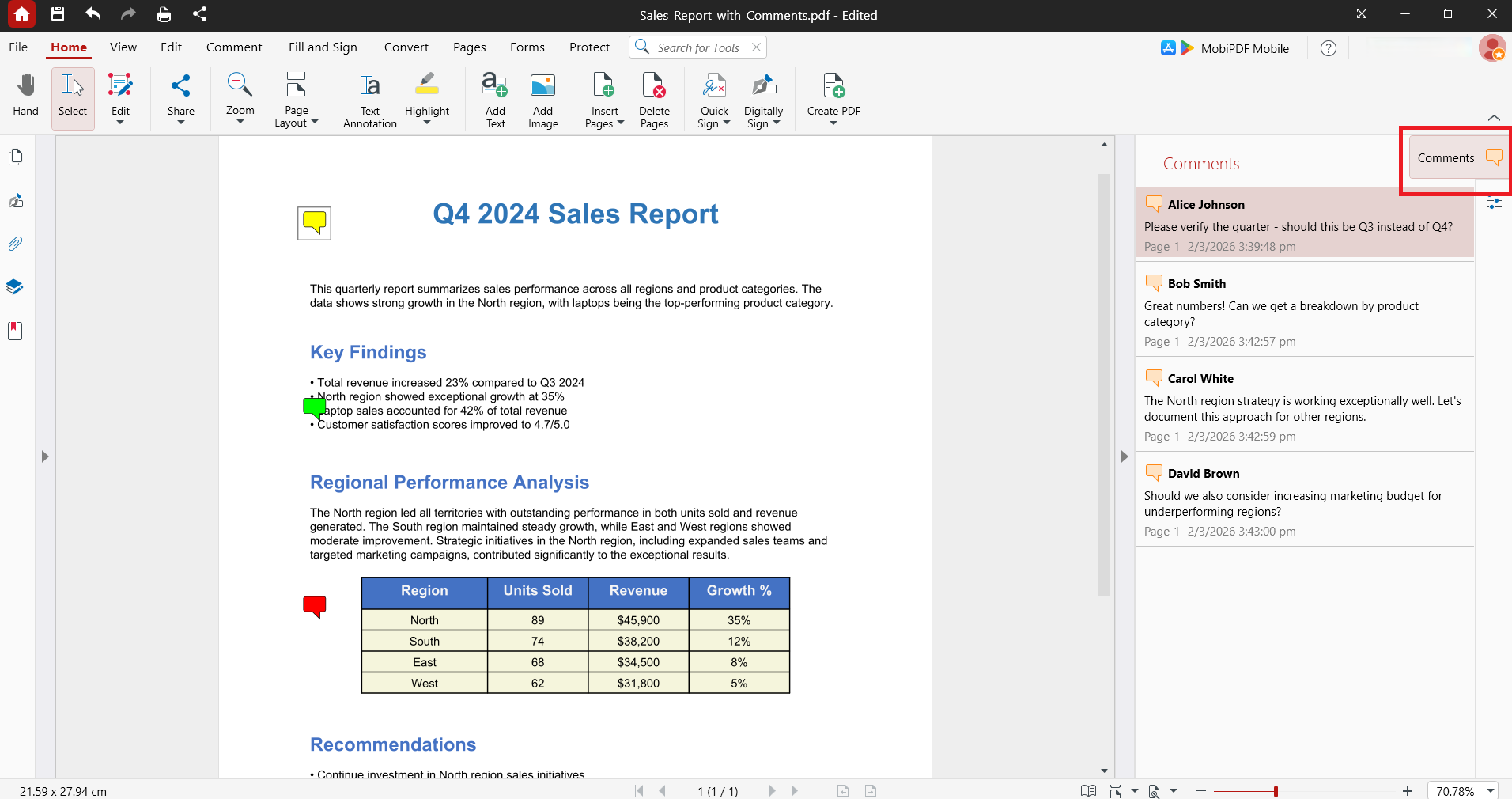
Press Delete, or right-click and choose Delete.
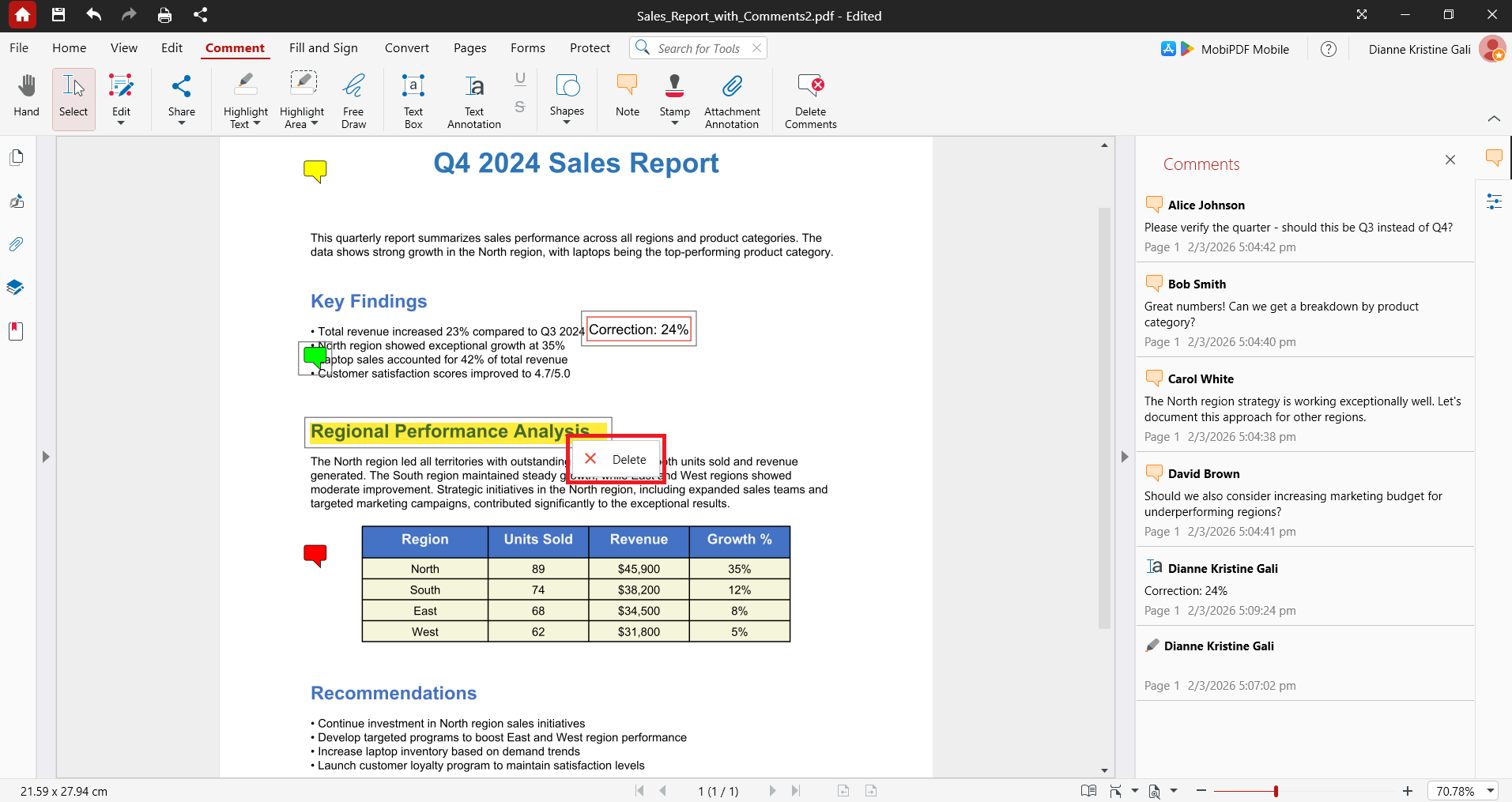
The highlight disappears immediately and the original text shows through unchanged.
Remove every highlight in one click
If you want a clean copy with no markup at all, you don't need to hunt down each highlight:
Open your PDF in MobiPDF.
Go to the Comment tab in the ribbon.
Click Delete Comments.
This clears all comments and markup in the document in a single action — the fastest way to handle files with dozens or hundreds of highlights.
One thing to know: Delete Comments removes every markup from every author, not just highlights and not just your own. If you only want to remove some highlights — or only the ones you added — use the Comments panel instead (next).
Use the Comments panel to remove highlights selectively
The Comments panel on the right lists every markup in the document in order, so you can review and remove highlights without scrolling page by page:
Open the Comments panel from the right sidebar.
Click any item to jump straight to it on the page.
Right-click the highlights you want gone and choose Delete.
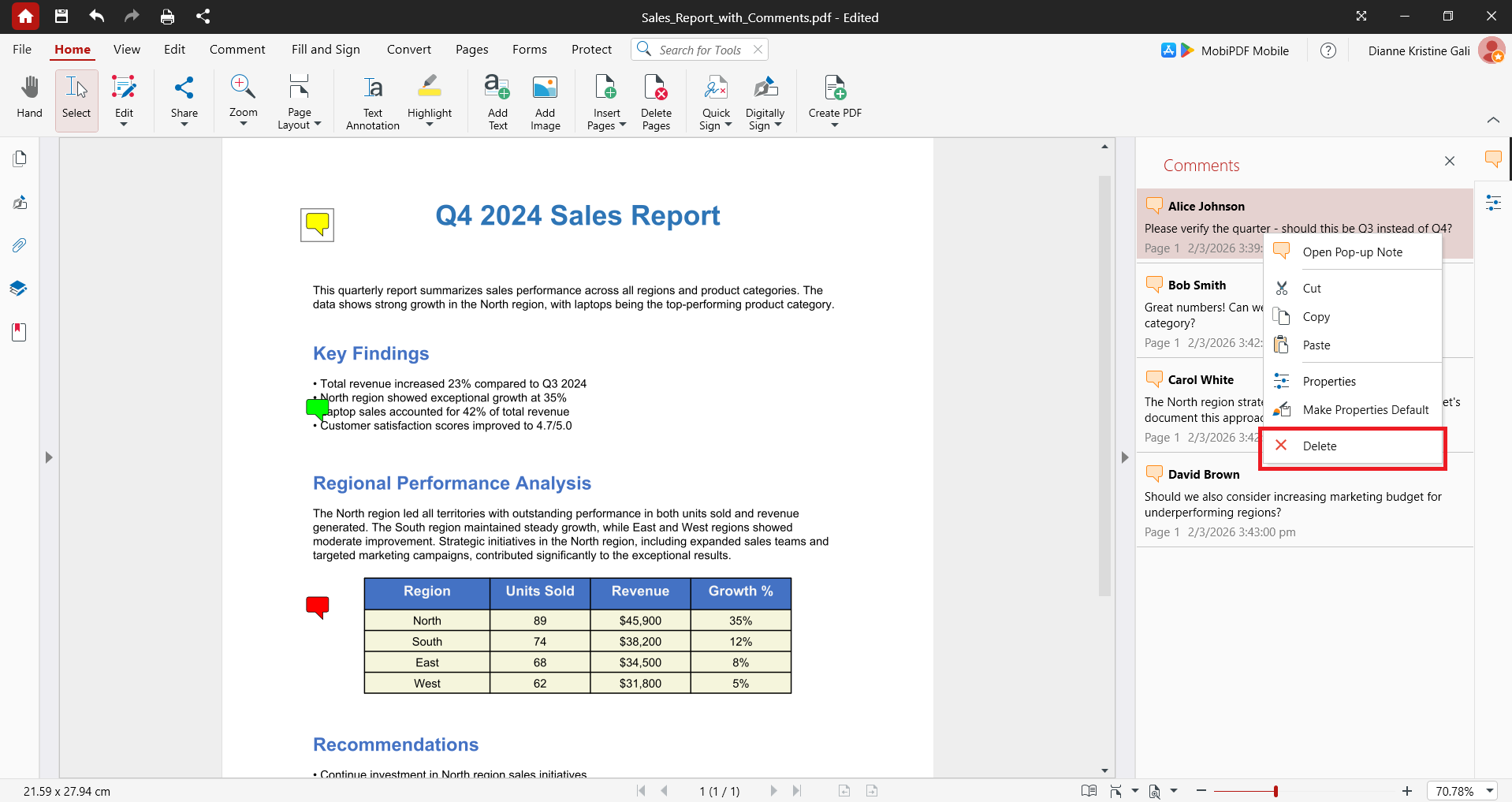
This is the right tool when a document has mixed markup (notes, drawings, other people's comments) and you only want certain highlights cleared — for example, removing your own highlights but keeping a reviewer's notes.
Confirm all highlights are removed
Before you share or print, do a quick check:
Open the Comments panel and confirm no highlights remain in the list.
Scroll the document — or use the page thumbnails — to scan for any leftover colored marks.
Save the file. Highlights "coming back" almost always means the document was closed without saving.
Want a PDF editor that clears highlights, annotations, and edits right on your device — with nothing uploaded to a server?
How to remove highlights on iPhone and Android
You can clear highlights on mobile too, straight from the MobiPDF app:
iPhone / iPad: open the document (new to markup on mobile? see our guide to editing a PDF on iPhone), then swipe left on the highlight in the markup list and tap Delete.
Android: tap the highlight, then tap Delete (the same menu lets you change its color, opacity, or thickness if you'd rather edit than remove).
As on desktop, this only works for annotation highlights. Flattened or scanned highlights can't be deleted on mobile.
Tips for cleaning up long, heavily highlighted PDFs
Cleaning a 30-page contract covered in review highlights one annotation at a time can take several minutes. Using Delete Comments clears the entire document in a single action instead. For heavily marked-up PDFs, a few simple habits can save even more time:
Work a clean copy. If you might need the highlights later, save the original and remove highlights from a duplicate.
Use Delete Comments for a full reset, then re-add only what matters — often faster than pruning a heavily marked file.
Filter in the Comments panel by author or date to remove highlights from specific contributors while keeping the rest.
Search for the highlighted phrase when you only want to clear highlights on a particular term, then delete those instances from the panel.
Drop pages you don't need. If the highlights sit on pages that aren't needed anyway, it's often quicker to delete those pages than to clear each mark.
What to do if a highlight won't delete
If clicking does nothing and Delete has no effect, the highlight isn't an annotation. Here's how to tell and what to try:
Check the type. Try to select the highlight. No selection border, and it's absent from the Comments panel? It's flattened into the page.
Scanned or image-based PDF? The color is part of the page image. You'll need to run OCR first to make the text workable, and even then the colored layer may require image editing to remove.
Check permissions. If the PDF is password-protected or has editing disabled, deletion is blocked. You'll need the unrestricted version or the password from the document owner.
Last resort — cover it. When removal truly isn't possible, place a white box over the area. It hides the highlight in the final file rather than deleting it, so use it only when the others don't apply.
Frequently asked questions
Yes. Use Delete Comments in the Comment tab to clear every markup in the document in one click. Note that it removes all comments from all authors, not only highlights — use the Comments panel if you want to be selective.
The highlight is most likely flattened into the page, the PDF has editing restrictions, or you're opening it in a viewer without annotation editing. Try selecting the highlight: if no border appears and it's not in the Comments panel, it's part of the page content.
Not if they're flattened into the scan — those colors are part of the image, not separate annotations. If the highlights were added after scanning as annotations, you can delete them normally.
No. Removing a highlight only deletes the colored overlay. The text, formatting, and layout underneath stay exactly the same.
You almost certainly didn't save after deleting them — or you reopened a cached or cloud-synced older copy. Always save after removing highlights and confirm you're opening the saved version.
Remove highlights cleanly with MobiPDF
Removing highlights gives you a tidy, presentation-ready file for sharing, printing, or archiving — and if you're sending it out, you can make the cleaned file read-only so the markup can't be added back. MobiPDF handles all of this whether you're clearing one highlight or resetting a whole document. Everything runs offline on your device, so sensitive files never get uploaded to an external server; when you do want them in the cloud, save to MobiDrive to sync them across your devices.