

MobiPDF Reader - Filling Out and Signing PDF Forms
This guide shows you how to fill out a PDF form and add your signature in MobiPDF Reader on Windows. You'll learn how to type into form fields, add check marks and dates, and sign a document by hand. Filling out forms is included with your MobiOffice licence. Handwritten signatures are limited to three uses in MobiPDF Reader, so it's worth reading the signing section before you start.
Before you begin
Make sure you have:
MobiOffice installed on your Windows device, with MobiPDF Reader included. See Introduction to MobiPDF Reader.
Signed in with your MobiSystems account.
A PDF form open in MobiPDF Reader. See Opening and navigating PDF files.
How to fill out a PDF form
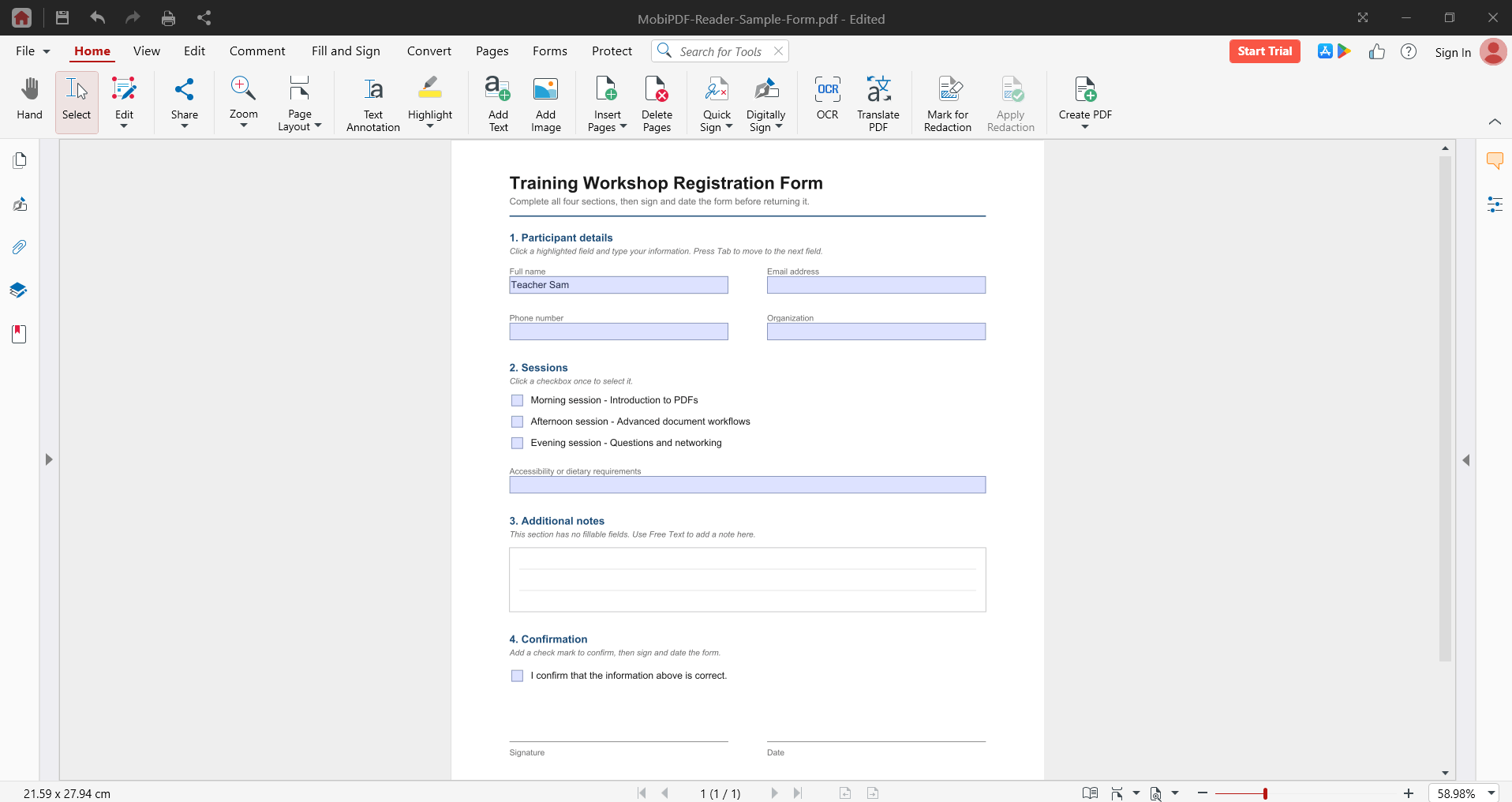
If the form is set up correctly, MobiPDF Reader highlights the fillable fields in blue.
1. Open your PDF form in MobiPDF Reader.
2. Click a highlighted field.
3. Type your information.
4. Press Tab to move to the next field.
5. Click a checkbox once to tick it.
6. Press Ctrl+S to save.
Note: If the form is password-protected, you can't fill it out until you enter the correct password.
Fill a form that has no fillable fields
Some PDFs are just flat pages, with no interactive fields. Use the Fill & Sign tools to add your details on top of the page.
1. Click Fill & Sign.
2. Click Text Annotation.
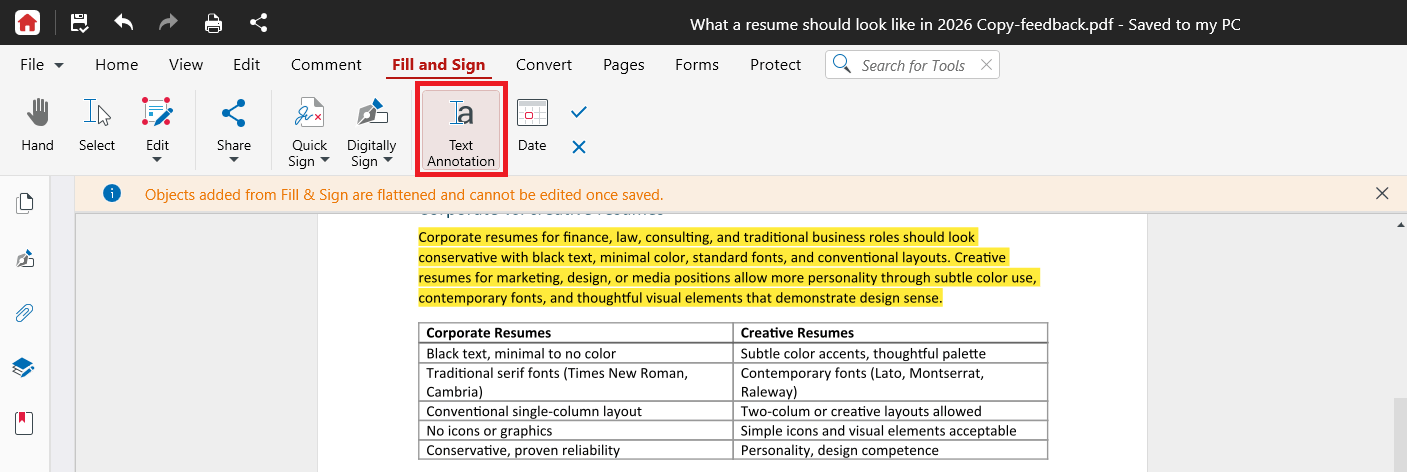
3. Click where you want your text, then type.
4. Drag the box to reposition it or drag its edges to resize it.
Add check marks, X marks, and dates
On the Fill & Sign menu:
Click Add Check Mark (check icon), then click where you want a check mark.
Click Add X (X icon), then click where you want an X mark.
Click Add Date (date icon), then click where you want the current date. The date is added for you.
How to sign a PDF form
MobiPDF Reader lets you add a handwritten signature to a document.
Important: You can use a handwritten signature three times in MobiPDF Reader. After that, signing requires the full MobiPDF. Create your signature carefully the first time and check its position before you save.
1. Click Fill & Sign.
2. Click Quick Sign, then click Create Signature.
3. Choose how to create your signature:
Draw: draw your signature with your mouse.
Type: type your name and pick a font.
Image: use a picture of your signature.
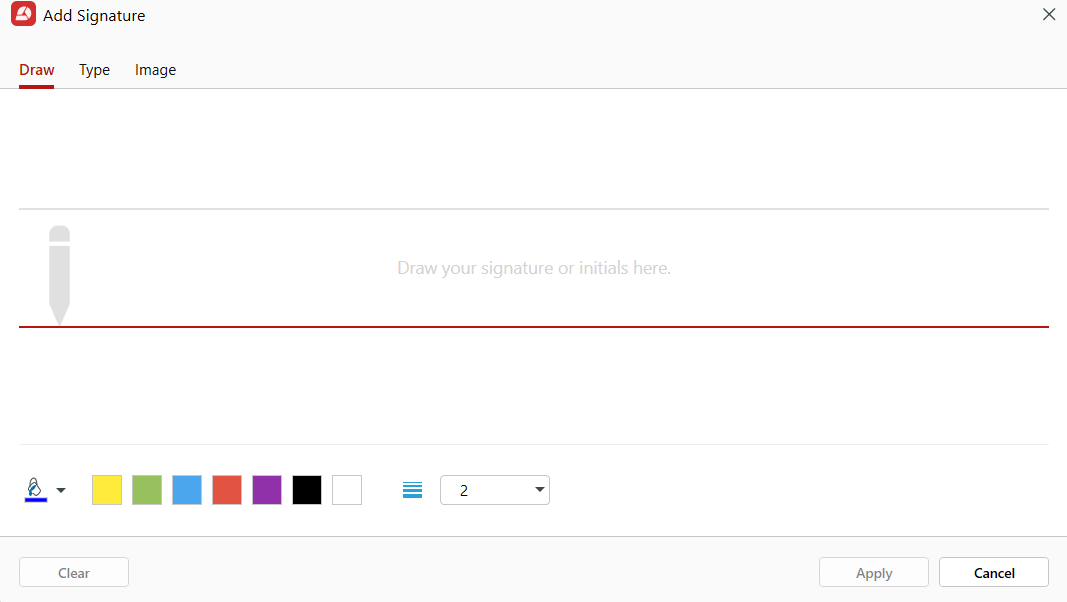
4. Press Apply.
5. Place your created signature in the PDF. Check the position and size before you continue.
6. Press Ctrl+S to save.
Tip: Before you save, use File > Save As to save under a new name. This keeps your original form untouched.
Check that a signature is valid
You can confirm that a signature in a document is genuine and that the file hasn't been altered since signing.
Click the signature in the document to view its details.
About signing and permanence
Once you save the file, your signature and any filled-in content become a permanent part of the document. You can't erase them afterwards. Removing a signature requires the full MobiPDF.
Because of this, check your entries before saving, and keep an unsigned copy of important forms.
Sign digitally with a certificate
A handwritten signature is a picture of your signature. A certificate-based digital signature is different: it uses encryption to confirm who signed the file and to show that nobody changed it afterwards. Contracts, legal forms, and financial documents often need this type.
Certificate-based digital signing isn't available in MobiPDF Reader. To sign with a certificate, upgrade to MobiPDF.
Troubleshooting
The form fields aren't highlighted. The PDF may not have interactive fields. Use Text Annotation to type on the page instead.
I can't type in the form. Check whether the form is password-protected. Enter the password and try again.
I've used up my three signatures. Further handwritten signing requires the full MobiPDF.
I signed in the wrong place and can't undo it. If you haven't saved yet, undo the change. After saving, signatures are permanent and can only be removed in the full MobiPDF. Work from a copy of important forms.
My printed form has a watermark. Watermark-free printing requires the full MobiPDF.
Where to go next
You can now fill out forms and sign documents in MobiPDF Reader. Here's where to go next:


