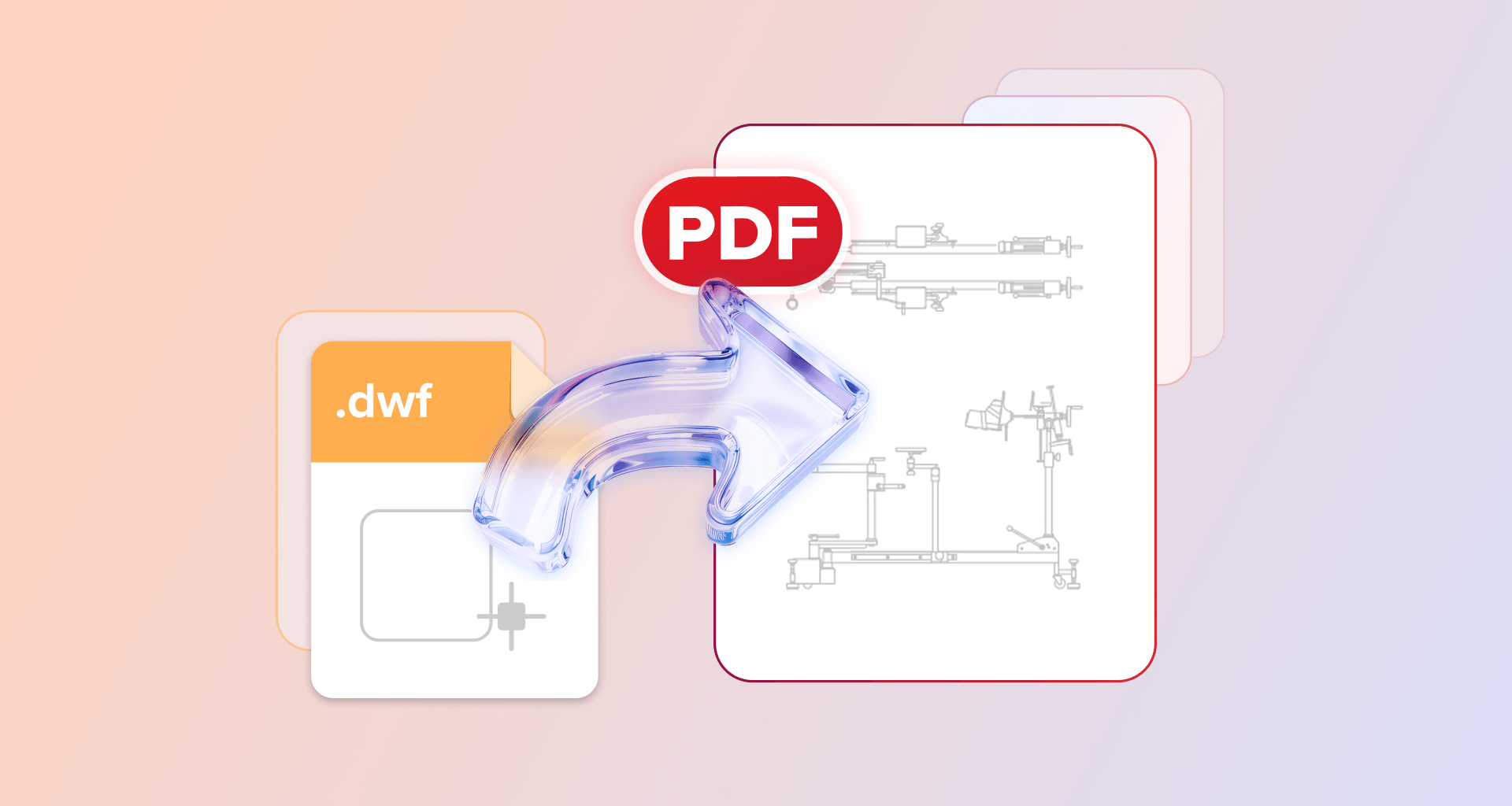
You can convert a DWG file to PDF three ways: with AutoCAD's built-in Plot command (choose DWG To PDF.pc3 as the plotter), with a desktop PDF editor app that converts the drawing directly, or with an online converter for a one-off. The PDF then opens on any device — no AutoCAD needed.
Which method should you use?
AutoCAD to PDF conversion comes down to three practical options, and which one fits depends on what you have on hand. If you have an AutoCAD license, Plot with DWG To PDF.pc3 gives the most control over paper size and scale. If you've just received a CAD drawing and don't have AutoCAD, a desktop PDF app converts it in a couple of clicks. For a single file on a machine you don't own, an online converter works — just mind what you're uploading.
Convert DWG to PDF inside AutoCAD
AutoCAD can create a PDF directly through its Plot dialog, so there is no need to install a separate converter if you already use the application.
To convert AutoCAD to PDF:
Open the DWG file in AutoCAD.
Open Plot or press Ctrl+P.
Under Printer/Plotter, choose DWG To PDF.pc3.
Select the required paper size.
Set the plot area for the part of the drawing you want to output.
Check the plot scale and orientation for your drawing.
Click OK.
In the Browse for Plot File dialog, choose where to save the file, enter its name, and save the PDF.
AutoCAD also provides other PDF plotter configurations, so the exact option you choose can depend on how the finished PDF will be used. The important part is to review the paper size, plot area and scale rather than relying on whatever settings happen to be selected already.
This route is useful when you need control over the drawing before creating the PDF. Its main limitation is simple: you need access to an AutoCAD license and a computer with AutoCAD installed.
Convert DWG to PDF without AutoCAD
You can convert DWG to PDF without AutoCAD by using either a desktop PDF application that accepts DWG files or an online conversion service.
With a desktop app, the usual workflow is straightforward: open its PDF creation or conversion tool, select the DWG file and let the application create the PDF. Once converted, you can continue working with the resulting document in the same PDF application.
This can be particularly useful when drawings come from a client, architect or contractor and you do not need to edit the original CAD file. If you regularly receive other document types as well, it is also worth checking which file types convert to PDF before choosing a tool.
An online converter is another option for occasional use. Services such as CloudConvert let you upload a DWG through a browser and download the converted PDF. The trade-off is that the drawing has to be uploaded to a website, which may matter when you are working with confidential plans or client files.
If you want to convert a drawing and continue working with the PDF afterwards, MobiPDF provides a desktop route.
Just need to open a DWG without AutoCAD?
If you only need to open a DWG without AutoCAD, converting it to PDF once is often enough because the resulting PDF can be viewed on common phones, tablets and computers.
This is useful when you are reviewing a drawing rather than changing the original CAD file. Once you have the PDF, you can zoom in on details, inspect dimensions by eye, print pages and add comments for other people reviewing the document.
It also makes sharing easier when the recipient does not work with CAD software. Instead of asking everyone involved in a project to install a DWG viewer, you can send a file format they are already likely to be able to open.
Keep the original DWG as your source file if further CAD edits may be needed later.
What about DWF, DXF and Publisher files?
DWF and DWFX drawings convert through the same MobiPDF workflow as DWG files. Since MobiPDF converts DWG, DWGX, DWF and DWFX, save or export a DXF file as DWG in the application that produced it and it converts the same way. If you have AutoCAD, open the DXF and plot it with DWG To PDF.pc3. Otherwise, use an online converter that accepts DXF.
MobiPDF 11.60 supports DWG, DWGX, DWF and DWFX as input formats for PDF creation.
MobiPDF can also create PDFs from Microsoft Publisher (.pub) files, as well as XPS and OXPS files. That means the same PDF creation workflow can cover Publisher to PDF and several other document types without changing tools.
Keep working on the converted PDF
Once the drawing has been converted, it becomes a regular PDF that you can organize, comment on, print, share or protect.
For example, several separate drawing PDFs can be brought together when combining drawings into one file. This can make a set of plans easier to distribute as one document instead of a folder of separate files.
Before sending a drawing outside your organization, you can also consider adding a password before sending when access needs to be restricted.
If the finished PDF is too large for convenient sharing or email attachments, compression can reduce its file size. Keep the original drawing and, when necessary, an uncompressed PDF copy so you still have the source material available.
Alternative: MobiPDF
MobiPDF can create a PDF directly from supported AutoCAD drawing files, so you can convert a received DWG without first opening it in AutoCAD.
In MobiPDF 11.60 for Windows:
Open Create PDF.
Select From File.
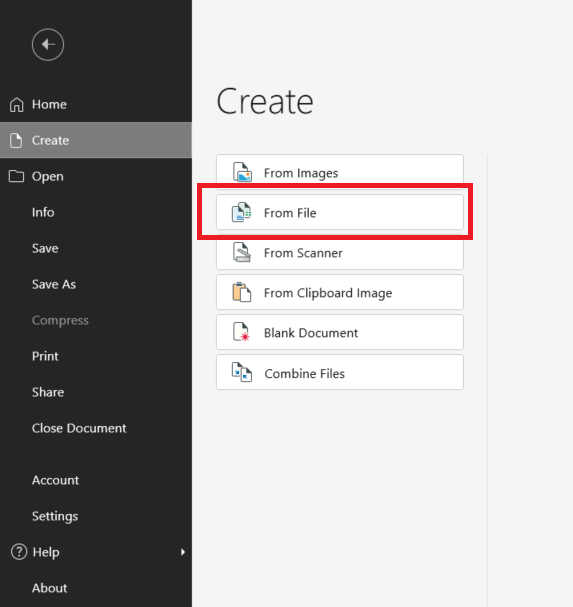
Choose the DWG file you want to convert.
The conversion starts automatically.
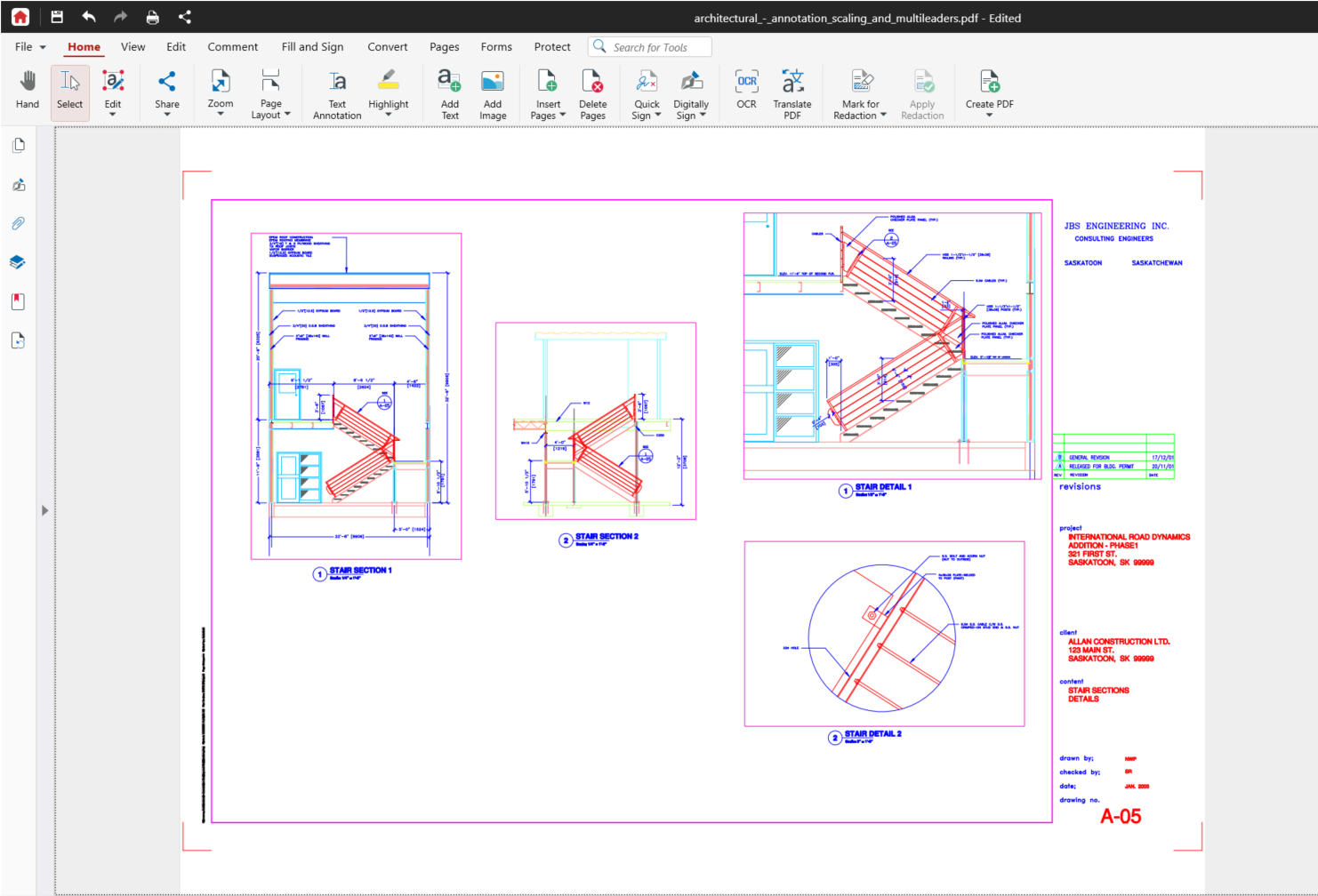
The converted drawing opens as a new PDF.
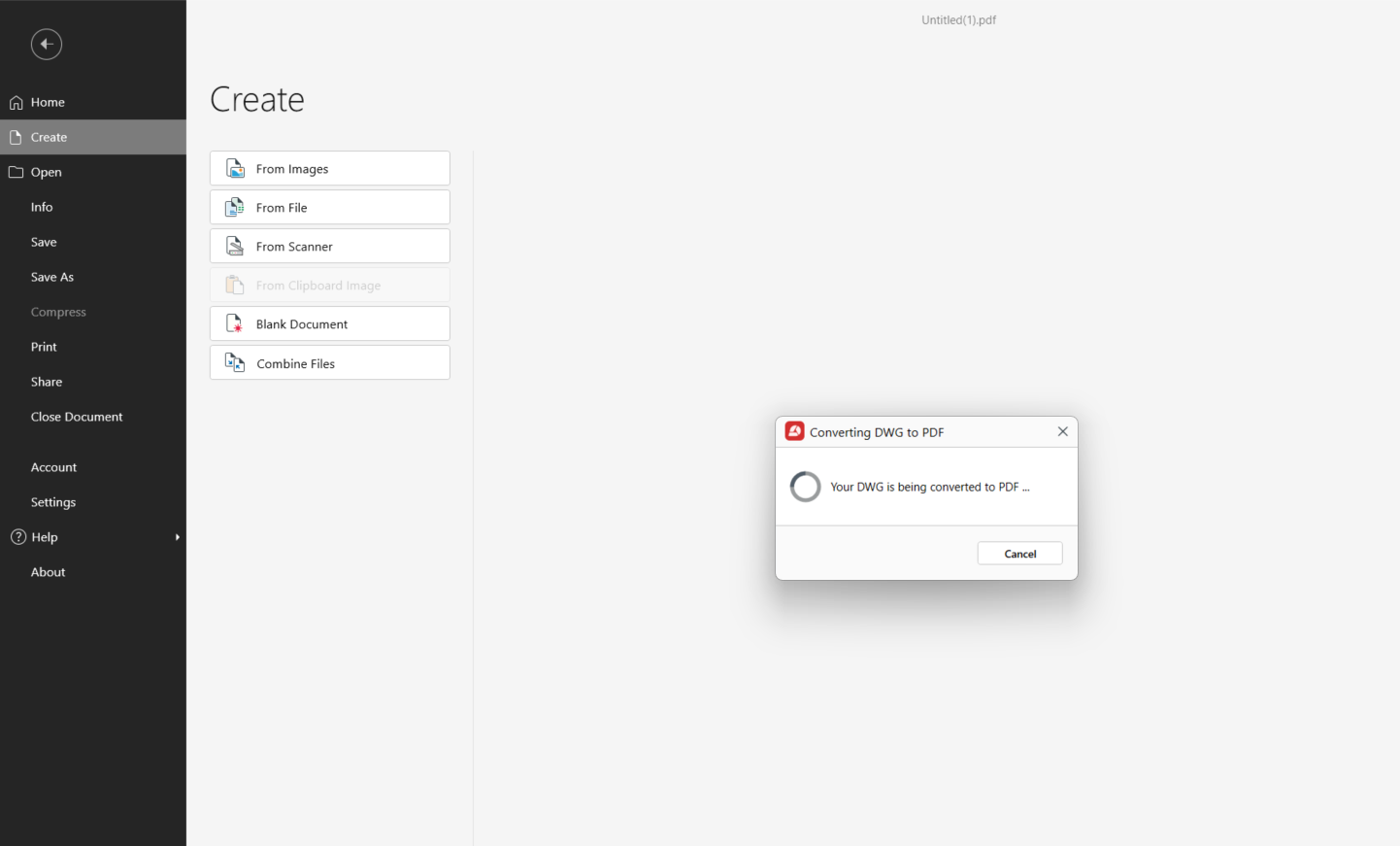
You can access Create PDF → From File from the Home or Convert tab. From the start screen, choose Create, then From File.
The supported drawing formats are DWG, DWGX, DWF and DWFX. MobiPDF also supports PUB, XPS and OXPS through the same PDF creation workflow. You can see more of the formats MobiPDF converts on the conversion feature page.
Once the PDF opens, you can review it, add comments and continue with other PDF tasks without returning to the source drawing.
Want to try the workflow with one of your own drawings?
FAQ
Use a desktop PDF application that supports DWG conversion or an online converter. With a desktop app:
Open its PDF creation tool.
Choose the DWG file.
Start the conversion.
Open the resulting PDF and continue working with it as needed.
Yes. If you only need to view the drawing, convert the DWG to PDF once. The resulting PDF can then be opened on common computers, phones and tablets without AutoCAD. Keep the original DWG if somebody may need to edit the CAD drawing later.
The converted PDF in our example retains the drawing's colors, line weights and title block. However, this does not mean that the original CAD layers remain editable in the PDF. Keep the source DWG file if you need to make further changes to the drawing itself.
MobiPDF converts DWG, DWGX, DWF and DWFX. For a DXF, save or export it as DWG in the application that produced it and it converts the same way - or, if you have AutoCAD, plot the DXF straight to PDF with DWG To PDF.pc3.
No. DWG to PDF conversion is part of MobiPDF Pro. Once you're on Pro, you can create PDFs from supported AutoCAD drawing formats and keep working with the converted file in MobiPDF.
Convert each drawing to PDF first, then combine the resulting PDF files into one document. MobiPDF’s Combine tool lets you bring the individual drawing PDFs together and arrange them in the order you need before saving the finished file.
Final thoughts
The best way to convert DWG to PDF depends on what you already have. AutoCAD’s Plot workflow gives you control over paper size, plot area and scale, while desktop PDF apps are useful when you receive drawings but do not work in AutoCAD yourself. Online converters are convenient for occasional files, with the added consideration that the drawing must be uploaded.
If you also want to review, comment on or organize the converted PDF, you can continue working with it in MobiPDF.