
This article was updated on July 6, 2026
You can remove duplicates in Excel in 5 ways: the built-in Remove Duplicates button, the UNIQUE function, Conditional Formatting, the Alt+A+M keyboard shortcut, or Power Query for large files. The fastest method for most users is the built-in Remove Duplicates button under the Data tab because it takes just a few clicks. This guide explains each method step by step, including how to keep one row, find duplicates without deleting them, and fix common issues when duplicates remain after cleanup.
If you're working with spreadsheets regularly, it's worth learning how to remove duplicates in Excel correctly. Duplicate values can affect reports, customer lists, inventory records, and financial data, making it harder to trust your results. Whether you're using Microsoft Excel as part of Microsoft 365 or another spreadsheet tool like MobiSheets, this article will help you clean your data quickly and accurately.
What does "duplicate data" mean in Excel?
Duplicate data in Excel refers to values, records, or rows that appear more than once in a worksheet. A duplicate might be a repeated email address in a contact list, a duplicate customer record, or an entire row containing the same information as another row.
Excel can identify duplicates in a single column or across multiple columns. For example, two rows may have the same customer name and email address, making them duplicates even if they appear in different parts of the spreadsheet.
In this example, the third row is a duplicate of the first. Using Excel's Remove Duplicates feature would keep the first occurrence and remove the second.
Understanding what qualifies as a duplicate is important before you start cleaning data, especially when working with customer lists, reports, inventory records, or sales exports.
Why delete duplicates from Excel?
Removing duplicates in Excel helps keep your data accurate and easier to analyze.
For example, if the same customer appears multiple times in a sales export, you may overestimate the size of your customer base. Duplicate transactions can also affect calculations, filters, and charts, leading to misleading results.
Removing duplicates is also an important cleanup step before creating reports or analyzing trends. If you're planning to create a pivot table, duplicate entries can skew counts, averages, and other summary calculations. Likewise, if you're working with an existing report, you may need to remove a pivot table, clean the source data, and then rebuild the analysis using accurate records.
Quick comparison: which method should you use?
The right method depends on the size of your dataset, whether you want to preserve the original data, and how often you need to repeat the process.
If you simply want to clean a spreadsheet once, the built-in Remove Duplicates tool is usually the fastest option. If your data changes regularly, the UNIQUE function can create a dynamic list that updates automatically. For very large datasets or repeatable workflows, Power Query offers the most flexibility.
For most users, the Remove Duplicates button under the Data tab is the best place to start. It's quick, requires no formulas, and works well for everything from small contact lists to large business spreadsheets. The remaining methods are useful when you need more control over how duplicates are identified, displayed, or removed.
How to remove duplicates in Excel (step-by-step)
The fastest way to remove duplicates in Excel is to use the Remove Duplicates button under the Data tab. This method deletes duplicate values or rows directly from your selected range, so it's best to save a backup copy before you start.
Open your spreadsheet in Microsoft Excel.
Select the cells, columns, or full table where you want to remove duplicates.
Go to the Data tab.
Click Remove Duplicates.
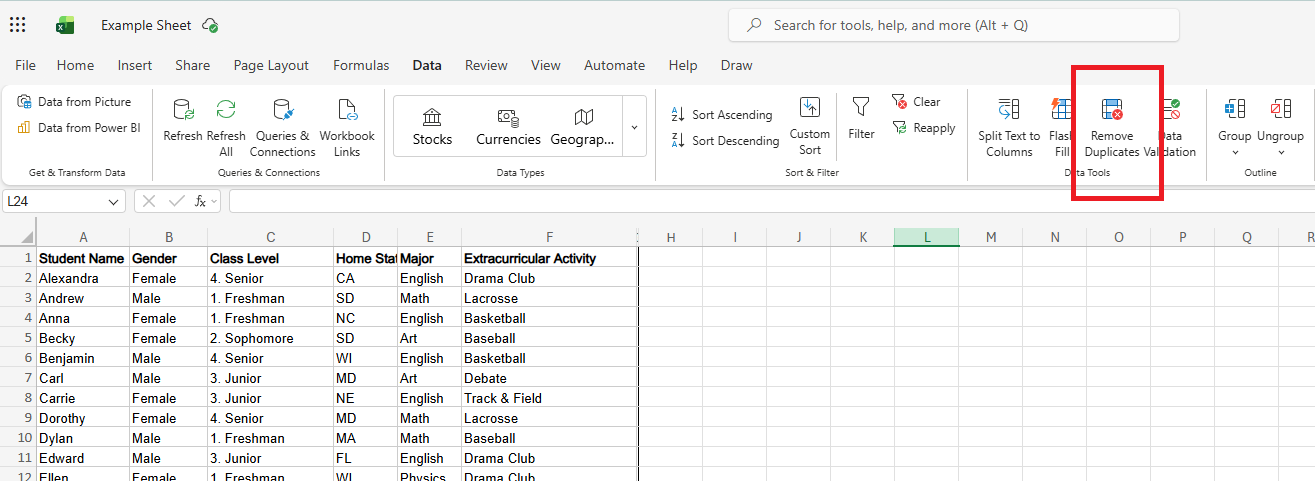
In the dialog box, tick the columns Excel should check for duplicate values.
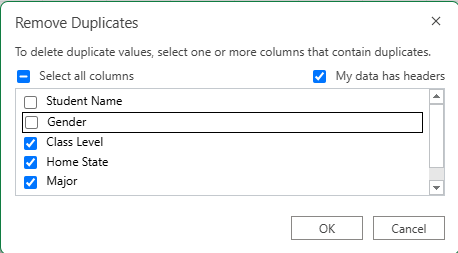
If your table has headers, make sure My data has headers is selected.
Click OK.
Excel will remove the duplicate entries and show a message with how many duplicate values were deleted and how many unique values remain.
For a simple list, such as email addresses, select one column only. For a full customer or order list, select all relevant columns so Excel compares the complete record instead of just one field.
Need an Excel-compatible alternative for everyday spreadsheet work?
Get MobiSheets as part of a complete office suite, MobiOffice.
Keyboard shortcut: Alt+A+M
The fastest way to open Excel's Remove Duplicates dialog is with the Alt+A+M keyboard shortcut. Instead of navigating to the Data tab manually, this shortcut takes you directly to the duplicate-removal settings, making it useful when you're cleaning multiple spreadsheets throughout the day.
To use it:
Select the data range you want to clean.
Press Alt, then A, then M in sequence (don't hold the keys down together).
The Remove Duplicates dialog box will open.
Choose the columns Excel should compare.
Click OK to remove duplicate values.
The shortcut works in modern versions of Microsoft Excel, including Microsoft 365, and is especially useful when working with large exports or repetitive cleanup tasks.
Keep in mind that the shortcut performs the same action as Data → Remove Duplicates. It simply provides a faster way to access the tool.
How to remove duplicates but keep one row
When you remove duplicates in Excel, the program automatically keeps the first occurrence of each value or record and removes the rest. This makes the built-in Remove Duplicates tool the easiest way to remove duplicates while keeping one row.
To do this:
Select the range or table containing duplicate data.
Go to Data → Remove Duplicates.
Select the column or columns Excel should use to identify duplicates.
Click OK.
Excel will keep the first matching row it encounters and delete any additional occurrences. Before removing duplicates, review the data and decide which version should remain.
How to remove duplicates using the UNIQUE function
The UNIQUE function returns a list of unique values from a range without changing the original data. Unlike Remove Duplicates, which permanently removes records, the UNIQUE function creates a separate dynamic list that updates automatically when the source data changes.
The basic syntax is:
=UNIQUE(A2:A100)
If column A contains duplicate values, Excel will return only the unique entries. Because UNIQUE is a Dynamic Array function, the results automatically spill into the cells below the formula.
If you're working with a customer list and want to generate a unique list of email addresses, enter the formula in an empty column and Excel will create the cleaned list instantly.
You can also use UNIQUE across multiple columns:
=UNIQUE(A2:C100)
In this case, Excel returns unique rows based on the combined values in all selected columns.
The UNIQUE function is often the better choice when you're working with a living dataset that receives regular updates. Since the original data remains untouched, you can review, filter, and analyze the unique results without risking accidental data loss.
How to remove duplicates using a formula
You can also identify and remove duplicates in Excel using a formula. This approach gives you more control than the built-in Remove Duplicates tool and is useful when you want to review duplicate records before deleting them.
Here's how:
Suppose your data is in column A, starting in cell A2.
In an empty helper column, enter the following formula:
=COUNTIF($A$2:A2,A2)
Press Enter and copy the formula down the column.
Excel will return:
1 for the first occurrence of a value
2, 3, 4, and so on for duplicate occurrences
You can then apply a Filter to the helper column and display only values greater than 1. These are the duplicate records.
The formula approach takes a little longer to set up than Remove Duplicates, but it offers more flexibility. If you're working with important customer, financial, or inventory data, reviewing duplicates first can help prevent accidental deletions.
How to find duplicates without removing them
You don't always need to remove duplicates immediately. If you'd prefer to review duplicate values first, Conditional Formatting can highlight them without changing your data.
To find duplicates:
Select the range you want to check.
Go to Home → Conditional Formatting → Highlight Cells Rules → Duplicate Values.
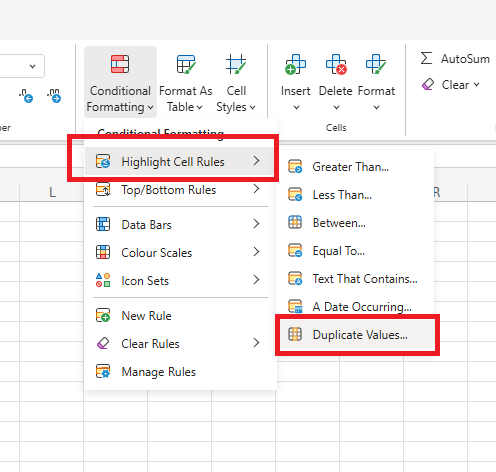
Choose a formatting style.
Click OK.
Every duplicate value will be highlighted in the selected range, making them easy to spot and review. In some cases, repeated values are legitimate and should be kept.
If you decide the highlighted records should be deleted, you can then use Remove Duplicates, a Filter, or a helper column with COUNTIF to clean the data.
How to remove duplicates across multiple columns
To remove duplicates across multiple columns, select all the columns that define a unique record before running Remove Duplicates. Excel will compare the combined values in those columns and remove only rows that match completely.
For example, consider the following data:
If you select all three columns and run Remove Duplicates, Excel will remove only the second row because it is an exact match. The third row will remain because the email address is different.
To remove duplicates across multiple columns:
Select your entire dataset.
Go to Data → Remove Duplicates.
Tick all the columns Excel should compare.
Click OK.
This method is particularly useful for customer databases, contact lists, and order exports where a single column may not be enough to identify duplicate records accurately.
Common errors and what to do if duplicates are still there
If Excel isn't removing duplicates as expected, the problem is usually related to how the data is structured rather than the Remove Duplicates tool itself. Checking a few common issues can often resolve the problem quickly.
Hidden spaces or formatting differences
Two values may look identical but contain extra spaces or invisible characters.
For example:
John Smith
John Smith
Excel treats these as different values. If duplicates aren't being detected, use the TRIM function to remove extra spaces before running Remove Duplicates.
Hidden rows
Excel checks all selected rows, including hidden ones. If your results seem incorrect, clear any filters and review the full dataset before removing duplicates.
Unexpected errors after cleanup
Sometimes removing duplicates affects formulas that reference deleted rows. If calculations stop working correctly or you start seeing issues such as #VALUE! errors after removing duplicates, review any formulas, charts, Pivot Tables, or reports that depend on the original data range.
Subtotaled data
If your worksheet contains subtotals or grouped data, remove the subtotals first. Duplicate removal works best on raw data and may produce confusing results when summary rows are included in the selection.
Large files running slowly
For datasets with tens of thousands of rows, duplicate removal can take longer than expected. In these cases, Power Query is often a better option because it handles large datasets more efficiently and preserves the original source data.
Best practices for removing Excel duplicates
The best way to remove duplicates in Excel is to start with a clear understanding of what makes a record unique. A customer list, inventory report, and sales export may all require different columns to identify duplicates correctly.
Here are a few practices that can help you avoid mistakes:
Review your data before removing duplicates, especially when working with multiple columns.
Use Conditional Formatting first if you want to inspect duplicates before deleting them.
Improve readability before cleaning large datasets – many users apply alternate rows for readability before auditing duplicates and validating results.
Use the UNIQUE function when you need a dynamic list that updates automatically.
Consider Power Query for large or recurring datasets.
Sort your data before cleanup if you need to keep a specific version of a record.
Add leading zeros in Excel to keep values consistent across the entire dataset.
If you're restructuring a worksheet, it can help to learn how to add columns in Excel before reorganizing your data.
If your data includes codes, ZIP codes, or account numbers, make sure formatting is consistent before cleanup. You may need to add leading zeros in Excel so values are treated consistently during analysis.
Frequently asked questions
Yes. Use the UNIQUE function to create a list of unique values while keeping the source data unchanged.
Select all relevant columns, then go to Data → Remove Duplicates. Excel will compare the combined values across those columns when identifying duplicates.
Hidden spaces, formatting differences, formulas, or unselected columns can cause Excel to treat values as unique.
For large datasets, consider using Power Query and review duplicate records carefully before deleting them.
Use:
=UNIQUE(range)
The UNIQUE function returns a list of unique values while leaving the original data unchanged.
The shortcut is Alt+A+M. Press Alt, then A, then M in sequence to open the Remove Duplicates dialog directly.
Select all columns that define a duplicate record, then use Data → Remove Duplicates. Excel keeps the first occurrence of each unique combination and removes the rest.
Remove duplicates in MobiSheets
If you're looking for an alternative to Excel, MobiSheets includes built-in tools for finding and removing duplicate values while maintaining compatibility with XLSX files and other common spreadsheet formats.
MobiSheets is part of MobiOffice, the complete office suite for spreadsheets, documents, presentations, and mail.
Ready to start working with spreadsheets?
To remove duplicates in MobiSheets:
Select the data range you want to clean.
Open the Data tab.
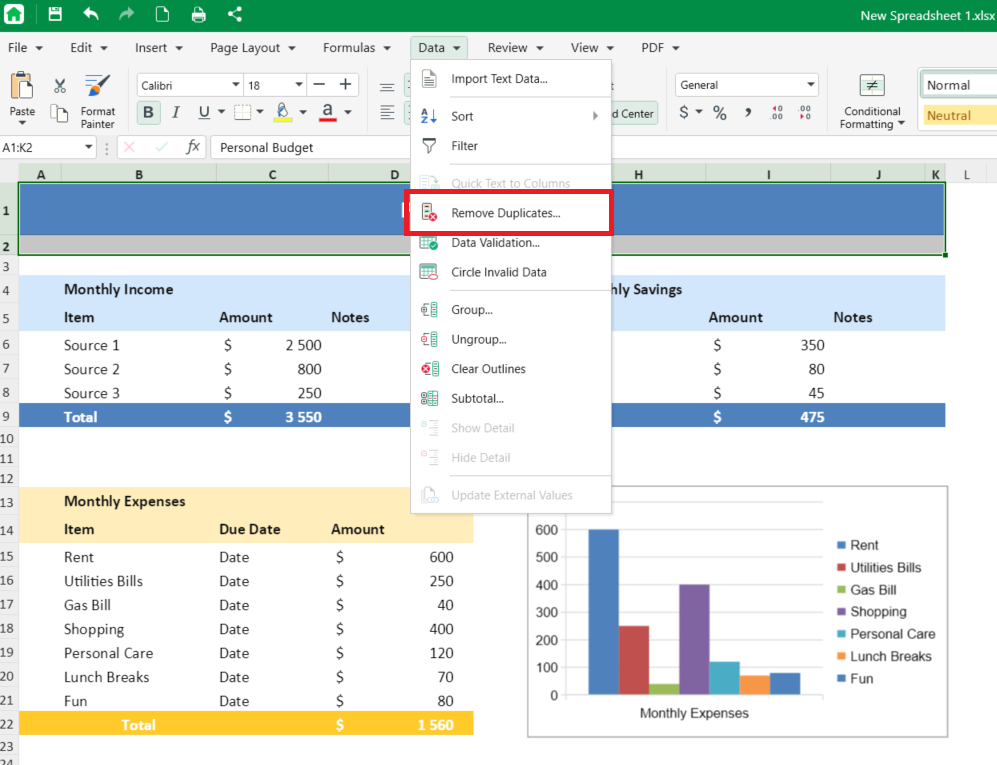
Click Remove Duplicates.
Select the columns MobiSheets should use when comparing records.
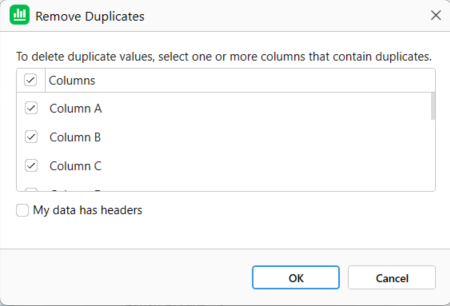
If your data contains headers, tick My data has headers.
Click OK
If you're comparing options, you can also explore some of the best spreadsheet software available today and see how MobiSheets stacks up against other popular solutions.
Final thoughts
The easiest way to remove duplicates in Excel is with the built-in Remove Duplicates tool, but it's not the only option. Depending on your needs, you can also use the UNIQUE function, Conditional Formatting, COUNTIF, or Power Query to identify, review, and clean duplicate records.
The best method comes down to your workflow. For quick one-time cleanup, Remove Duplicates is usually the fastest choice. For dynamic datasets that change regularly, formula-based approaches often provide more flexibility.
As part of MobiOffice, MobiSheets offers an intuitive way to get more done. Want to work in a familiar spreadsheet app?