In most cases, you can view, edit, and remove PDF metadata in MobiPDF by opening your file and updating or clearing the embedded information in the document properties tab before sharing or publishing the PDF.
While PDF metadata data helps organize documents internally, it can expose sensitive information when you share files externally. Knowing how to manage PDF metadata gives you full control over what information travels with your documents. This guide shows you exactly how to inspect, modify, and remove metadata using MobiPDF.
What is PDF metadata?
PDF metadata is information stored within a PDF file that describes the document but doesn't appear in the visible content. This embedded data tracks creation details, authorship, editing history, and file properties that help organize and identify documents.
Think of metadata as a digital fingerprint. Every time you create, edit, or save a PDF, your software adds information automatically. This includes who created the file, when it was made, what application generated it, and how many times it's been modified.
Common metadata fields
PDF files typically contain several standard metadata fields that capture document information automatically.
Title and Subject: Document name and brief description, often pulled from the original file or set manually.
Author and Creator: Name of the person who created the file and the software application used to generate it.
Keywords: Searchable terms that help categorize and locate documents in large repositories.
Creation and Modification Dates: Timestamps showing when the file was first created and last edited.
Producer: The PDF conversion software or tool used to create the final file.
Custom Properties: Additional fields like company name, department, project code, or document version.
Why PDF metadata matters
Understanding PDF metadata is essential for both organization and privacy. Metadata helps you track document versions, identify authors, and search files efficiently within your organization.
However, metadata can expose information you don't intend to share. When you send a contract to a client, they can see your internal editing history, track changes made by different team members, or discover software versions that might reveal security vulnerabilities.
Common privacy concerns include:
Revealing author names in confidential documents
Exposing company information through custom properties
Showing creation timestamps that indicate when work began
Disclosing software details that could be exploited.
Removing metadata before sharing files externally protects sensitive information while keeping documents clean and professional.
Viewing PDF metadata
To view PDF metadata, you need a PDF editor or viewer that can access document properties. Most PDF tools provide a properties dialog where metadata fields are displayed clearly.
In MobiPDF, open your document and go to File → Info to see all metadata fields. This displays standard information like title, author, subject, keywords, creation date, modification date, and application details.
Review each field carefully:
Check author names for accuracy or privacy concerns
Examine company information in custom properties
Look for internal details that might reveal sensitive processes
Some metadata fields are visible in file explorers when you right-click a PDF and select Properties, but PDF-specific tools show complete metadata including hidden fields that operating systems don't display.
Want to see what metadata your PDFs contain?
Adding or editing PDF metadata
To add or edit PDF metadata, open the document properties dialog in your PDF editor and modify the fields you want to change. This process lets you improve organization, correct authorship, or add searchable keywords.
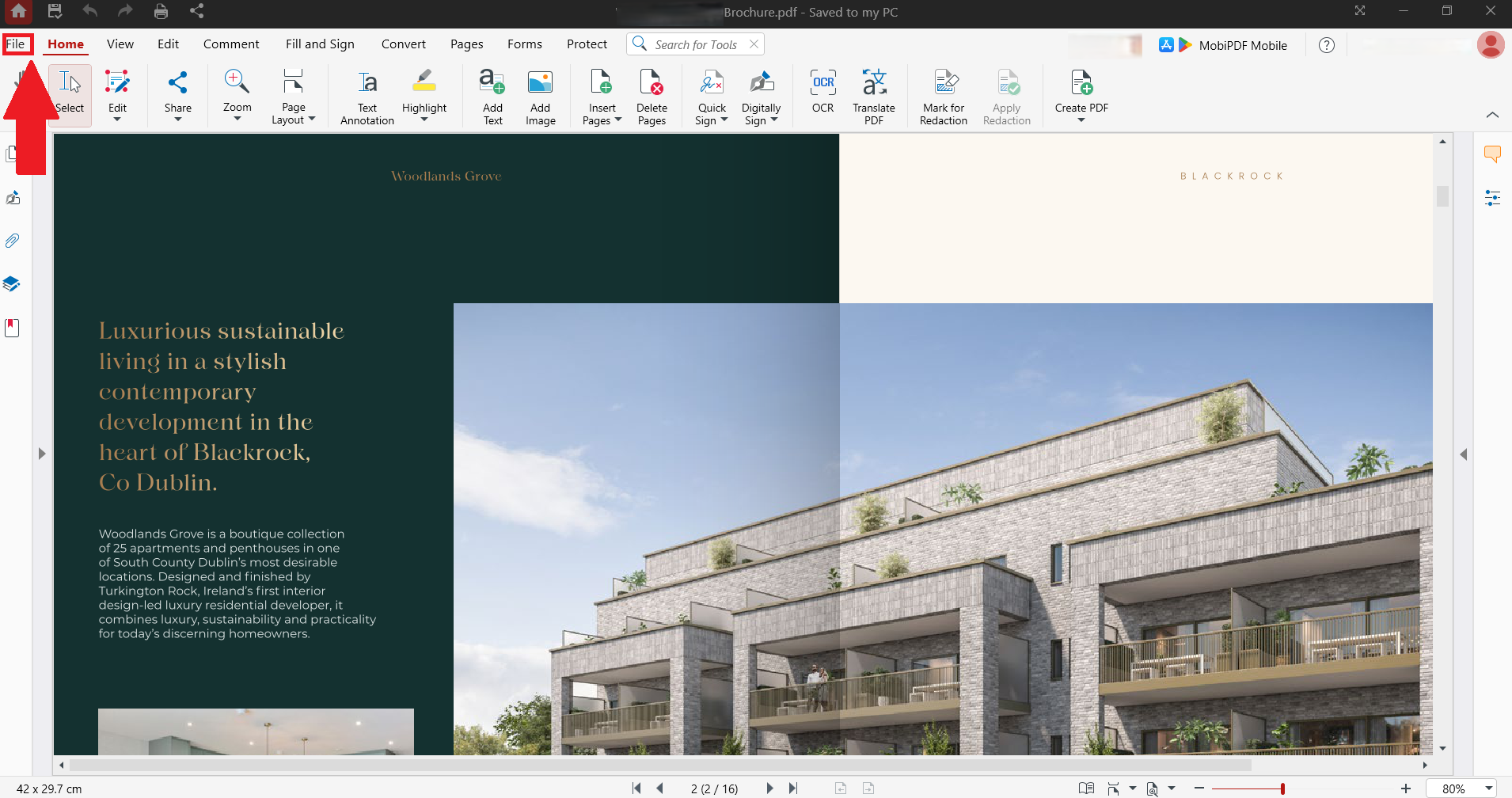
In MobiPDF, follow these steps to edit metadata:
Open your PDF file in MobiPDF
Go to File → Info.
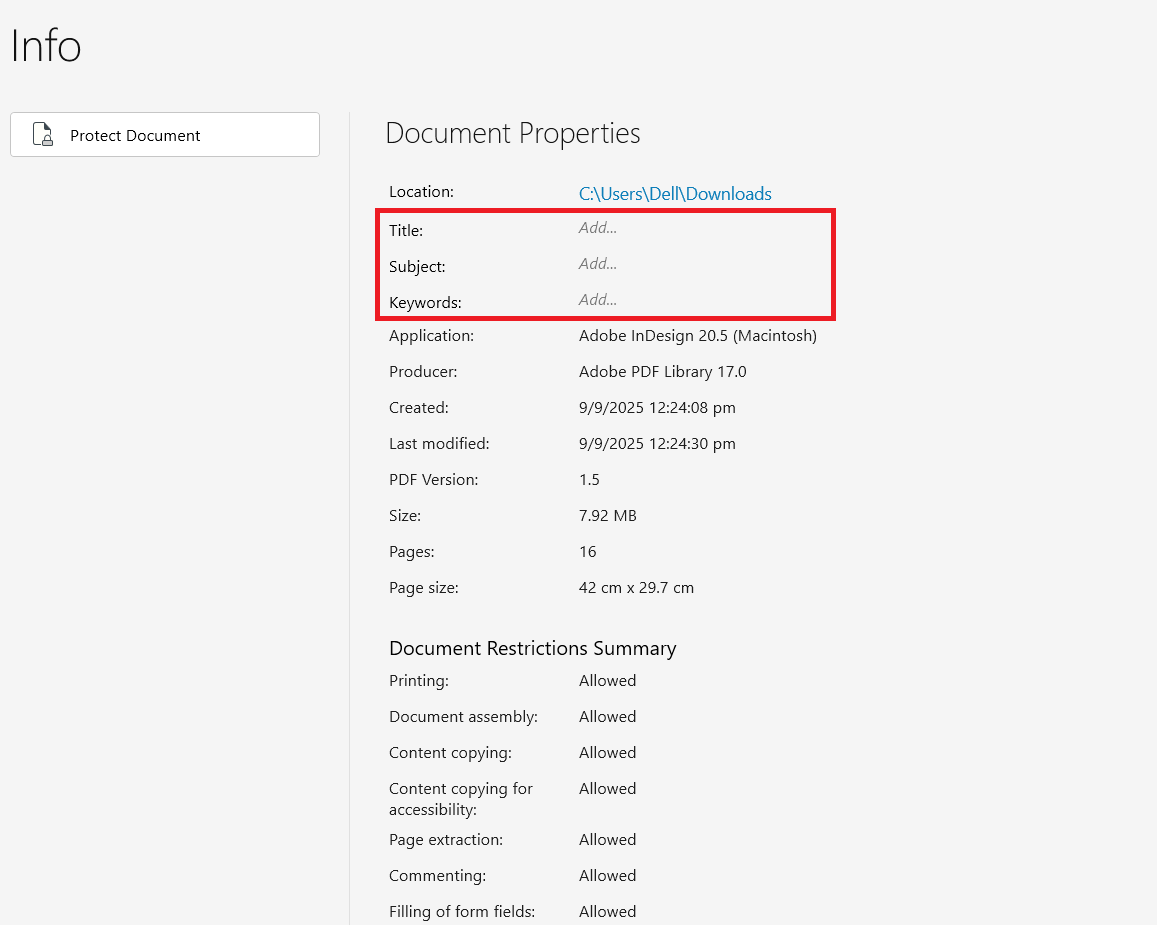
In the Info tab, edit fields like Title, Subject, and Keywords.
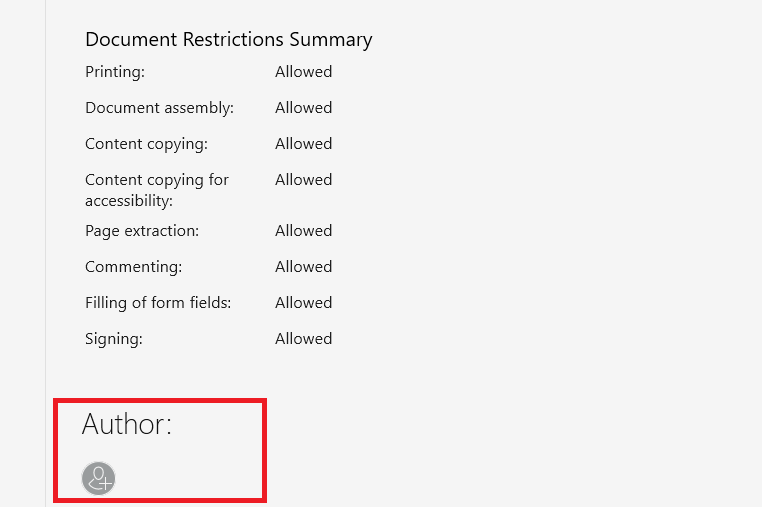
Navigate to the bottom of the tab to edit the Author field.
Click OK to save changes
Common reasons to edit metadata include:
Standardizing author names across team documents
Adding keywords for better searchability
Correcting titles that don't match file content
Including version numbers or project codes
Removing outdated information from older files
When adding metadata, be intentional about what you include. Only add information that serves a clear organizational purpose and won't compromise privacy when shared externally.
Removing or deleting PDF metadata
To remove metadata from PDF, you need to clear or delete specific fields before sharing your document externally. This process strips away hidden information while leaving the visible content intact.
MobiPDF provides tools to remove PDF metadata efficiently. Here's how to delete metadata from your files:
Open the PDF in MobiPDF.
Go to File → Info.
Clear each metadata field by deleting the text.
Click OK to apply changes.
Save the file to preserve your edits.
For maximum privacy, clear all fields including title, author, subject, keywords, and any custom properties. This creates a clean file that reveals minimal information when inspected.
After removing metadata, verify the changes by viewing properties again. Ensure all sensitive fields are cleared and the file contains only the visible content you intend to share.
Ready to edit your PDF’s metadata? Download MobiPDF today.
Frequently asked questions
Author and creator fields expose names, company information in custom properties reveals organizational details, modification dates show work timelines, and producer fields disclose software versions.
Yes. Editing metadata only modifies the document properties, not the visible content, layout, or formatting. You can safely add, change, or remove metadata fields without affecting how the PDF displays or prints.
Yes. Password protection secures content but doesn't automatically hide metadata. Anyone can view document properties without opening the file, even when it's password-protected. Remove metadata before applying passwords for complete privacy.
No. Removing metadata doesn't affect document appearance, layout, fonts, images, or functionality. It only deletes hidden information fields. Your PDF will display and print exactly the same after metadata removal.
No. Standard metadata removal only clears property fields like author, title, and keywords. Comments, annotations, form data, and attachments require separate deletion processes.
Use batch processing tools or scripts to modify metadata across multiple files simultaneously. Some PDF editors offer bulk metadata editing features.
Yes. Scanned PDFs contain metadata just like digitally created PDFs. You can view, edit, and remove metadata from scanned files using the same methods. However, scanned documents may have different metadata patterns depending on the scanning software used.
Manage PDF metadata with MobiPDF
Understanding how to view, edit, and remove PDF metadata gives you control over your document privacy. Whether you're organizing files internally or preparing them for external sharing, managing metadata ensures you only expose information you intend to share.
MobiPDF provides comprehensive tools to handle all aspects of PDF metadata management. View document properties to understand what information your files contain, edit fields to improve organization and searchability, and remove metadata before sharing to protect privacy.
With MobiPDF's offline capabilities, your metadata management happens locally on your device without uploading files to external servers. This keeps sensitive documents secure throughout the editing process.
Download MobiPDF to take control of your PDF metadata and share files confidently knowing exactly what information they contain.