Combining PDFs - Expanding and collapsing PDFs
Expanding and collapsing PDFs
When adding documents with more than one page to the PDF combiner interface, they will appear as single files to prevent needless clutter.
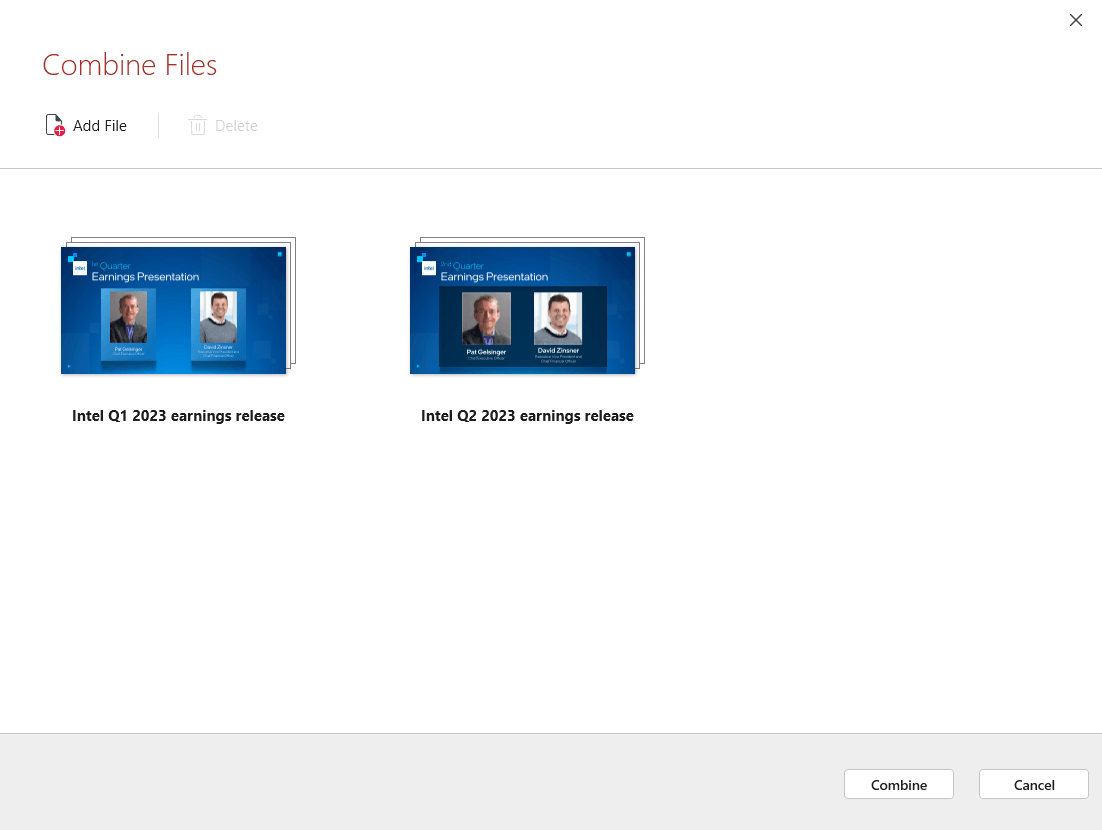
However, you can expand each file to view the exact pages it contains, and then freely rearrange and remove pages until you’re left with just the content you want to merge.
To access this feature:
1. Add at least a single PDF document with more than one page to the PDF combiner interface.
2. Once added, hover your mouse cursor over the document to reveal additional options.
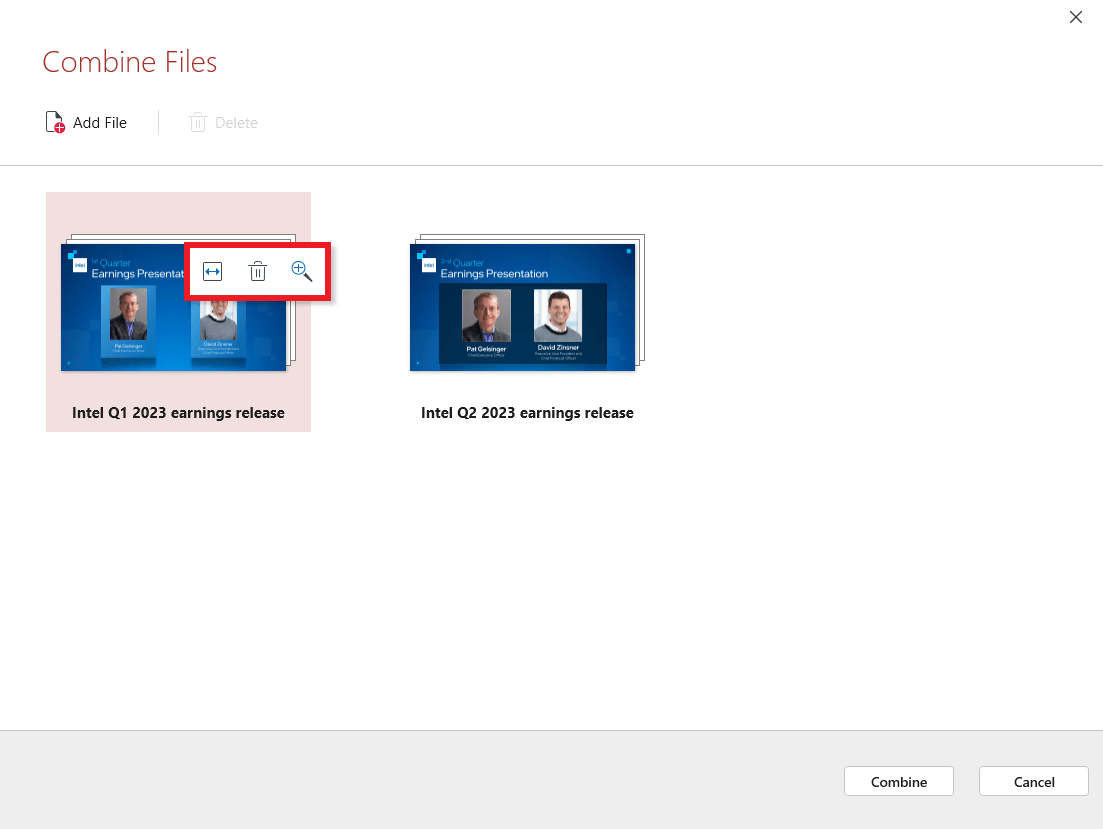
3. Click on the “Expand” symbol to reveal all the pages under the document you’ve just highlighted. It will look something like this:
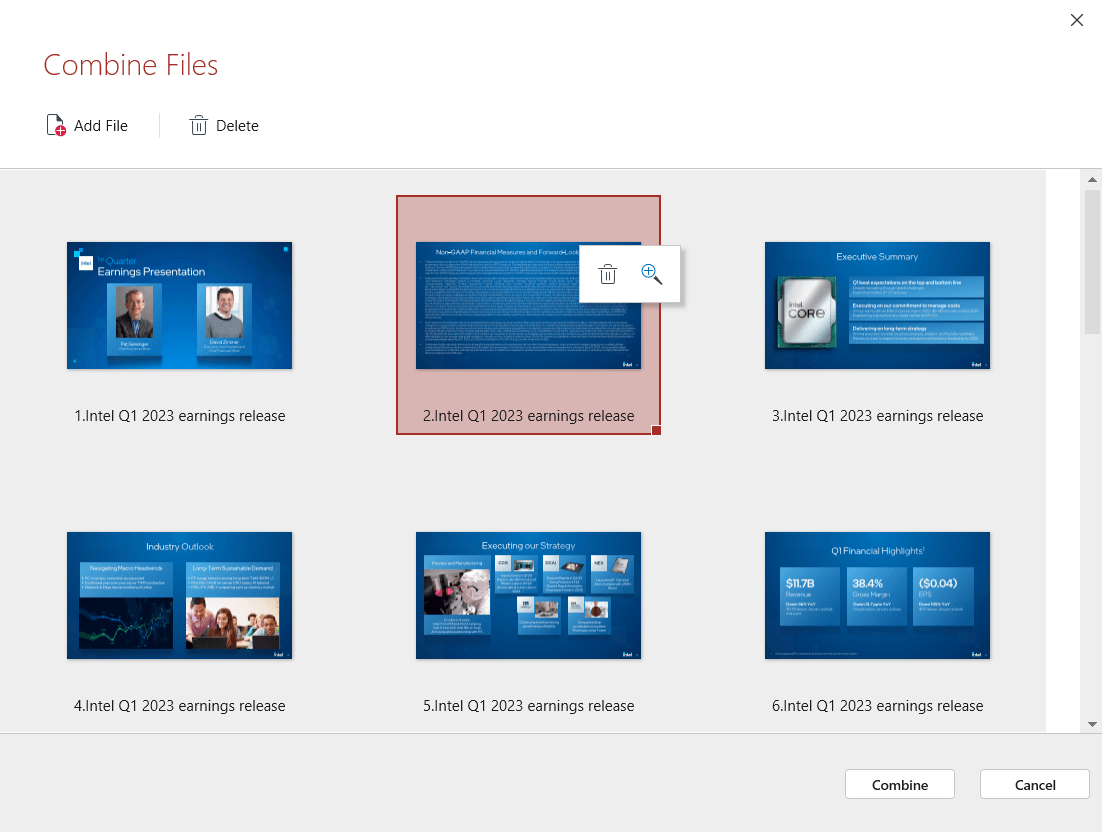
TIP: You can drag & drop pages around to quickly change their order (you can do the same for entire documents as well, as shown below).
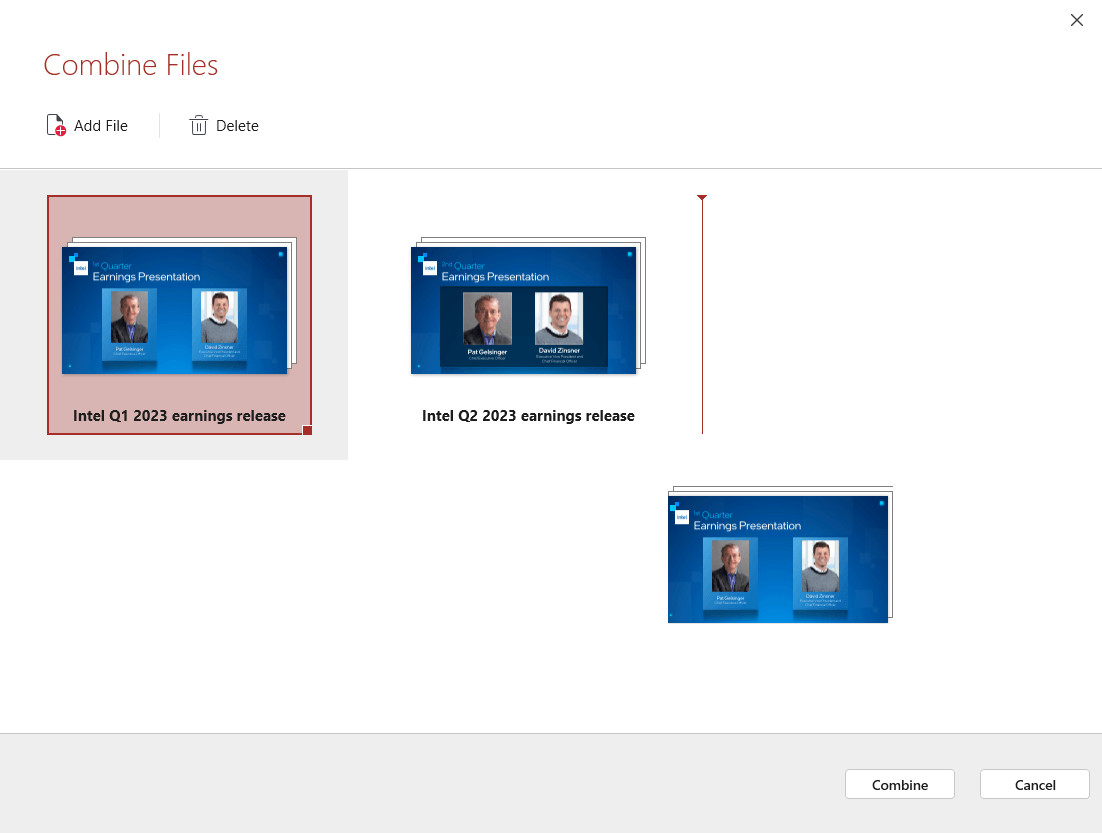
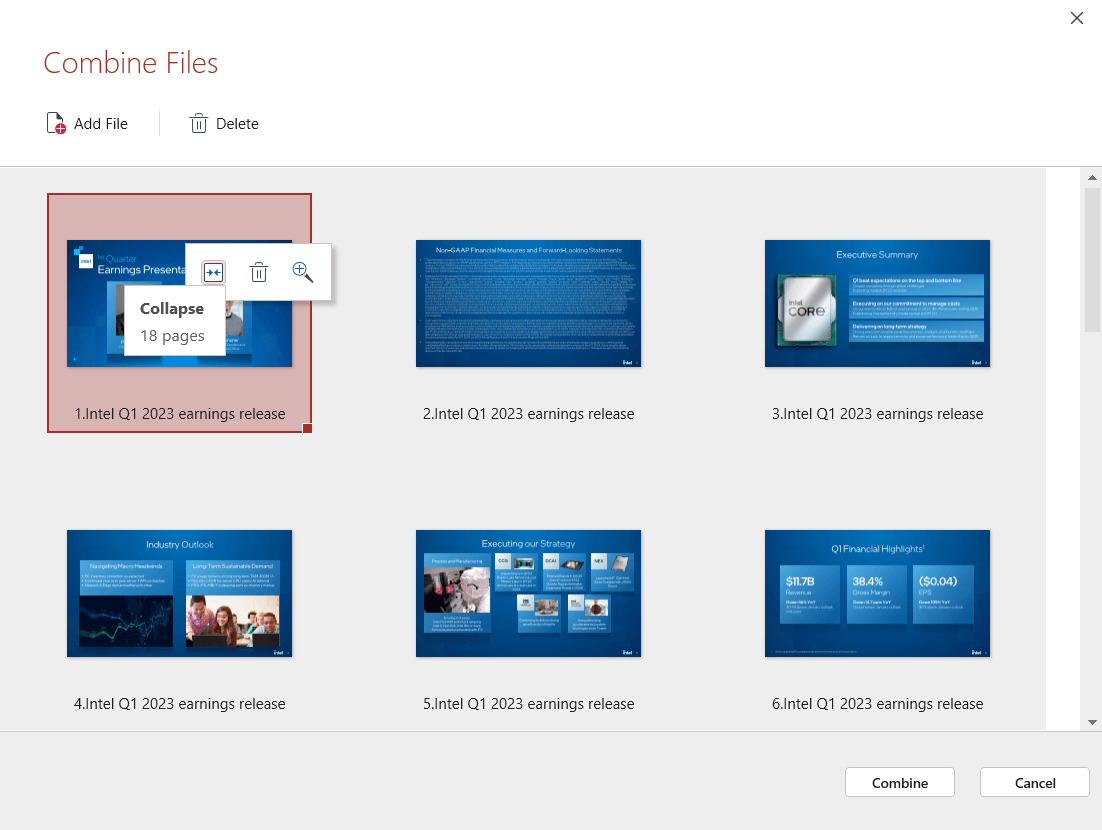
Once you’ve rearranged the pages and removed all irrelevant content, you can then click on the “Collapse”  symbol to hide all pages from view except the starting page of your document.