To add page numbers to a PDF, open it in a PDF editor and choose the header and footer or page numbers tool. Pick where the number goes, usually the bottom center or right, insert it, set the starting number and the pages to number, then save. Online tools do the same for a single file.
Which method should you use?
Use a desktop PDF editor if you want to choose where the numbers go, which pages get them and what number they start from. An online tool is enough to number pages in a PDF once, if you don't mind uploading the file. If you still have the original Word or Google Docs file, number the pages there and save it as a PDF again.
Add page numbers with a PDF editor
Most PDF editors insert page numbers through a header and footer tool, and many also have a Page Numbers button that opens the same settings. The steps are much the same from one editor to the next:
Open the PDF in your editor.
Open the header and footer tool, or the page numbers tool if your editor has one.
Choose where the number goes, for example the bottom center or bottom right.
Insert the page number in that position.
Set the number format and the start number, if your editor offers them.
Choose the page range that should get numbers, if not every page should.
Check the preview on the first numbered page and on the last page.
Save the numbered file as a copy.
Most editors also let you type text around the number, such as "Page" before it. Saving a copy keeps the unnumbered original, so you can start again if the page order changes later.
In Adobe Acrobat, the tool is under Edit → Header and footer → Add, where you click Insert Page Number.
MobiPDF follows the same steps and shows a preview you can page through before you apply the numbers.
Add page numbers online or in the original document
For a single file, an online page-numbering tool is the quickest route: you upload the PDF, pick a position and download the numbered copy. Tools such as iLovePDF and Sejda work this way in any browser. The trade-off is that your file goes to the tool's server, so think twice before uploading contracts, medical records or anything else confidential.
If you wrote the document yourself and still have the Word or Google Docs file, number the pages there and save it as a PDF again. The numbers carry over into the PDF, and you can fix them in the source file if the content changes. Word keeps page numbers in the header or footer, where you can leave the title page unnumbered or restart the count in a later section; our article on adding page numbers in Word covers those steps for Word and other formats.
Choose the right position and format
For most documents, a plain number at the bottom center or bottom right is the right choice, because that is where readers expect it. Bottom-right numbers are easy to find when someone flips through a printed stack. Centered numbers suit documents printed on both sides and bound, because they sit in the same place on left and right pages. Keep the number in the body font, at the same size or one size smaller, so it does not compete with the text. Use the table below as a starting point, not a rule:
Whichever format you choose, use it for the whole file.
Skip the cover page or start at a different number
To skip the cover page, apply the page numbers to a page range that starts after it, and set the start number to 1. For a report with a cover and one contents page, the range starts on page 3, and that page shows 1.
Editors split this into two settings, and both matter. The page range decides which pages get a number. The start number decides which number the first of them shows. If you set the range but not the start number, page 3 may show 3.
Combined documents need one decision first: one sequence through the whole file, or each part restarting at 1. A single sequence suits a report pack or a set of exhibits that people cite by page. Restarting suits separate documents sent together, such as several contracts. If each part should restart, number each file before combining files into one PDF. If the whole set needs one sequence, combine first and add the numbers last.
Page numbers vs page labels
Page numbers are printed on the page; page labels are the numbers your PDF viewer shows in its page box and thumbnails. In a report with a cover and two contents pages, the first page of the main text may show 1 at the bottom while the viewer calls it page 4. A reader who types 1 in the page box lands on the cover.
Page labels fix that mismatch without changing anything on the page. You can label the front matter with Roman numerals and start the main text at 1, so the viewer matches the printed numbers. Labels print nothing, so they do not replace page numbers in a printed copy. In MobiPDF, you set them with Label on the Pages tab, choosing the pages, a number format, an optional prefix and the starting page — the user guide on labeling pages in MobiPDF explains each option.
Page number problems and how to fix them
Most page number problems come from the wrong page range, the wrong position or numbering too early.
The cover page has a number. Add the numbers again to a page range that starts after the cover, with the start number set to 1.
The number covers text or a footer line. Move the number down toward the edge of the page, or to another position such as the top right. In MobiPDF, a smaller Bottom value in Margin Controls moves it down.
The PDF already had page numbers. The old numbers are part of the page, so a new number in the same spot prints on top of them. Put the new number in a different position, or check the preview before you apply it.
The numbers are wrong after adding or deleting pages. Open the page numbers again with Edit and apply them, so the count covers the new page order. In MobiPDF, click Page Numbers → Edit, then Add. If you plan on adding pages to a PDF, do that first and number the file last.
The viewer shows a different number than the page. That is the page label, not the printed number; set page labels to match, as described above.
The numbers are too small or faint in print. Raise the font size, use black text and print one test page before the full run.
Alternative: MobiPDF
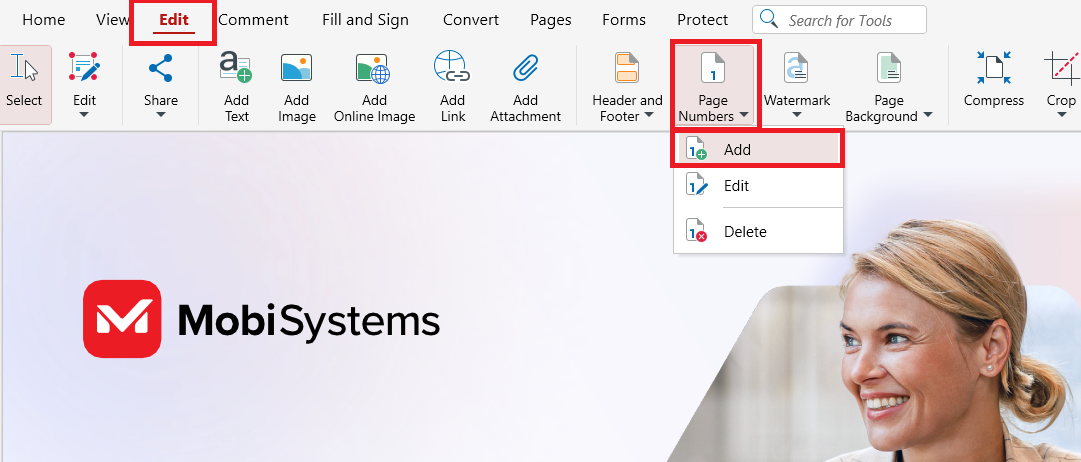
MobiPDF for Windows adds page numbers from the Edit tab, in the same window it uses for headers and footers:
Open the PDF in MobiPDF.
On the Edit tab, click Page Numbers, then Add.
Click the box where the number goes, for example Right Footer or Center Footer.
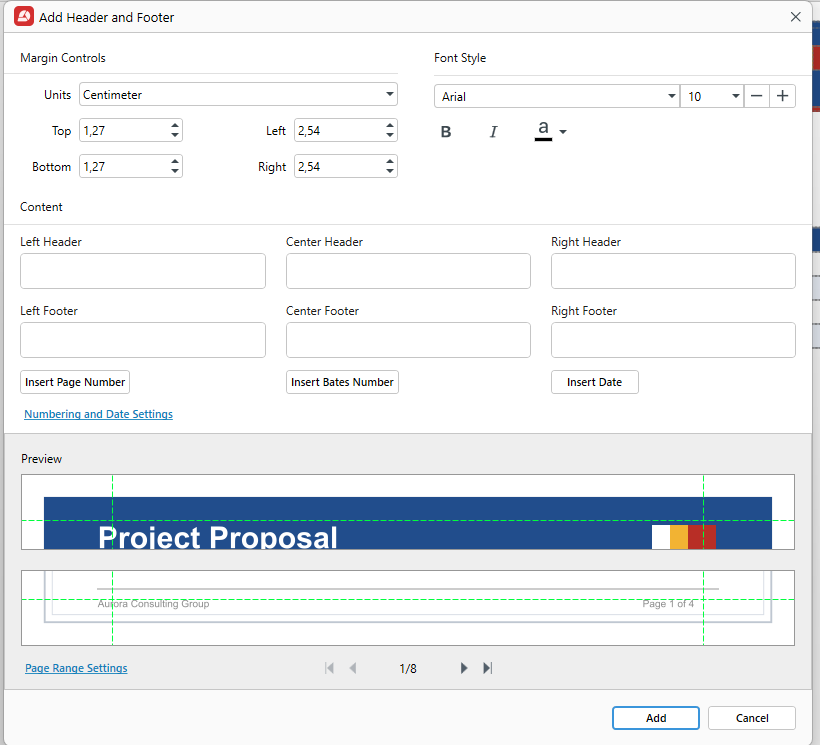
Click Insert Page Number.
Choose a Style on the Page Number tab of Numbering and Date Settings, for example 1, Page 1 or Page 1 of n.
Set the Font Style and the Margin Controls.
Click Page Range Settings to choose which pages get numbers, if not all of them should.
Check the Preview, using the arrows to page through the file.
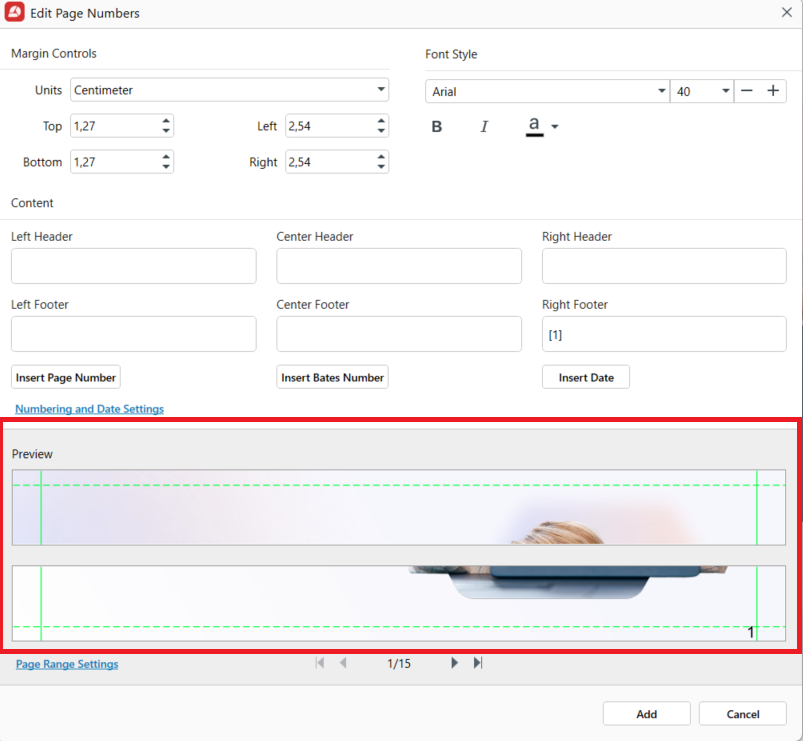
Click Add.
Save the numbered PDF as a copy with File → Save As, so the original stays unnumbered.
To change or remove the numbers later, click Page Numbers on the Edit tab and choose Edit or Delete. For the numbers the viewer shows, use Label on the Pages tab. Page numbers are part of MobiPDF's Lifetime and Pro plans.
You can number your next PDF in MobiPDF and check every page in the preview before you save.
Frequently asked questions
Number a page range that begins on page 3 and set the start number to 1. Pages 1 and 2, usually the cover and contents, get no number, and page 3 shows 1. In MobiPDF, you choose the pages that get numbers in Page Range Settings before clicking Add.
If you added the numbers, delete them with the tool that added them. In MobiPDF, click Page Numbers on the Edit tab, then Delete. Numbers that came with the document are part of the page content, so the simplest fix is to ask the sender for a copy without them.
For the numbers your PDF viewer shows, yes: page labels can number the front matter i, ii, iii and start the main text at 1. For numbers printed on the page, it depends on which number formats your editor offers.
Your viewer counts the pages in the file from the first one or shows page labels if the file has them. The number printed on the page is separate content. To make the two agree, set page labels so the main text starts at 1 where the printed numbers do.
Yes, for a one-off file. Online page-numbering tools number single files at no cost, usually with limits on file size or daily use, but they upload your document. If you have the original Word or Google Docs file, you can number it there and save it as a PDF.
No. Page numbers are part of the Lifetime and Pro plans, along with headers, footers and page labels. In the free app, the Page Numbers button is not greyed out: clicking it opens a description of the feature with a Start Trial button.
Final thoughts
Getting page numbers right comes down to order: finish the pages first, then number them. Decide which pages carry a number and where the count starts, pick one position and format for the whole file, and check the preview before you save a copy. If the viewer should match the printed numbers, add page labels as well. MobiPDF does both from its Edit and Pages tabs, so you can number, adjust and label a PDF in one app.