
This article was updated on March 26, 2026
Convert a picture to PDF on iPhone by opening the Photos app, selecting your photo, tapping the Share icon, and choosing Print. From the print preview, pinch to zoom on the preview image, tap the Share icon again, and select 'Save to Files.' This converts your photo to PDF format instantly.
This guide shows you every method to turn iPhone photos into PDF documents, from quick built-in tricks to apps that give you more control. You'll learn how to avoid common mistakes and where your PDFs are saved after conversion.
How to convert a picture to PDF on iPhone
The fastest way to convert a picture to PDF on iPhone uses the Print function hidden in the Share menu. This built-in method works with any photo format and creates a PDF in seconds without downloading apps.
To convert your photos, follow these steps:
Open the Photos app and select the picture you want to convert.
Tap the Share icon (square with arrow pointing up).
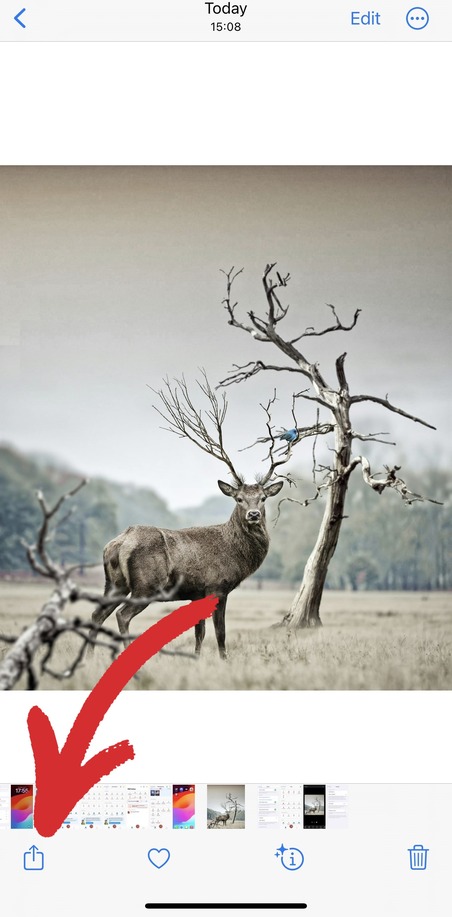
Scroll down and tap Print.
In the next dialog box, tap the Share icon at the top right.
Choose Save to Files and select the folder where to save your PDF.
Your photo is now saved as a PDF document and can be accessed in the Files app. The original photo stays in your Photos app unchanged – you're creating a copy in PDF format, not converting the original file.
Why this method works well:
No need to change camera settings or move files around
Creates clean PDFs without watermarks or processing delays
You choose exactly where to save the PDF
How to convert picture to PDF on iPhone using the Files app
The Files app offers a direct Create PDF option, but it only works with JPEG images. If your photos are saved as HEIC (Apple's default format), you'll need to convert them to JPEG first or use a different method.
What you need to know first:
The Files app method only works with JPEG images, not HEIC (Apple's default photo format). Before you start, you'll want to make sure your photos are saved as JPEGs instead of HEIC files.
Step 1: Change your photo format to JPEG
Open Settings.
Tap Camera > Formats.
Select Most Compatible.
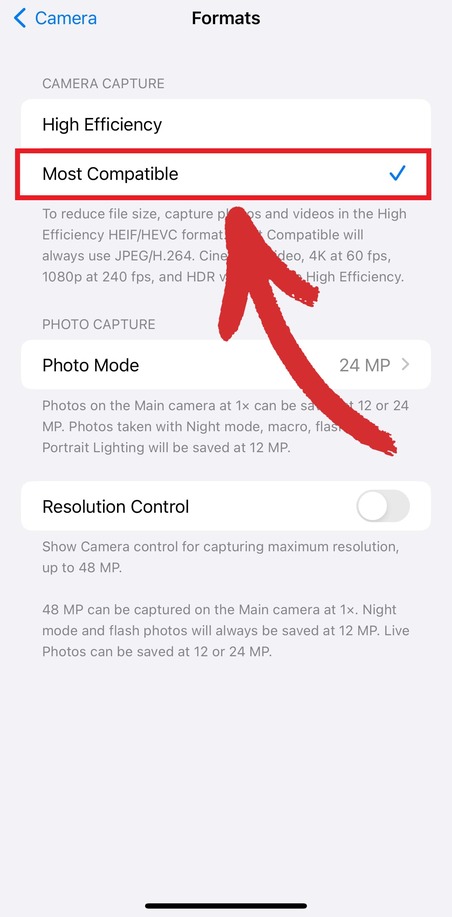
This changes your default photo format to JPEG. Any new photos you take will now work with the Files app conversion method.
Step 2: Move your photo to Files
Open the Photos app and select the photo you want to convert.
Tap the Share icon.
Choose Save to Files.
Pick a folder and tap Save.
Step 3: Convert to PDF
Open the Files app and find your photo.
Long-press on the photo then tap Quick Actions.
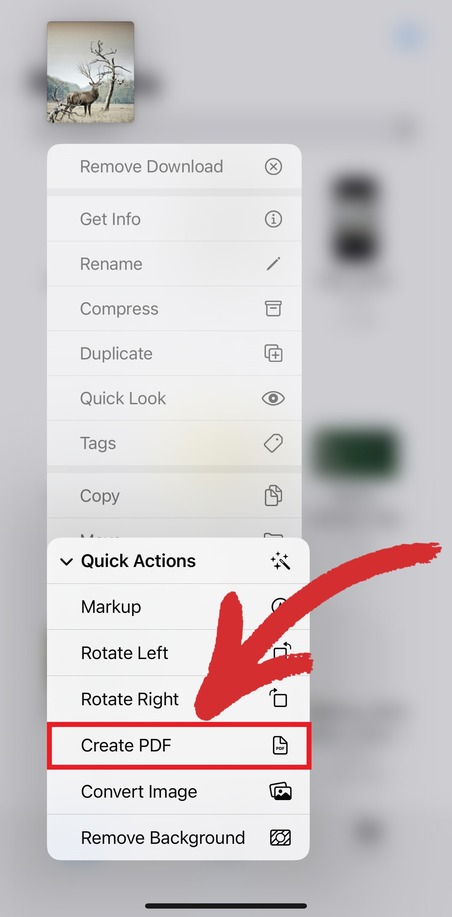
Select Create PDF.
Your PDF appears in the same folder as the original photo. The Files app automatically names it the same as your photo but with a .pdf extension instead.
Common mistakes to avoid:
Don't try this with HEIC photos. Convert them to JPEG first or the option won't appear.
Remember where you save your photo in Files. PDFs are created in the same folder
The original photo stays in Files even after creating the PDF, so you can delete it if you only need the PDF.
How to convert picture to PDF on iPhone using Notes
The Notes app offers another simple way to convert pictures to PDF on iPhone. This method works great when you want to add text, annotations, or combine multiple images before converting to PDF.
Here's how to do it:
Download and install MobiPDF from the App Store.
Open the Notes app and tap the New Note icon (square with a pencil) in the bottom-right corner.
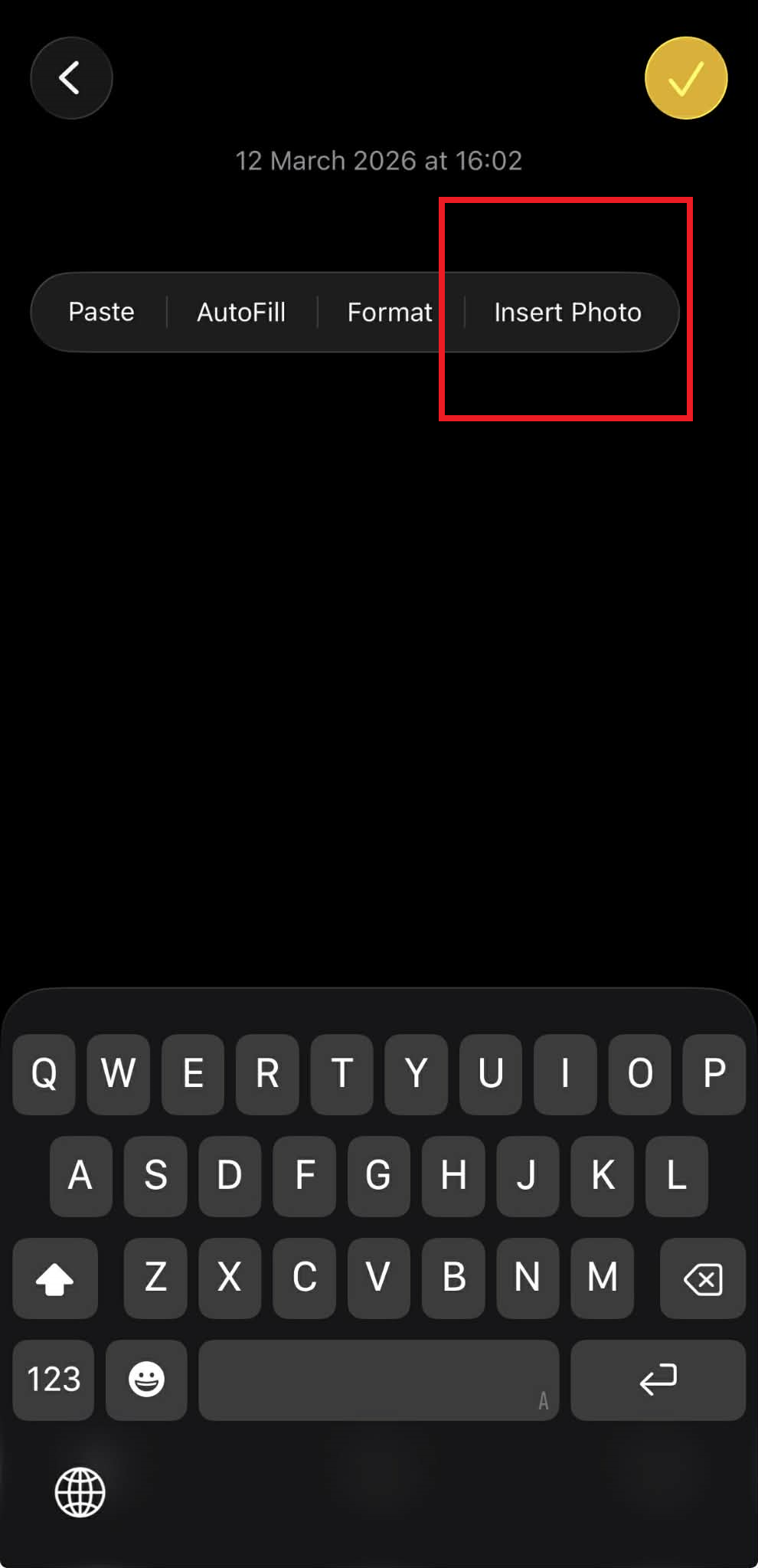
Tap inside the blank note, then select Insert Photo. This will open your photo library, where you can choose the picture you want to convert.
Once the image is added, tap the Share icon in the top-right corner and select Print.
On the Print Preview screen, pinch out with two fingers on the preview to open it as a PDF.
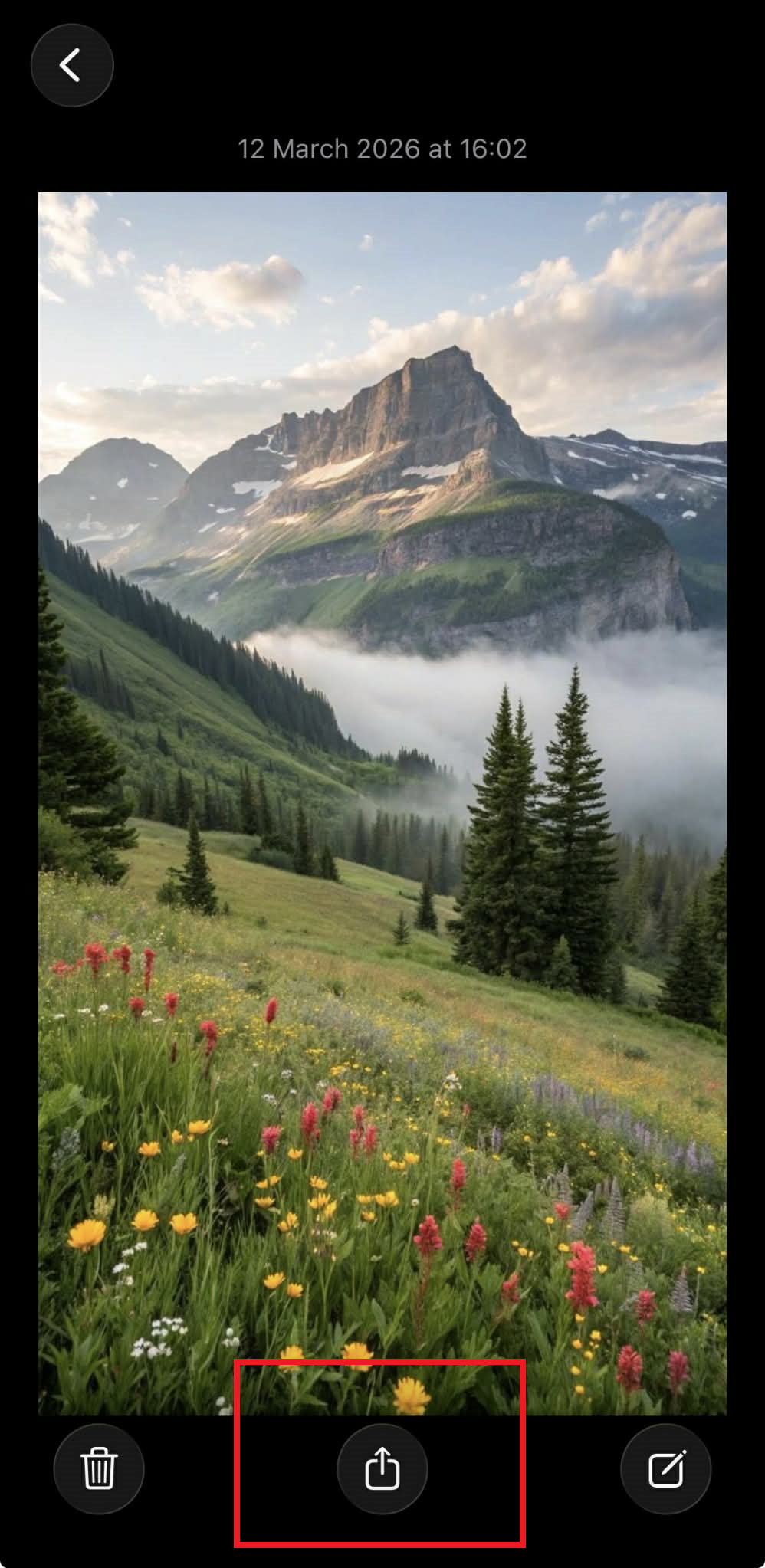
Tap the Share icon again and select Import to MobiPDF. Your newly created PDF file will open in MobiPDF.
The Notes method is perfect for quick document creation when you want more than just a simple photo-to-PDF conversion. It's particularly useful for creating annotated receipts, labeled images, or simple documents that combine photos with text explanations.
How to convert multiple pictures into one PDF on iPhone
Converting multiple pictures into a single PDF on iPhone requires using the Photos app or a dedicated PDF app like MobiPDF.
Using Photos app, you can:
Move all photos you want to combine to the Files app.
Open Files and tap the three dots menu.
Choose Select.
Tap each image you want to include.
Long-press any selected image.
Choose Quick Actions > Create PDF.
This creates a single PDF with all selected images as separate pages. The images appear in the PDF in alphabetical order by filename, not the order you selected them.
Using MobiPDF (easier and works with any format):
Open MobiPDF on your iPhone.
Tap Tools > Image to PDF.
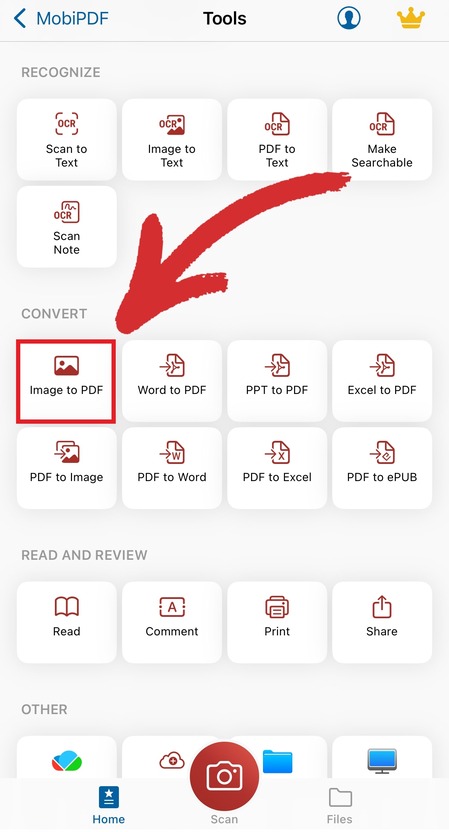
Select all the images you want to combine.
Arrange them in the order you want then tap Save.
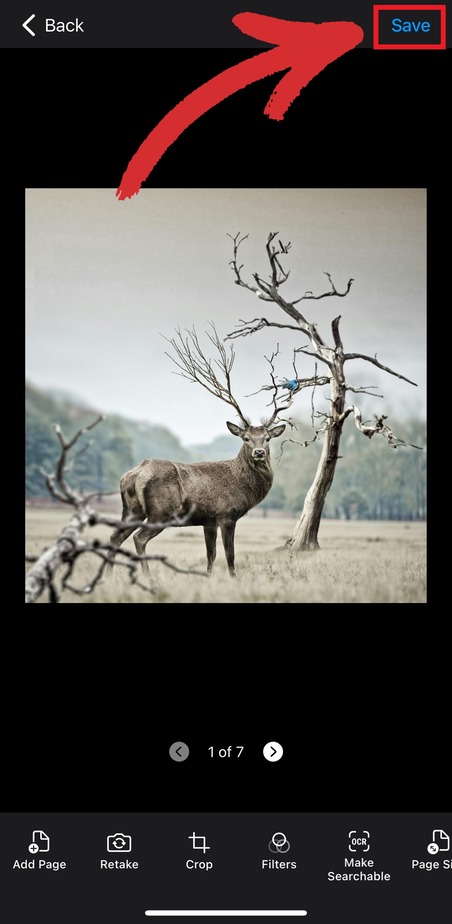
Name your PDF and choose where to store it.
Why MobiPDF works better for combining images:
Works with HEIC, JPEG, PNG, or any photo format
You control the exact page order by dragging images
Preview how the PDF will look before saving
Adjust image quality and PDF file size
No need to move photos out of your Photos app first
Learn more about MobiPDF's image conversion features and see how easy it is to create professional PDF documents from your iPhone photos.
How to convert iPhone images to PDF files online
You can convert images to PDF using online PDF converters like mobisystems.com/mobipdf/convert.
To convert your photos to PDF, follow these steps:
Using your browser, go to mobisystems.com/mobipdf/convert.
Tap Choose file > Photo Library and select your photo.
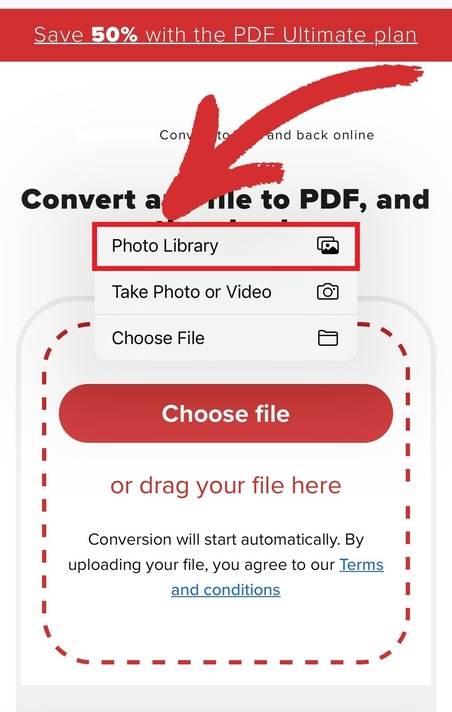
Wait for conversion to complete.
Tap Download your file to save the PDF.
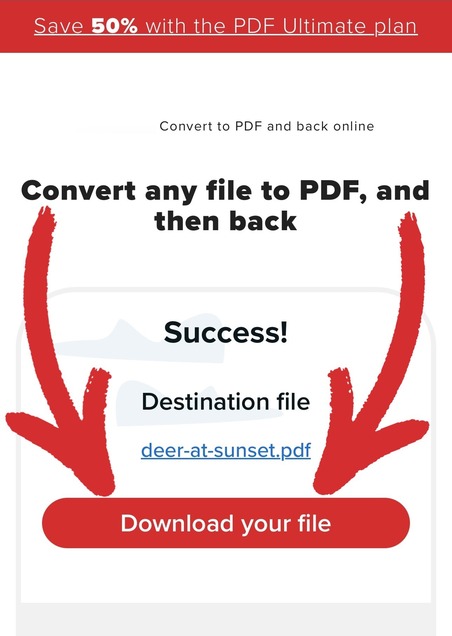
This method works with any image format and handles multiple photos.
Frequently asked questions
Can I convert pictures to PDF on iPhone without using an app?
Yes, you can convert pictures to PDF on iPhone without downloading any apps. Use the Files app to convert JPEG images by long-pressing the photo and selecting Quick Actions > Create PDF. Alternatively, use the Notes app or MobiPDF, which works with any photo format including HEIC.
Where are PDF files saved on iPhone after conversion?
PDF files are saved in the Files app folder you choose during conversion. The Files app method saves PDFs in the same folder as the original photo. Notes, MobiPDF, and other apps let you pick the location when you create the PDF.
Converting pictures to PDF on iPhone doesn't have to be complicated. Whether you use Apple's built-in tools or dedicated apps like MobiPDF, you can create professional PDF documents in seconds. Download MobiPDF today for the easiest way to convert, combine, and organize your photos as PDFs with full control over quality and file management.