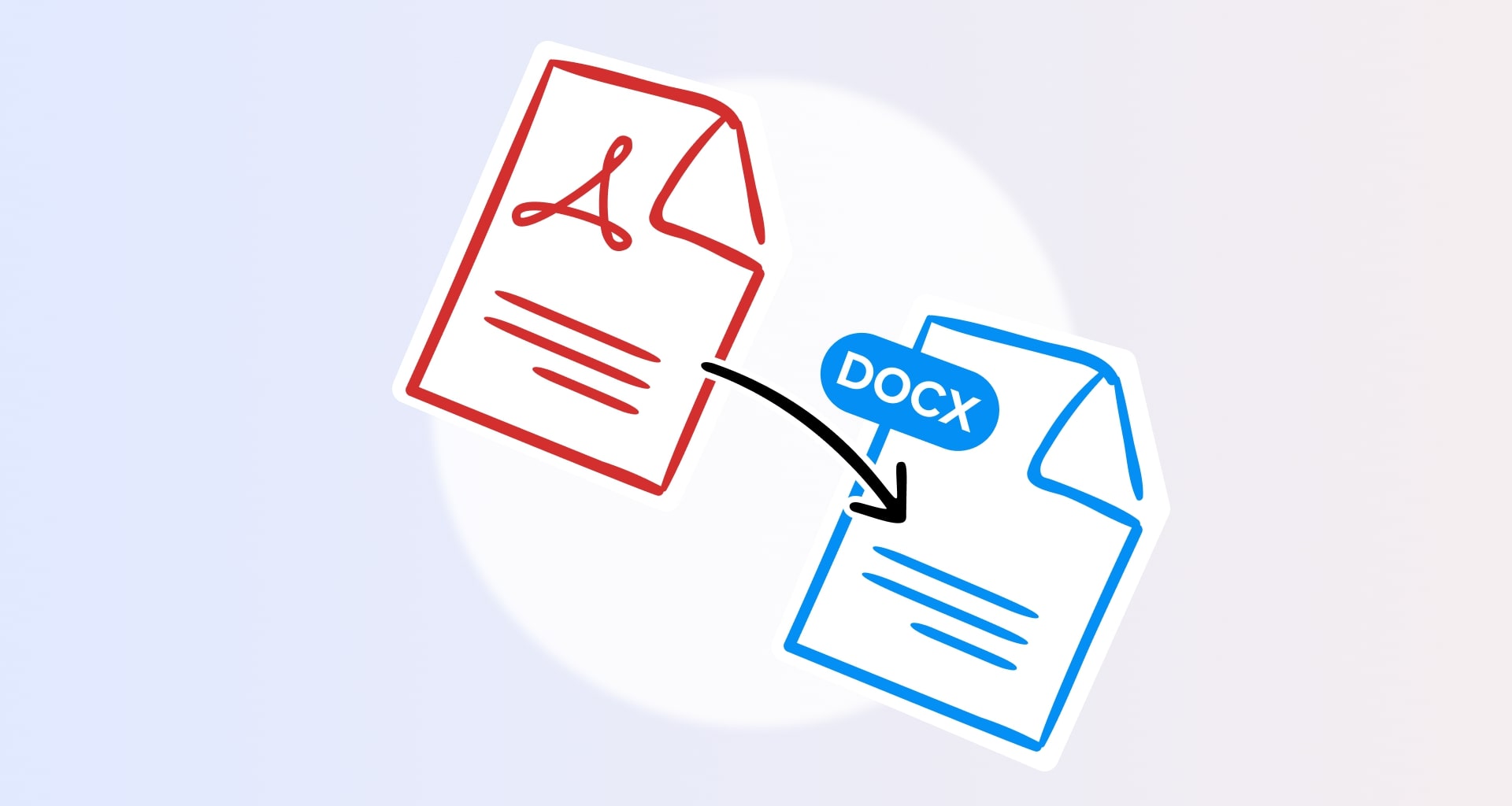
To convert a PDF to Word with MobiPDF, open the app, go to More → PDF to Word, open the PDF file you want to convert, choose if you want OCR, and click Convert. MobiPDF will then create a copy of your original file with the formatting intact.
Converting a PDF file to a Word document can be useful in several situations. While PDF files can be opened on any device or operating system, editing a PDF file directly is not as straightforward. By converting a PDF file to a Word document, you can change the PDF's contents any way you like until you’re happy with the result.
So, how do you convert a PDF to Word? Below, we will walk you through the steps of how to effortlessly do PDF to DOCX conversions on any device, as well as tips to quickly and reliably get the best results. Let's get started!
Key takeaways
Converting a PDF to an editable Word document (DOCX) is essential for advanced editing, meeting compliance standards, and reducing file size. Here are the main takeaways from our guide on PDF to Word conversion:
The most reliable way to convert PDF to Word and keep the original formatting is by using dedicated PDF software like MobiPDF. The software combines traditional conversion methods and OCR to deliver highly accurate results.
If you need to convert an image-based or scanned PDF to Word, always enable the Optical Character Recognition (OCR) feature. OCR turns static images into searchable text, which will greatly improve your user experience.
You can easily perform PDF to DOCX conversions through the free MobiPDF online tool, the dedicated Windows application, or with the user-friendly mobile apps for Android and iOS.
Avoid conversion errors like broken formatting or incorrect text by ensuring your source PDF is high-resolution, not using overly exotic fonts or overlapping objects, and double-checking the language settings if the document contains multilingual content.
Why convert PDF files into Word documents?
One of the biggest advantages of converting your PDF file to Word (DOCX) is that you can then freely edit its contents in any text editor. One such app is Microsoft Word, but there are also other alternatives like MobiOffice or LibreOffice to choose from.
Access advanced editing tools
Changing a PDF to Word allows you to use a range of useful tools, such as text search, custom and rich text fonts and formatting, spelling auto checks and autocorrect functionalities, and all other kinds of advanced features that are typically only available in premium PDF software.
Make your files smaller
Another benefit of PDF to DOC conversion is that it often removes unneeded meta information resulting in a much smaller file. For instance, PDFs that have been created from scans often contain both an image layer and a text layer showing the same information. Converting to Word will automatically remove that extra layer for you.
Meet compliance standards
Some places, such as banks or legal departments, might still require certain documents to be saved in a Word format. Changing your PDF to Word is a nice way to avoid manual retyping and will result in a perfectly formatted and editable PDF.
How to convert a PDF to Word – step-by-step guide
Converting your PDF file into a Word document has never been easier, regardless of the device you’re using. Here is how to convert your PDF into DOCX online, on Windows, and from your phone.
Converting PDF to Word online
Wondering how to convert PDF to Word for free? You can turn any PDF into the popular Microsoft format at zero cost using our online converter. Here is how.
Drag and drop your file into the red box at the top of the page.
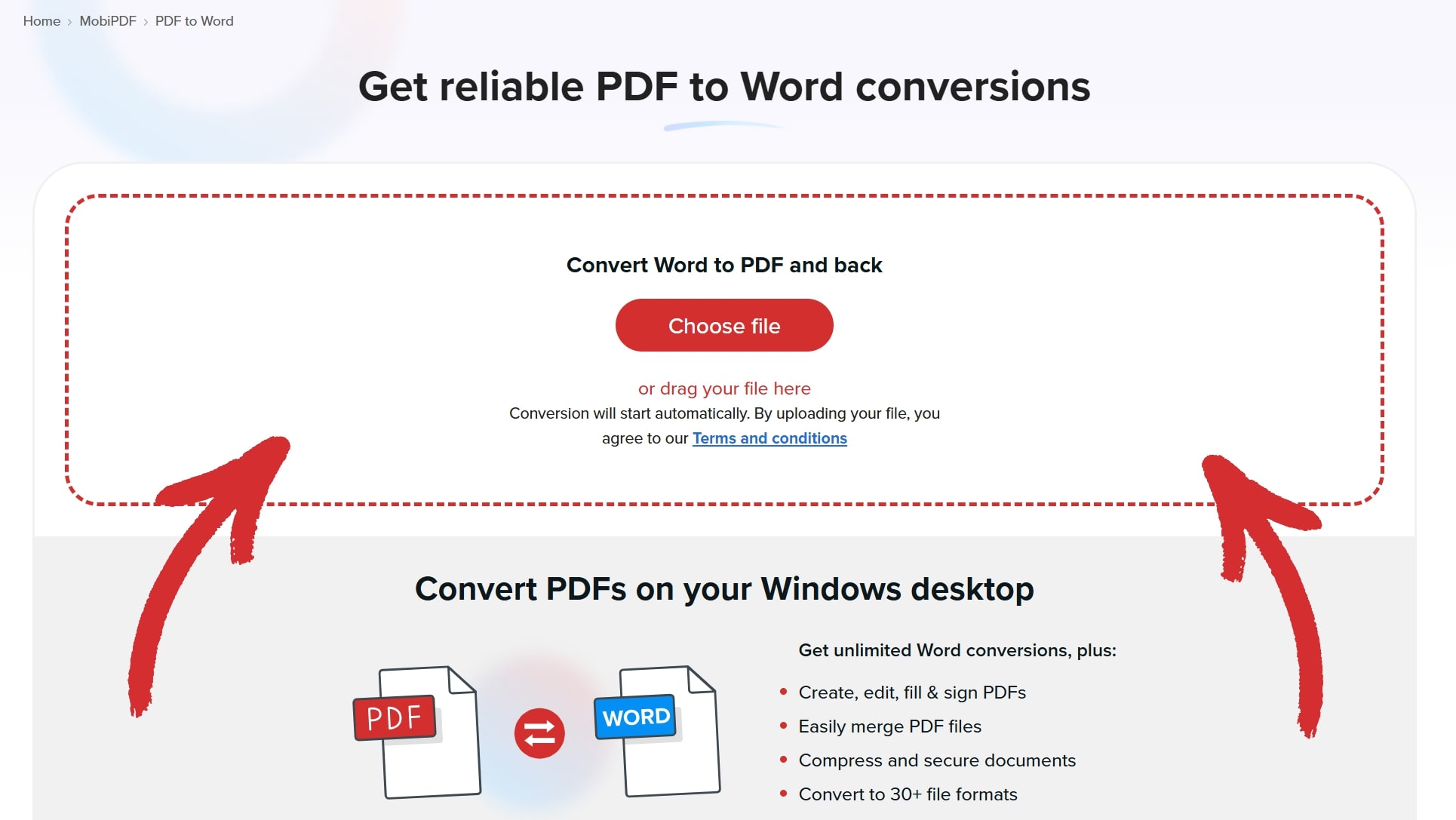
Select if you want to convert with or without OCR (Optical Character Recognition).

Wait for your PDF to be converted.

Click Download your file to get the Word version of your file.

Converting PDF to Word on Windows
If you want to do this process faster, offline, and don’t want to worry about daily limits, your best bet is to use a professional PDF editor and converter like MobiPDF.
Here are the steps:
Download and install MobiPDF on your Windows 10 or 11 device.
Launch the app to enter the Home Screen.
Click Open and choose your PDF file.
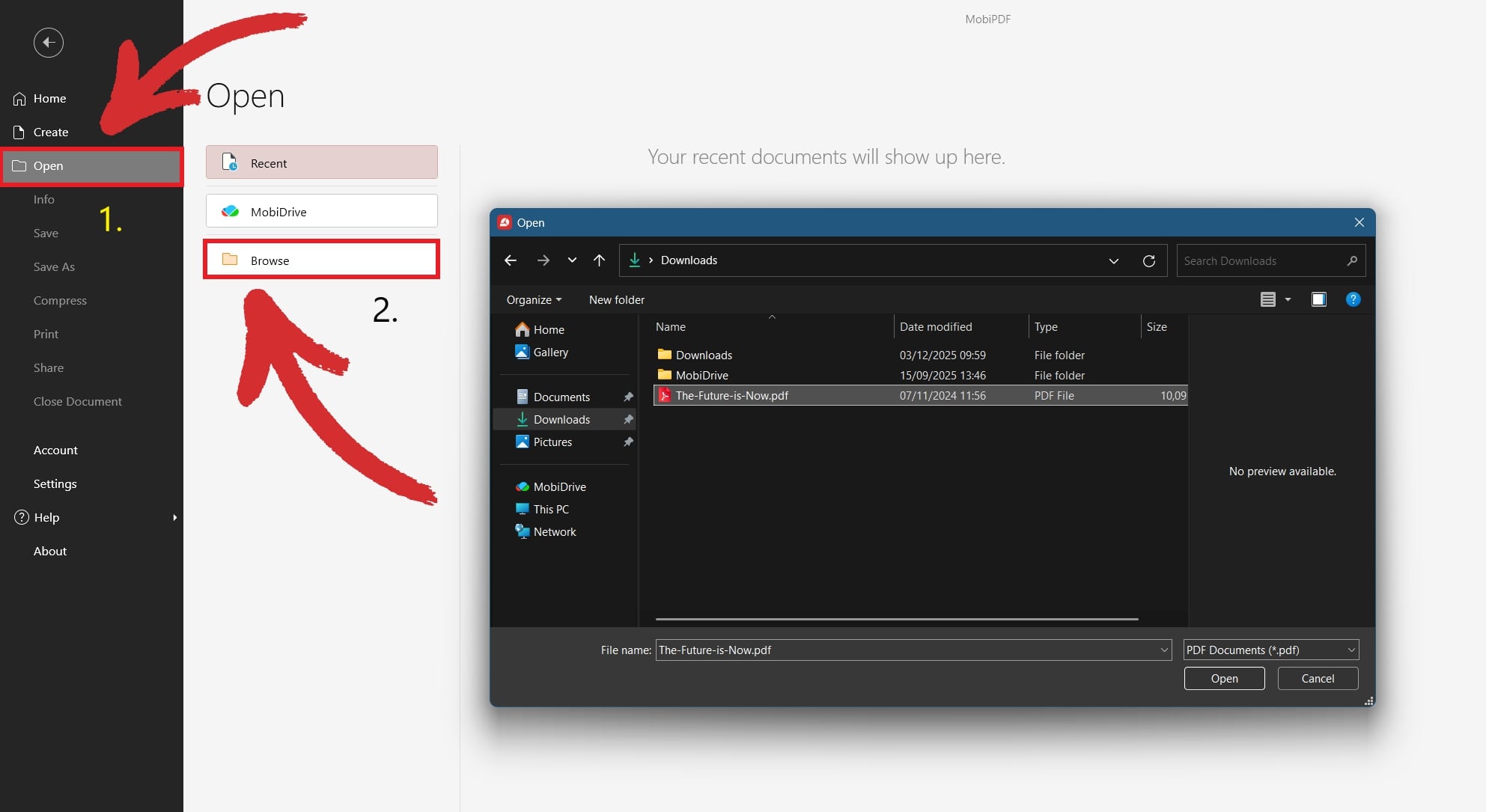
Click the To Word option under the Convert tab.
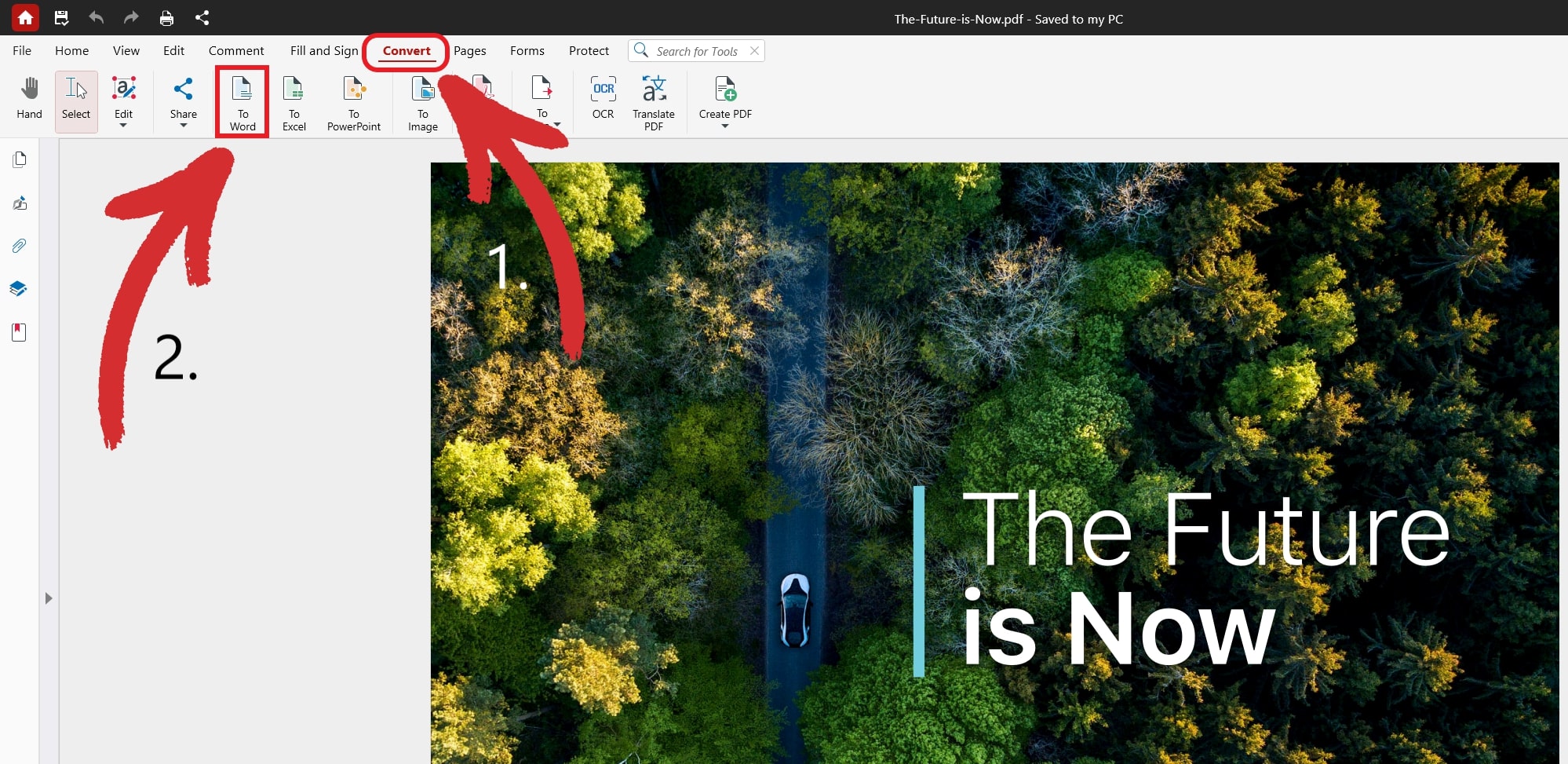
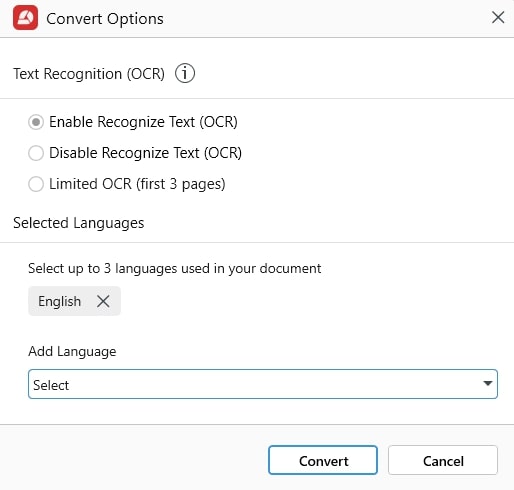
Confirm the language of the text inside the PDF and whether you want OCR (good if you’re converting a scanned document).
Choose where to save your new Word file.
TIP: You can skip step 4 by clicking More → PDF to Word from the Home Screen. 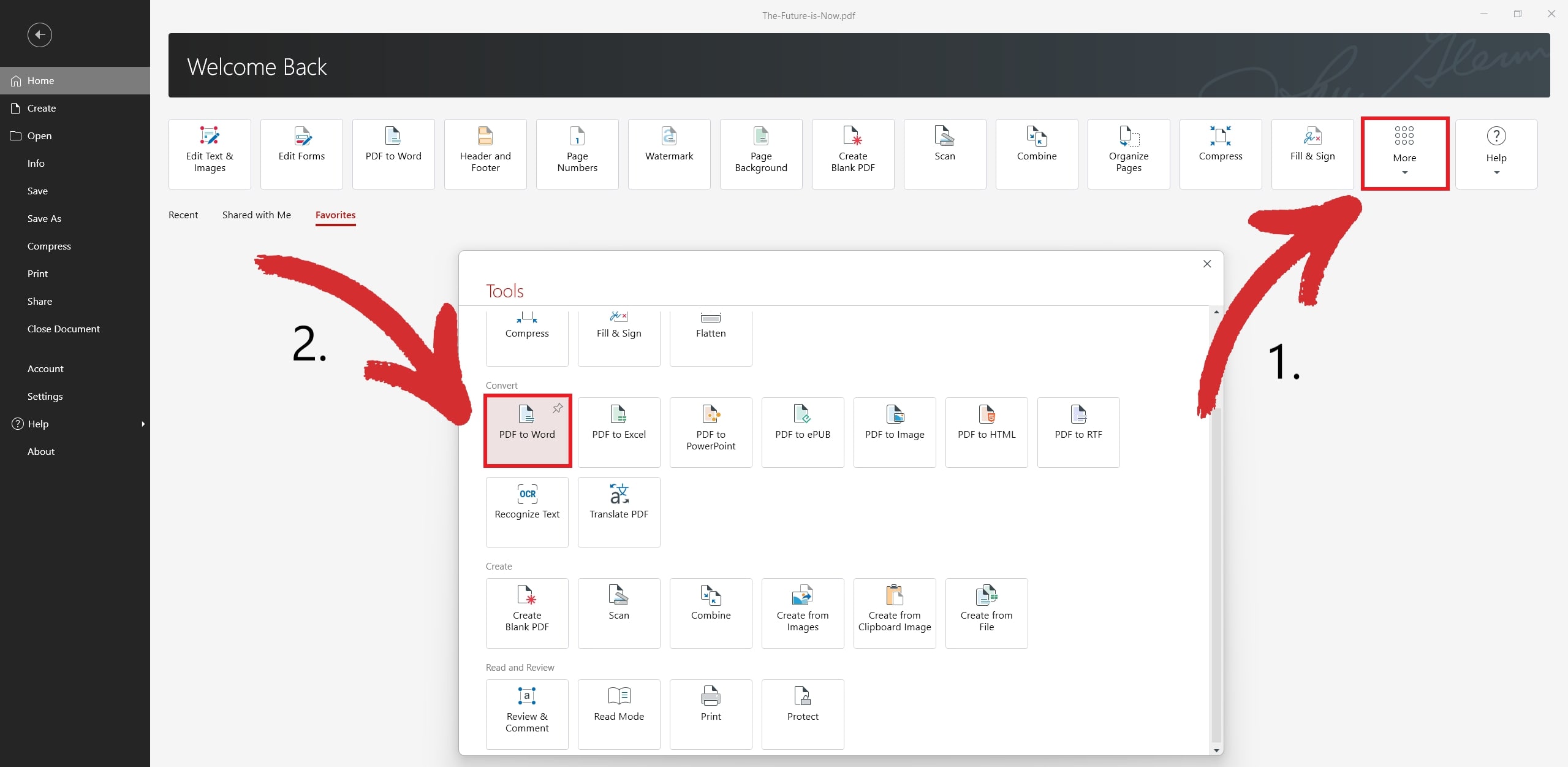
Converting PDF to Word with a phone
If you're a busy professional who doesn’t stay in one place for long, you can still benefit from quality file conversions even on the go. Here is how to do just that with MobiPDF for Android (don’t worry, the iOS workflow is nearly identical).
Download the app from Google Play.
Open the app to enter the Home Screen.
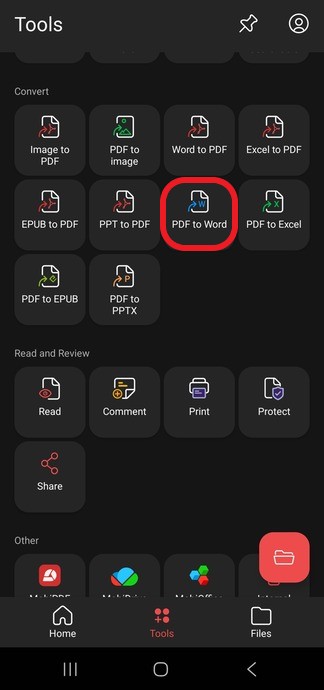
Choose PDF to Word from the available options.
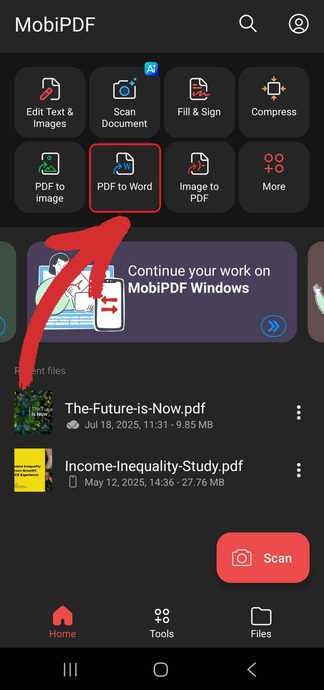
Select where your PDF is located.
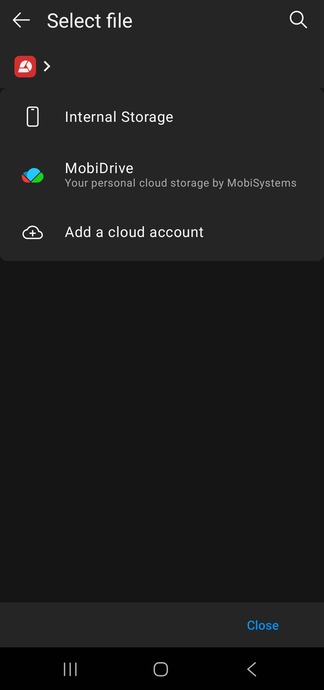
Select where to save your new DOCX file.
Wait for the conversion to finish.
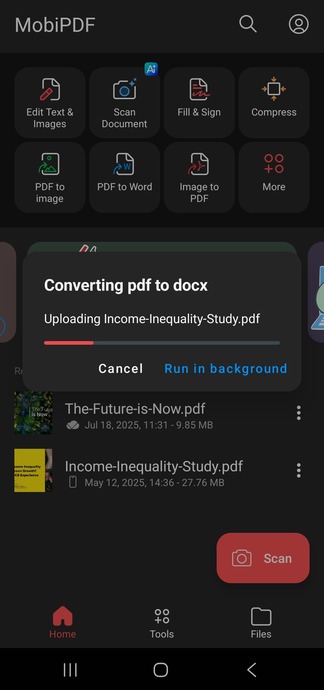
TIP: You can skip step 4 by clicking Tools → PDF to Word from the Home Screen.
When to use OCR for PDF to Word conversion
Optical character recognition helps you turn document scans, which are essentially static images, into searchable PDF files. In some instances, they can also improve the conversion results. 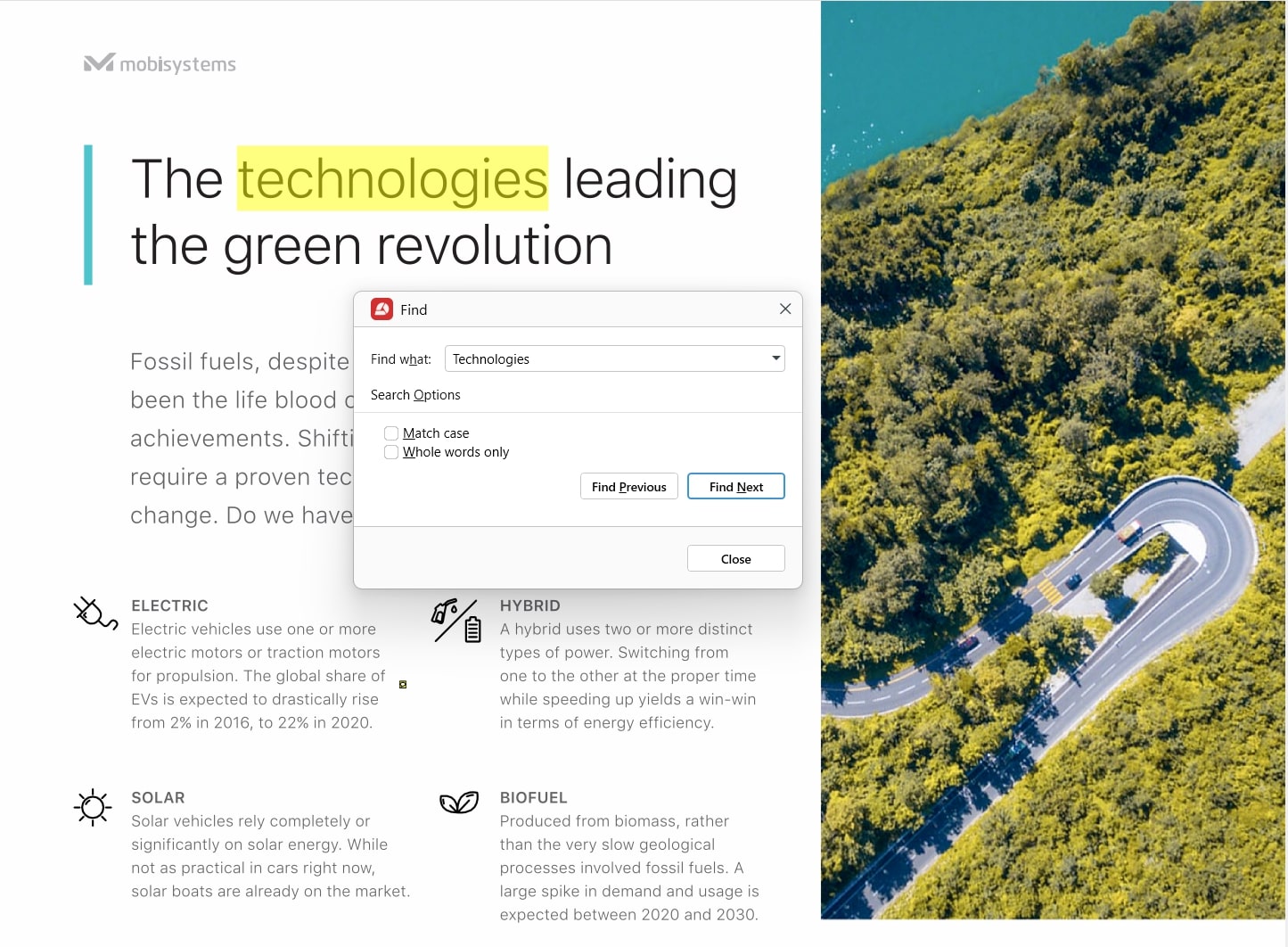
How OCR works in PDF conversion
When you convert an image-based PDF file using regular conversion, the PDF software cannot read its contents properly, resulting in loss of data, corrupted files, or weird formatting issues.
What OCR technology does to the document is essentially reading it through the eyes of a human and extracting the information that is “trapped” inside the image by converting it to machine-understandable text.
A good way to determine if you need to convert with OCR for your conversions is to try and search the to-be converted PDFs for any words and phrases. If this is not possible, then you need to add OCR when converting – it’s that simple.
How to convert PDF using OCR
Here are the steps to converting a document scan so that it can be searchable using OCR:
Launch MobiPDF.
Go to More → Recognize Text from the Home Menu.
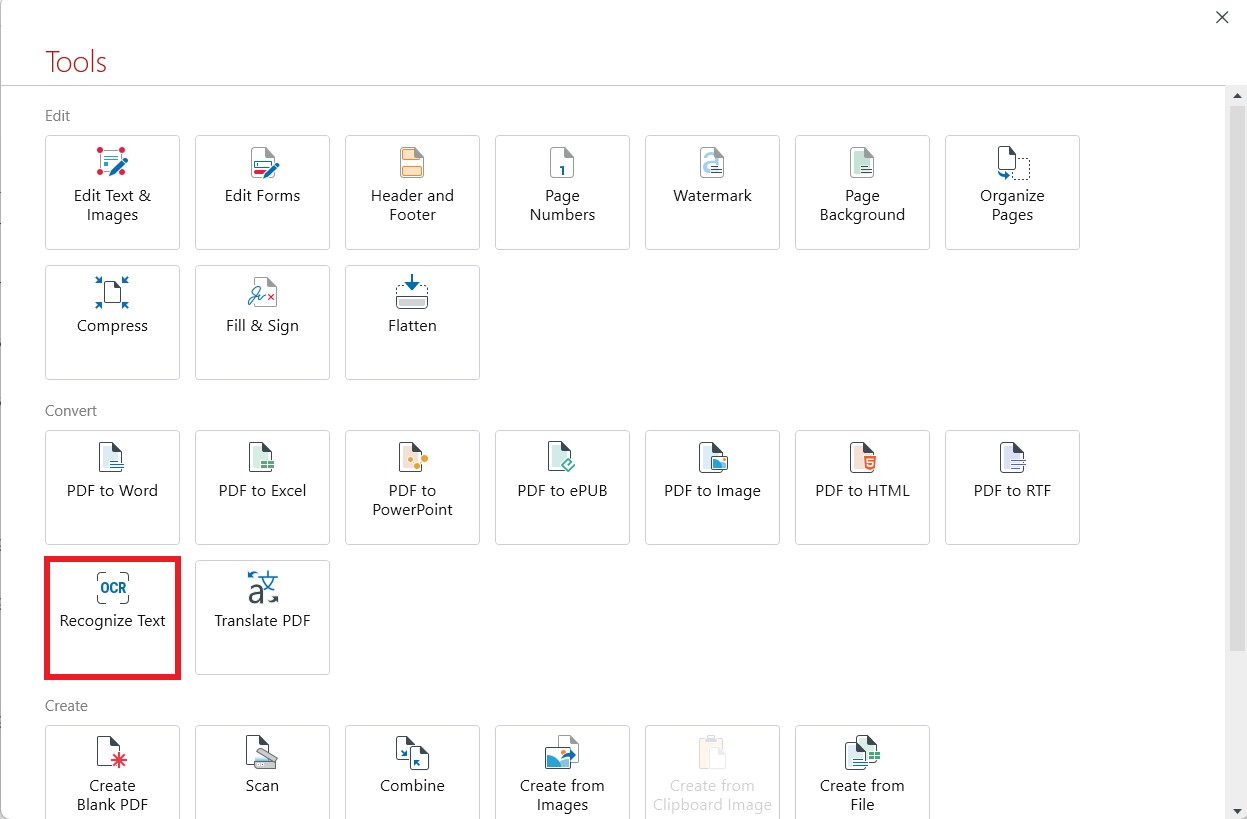
Open the PDF you want to OCR.
Select how many pages to turn searchable and which languages are present in your document.
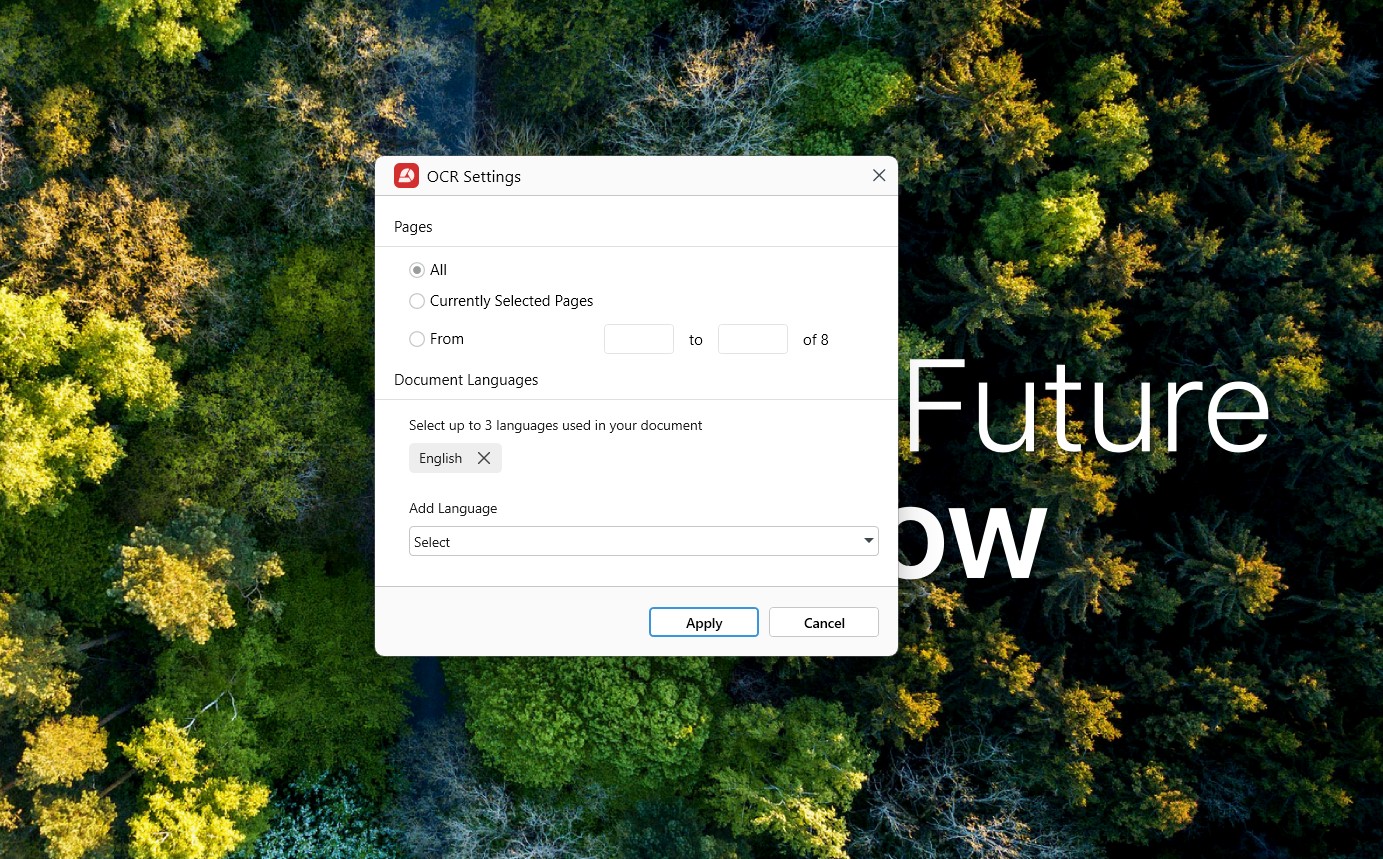
Click Apply to make your PDF scan searchable.
Why convert PDF to Word with MobiPDF?
MobiPDF uses a combination of OCR (optical character recognition) and traditional conversion methods to achieve high conversion accuracy. By using this combined approach, our software converts your file in just seconds reliably and without overwriting your original document.
Our file converter works with most of the languages spoken around the world, doesn’t require an internet connection, and stays true to the original formatting of your PDF. You can also convert straight from your Android or iOS device and through our free web tool, giving you on-demand access to quick and quality PDF to Word conversions.
Troubleshooting tips for PDF to Word conversions
Below are some of our quick tips to ensure you get the best conversion results time and time again.
Broken file formatting
Try to get high-res files that are easy for a person to read and understand. If you’re using a file that’s easy for you to read, chances are that it will be much easier to convert it into a fully functional Word document. Here are a few things to look out for to ensure your output formatting matches that of your original PDF:
Remove any high-res graphics, images, shapes, tables, and other items that you may not need from your PDF. This will also make your file smaller.
Avoid skewed or overlapping objects or exotic and fancy fonts or colours.
Delete any duplicate pages to lower the chances of an error occurring.
Incorrect text conversion
If this happens to you, make sure you’ve chosen the correct language present in your document (you can choose up to three languages at a time). For instance, if your document is mainly in English but contains French passages, tick both “English” and “French” as language options from the conversion language menu.
Missing metadata
Once the conversion is done, check your original file’s metadata and compare it to the resulting file. If anything is missing, try converting your file again using different settings (for instance with OCR enabled or disabled) until you get a version that works for you.
To check your file metadata with MobiPDF, simply go to the Home Screen and click Info. A new panel will then open revealing information like author name and date of document creation. 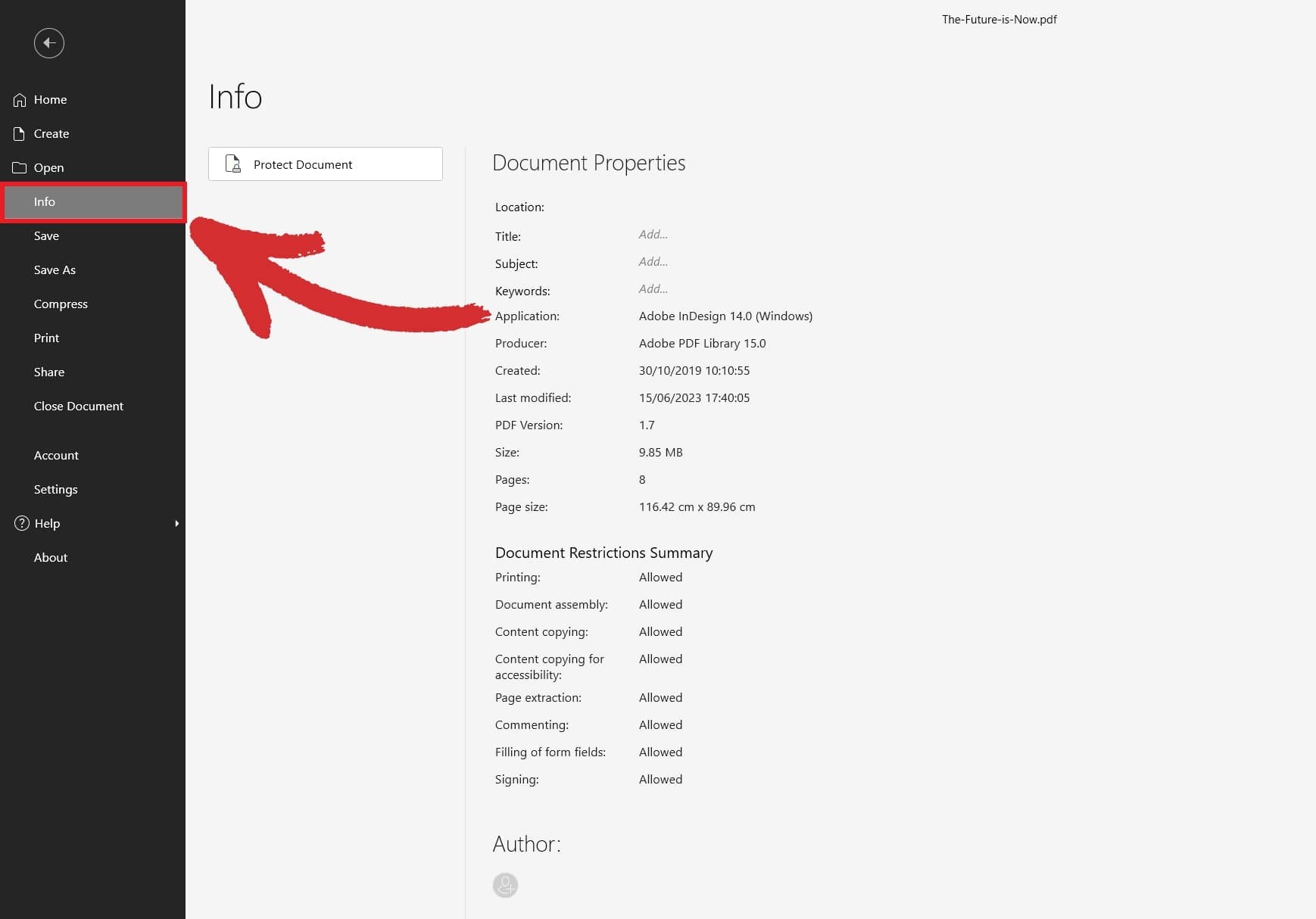
Missing original file
Some software may overwrite your original file with the final export. MobiPDF always keeps the input file and simply creates a Word-compatible copy. If you still cannot find your file after conversion, check if you haven’t deleted it by accident.
Try MobiPDF's PDF to Word converter functionality for free with our 7-day trial.
Frequently asked questions
How to convert a PDF to Word without losing formatting?
With MobiPDF, everything is handled for you – simply load your PDF, choose PDF to Word from the menu, and the app will take care of the rest.
Can I convert a PDF to Word for free?
Yes – you can effortlessly convert your PDFs from any browsers using our free PDF to Word conversion tool. For unlimited conversions, consider a MobiPDF subscription.
How do I convert PDF to Word on mobile (Android/iOS)?
Download the latest version of MobiPDF for your Android or iOS device from Google Play or the Apple App Store. Then, open the app and tap PDF to Word to start converting. If the option isn’t immediately visible, tap Tools to access all available features within MobiPDF.
How to convert PDF to Word on Mac?
An official version of MobiPDF isn’t available for Mac, but you can easily take advantage of free third-party solutions like Wineskin or CrossOver to load the app inside macOS.
Is it possible to convert PDF to Word without software?
Yep, it is. Visit our free web converter and drag & drop your file into the highlighted box. Then, click Convert to download your file. You can also choose Convert with OCR if you are converting a scanned document.
Can I convert a scanned PDF to Word?
Yes – to do this, make sure to select the Enable Recognize Text (OCR) option before clicking Convert. This will result in a better conversion and will also make your PDF searchable.
Can MobiPDF convert large or multi-page PDFs to Word?
Yes, you can safely convert your PDF file no matter how many pages it contains.
Not looking for Word conversions?
Check out our guides on the remaining file conversion types supported by MobiPDF: