Converting a PDF to Excel consists of just a few easy steps – open your PDF, choose Convert → PDF to Excel, then export an editable XLSX file with preserved tables, formulas, layouts, and complete data accuracy.
PDFs have become the Swiss army knife of the office world and if you've ever tried copying and pasting data from a PDF document into an Excel spreadsheet, then you know just how frustrating this experience can be.
Luckily, there is a solution, and it's called PDF to Excel converter. So, let’s dig deeper.
What are the benefits of converting PDF to Excel?
Converting a PDF to Excel helps you work faster with data, extract tables, and update information without manual retyping. A structured spreadsheet is easier to analyse, filter, visualise, and share – an enormous benefit for data analysts, financial advisors, accountants, and really just about anyone who wants to draw data-based conclusions and neatly visualise complex datasets.
Key advantages\:
Turn static tables into fully editable spreadsheets
Avoid errors from copying/pasting scattered data
Prepare reports, budgets, and assignments more efficiently
Keep formatting intact across PDFs, scans, and images
Use AI tools to clean messy tables and fix inconsistencies
This is where MobiPDF comes in. With MobiPDF, each page of your PDF will be rendered as a separate spreadsheet in the output Excel file, ensuring that your dataset is nicely organised and its formatting – preserved down to the last digit.
How to Convert PDF to Excel – A Step-by-Step Guide
Below is a complete workflow for converting PDFs into Excel spreadsheets on Windows, Android/iOS, and online – all using MobiPDF.
How to convert PDF to Excel without losing formatting
First, head over to MobiPDF and download the application on your Windows device.
Note: you cannot convert a PDF that is password-protected since this would compromise the security of the file. If you must convert such a file, you can use MobiPDF to remove the password protection from it before converting.
To convert without losing formatting:
Open MobiPDF on your desktop or mobile.
Select Convert → Тo Excel.
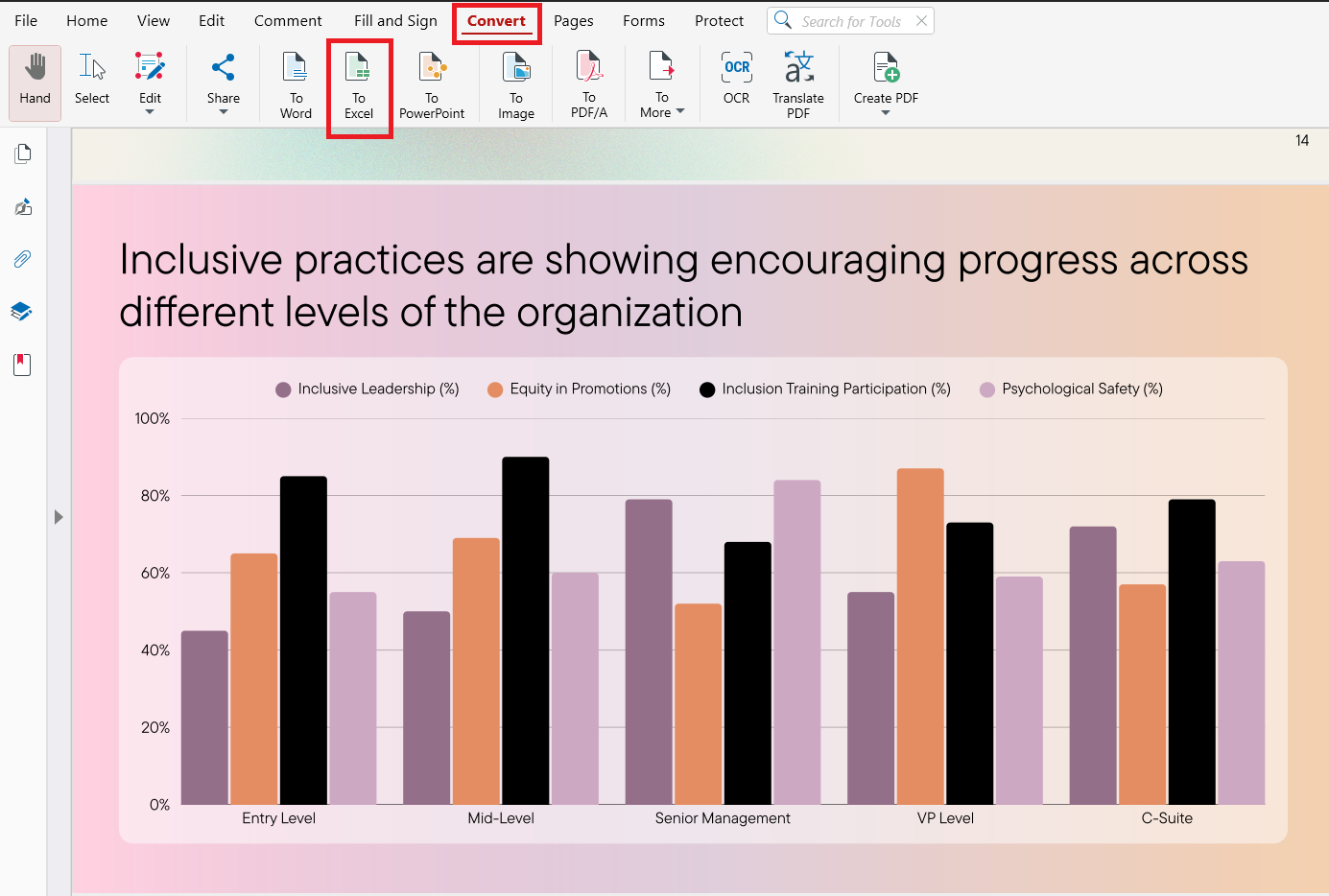
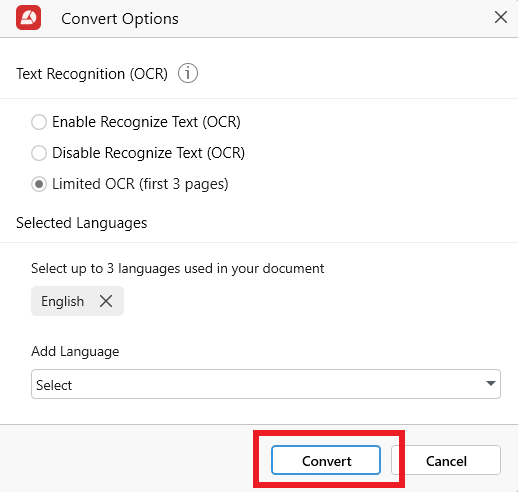
Choose your Convert Options – OCR, Selected Languages, then click Convert.
Choose a place to save your Excel file or upload it to MobiDrive.
Save your Excel file.
Frequently asked questions
How do I convert a scanned PDF to Excel?
Use MobiPDF’s OCR to Excel feature that recognises characters, tables, and numeric formats from scanned documents and images, then exports into an editable spreadsheet.
Why does my PDF not convert cleanly to Excel?
This usually happens when the original PDF contains distorted scans or inconsistent table borders. MobiPDF’s AI Cleanup and OCR tools correct these issues before exporting your spreadsheet.
How can I convert a PDF to Excel without losing formatting?
Enable Keep Formatting and review the table layout in MobiPDF’s preview mode. This ensures accurate rows, merged cells, headers, and numeric formats in your final XLSX file.
How do I convert a PDF to Excel on a Mac or Windows PC?
On Windows, simply install MobiPDF. On Mac, use the free online converter or run the full desktop app using virtualization tools like PlayOnMac. Both options support fast, accurate PDF to Excel conversion.
Can I convert a PDF to Excel without software?
Yes. Use the free MobiPDF Online Converter in any browser – no installation or email signup needed.
What tool should I use to preserve columns accurately?
Use a smart conversion PDF tool like MobiPDF that respects columns.
How should I prepare my PDF before converting it to Excel?
Clean up the PDF using MobiPDF’s rich editing capabilities before converting.
What PDF elements can cause problems during conversion?
Try to remove or reduce:
Excess padding and indents
Bulleted lists and checklists
Decorative or complex text formatting
Why should I remove headers, footers, and page numbers?
Removing them helps MobiPDF focus on the actual table content and improves overall accuracy.
How should I handle images and multimedia before converting?
Multimedia such as video or audio cannot convert at all. Trim or remove these elements to ensure a smoother, more accurate export.
Not looking for Excel conversions?
Check out our guides on the remaining file conversion types supported by MobiPDF:
Ready to crop your PDFs more efficiently?
Download MobiPDF and crop any PDF with accuracy, speed, and complete offline security. Trim pages, fix scans, and refine layouts — all in a powerful desktop editor built for professional results and long-term reliability.