

Navigating the MobiOffice User Interface
After installing and downloading MobiOffice, you automatically have MobiDocs, MobiSheets, MobiSlides, and MobiMail installed. This guide walks through the main interface elements you'll see when you open a MobiOffice app on Windows and explains how to find common tools and customise the look. Brief notes on Mac and mobile are included at the end.
The Home screen
The Home screen is the first thing you see when you open any of the apps. From here, you can:
Create a new file, either blank or from a template.
Open a recent file from the recent files list.
Browse files on your device or in your connected cloud storage.
Edit and update your settings.
Sign in to your account or open My Account.
The left side of the Home screen lists your available actions. The center shows recent files and template options. The following Home screen in MobiDocs illustrates the options mentioned above:
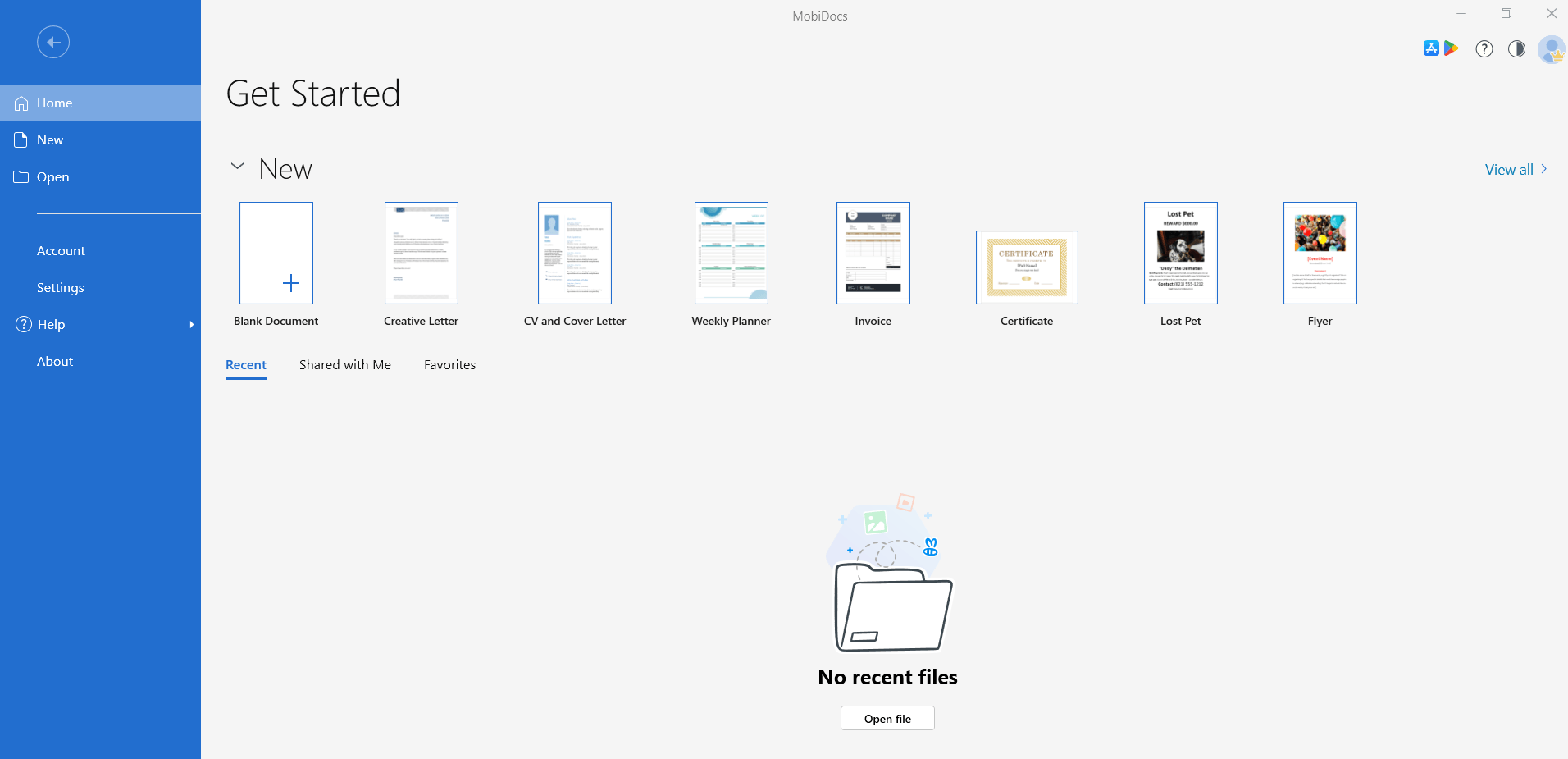
The Home screen is found on MobiDocs, MobiSheets, and MobiSlides. MobiMail doesn’t have a Home screen.
The main interface
When you open or create a file in any of the apps, the editor view loads. The interface has five main areas, top to bottom:
1. Title bar: Shows the file name and the app name.
2. Quick access toolbar: In the upper left, a small toolbar with frequently used commands like Save, Undo, and Redo.
3. Ribbon: The main toolbar, grouping commands into menus.

4. Document area: The space where you edit your file.
5. Status bar: A thin bar at the bottom showing the current page, word count, zoom level, and view mode.
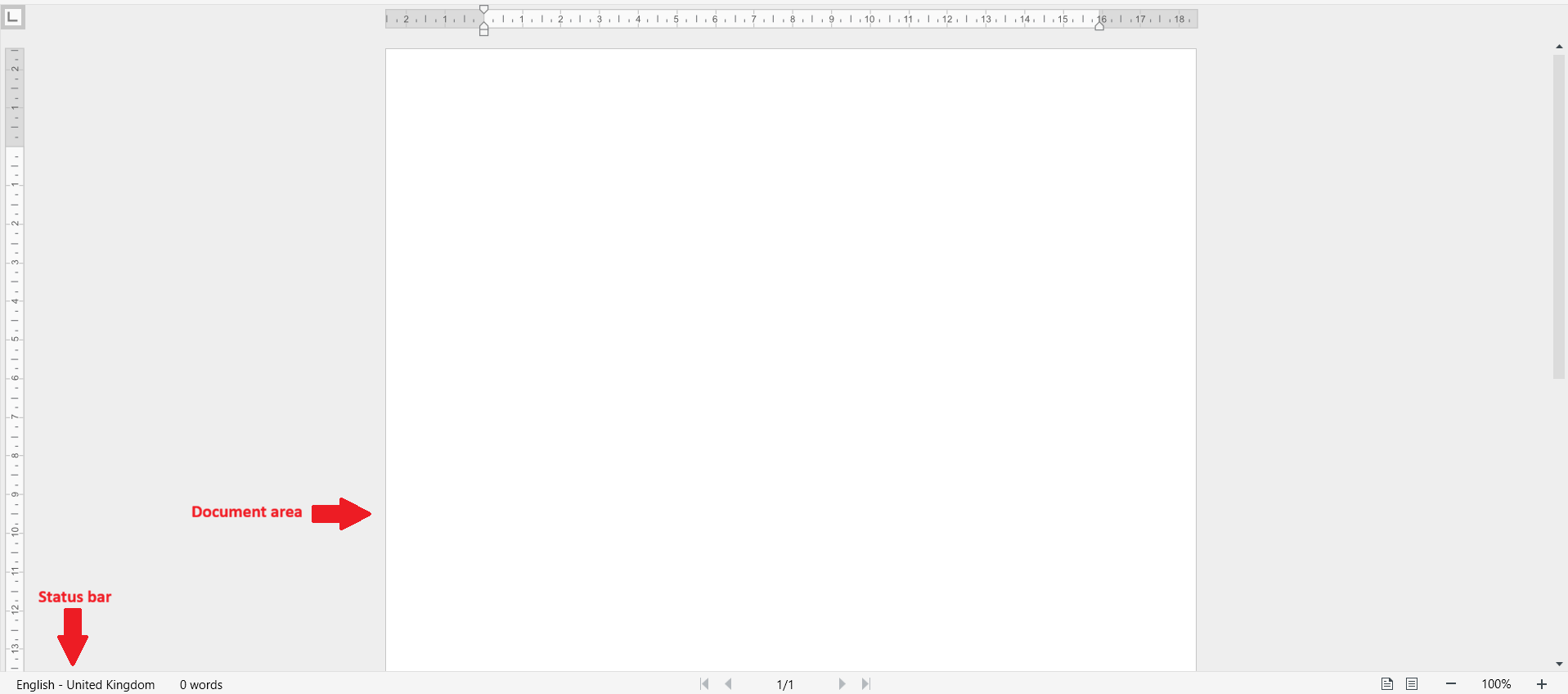
The quick access toolbar
The quick access toolbar sits in the upper left of the app window. By default, it includes Save, Undo, and Redo – the commands you’ll use most often while working on a file.
The ribbon
The ribbon groups commands into distinct dropdown menu options. Click a ribbon menu to switch to a different set of tools.
The ribbon menus you'll see depend on which app you're using, but most apps include:
File: Open, save, print, share, export to PDF, and access account settings.
Edit: Cut, copy, paste, paste options, and find & replace items.
Insert: Add tables, pictures, charts, headers, footers, shapes, and links.
Page Layout: Adjust margins, orientation, page size, and spacing.
Review: Track Changes, Comments, spell check, and language tools.
View: Switch between view modes, show or hide rulers and gridlines, and zoom.
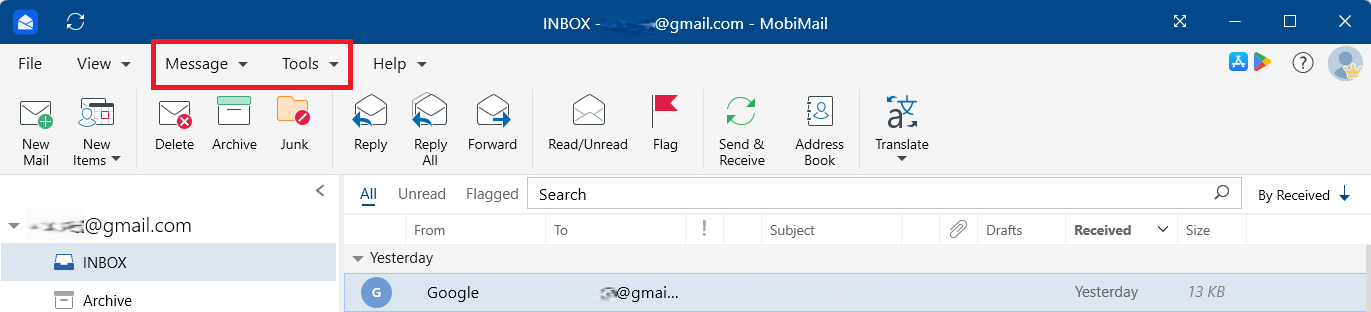
The MobiMail ribbon menu is different from the ribbon menus found on MobiDocs, MobiSheets, and MobiSlides.
App-specific ribbon options
Each app has specific ribbon menus that match the kind of work you do:
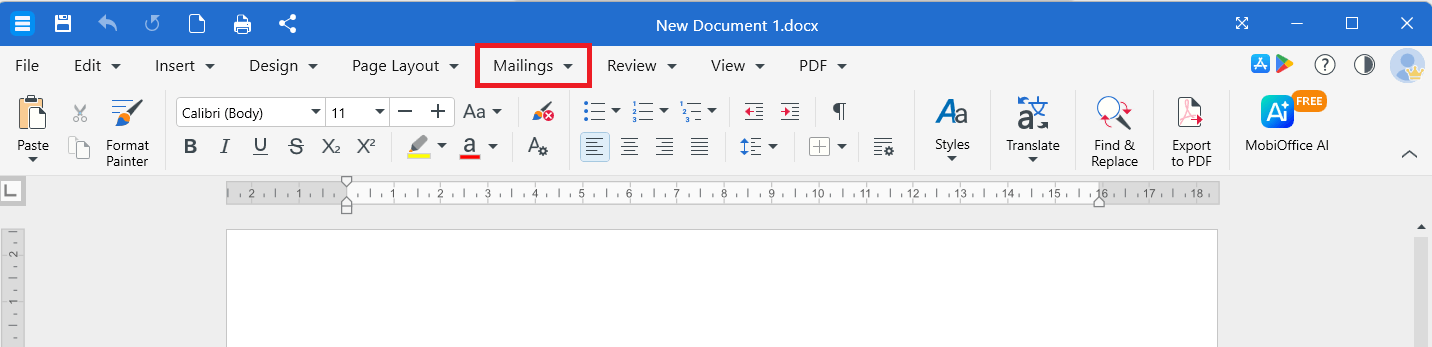
MobiDocs: A Mailings menu for adding envelopes and labels and setting a return address.
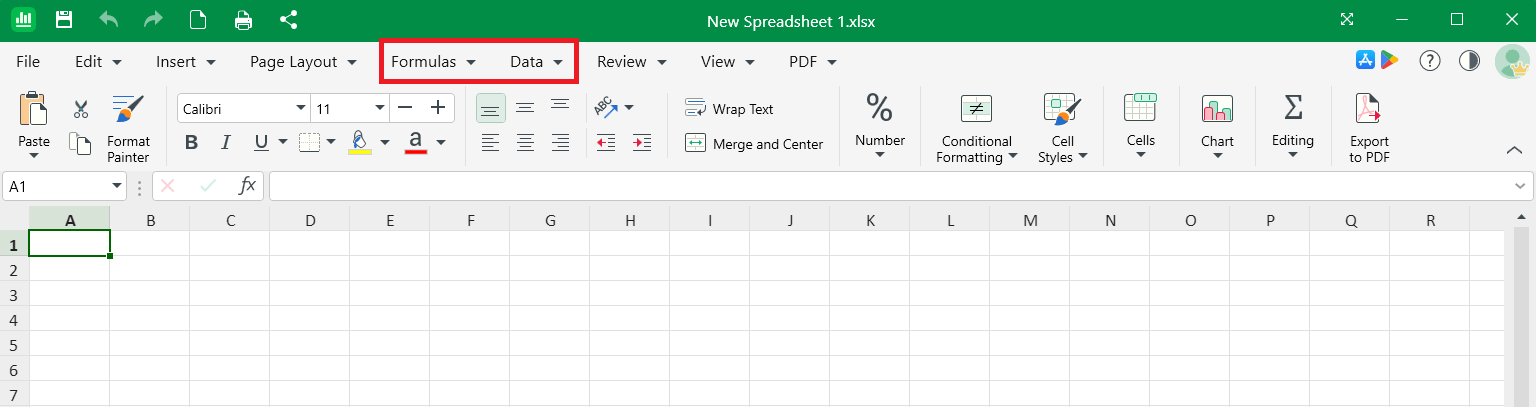
MobiSheets: A Formulas menu for working with functions, and a Data menu for sorting, filtering, and pivot tables.
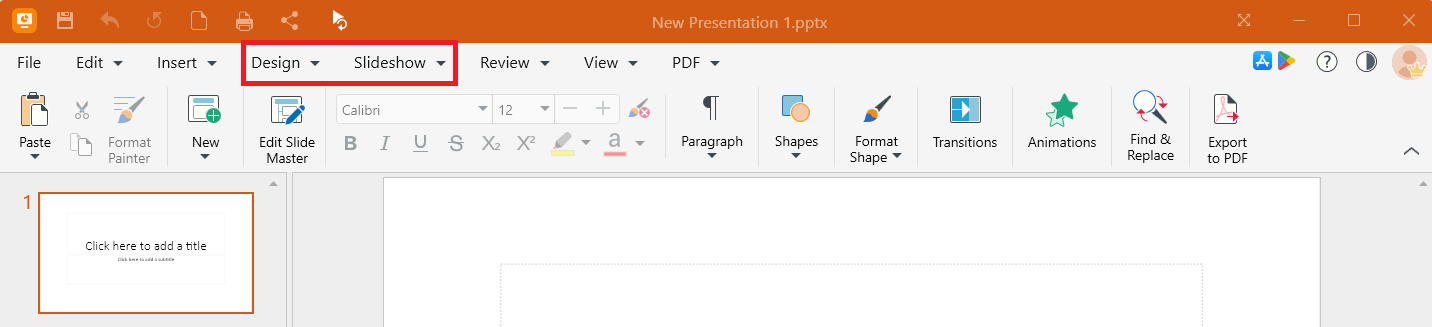
MobiSlides: A Design menu for themes, and a Slideshow menu for slide transitions and presentation settings.
MobiMail: A Message menu for managing mail, and a Tools menu for sync status, adding pending calendars and address books, and working offline.
Note: A PDF menu is also included when MobiPDF is included in your subscription. With the PDF menu, you can export and import a file to PDF, sign a PDF, and share a PDF.
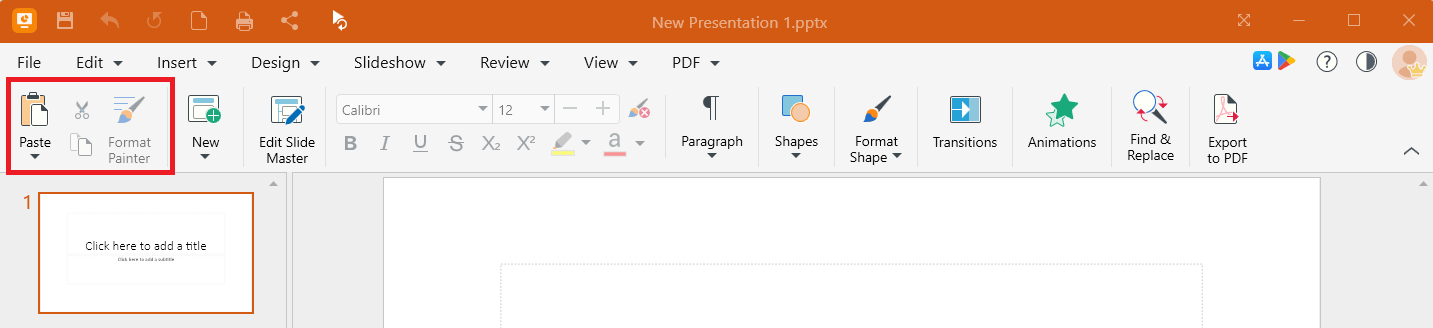
By default, the ribbon includes Paste, Cut, Copy, and Format Painter in MobiDocs, MobiSheets, and MobiSlides. The following image highlights these default commands in MobiSlides:
You can hide the ribbon by clicking on the dropdown arrow. The following image points to the dropdown arrow in MobiDocs:

Customising the look
You can change how a MobiOffice app looks to suit your eyes and lighting.
Switch to light or dark mode
1. Open any MobiOffice app, then click File > Settings.
2. Click on the dropdown menu under the Theme section. The example below is found on MobiSheets.
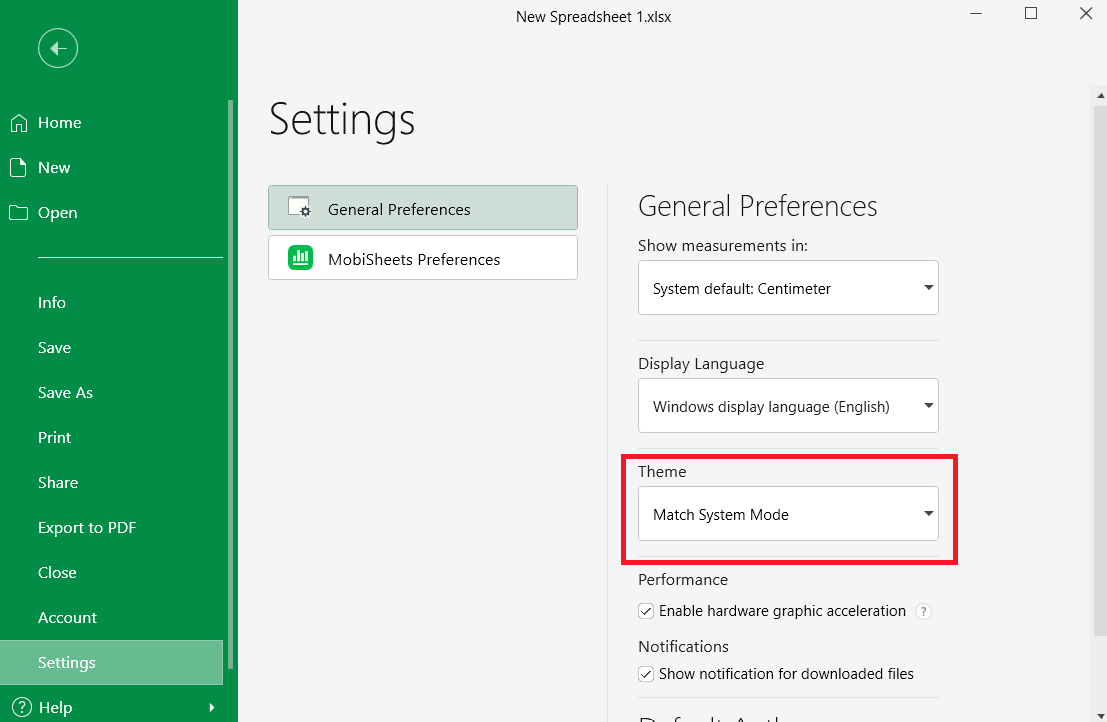
3. From the dropdown menu options, select Light Mode, Dark Mode, or Match System Mode to switch the interface based on your preference.
4. You can quickly switch modes by clicking on the appearance icon located on the top right of a MobiOffice app.
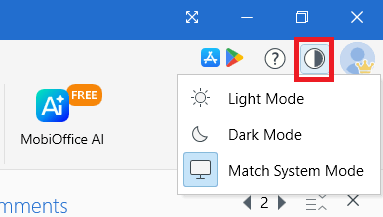
Theme switching is supported in MobiDocs, MobiSheets, and MobiSlides.
The MobiOffice interface on Mac
The MobiOffice interface on Mac follows the same general layout: Home screen, ribbon, document area, status bar. Menu commands are also available from the macOS menu bar at the top of the screen (for example, MobiDocs > About MobiDocs to check the version). MobiMail and MobiPDF Reader are not available on Mac.
The MobiOffice interface on Android and iOS
On mobile, MobiOffice opens to the Home screen for accessing recent, favorite, and shared files. From the Home screen, you can browse folders and files on your device or on MobiDrive and view and update your account. The layout is condensed for smaller screens, but the core tools work the same way as on desktop. The following image shows MobiOffice’s home screen on Android:
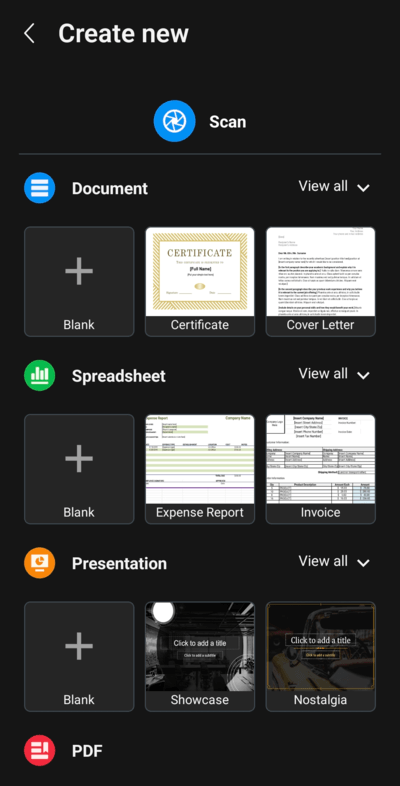
Bottom navigation: A row of icons at the bottom of the screen replaces the ribbon for quick access to common tasks.
Menu icon: Tap the menu icon (usually three dots or three lines at the top) to open the full list of commands.
Account: Tap your account icon to manage your account or view your subscription.
You can create, open, and edit documents, spreadsheets, presentations, or PDF files from your mobile. To create a new file, tap on the menu icon and choose the type of document you want to create:
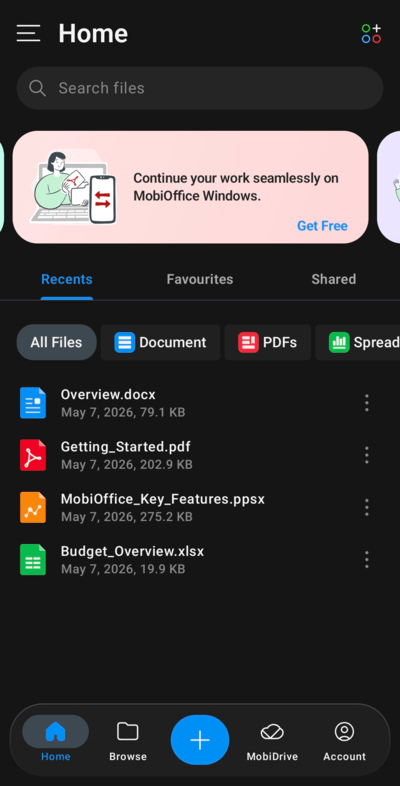
Note: MobiMail is not available on Android and iOS.
Troubleshooting
The quick access toolbar disappeared on Windows. Click on the dropdown arrow on the top right corner to display the quick access toolbar.
A tool I expected isn't on the ribbon. Some commands are inside dropdown menus rather than direct buttons. Click the matching tab and look for a dropdown arrow on the relevant button.
Dark mode isn't available in my app. Dark mode is currently supported in MobiDocs, MobiSheets, and MobiSlides. MobiMail follows its own theme.
Where to go next
Now that you know your way around, you can start working in any of the MobiOffice apps.


