

Comparing Two Documents
In this guide, you'll learn how to compare two versions of a document in MobiDocs. Comparing shows every difference between an original file and a revised file as tracked changes, so you can see what was added, deleted, or reformatted. This is useful when someone edited your document without turning on Track Changes. These steps only apply to MobiDocs on Windows.
Before you begin
Make sure you have:
MobiOffice installed on your device. See Installing MobiOffice on multiple devices.
Signed in to MobiDocs. See Signing in to MobiDocs.
Both versions of the document saved on your device, in MobiDrive, or in a connected cloud service.
Compare two documents
1. Open your document in MobiDocs.
2. In the ribbon, click Compare Documents.
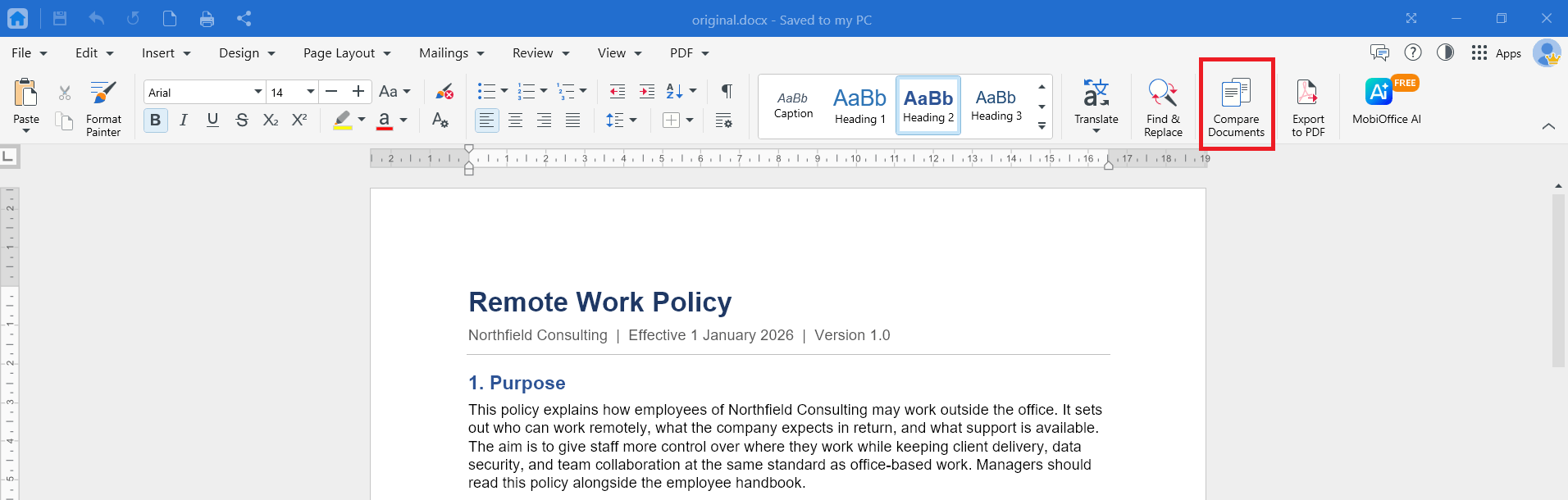
3. In the Compare Documents dialog, click the folder icon under Revised Document and select the other version of your document.
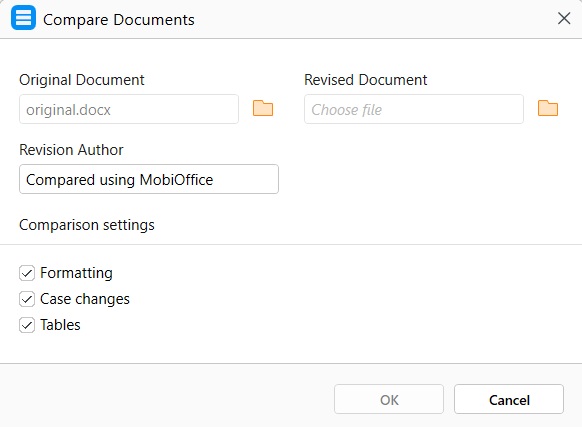
4. Under Revision Author, change the author to add your name or any entity.
5. Select or clear the comparison settings. All three are on by default:
Formatting marks changes to character and paragraph formatting, such as bold, font size, alignment, and spacing.
Case changes marks words where only upper or lower case changed.
Tables compare the text inside table cells.
6. Click OK.
MobiDocs opens the result as a new, unsaved document named after the original, with _compared added. For example, comparing Proposal-v1.docx creates Proposal-v1_compared.docx. Your original and revised files stay unchanged.
Tip: Give each version a clear file name before you compare, such as Proposal-v1 and Proposal-v2. This makes it easier to pick the right revised file.
Read the comparison results
The comparison document marks each difference the same way as Track Changes:
Insertions appear in color and underlined.
Deletions appear in color with a strikethrough.
Formatting changes appear as notes in the margin.
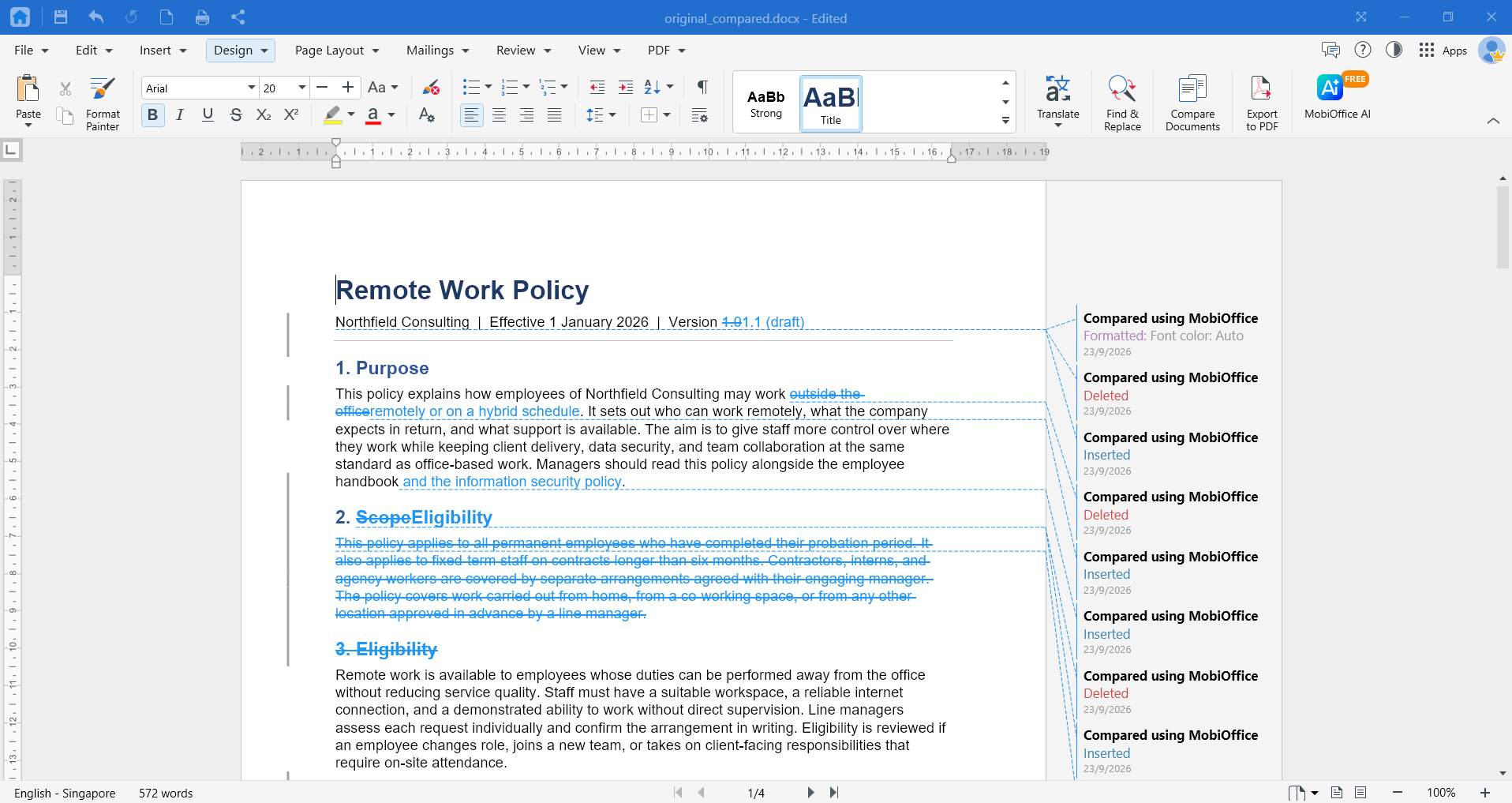
Hover over a change to see more details. To see the results as a clean document, change the markup view. See Tracking changes in documents.
Note: Compare Documents checks the document body, including text boxes, tables, and images. It doesn't compare headers, footers, footnotes, endnotes, or comments, so the result keeps the original's headers, footers, and notes and contains no comments. Changes inside a chart and changes to table formatting, such as borders or column widths, aren't marked either.
Accept or reject the differences
Go through each difference and decide what to keep.
1. Go to the Review tab.
2. Click Next to jump to the first change.
3. Click Accept Change to keep it or Reject Change to remove it.
4. Repeat until you've reviewed every change.
5. Alternatively, you can right-click on each change then choose Accept Change or Reject Change.
To handle every change at once, on the Review tab, click Accept All Changes or Reject All Changes.
Save the comparison result
The comparison opens as a new, unsaved document.
1. Click File.
2. Click Save As.
3. Choose a location and keep or change the suggested file name.
4. Click Save.
Save the result as a review copy rather than using it to replace your revised document, since it carries the original's headers, footers, and notes and has no comments.
Troubleshooting
The Compare option is greyed out. Close any open dialogs and make sure MobiDocs is in editing mode. Then try again.
I see an upgrade prompt when I click Compare Documents. Compare Documents is a Premium feature. Upgrade your MobiOffice plan to use it.
I see "Cannot compare password protected documents." Remove the password from both documents, then try again.
I see "Could not compare the documents." One of the files may be damaged or not a real .docx file. Open it in MobiDocs, save it as .docx, then compare again. Very large documents can also take longer than the comparison allows.
The result shows no changes. The two files may be identical, or they differ only in headers, footers, footnotes, endnotes, comments, or table formatting, which aren't compared.
Every line shows as changed. You may have selected two unrelated files, or one file was fully reformatted. Check that you selected two versions of the same document.
I can't find my file in the file picker. The picker shows .docx files only. Open the file in MobiDocs and save it as .docx first. If it's in cloud storage, download it to your device.
The comparison result isn't saved. The result opens as a new document. Save it with File > Save As before you close it.
Where to go next
You now know how to compare two documents. Try one of these next:


