Artificial intelligence is becoming part of everyday office suite, but sometimes the most helpful features are the ones people don’t even realize are available right at their fingertips.
That’s often the case with AI-powered tools in MobiOffice for iOS. Many users simply don’t see them because Apple Intelligence isn’t enabled on their device. Without it, features like Proofread, Rewrite, Summarize, or instant image generation may not appear in the app at all.
The good news is that enabling Apple Intelligence takes a few moments. Once it’s turned on, you can unlock a set of AI-powered tools designed to help you write faster and refine your documents directly from your iPhone or iPad.
Let’s take a closer look at what these features do and how to start using them.
What AI can do in MobiOffice for iOS
Writing, editing, and organizing information often takes more time than we expect. Drafts get rewritten, tone needs adjusting, and long texts can be difficult to review quickly.
This is where the AI-powered tools in MobiOffice for iOS come in. They help streamline these everyday tasks so you can focus on the ideas rather than the mechanics of writing.
Proofread
Even experienced writers overlook small errors. The Proofread feature scans your text for grammar, spelling, and word choice issues, highlighting suggested improvements directly in the document.
With clear visual indicators showing where corrections can be made, it becomes much easier to polish your writing before sharing or submitting it.
Rewrite
Sometimes the words are there, but the tone isn’t quite right. Maybe the message needs to sound more professional, or perhaps a friendlier tone would work better.
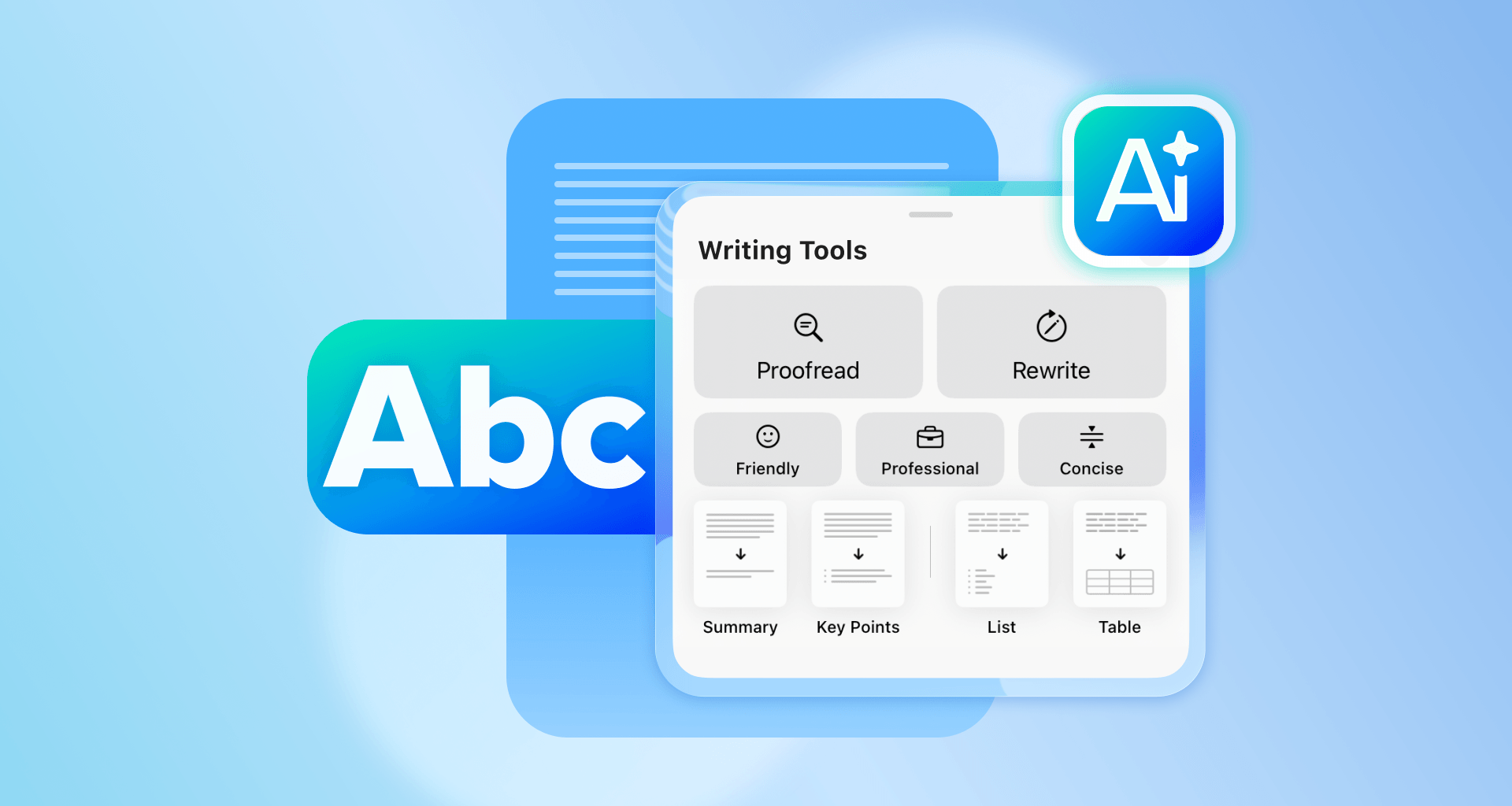
The Rewrite feature helps reshape your text instantly. You can adjust the tone using options like Friendly, Professional, or Concise, allowing you to adapt your writing to different situations without rewriting everything from scratch.
Summarize
Long documents, notes, or research material can take time to read through. The Summarize feature helps by turning lengthy text into shorter, easier-to-digest formats. You can generate concise summaries, key points, lists, or even table-style breakdowns, helping you understand the most important information faster.
Generate images instantly
Sometimes a document needs a visual to complete the idea. With AI-powered image generation, you can create images directly inside the app.
Simply enter a prompt and swipe through several generated options to find the one that works best for your document or concept. You can turn ideas into visuals without leaving the app or switching between tools.
Why these features matter
Individually, each feature solves a small challenge. Together, they can make a noticeable difference in how quickly you complete everyday tasks.
Whether you’re drafting a report, reviewing notes, preparing a presentation outline, or simply organizing your thoughts, these AI tools help you:
Write faster
Improve productivity
Produce more polished documents
Adjust tone depending on the situation
Simplify complex information
Generate visuals instantly
Instead of spending time fixing sentences or condensing paragraphs, you can move forward with your work more efficiently.
Who benefits from AI features?
Students can use AI tools to refine essays or summarize study material and professionals can polish emails, reports, and presentations. Individual users can draft personal documents, resumes, or notes with less effort.
Anyone who spends time writing or organizing information can benefit from tools that help speed up editing and improve clarity.
What you need to use Apple Intelligence
The AI tools in MobiOffice for iOS rely on Apple Intelligence, which means your device must meet Apple’s requirements before the features become available.
Apple Intelligence is currently supported on newer Apple devices with the appropriate system software installed.
Device requirements
iPhone 15 Pro models and iPhone 16 models or later
iPad mini (A17 Pro) and iPad models with M1 or later
Mac models with M1 or later
System requirements
iOS 18.1 or later
iPadOS 18.1 or later
macOS Sequoia 15.1
7 GB of available storage on the device
Device language and Siri language set to the same supported language
More information about Apple Intelligence requirements can be found on Apple’s official support page.
How to enable Apple Intelligence
Once you confirm that your device meets the requirements, enabling Apple Intelligence only takes a few steps.
Open Settings on your iPhone or iPad.
Scroll down and tap Apple Intelligence & Siri.
Turn Apple Intelligence on.
Accept Apple’s AI terms and conditions if prompted.
Wait for the AI models to download to your device. Apple recommends keeping your device connected to Wi-Fi and power while the setup completes.
Once the download finishes, Apple Intelligence will be available across supported apps, including MobiOffice.
How to use AI features in MobiOffice for iOS
After Apple Intelligence is enabled, using AI tools inside MobiOffice for iOS becomes part of your normal workflow.
When working in a document, simply select the text you want to improve and open the Writing Tools menu. From there, you can choose an AI action such as Proofread, Rewrite, or Summarize.
The app will generate suggestions that you can review and apply immediately.
For image generation, you can enter a prompt and swipe through several AI-generated results until you find the one that fits your idea.
No login is required to access the functionality.
However, users do need:
An active MobiOffice for iOS subscription
Apple Intelligence enabled on a supported device
Acceptance of Apple’s AI terms during activation
Why you might not see AI features in MobiOffice for iOS
If the AI tools are not appearing in the app, there are a few common reasons:
Apple Intelligence is not enabled
the device is not supported
the operating system is outdated
the device language and Siri language do not match
the AI models have not finished downloading
the user does not have an active subscription
regional availability restrictions apply
Checking these factors usually resolves the issue quickly.
Is the AI functionality free?
AI-powered tools are included in paid MobiOffice plans. There is no dedicated trial period for the AI features. However, since the Save feature is locked on iOS, users can still experiment with the AI tools even if they cannot save the document.
This gives users an opportunity to explore the features and see how they work before committing to a saved workflow.
Work smarter with AI in MobiOffice for iOS
Once Apple Intelligence is enabled, the AI tools in MobiOffice for iOS can quietly transform the way you work with documents. With just a few taps, your iPhone or iPad becomes an even more powerful tool for writing, editing, and creating.