This article was updated on 22 January 2026
To delete a page in Word, usually you need to select all the content on that page and press Delete or Backspace. If the page is blank or won’t delete, it is probably caused by hidden formatting.
Yes, extra pages in Word are a common issue when editing documents for work, school, or personal use. They often appear at the end of a file, between sections, or after tables, even when no visible content is present.
In this guide, you’ll learn how to delete a page in Word, how to remove blank or extra pages, and how to fix pages that refuse to disappear.
How to delete a page in Word
You delete a page in Word by removing everything that forces Word to create that page. This usually means:
Deleting text,
Removing breaks,
Deleting hidden formatting.
These are all ways to remove the unwanted page that exists only because content or formatting pushes text onto it.
The easiest way to delete a page
The fastest way to delete a page is to use a keyboard shortcut.
Select the page you want to remove from the document.
You can do that by simply holding down the mouse button and dragging your cursor or clicking somewhere in the bottom of the page, holding Shift and then pressing PageUp on your keyboard.Press Delete or Backspace on your keyboard.
Once you are left with a blank page you might need to hit the same button (Delete or Backspace) again to remove the empty page.
You should be left with your text without the page you did not want.
What to do if the page won’t delete
The easiest fix is to place your cursor right before the section break and press Delete on your keyboard.
If you can’t see the section breaks, you can try going to the View tab of the Ribbon and switch to Draft mode. This way you will make the section breaks visible.
If you have a blank page in the middle of your document, you should avoid deleting the section break. Instead, you can change the section breaks to a Continuous section break.
Here is how to do it:
Place your cursor right after the section break you want to change.
Go to the Layout tab on the Ribbon.
Select the Page Setup dialogue launcher.
On the Layout tab of the Page Setup dialogue box, click the Section start drop down and select Continuous.
The blank page should be gone without ruining your formatting.
How to delete a page break or section break in Word
You delete a page break or section break by selecting it directly and pressing Delete. However, page breaks and section breaks behave differently.
Difference between page breaks and section breaks
Page breaks control where a new page starts, while section breaks control layout and formatting. Here’s the gist:
Page breaks only move content to the next page
Section breaks can change margins, headers, footers, or orientation
How removing breaks affects formatting
Removing a page break is usually safe, but removing a section break can change formatting. If deleting a section break causes layout issues, do the following:
Place your cursor after the break
Open Layout → Page Setup
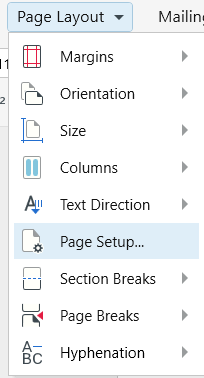
Change the section start to Continuous
This removes the extra page while preserving formatting.
Hidden content that creates extra pages in Word
Hidden content forces Word to create pages even when nothing appears on them. These elements are invisible unless formatting marks are enabled.
Hidden paragraphs and formatting marks
Paragraph marks at the end of a document often cause blank final pages.
Here is how to fix this:
Show formatting marks
Select the last paragraph symbol
Change its font size to 1 pt
This usually removes the page instantly.
Tables and layout issues that force a new page
Tables force Word to add a non-deletable paragraph after them. If a table sits at the end of a page, Word may push that paragraph onto a new page.
Here is the solution:
Select the paragraph after the table
Reduce font size or spacing
Slightly adjust margins if needed
How to delete the last page in Word
To remove the last page, you usually need to adjust formatting rather than force deletion.
Show formatting marks
Reduce the final paragraph’s font size
Change section breaks to Continuous
Adjust spacing or margins carefully
Why the last page is hard to remove
The last page is hard to delete because Word always requires an ending paragraph. This is the most common source of frustration for users. The final page usually exists because of a paragraph mark, section break, or table. Word needs these elements to function, but they can be resized or reformatted.
How to fix spacing and layout safely
To remove the last page, try the following.
Show formatting marks
Reduce the final paragraph’s font size
Change section breaks to Continuous
Adjust spacing or margins carefully
If you plan to export the document or edit it on multiple devices, Word-compatible editors like MobiDocs help preserve layout while making final cleanup easier.
Edit and fix Word documents easily with MobiDocs
Managing pages in Word is easier when your editor makes formatting visible and controllable. MobiDocs is built to work seamlessly with Word files, helping users edit text, manage formatting, and fix layout issues like extra pages across desktop and mobile devices. 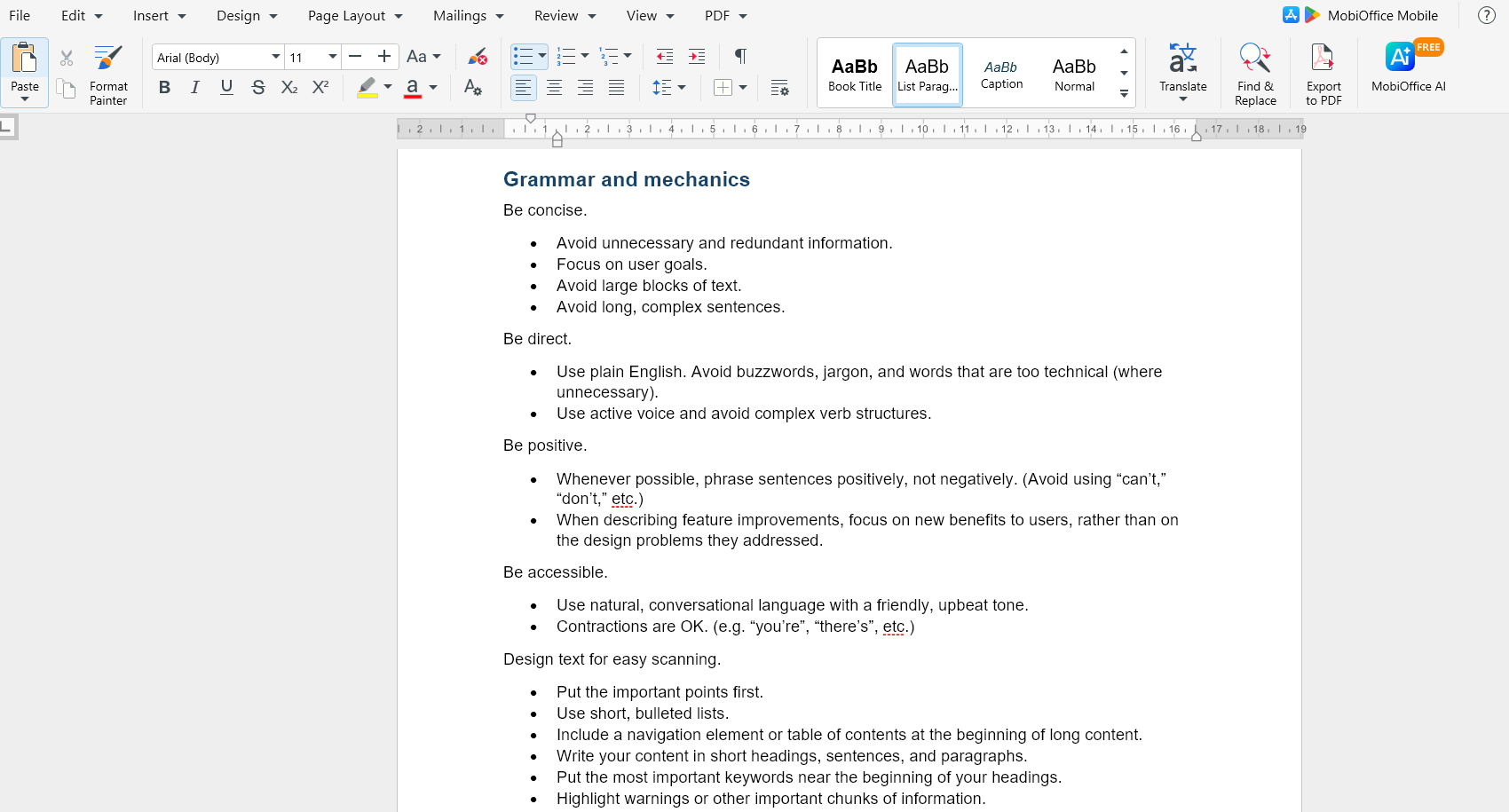 It provides a practical way to clean up documents without advanced technical steps or formatting guesswork.
Frequently asked questions
How do you delete an extra or blank page in Word?
You delete an extra or blank page by removing the hidden formatting that creates it, such as paragraph marks, page breaks, or section breaks.
Why won’t a page be deleted in Word and how can you fix it?
A page won’t delete because Word needs certain formatting elements to exist, which can be resized, changed, or adjusted instead of deleted.
How do you remove a page break or section break in Word?
Turn on formatting marks, select the break, and press Delete, or change section breaks to Continuous if formatting must stay intact.
How do you delete the last page in a Word document?
Reduce or reformat the final paragraph or section break, since Word requires an ending element.
Where is the delete page option in Word and what’s the easiest way to use it?
Word does not have a delete page button, so the easiest method is selecting all page content and deleting the formatting that creates the page.
Final Thoughts
Mastering the art of deleting pages in Word can save you from countless headaches and streamline your document editing process. With the tips and techniques we’ve covered, you can confidently tackle any stubborn pages, whether they’re in the middle of your document or at the very end.