To delete pages from a PDF in MobiPDF, open your file, go to Pages, choose Delete Pages and select the pages you don’t need. Sounds, simple, right?
Extra blank pages, duplicate scans, outdated sections, or sensitive information can make documents harder to share and less professional. Knowing how to delete a page from a PDF helps you keep files clean, accurate, and secure.
In this guide, you’ll learn how to remove pages in PDFs, as well as how to delete a single page, multiple pages, page ranges, and duplicates, what to check before you start, and how to fix common issues.
What’s recommended before deleting pages from a PDF
Before you remove pages from a PDF, taking a few precautions can save you time and prevent accidental data loss.
Save a backup copy
Always keep an original version of your file. Save a copy with a different name before editing, especially if you’re working with contracts, reports, or sensitive documents. This gives you a safety net if you delete the wrong page.
Confirm page numbers
PDF page numbers don’t always match what you see on screen. For example, a cover page may not be numbered. Scroll through the document and confirm exactly which pages you want to remove.
Check editing permissions
Some PDFs are restricted or set to read-only. If you can’t select or delete pages, the file may be protected. Make sure you have permission to edit it.
Close synced or shared copies
If your PDF is stored in cloud folders like MobiDrive or Google Drive, syncing can sometimes overwrite changes. Close other open versions and pause syncing if needed while editing.
Taking these steps helps ensure that when you delete PDF pages, your changes are saved correctly.
Different ways to delete pages from a PDF
MobiPDF makes it easy to remove unwanted pages in several ways. Below are the most common methods, with clear step-by-step instructions.
Delete a single page
If you only need to remove one page, such as a blank sheet or wrong attachment, follow these steps:
Open your PDF in MobiPDF.
Click Pages in the toolbar and choose Delete Pages.
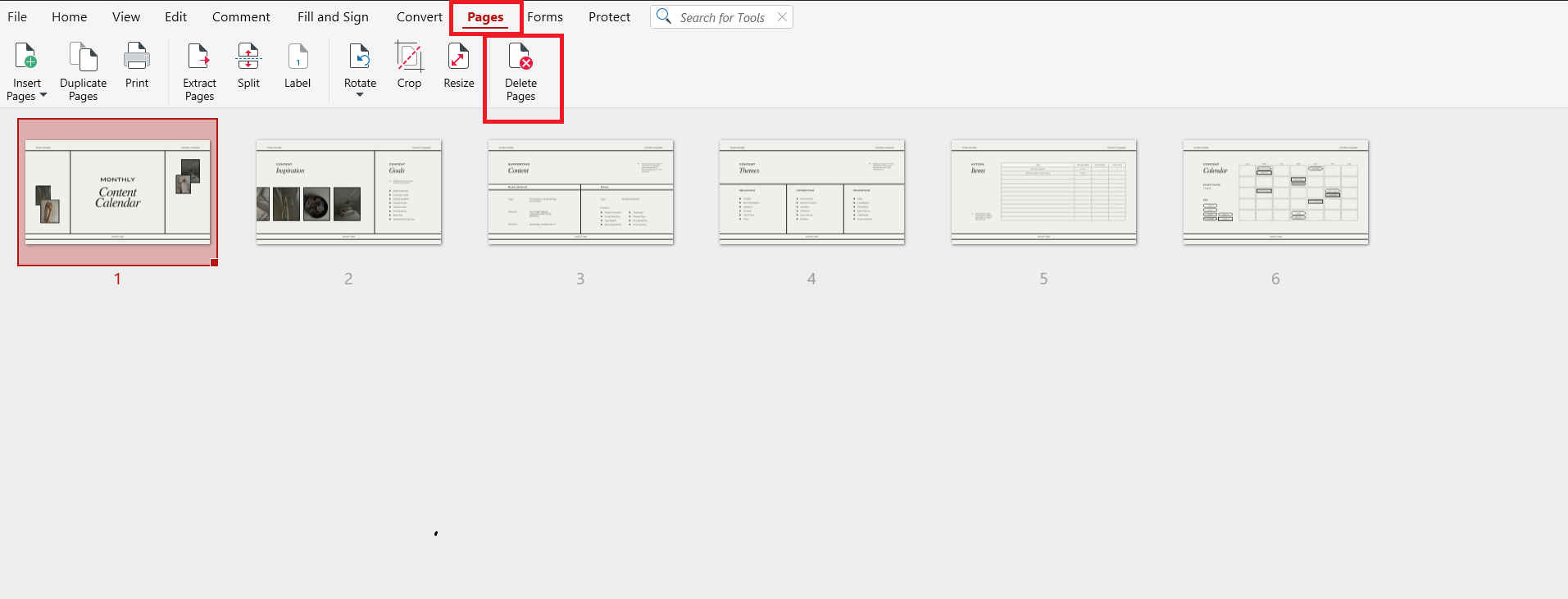
In the dialogue box, choose Custom Range to enter the pages you want to delete, or select Selection to remove the page you’ve clicked on.
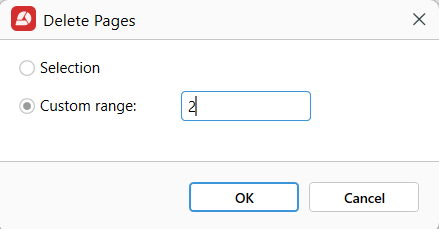
Click OK.
Save the file.
This is the fastest way to delete a page from a PDF when only one page needs to go.
Delete multiple pages at once
When several pages need to be removed, you can delete them together.
Open the PDF in MobiPDF.
Go to Pages.
Hold Ctrl (Windows) or Cmd (Mac) and click each page you want to remove.
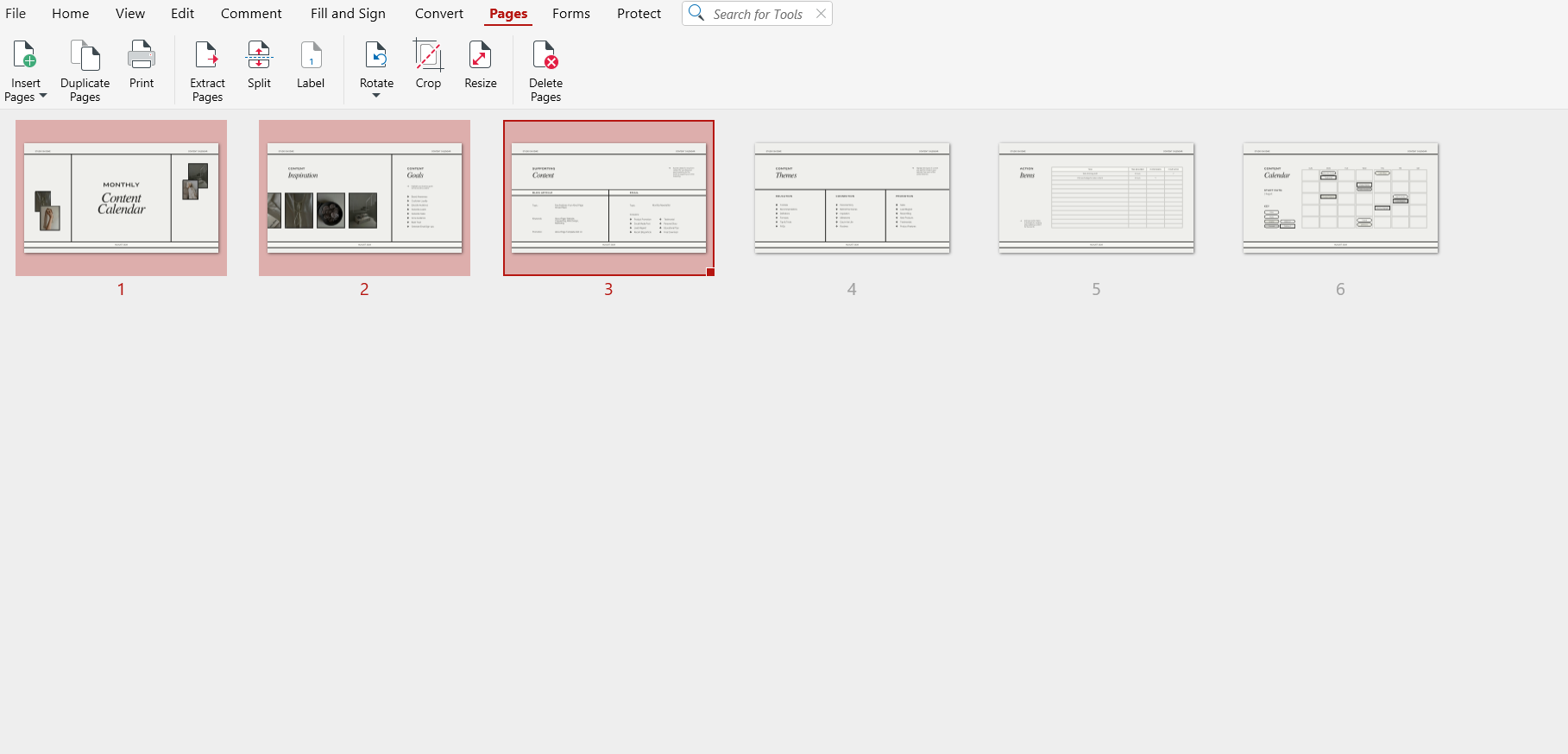
Right-click the selected pages, choose Delete Pages → Selection, and click OK to confirm.
Save your changes.
This method works well for removing scattered pages throughout a document, such as extra attachments or repeated sections.
Delete a page range
If you want to remove a continuous group of pages, using a range is more efficient.
Open your file in MobiPDF.
Select Pages.
Click the first page in the range.
Hold Shift and click the last page in the range.
All pages between them will be selected.
Click Delete and save.
This option is ideal when removing chapters, appendices, or long sections that are no longer needed.
Delete pages from a scanned PDF
Scanned PDFs are usually saved as images, but you can still remove pages easily.
Open the scanned PDF in MobiPDF.
Select Pages.
Choose the scanned pages you want to remove.
Use Custom Range or Selection and delete the page.
If you need to edit text within scanned pages, you may first need to use OCR (Optical Character Recognition). However, page deletion works even without OCR.
Common issues when deleting pages from a PDF
Sometimes, deleting PDF pages doesn’t work as expected. Here are the most common problems and how to fix them.
The PDF is read-only or restricted
If you can’t delete pages, the file may be protected. Look for a lock icon or permission notice. You may need the password or authorization from the document owner.
The PDF is password-protected
Password-protected files often block editing. Open the file using the correct password before trying to remove pages.
Changes are not saving
If your edits disappear after closing the file, make sure you are clicking Save or Save As. Avoid closing the program without saving.
Pages return after reopening
This usually happens with synced or shared folders. Cloud services may overwrite local edits. Try saving the file to your device first, then re-uploading it.
File becomes corrupted
If the PDF won’t open after editing, restore your backup copy and try again. Make sure MobiPDF is updated to the latest version.
Fixing these issues ensures that when you remove pages from a PDF, your changes remain permanent.
Frequently asked questions
Can I delete a page from a PDF without affecting the rest of the file?
Yes. When you delete a page in MobiPDF, only the selected page is removed. All remaining pages keep their original order, formatting, and content. Saving a backup beforehand adds extra protection.
Can I delete multiple pages at once?
Yes. You can select several pages at the same time using Ctrl/Cmd or Shift in the Organize Pages view. This allows you to delete PDF pages in bulk instead of one by one.
Why can’t I delete pages from a PDF?
Most often, the file is restricted or password-protected. It may also be set to read-only. Check the document’s permissions and make sure you have editing rights before trying again.
Why do deleted pages come back after I reopen the PDF?
This usually happens when the file isn’t saved properly or when cloud syncing overwrites your changes. Always save after editing and close other open copies.
Can I recover deleted pages if I saved the PDF?
If you saved over the original file, recovery is difficult. However, you can restore pages from a backup copy or from your system’s file history. That’s why saving a copy before editing is recommended.
Remove PDF pages quickly and safely with MobiPDF
Whether you’re cleaning up a scanned report, removing sensitive pages from a contract, or fixing a presentation, knowing how to delete a page from a PDF saves time and keeps your documents professional.
MobiPDF gives you simple tools to delete single pages, multiple pages, ranges, and duplicates without risking your original file.