To insert a PDF into PowerPoint, go to Insert > Object, choose Create from file, browse to the PDF, and click OK. The PDF becomes part of your presentation and opens with a double-click. To show a page clearly on a slide, insert it as a picture instead, or convert the PDF to slides.
How to insert a PDF into PowerPoint as an object
Insert > Object is the way to embed a PDF in PowerPoint so the whole file travels with your presentation. It works in the Microsoft PowerPoint desktop app.
Close the PDF if it’s open on your computer.
In PowerPoint, select the slide where you want the PDF.
Click Insert > Object.
In the Insert Object box, select Create from file.
Enter the file location, or click Browse and choose the PDF.
Click OK.
The PDF is now part of the presentation file, so you can send the deck without a separate attachment. With Display as icon cleared, the slide shows the PDF as a picture. Select Display as icon in the Insert Object box if you’d rather show a small icon that people click.
Keep two things in mind. The picture on the slide is a lower-quality preview of the PDF, so small text can look soft. To read the full file, double-click the picture in Normal view.
If you get an error when you click OK, check that the PDF is closed and try again. The steps to insert a PDF in Word are much the same, if you also need the file in a document.
Prefer slides you can edit over a preview? MobiPDF can turn the PDF into a PowerPoint file instead.
Which method should you use?
The right method depends on what the audience needs to see. Insert > Object keeps the whole PDF with the deck. Screen Clipping and page images make the content easy to read on the slide. Converting gives you slides you can change.
How to insert one PDF page or part of a page as a picture
To insert a PDF as an image, capture the part you need with Screen Clipping. It’s the quickest way to put one chart or table on a slide.
Open the PDF and zoom so the content you want fits on the screen.
Switch to PowerPoint and select the slide.
Click Insert > Screenshot. Your PDF should be the first thumbnail under Available Windows.
Click Screen Clipping. PowerPoint minimizes and shows the PDF.
When the pointer turns into a crosshair, drag a box around the content. Press Esc to cancel.
The clipping lands on the slide as a picture you can move, resize, or crop.
A clipping is only as sharp as your screen. For a full page that stays crisp on a large display, export the page from the PDF as a PNG or JPG first. Then add it with Insert > Pictures. Our guide on how to convert a PDF to an image walks through the export step.
How to insert every page of a PDF
To show every page of a multi-page PDF, export the pages as images and insert them one per slide. Insert > Object doesn’t split a PDF into separate slides, so it only gives you one picture for the whole file.
Export all pages of the PDF as images. Each page becomes its own image file.
In PowerPoint, add a blank slide for each page.
On each slide, click Insert > Pictures and choose the matching page image.
Resize each picture to fill the slide.
Say you need a 12-page report in a quarterly review deck. With the pages exported as images, each one reads clearly in the slide show, with no double-clicking or switching windows.
If you want to edit the text, change the layout, or apply your template, convert the PDF instead. When you convert PDF to PowerPoint, each page becomes an editable slide you can copy into your own deck.
How to open the PDF during a slide show
To open the embedded PDF while you present, add an action to its picture or icon. Without it, clicking the PDF in the slide show does nothing.
In Normal view, select the PDF’s picture or icon.
Click Insert > Links > Action.
In the Action Settings box, choose the Mouse Click tab to open the PDF when you click it, or the Mouse Over tab to open it when the pointer moves over it.
Select Object action, then choose Open from the list.
Click OK.
During the slide show, one click (or a pointer over the picture) opens the full PDF. Close it to return to your slides.
PDF won’t insert or looks wrong? Fixes
Most problems come from the version of PowerPoint you use or from the object method itself. Here’s how to fix the common ones.
Object isn’t available. You’re likely in PowerPoint for the web, which can’t insert PDF content. Open the presentation in the PowerPoint desktop app and repeat the steps.
You get an error when you insert the PDF. The PDF is probably still open. Close it in your PDF reader and insert it again.
The page looks blurry. The object method lowers the quality of the preview. Delete the object and insert an exported page image instead, which stays sharp at full size.
Nothing happens when you click it in the slide show. The PDF needs an action. Select it in Normal view, go to Insert > Links > Action, and set Object action to Open.
The presentation got large. The whole PDF is now stored inside the file. If you only need part of it, save one page of a PDF as its own file and insert that instead.
Small text is hard to read. A full page often has too much detail for a slide. Use Screen Clipping to show only the section you’re talking about.
Alternative: MobiPDF
MobiPDF gives you page images or editable slides from your PDF, so you choose how the content lands in your deck. It’s an affordable alternative to Adobe Acrobat for Windows, Android, and iOS.
Page images are the better pick when you want each slide to keep the look of the PDF page. Editable slides suit a deck you plan to rework in your own template.
How to insert PDF pages as images with MobiPDF
Open the PDF in MobiPDF for Windows.
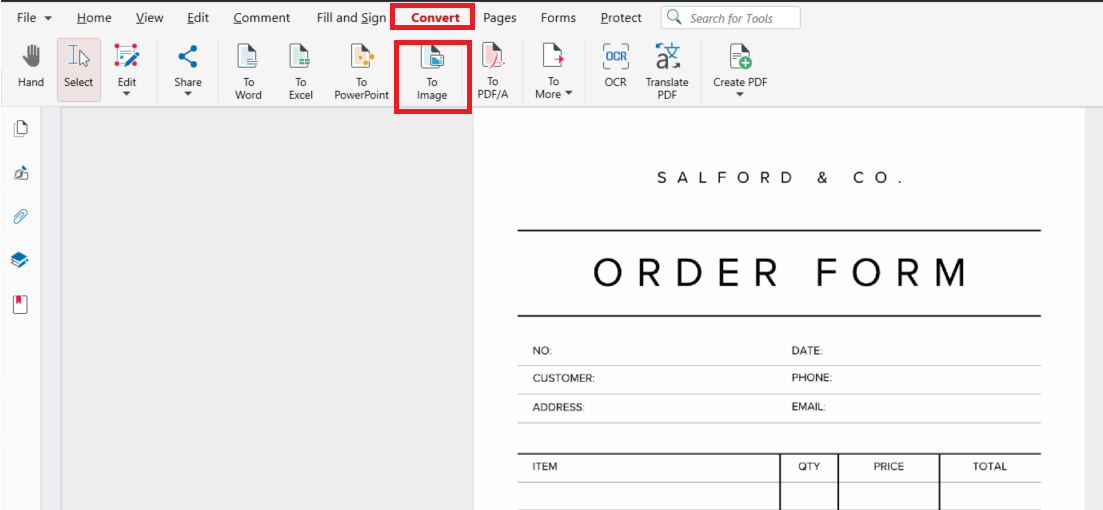
Go to the Convert tab and click To Image.
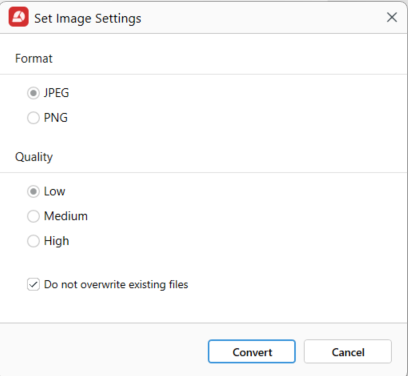
In the Set Image Settings box, choose JPEG or PNG and a quality (Low, Medium, or High), then click Convert.
Choose where to save the images. When the Success message appears, click Open Containing Folder to find them.
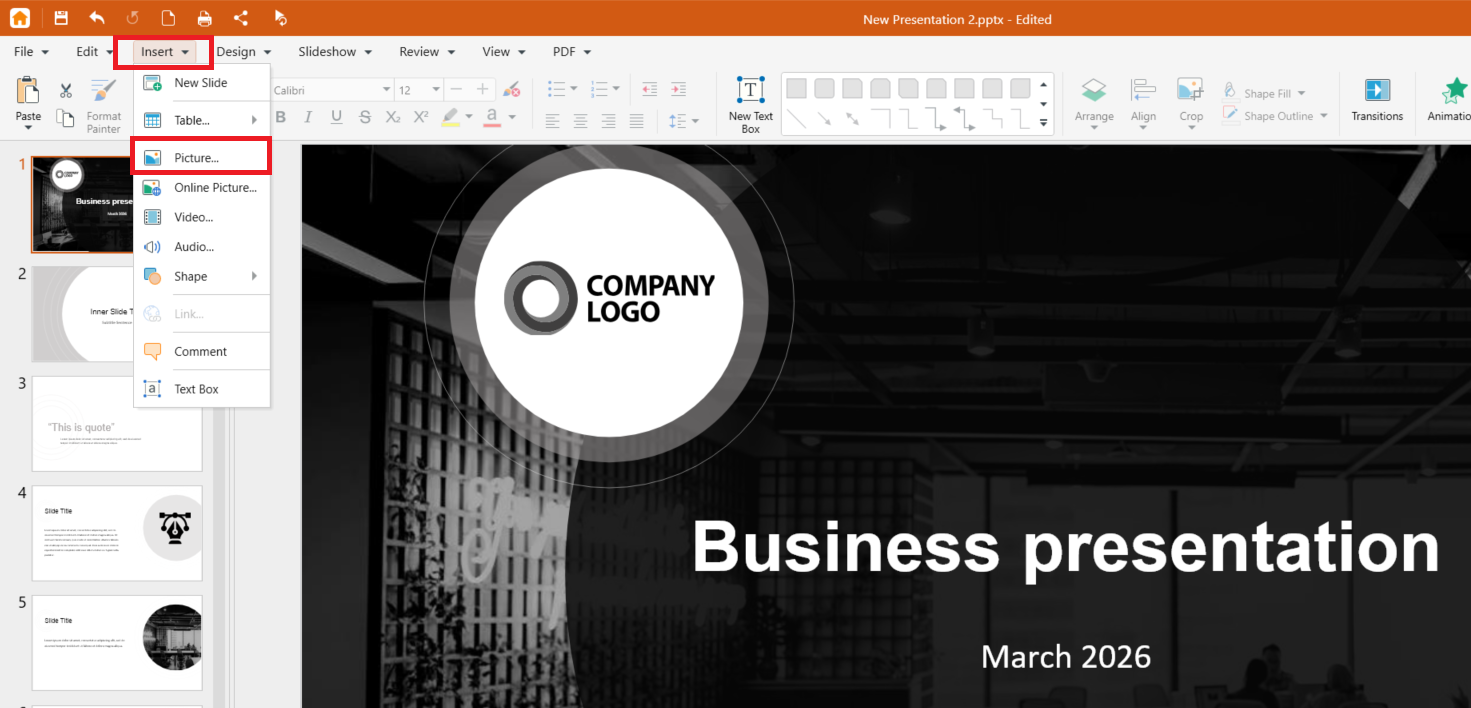
In PowerPoint, click Insert > Pictures and choose a page image. In MobiSlides, click Insert > Picture.
How to turn a PDF into editable slides with MobiPDF
Open the PDF in MobiPDF for Windows.
Go to the Convert tab and click To PowerPoint.
Choose where to save the presentation and click Save. When the Success message appears, click Open Containing Folder to find the file.
Open the file in PowerPoint or MobiSlides and copy the slides you need into your deck.
Both conversions are included in MobiPDF Pro. MobiPDF Lifetime converts PDFs to Word and Excel only, so choose Pro if slides and images are what you need. You can see what the converter handles on the PDF to PowerPoint page.
Want both options in one app? Download MobiPDF and start with your next deck.
Frequently asked questions
Close the PDF, select a slide, and click Insert > Object. Choose Create from file, browse to the PDF, and click OK. The PDF becomes part of the presentation and shows as a picture or an icon. Double-click it in Normal view to open the full file.
Not as separate slides through Insert > Object. That method embeds the whole file as one object on one slide. To show every page, export the pages as images and insert one per slide, or convert the PDF to PowerPoint to get one editable slide per page.
Yes. Use Insert > Screenshot > Screen Clipping to capture part of a page while the PDF is open. For a sharper result, export the page as a PNG or JPG image first, then add it to the slide with Insert > Pictures.
In Normal view, select the PDF’s picture or icon and click Insert > Links > Action. On the Mouse Click or Mouse Over tab, select Object action and choose Open. During the slide show, the full PDF then opens with a click or when the pointer moves over it.
PowerPoint for the web doesn’t support inserting PDF content, so the Object option isn’t there. Open the presentation in the PowerPoint desktop app, insert the PDF there, and save the file. The same applies to Screen Clipping.
Convert the PDF to a PowerPoint file with a PDF converter such as MobiPDF. Each page becomes a slide you can edit, so you can change the text, the layout, or the design before you copy the slides into your deck.
Final thoughts
You now have four ways to add a PDF to PowerPoint. Embed it with Insert > Object when the whole file needs to travel with the deck. Use Screen Clipping for a single chart or table, and page images when the audience needs to read several pages. Convert the PDF when you want to edit the content. Whichever you pick, add an Object action if you plan to open the PDF during the slide show.
If you’d like page images and editable slides from one app, MobiPDF handles both.