This guide shows you how to mark up a PDF in MobiPDF Reader on Windows. You'll learn how to highlight text, add sticky notes, draw on a page, and review your markups in one place. These tools help you flag key passages and leave notes for yourself or your team. Highlighting and commenting are available with your MobiOffice license, so you can start without upgrading.
Before you begin
How to highlight text
1. Open your PDF in MobiPDF Reader.
2. On the Home menu, click Highlight.
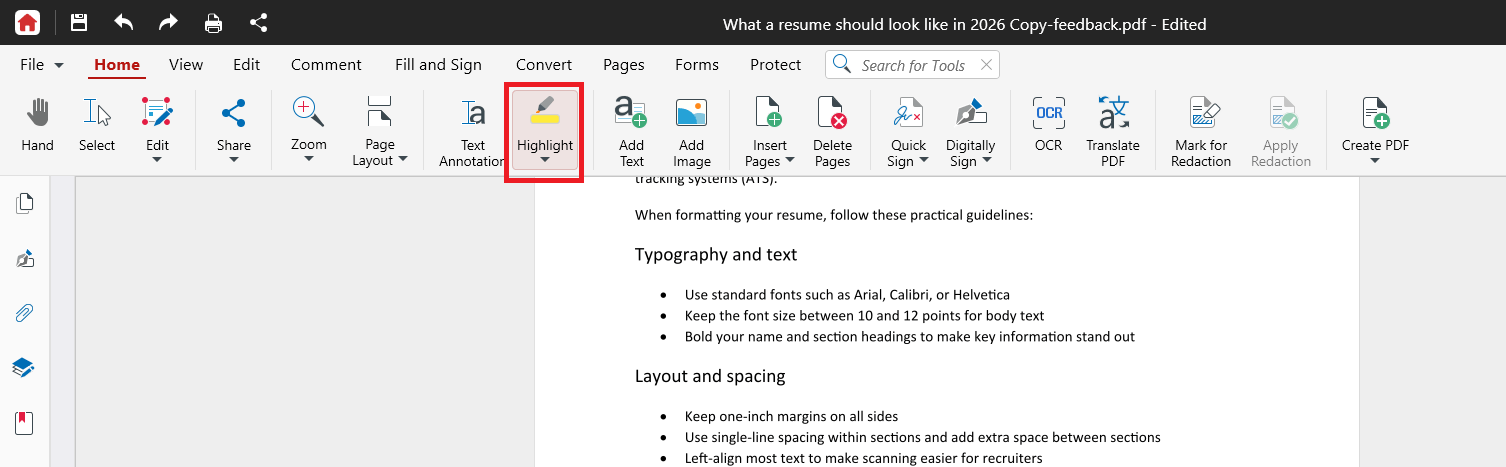
3. Select the text you want to highlight. The highlight appears automatically.
4. Alternatively, you can click and drag across the text you want to highlight then choose the pen. Or right-click the selected text, then choose Highlight from the context menu.
The text is highlighted straight away. To highlight more passages, keep dragging across the text you need.
Change the highlight colour
1. Click the Highlight tool dropdown menu.
2. Choose a colour from the tool options before you highlight.
Tip: Use different colours for different purposes, such as one colour for questions and another for key facts.
Underline or strike through text
The Underline and Strikethrough tools work the same way as Highlight:
1. Click and drag across the text you want to underline or strikethrough.
2. In the context menu that appears, choose U to underline or S to strikethrough the selected text.
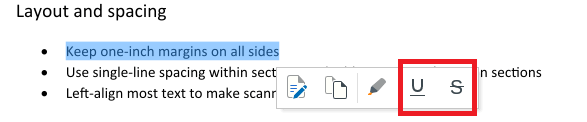
3. Alternatively, you can right-click on text then choose Underline or Strikethrough.
Note: Highlight, underline, and strikethrough only work on real text. On a scanned page, the text is part of an image, so you can't select it. Making scans selectable requires OCR, which is available in the full MobiPDF.
How to draw on a page
Use Free Draw to sketch, circle a figure, or point at something by hand.
1. Click the Comment menu.
2. Click Free Draw.
3. (Optional) Choose a colour and line thickness.
4. Click and drag on the page to draw.
How to add a comment
Use a sticky note to attach a written comment to a specific spot on the page.
1. Click the Comment menu.
2. Click Note.
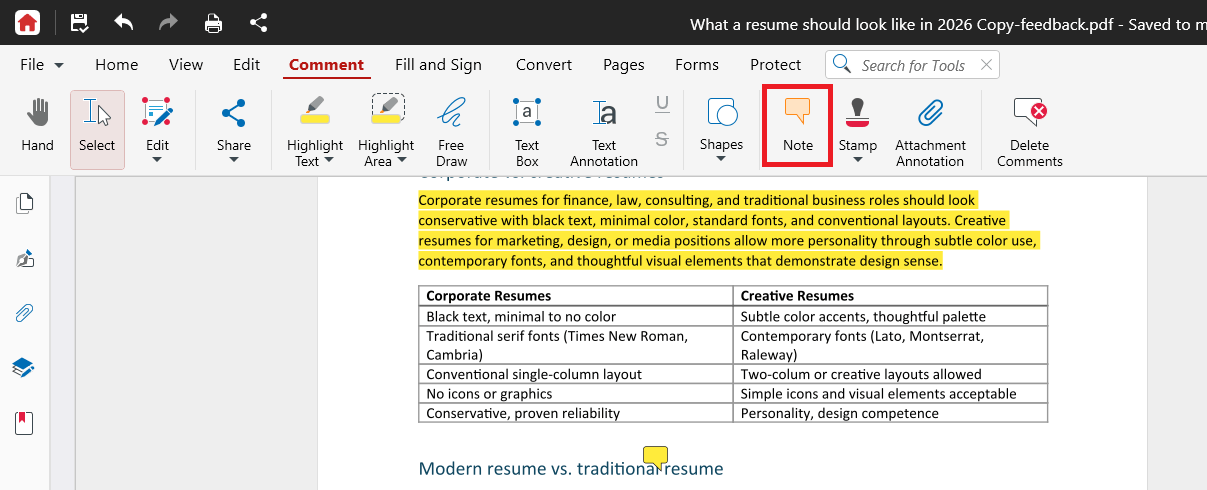
3. Click the place on the page where you want the note.
4. Type your comment in the box that opens.
5. Click outside the box to save it.
A small note icon marks the spot. Click the icon any time to reopen and read your comment.
Reply to or edit a comment
1. Click the note icon to open the comment.
2. Edit the text directly or add a reply.
3. Click outside the box to save.
How to review your markups
The Comments panel lists every markup in the document in one place.
1. Open the Comments panel from the right sidebar.
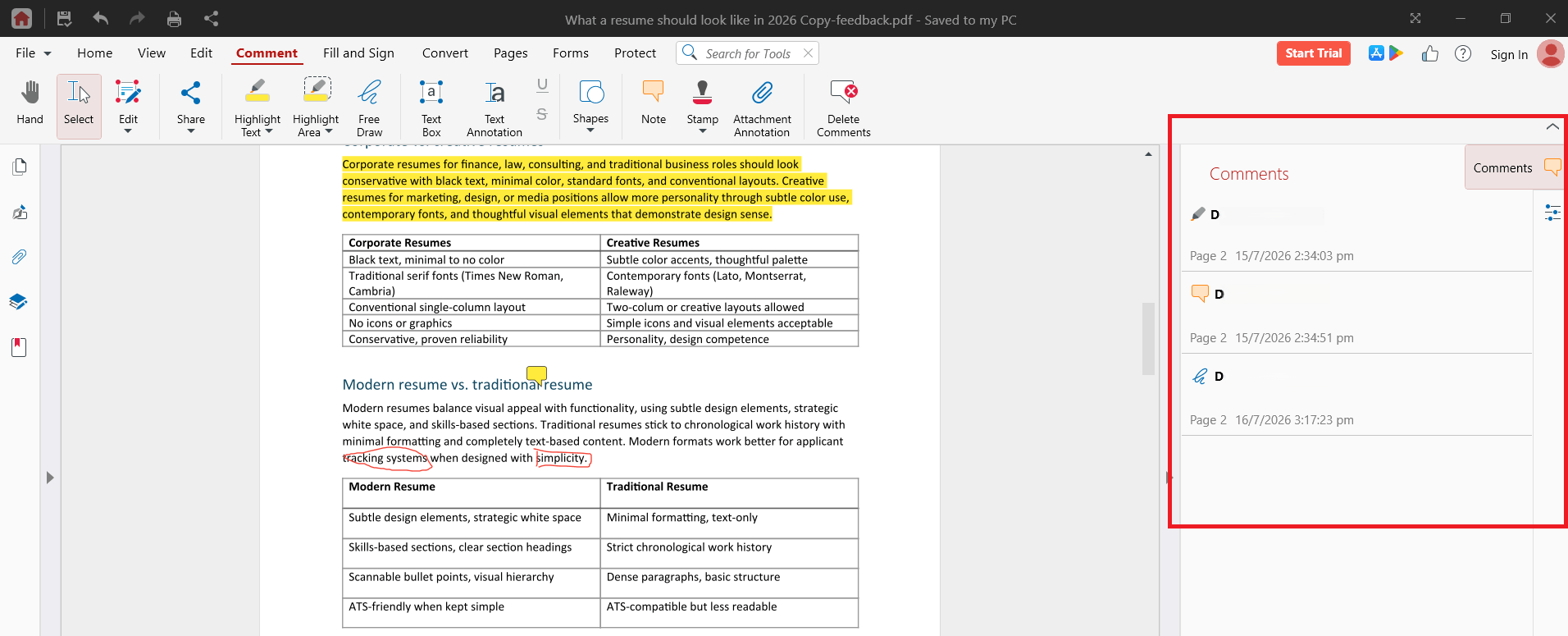
2. Review your markups, listed in the order you added them.
3. Click any item to jump to that page.
4. To delete a markup, right-click it and select Delete.
How to save your markups
Press Ctrl+S to save your changes to the PDF.
To keep the original file untouched, use File > Save As and save under a new name.
Note: Printing from MobiPDF Reader adds a watermark to the printed file. To print your marked-up PDF without a watermark, upgrade to MobiPDF.
Troubleshooting
I can't select the text I want to highlight. The page is probably a scan or an image. Text inside a scan can only be selected after applying OCR in the full MobiPDF.
The markup tools are greyed out. Make sure the PDF isn't password-protected or restricted by its author.
My printed file has a watermark. Watermark-free printing requires the full MobiPDF.
My comments aren't saving. Press Ctrl+S after making changes. If the file is stored in the cloud, check your internet connection.
I can't edit the text itself, only mark it up. This is expected. Changing text and images requires the full MobiPDF.
Where to go next
You can now highlight, comment, and draw on your PDFs. Here's where to go next:
Highlighting and Commenting PDFs
MobiPDF Reader - Highlighting and Commenting on PDFs
This guide shows you how to mark up a PDF in MobiPDF Reader on Windows. You'll learn how to highlight text, add sticky notes, draw on a page, and review your markups in one place. These tools help you flag key passages and leave notes for yourself or your team. Highlighting and commenting are available with your MobiOffice license, so you can start without upgrading.
Before you begin
Make sure you have:
MobiOffice installed on your Windows device, with MobiPDF Reader included. See Introduction to MobiPDF Reader.
Signed in with your MobiSystems account.
A PDF open in MobiPDF Reader. See Opening and navigating PDF files.
How to highlight text
1. Open your PDF in MobiPDF Reader.
2. On the Home menu, click Highlight.
3. Select the text you want to highlight. The highlight appears automatically.
4. Alternatively, you can click and drag across the text you want to highlight then choose the pen. Or right-click the selected text, then choose Highlight from the context menu.
The text is highlighted straight away. To highlight more passages, keep dragging across the text you need.
Change the highlight colour
1. Click the Highlight tool dropdown menu.
2. Choose a colour from the tool options before you highlight.
Tip: Use different colours for different purposes, such as one colour for questions and another for key facts.
Underline or strike through text
The Underline and Strikethrough tools work the same way as Highlight:
1. Click and drag across the text you want to underline or strikethrough.
2. In the context menu that appears, choose U to underline or S to strikethrough the selected text.
3. Alternatively, you can right-click on text then choose Underline or Strikethrough.
Note: Highlight, underline, and strikethrough only work on real text. On a scanned page, the text is part of an image, so you can't select it. Making scans selectable requires OCR, which is available in the full MobiPDF.
How to draw on a page
Use Free Draw to sketch, circle a figure, or point at something by hand.
1. Click the Comment menu.
2. Click Free Draw.
3. (Optional) Choose a colour and line thickness.
4. Click and drag on the page to draw.
How to add a comment
Use a sticky note to attach a written comment to a specific spot on the page.
1. Click the Comment menu.
2. Click Note.
3. Click the place on the page where you want the note.
4. Type your comment in the box that opens.
5. Click outside the box to save it.
A small note icon marks the spot. Click the icon any time to reopen and read your comment.
Reply to or edit a comment
1. Click the note icon to open the comment.
2. Edit the text directly or add a reply.
3. Click outside the box to save.
How to review your markups
The Comments panel lists every markup in the document in one place.
1. Open the Comments panel from the right sidebar.
2. Review your markups, listed in the order you added them.
3. Click any item to jump to that page.
4. To delete a markup, right-click it and select Delete.
How to save your markups
Press Ctrl+S to save your changes to the PDF.
To keep the original file untouched, use File > Save As and save under a new name.
Note: Printing from MobiPDF Reader adds a watermark to the printed file. To print your marked-up PDF without a watermark, upgrade to MobiPDF.
Troubleshooting
I can't select the text I want to highlight. The page is probably a scan or an image. Text inside a scan can only be selected after applying OCR in the full MobiPDF.
The markup tools are greyed out. Make sure the PDF isn't password-protected or restricted by its author.
My printed file has a watermark. Watermark-free printing requires the full MobiPDF.
My comments aren't saving. Press Ctrl+S after making changes. If the file is stored in the cloud, check your internet connection.
I can't edit the text itself, only mark it up. This is expected. Changing text and images requires the full MobiPDF.
Where to go next
You can now highlight, comment, and draw on your PDFs. Here's where to go next:
Introduction to MobiPDF Reader
Opening and navigating PDF files
Compare plans and unlock editing on the MobiPDF product page
Visit the MobiOffice Help Center