

Adding Custom Animations and Transitions
In this guide, you'll learn how to add animations and transitions in MobiSlides. Animations control how objects on a slide appear, move, or exit. Transitions control the effect when you move from one slide to the next. Both help you draw attention and guide your audience. The steps start with Windows, followed by shorter sections for Mac, Android, and iOS.
Before you begin
Make sure you have:
MobiOffice installed on your device. See Installing MobiOffice on multiple devices.
A presentation open in MobiSlides with at least one slide and an object to animate. See Creating and editing presentations.
An internet connection, if you want to save to the cloud.
Add an animation to an object on Windows
Animations apply to a single object, such as a text box, image, or shape.
1. Open the slide and click the object you want to animate.
2. Click Animations on the ribbon.
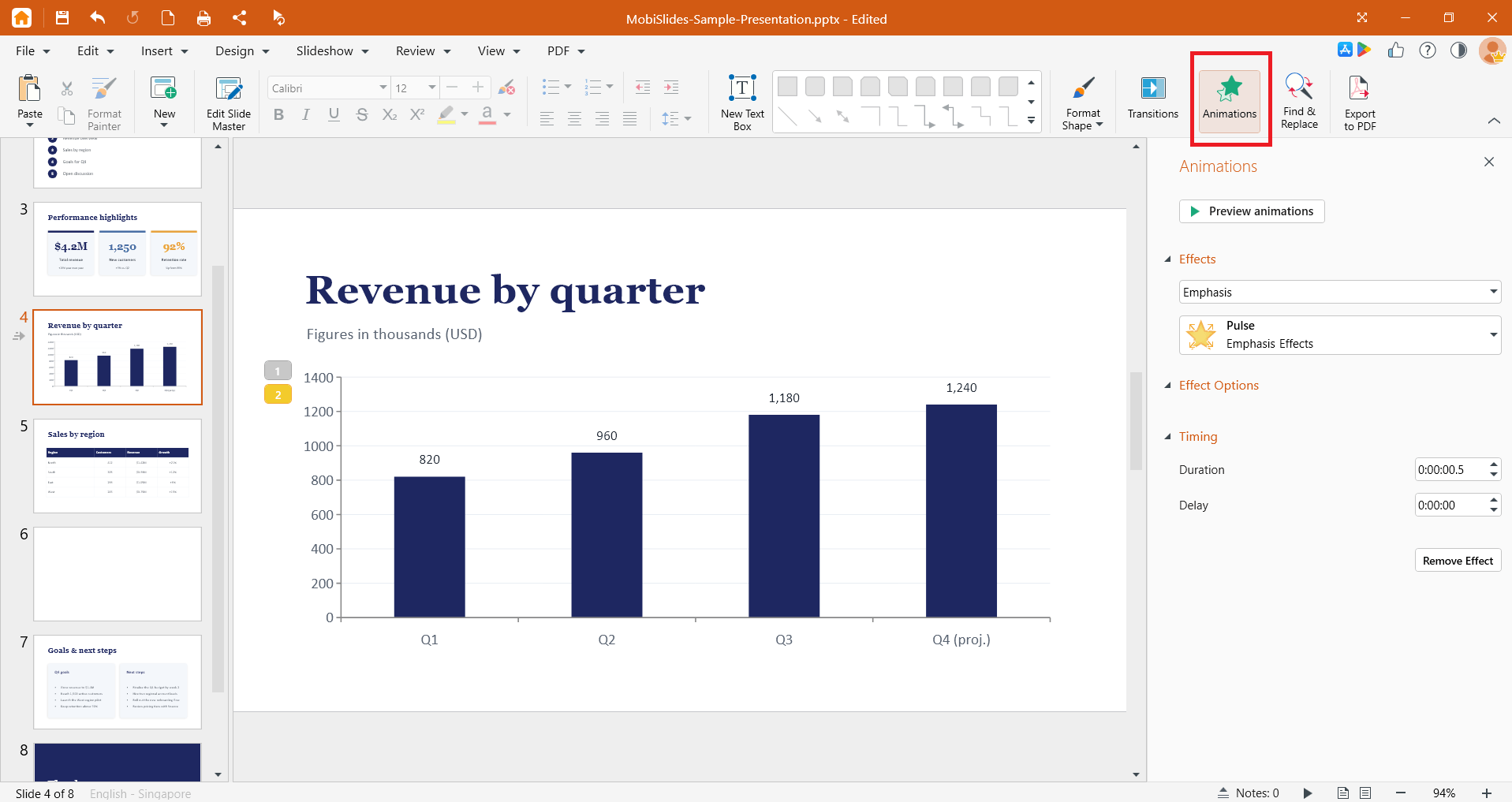
3. Select an animation effect from the Effects dropdown.
4. (Optional) Set the duration and delay of the animation by using the Duration and Delay pickers under Timing.
5. Click Preview animations to check the result.
To change or remove an animation, select the object, then choose a different effect in the Animations pane or click Remove Effect.
Tip: Apply animations to one object at a time so you can control the order in which items appear.
Add a transition between slides on Windows
Transitions apply to a whole slide and play when that slide appears.
1. In the slide panel on the left, select the slide you want the transition to lead into.
2. Click Transitions on the ribbon.
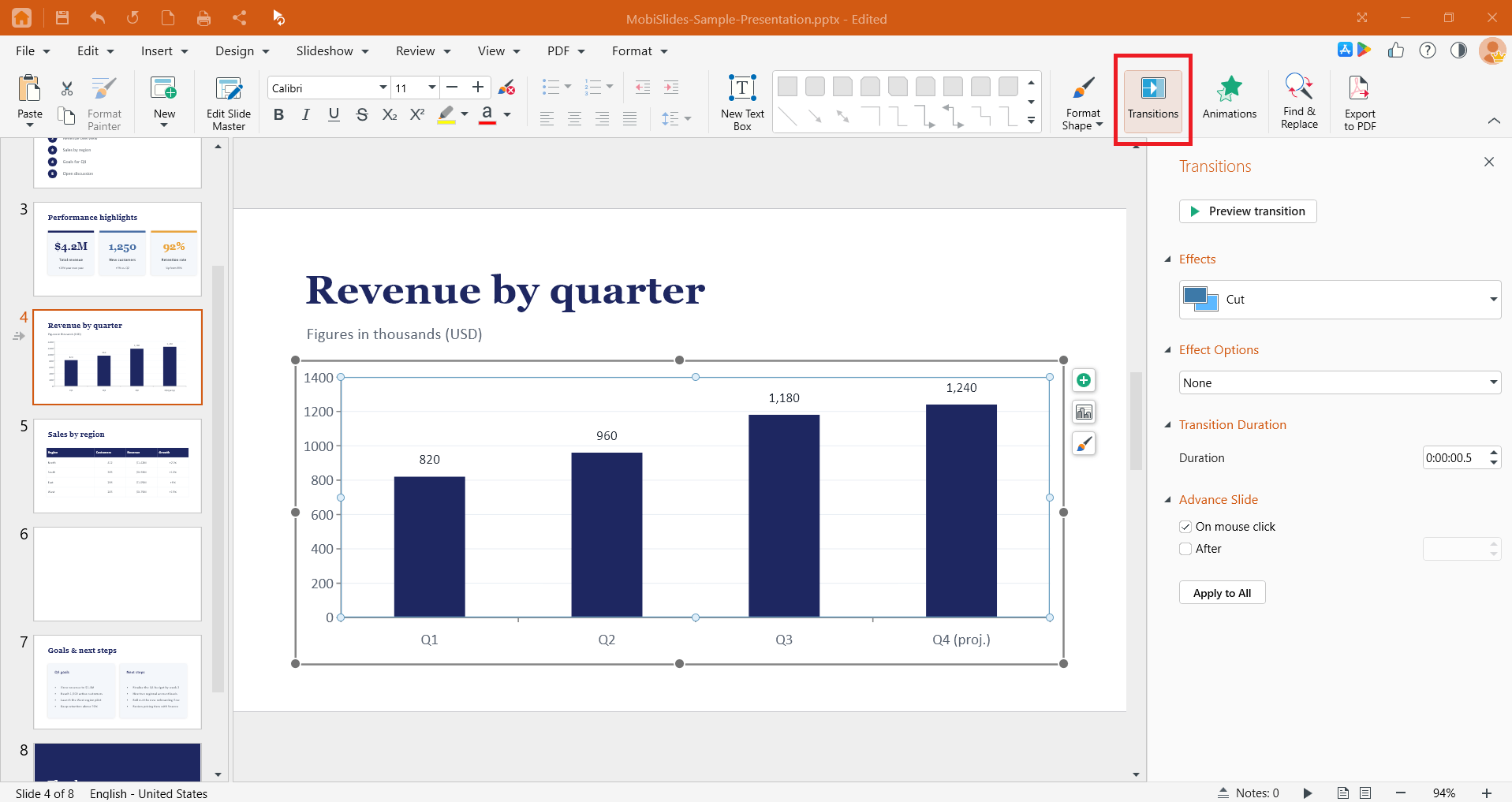
3. Select a transition from the Effects dropdown.
4. (Optional) Click Effect Options to set the direction. The available options depend on the transition you select.
5. (Optional) Use Transition Duration to set the speed, and Advance Slide to choose whether the slide advances on a click or after a set time.
6. Click Preview transitions to check the result.
To use the same transition on every slide, click Apply to All.
To remove a transition, select the slide, open the Transitions pane, and choose None from the Effects dropdown.
Tip: Use one transition style across your deck for a clean, consistent look.
Add animations and transitions on Mac
The Mac layout matches Windows.
1. Open MobiSlides from Launchpad or your Applications folder, then open your presentation.
2. Select a slide for a transition, or an object for an animation.
3. Use the Transitions menu to add a slide transition, or the Animations menu to animate an object.
4. Choose your effect and adjust the options the same way as on Windows.
Add transitions on Android and iOS
On phones and tablets, MobiSlides is part of the MobiOffice app.
1. Open your presentation in the MobiOffice app.
2. To add a transition, select a slide, tap the Transitions menu, then tap Transition Effects and choose an effect.
3. (Optional) Tap Effect Options, Transition Duration, or Advance Slide to customize, then preview the transition. Tap Apply to All to use it on every slide.
Note: Animations are not available on MobiOffice Android and iOS.
Troubleshooting
My animation or transition doesn't play. Preview it in the app to test it and check that the effect is applied to the right object or slide.
My animation applies to the whole slide, not one object. Select the object first by clicking its edge, then apply the animation. Animations apply to the selected object; transitions apply to the whole slide.
Effect Options is greyed out. Not every transition has direction options. Choose a different transition or skip that step.
I can't find the Animations or Transitions menu. These appear only in MobiSlides. Make sure you've opened a presentation, not a document or spreadsheet.
The effect plays here but not after I share the file. Some effects may not carry over to other apps. Save a copy as PPTX for the widest compatibility and avoid effects that are unique to MobiSlides.


