To compare two Word documents, open Microsoft Word, go to Review > Compare > Compare, choose the original and the revised file, and click OK. With the default settings, Word opens a new document showing differences as tracked changes. You can accept or reject each difference while both source files stay unchanged.
How to compare two documents in Word
To compare documents in Word, use Compare in desktop Word for Windows to check two versions and create a separate review copy. This gives you marked differences to work through instead of asking you to spot edits by reading both files.
Before you start, name the versions clearly. For example, use Proposal-v1.docx for the earlier draft and Proposal-v2.docx for the returned version. Check the content as well as the filenames so you know which original and revised document to select.
1. Open both documents in Word. Make sure they are the versions you intend to review.
2. Go to Review > Compare > Compare. Choose the option for comparing two versions, rather than combining reviewers’ revisions.
3. Choose the Original document. Select the earlier file as your starting point.
4. Choose the Revised document. Select the later version whose edits you want to check.
5. Check the comparison settings. Include the types of changes you need, such as text and formatting. Keep Show changes in set to New document.
6. Click OK. Word creates the comparison document with the differences marked as tracked changes.
The comparison view can show the two source documents beside the result. Work through the marked result when deciding which edits to keep. Selecting the original or revised file as the output instead of a new document modifies that selected document.
What the marks in a comparison mean
Comparison marks distinguish added text, removed text, and formatting edits so you can see what changed and decide whether to keep it.
Insertions show text added in the revised version, usually with colored underlining.
Deletions show removed text, either with a strikethrough or in a margin balloon, depending on Word’s display settings.
Formatting changes identify differences such as a new font or paragraph format, usually in margin notes.
Hover over a marked change to see its revision details, including the displayed author and what changed. Treat that author label as review information, not proof of who originally typed an untracked edit.
For example, changing “payment within 30 days” to “payment within 14 days” may appear as a deletion and an insertion. Read them together to understand the revised requirement. A formatting note beside that sentence is a separate change to assess.
How to accept or reject the differences
Use the Review tab to accept or reject changes in the comparison document, then save the reviewed result as its own file.
1. Start at the beginning of the document and select Review > Next to move to a change.
2. Read the surrounding sentence before deciding.
3. Choose Accept to keep the revision or Reject to restore the earlier version of that change.
4. Continue until you have reviewed all the differences.
To apply one decision throughout the file, use Accept All Changes or Reject All Changes from the relevant dropdown. Reserve these options for revisions you have already checked.
Choosing No Markup only hides revisions; it does not resolve them. Before accepting everything, make a document copy if you want to retain a separate record of the marked comparison.
To review differences in MobiDocs, use its Premium Compare Documents feature on Windows.
Compare, Combine or Track Changes: which one you need
Use Compare for two existing versions, Combine for several reviewers’ revisions, and Track Changes to record edits as they happen.
The distinction matters when a colleague returns a rewritten draft. Comparing it with your saved original reveals differences even if you did not receive a marked-up copy. If several colleagues send separate reviewed versions, combining their revisions is the more suitable task.
For the next review round, tracking changes in MobiDocs records edits while you work. When assessing alternatives to Microsoft Word, check for comparison separately from change tracking: they serve different purposes.
Comparing documents online: the catch
Upload-based online document comparison tools send both files to a third party’s server, so check what the documents contain before choosing one.
These tools can suit a short public text, such as two published event descriptions. You do not need an installed editor, and the browser result may be enough to identify a changed date or sentence.
A contract, CV, or document covered by an NDA needs different consideration. Uploading it shares its contents with another provider. Check your organization’s rules and the service’s handling and retention terms before proceeding; use an approved method for confidential files.
If your goal is to edit documents without Word, a desktop editor is another option. Choose a tool that supports the review you need, including accepting or rejecting differences, rather than only displaying two blocks of text.
When the comparison looks wrong
Check the selected files, comparison settings, and supported content before treating an unexpected result as a missing or incorrect edit.
Every line shows as changed. You may have selected unrelated files, or one version may have been fully reformatted. Confirm that both belong to the same document and, if you only need wording differences, rerun the comparison without formatting changes.
No changes show. You may have selected identical copies, hidden the markup, or excluded the relevant change type. In Word, check All Markup; in MobiDocs, check the settings and remember that headers, footers, footnotes, endnotes, comments, changes inside charts, and table formatting such as borders or column widths are not compared.
The file will not open for comparison. MobiDocs cannot compare password-protected documents, and its file picker shows only .docx files. Remove password protection from both files first if you are authorized to do so; for another format, open the document in a compatible editor and save it as .docx rather than simply renaming its extension.
Insertions look like deletions. Check whether you selected the newer file as the original. Reversing the versions reverses the direction of the comparison.
Alternative: MobiDocs
MobiDocs for Windows includes Compare Documents as a Premium feature. MobiDocs is part of MobiOffice, a Microsoft Office alternative.
1. Open the original document, then select Compare Documents on the ribbon.

2. In the dialog, click the folder icon under Revised Document and choose the other version.
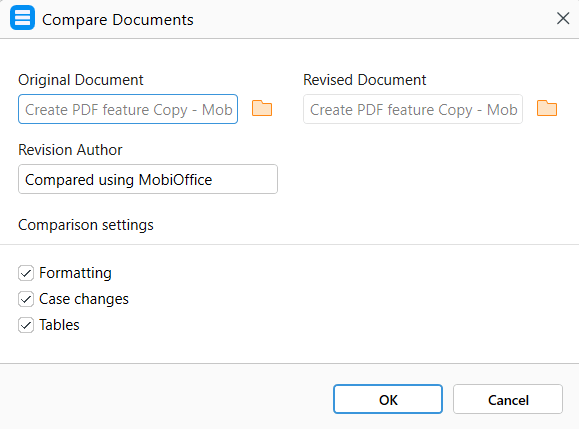
3. Check the three settings, all enabled by default: Formatting compares character and paragraph formatting; Case changes compares uppercase/lowercase differences; Tables compares text inside table cells.
4. Click OK.
The result opens as a new, unsaved document: Proposal-v1.docx becomes Proposal-v1_compared.docx. Both source files stay unchanged. Insertions are colored and underlined, deletions are colored with a strikethrough, and formatting changes appear as notes in the margin.
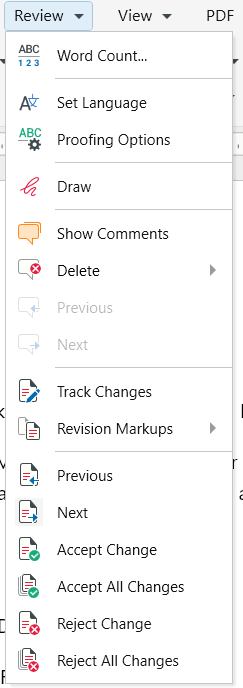
On the Review tab, select Next, then Accept Change or Reject Change. You can also use Accept All Changes / Reject All Changes, or right-click a change to accept or reject it. Save the result after reviewing it.
Start with MobiOffice to access MobiDocs; comparison requires Premium on Windows.
Frequently asked questions
In desktop Word for Windows, choose Review > Compare > Compare. Select the earlier version under Original document and the later one under Revised document. Keep the result in a new document and click OK, then review the marked differences.
Yes. MobiDocs offers Compare Documents as a Premium feature on Windows, with the result opening in a separate document for review. Upload-based online tools are another option, but they send both files to a third party, so check whether the contents are suitable for sharing.
Compare identifies differences between an original version and a revised version. Combine brings revisions from several reviewers into one document. Choose Compare when checking what changed in a returned draft, and Combine when consolidating separate reviewed copies.
No, when you use Word’s default New document output or MobiDocs Compare Documents, the source files stay unchanged. Save the result as a separate review copy. In Word, choosing the original or revised document as the output instead modifies that selected document.
Check that you selected two versions of the same document. Unrelated files or extensive reformatting can produce marks throughout the result. If the versions are correct and you only need text differences, turn off formatting comparison and run it again.
Not in MobiDocs. Remove password protection from both documents before comparing them, provided you have the passwords and permission to do so. Save the versions you want to compare as .docx files, then select the revised file in Compare Documents.
Final thoughts
To compare Word documents, create a marked review copy, read each difference in context, and save the version you approve. Check the comparison settings and supported content before assuming an unmarked section is identical.
Use Compare for existing versions, Combine for multiple reviewers’ revisions, and Track Changes for edits you want recorded as you work. Keep the original drafts alongside the reviewed result so you can refer back to them.
For comparison in MobiDocs, download MobiOffice and use the Premium feature on Windows.