You can save only one page of a PDF by going to Pages → Export pages and choose page, exporting it as a new file. You can do that using a reliable PDF tool like MobiPDF, without changing the original document.
Sometimes, you don’t need an entire PDF. You might want to share a single page with a colleague, print one section of a report, reduce file size, or only specific information you need to share. In these situations, knowing how to save only one page of a PDF can save time, storage space, and unnecessary back-and-forth.
In this guide, you’ll learn several practical ways to extract and save a single page from a PDF, so keep reading for the whole scoop.
How can you save only one page of a PDF
One of the most common ways to save a single page is by manually selecting and exporting it as a new file. Most modern PDF tools and readers support this option.
Selecting the page, you want to save
Before saving anything, you need to identify the page you want to extract.
Here’s how to do it in MobiPDF:
Open your PDF file.
Go to the Pages tab in the main ribbon.
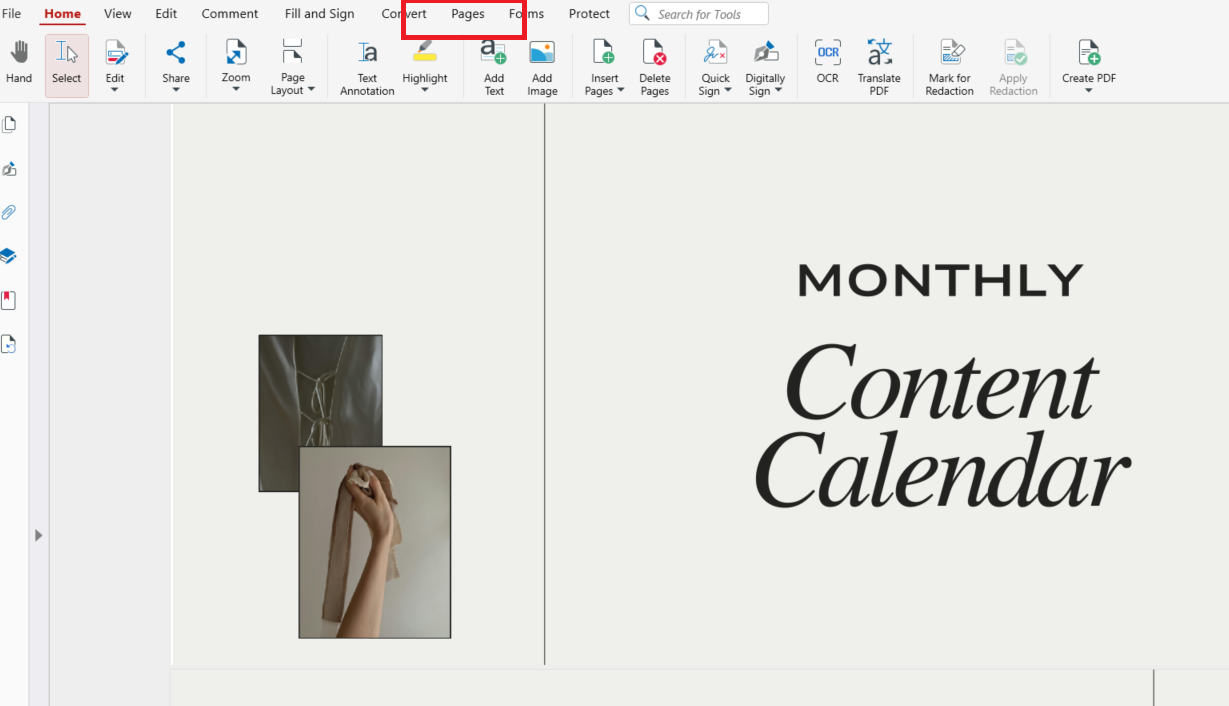
You’ll see thumbnail previews of all pages in the document. Click Extract Pages.
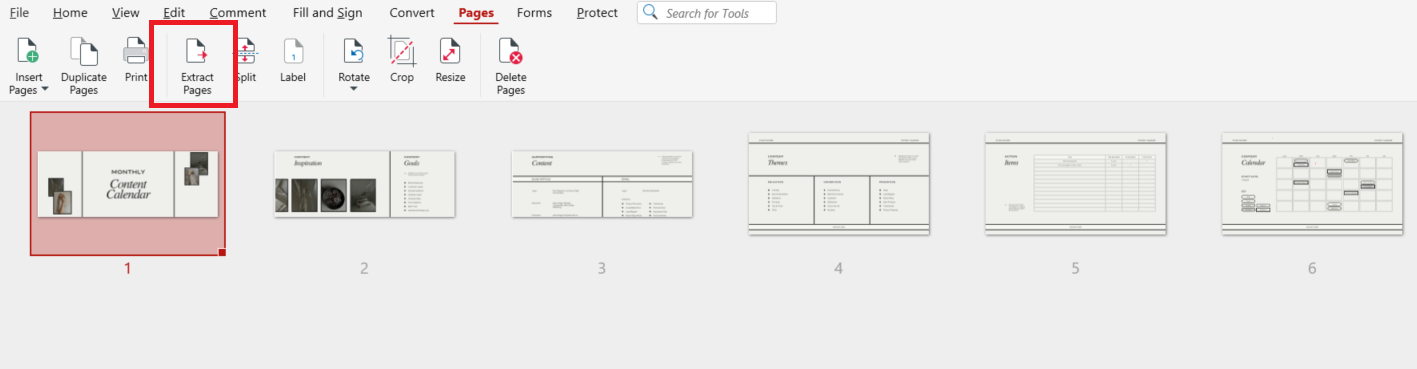
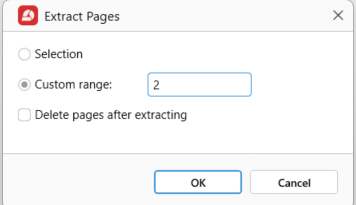
In the pop-up window, enter the page number you want to save (for example, 1, 2, or 3 or other), then click OK to create a new PDF.
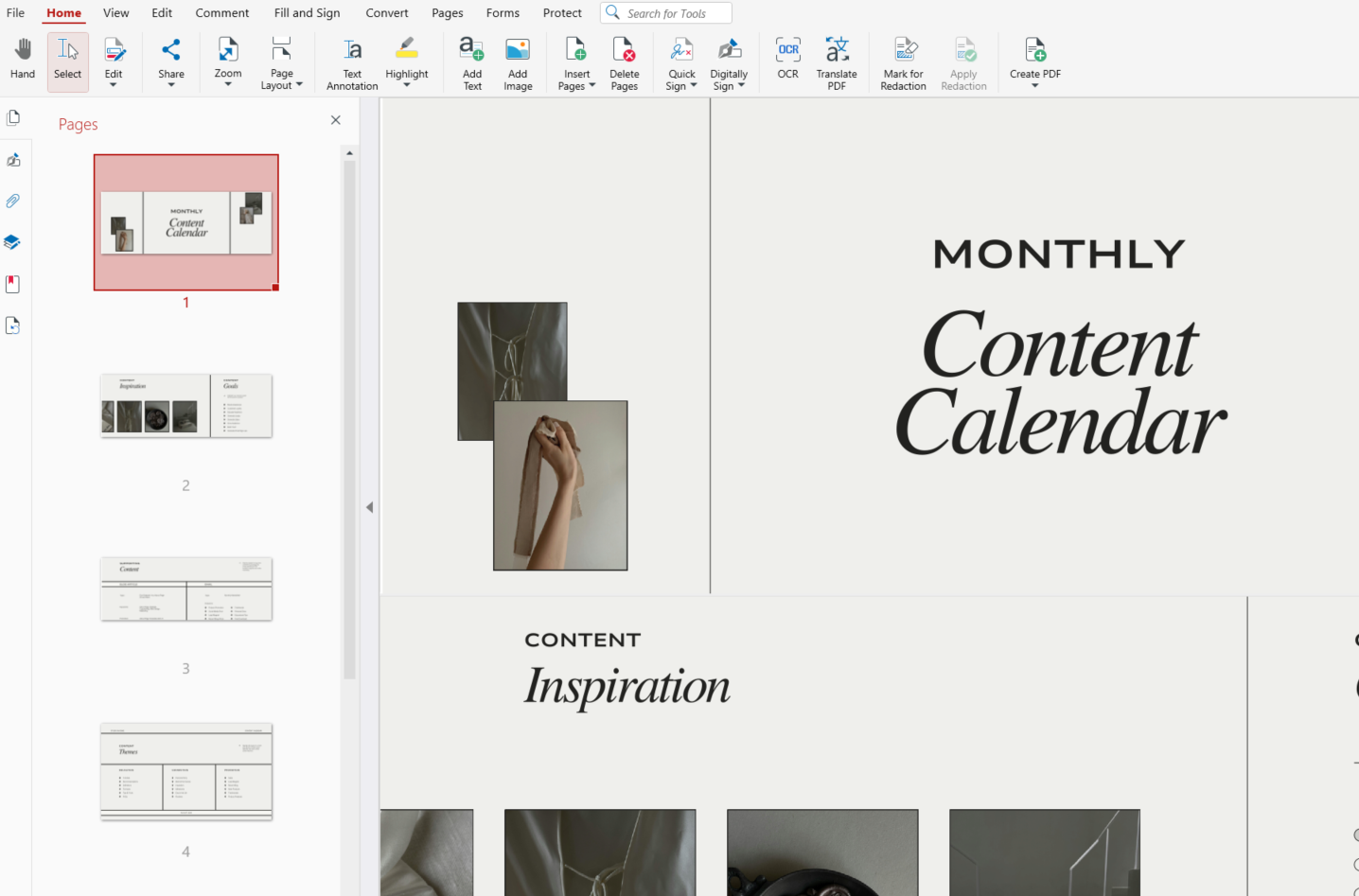
Your PDF page will open automatically.
Exporting the page as a new PDF
There is one more way to export a single page in MobiPDF.
Here are the steps:
Open the PDF in MobiPDF.
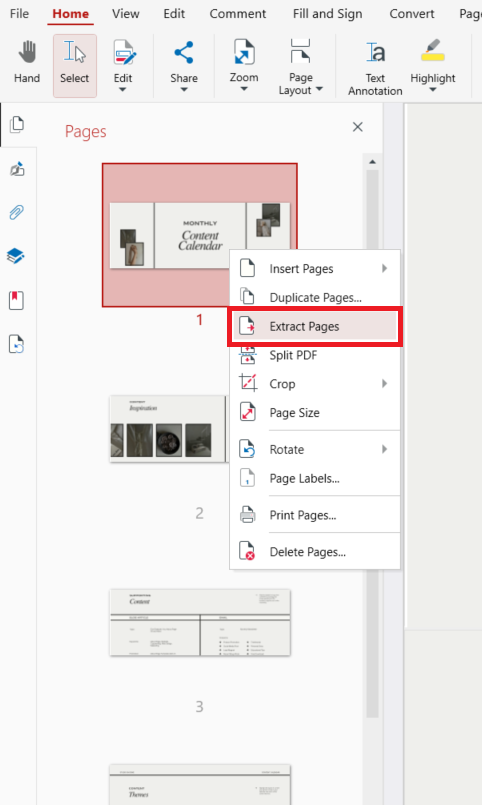
Open the side panel to display all page thumbnails.
Right-click on any page thumbnail in the list, then select Extract Pages from the menu.
In the dialog box, enter the number of the page you want to extract.
Click OK.
This creates a standalone PDF containing only the chosen page, while leaving the original document unchanged.
If you often work with PDFs, tools like MobiPDF make this process quick and intuitive.
How do you save a single page of a PDF using page extraction
We already explained how to save a single page from your PDF using page extraction. This approach is ideal when you need more control over how pages are separated.
What is a PDF page extractor
A PDF page extractor is a feature or tool that allows you to remove one or more pages from a document and save them as separate files.
With a page extractor, you can:
Extract one page
Extract multiple pages
Create separate files for each selection
Preserve formatting and layout
Page extractors are available in desktop software, mobile apps, and online tools.
When extraction is the best option
Page extraction is especially useful when:
You’re working with large documents
You need multiple single-page files
You want to reorganize content
You’re preparing files for different recipients
For example, if you’re working with signed or secured documents, you may want to review how changes affect them. Extraction gives you flexibility without altering the rest of the file.
How can you save specific pages of a PDF
In MobiPDF, you can save specific pages by choosing Pages → Extract Pages from the main ribbon or by extracting pages directly from the side panel with page thumbnails. This makes it easy to select exactly the pages you need and save them as a new PDF without affecting the original file.
Saving one page vs multiple selected pages
Depending on your needs, you can extract either a single page or several pages from a PDF. The table below shows when each option makes the most sense.
This approach helps you share only the information that matters, without sending the entire document or creating unnecessary files.
If you’re managing PDF content for productivity, it might be a good idea to flatten your PDF as well. Which also happens very easily.
Is saving one page the same as separating PDF pages
Although these terms are often used interchangeably, they’re not the same.
Saving one page vs splitting PDF pages
Let’s clarify the difference:
Saving one page means:
You select a specific page.
You export it as a new file.
The original PDF stays intact.
Splitting PDF pages means:
The entire document is divided.
Each page (or group of pages) becomes a separate file.
You end up with multiple new PDFs.
If you only need one page, saving or extracting is usually better than splitting, as it avoids creating unnecessary files.
Other ways to save only one page of a PDF
Depending on your device, there are alternative methods:
Using print to PDF
Many tools allow you to “print” a single page to PDF:
Open the PDF.
Go to Pages and choose Print.
Select Save as PDF as the printer.
Enter the page number you want.
Save the file.
Saving from email or documents
If your PDF comes from an email or another document, you can first to save an email as a PDF. Once your file is ready, you can extract the page using the methods above.
Frequently asked questions
How do I extract only one page from a PDF?
Open the PDF, select the page in the thumbnails, and use Extract Pages to save a specific page as a new file.
How do I save a single page separately from a multi-page PDF?
Choose the page you need, click Save As or Extract Pages, and export it as a new PDF.
Can I separate only specific pages from a PDF file?
Yes. Most PDF tools let you select individual pages or ranges and save them together in a new file.
How do I save just one page of a PDF without splitting the entire document?
Use Extract Pages instead of split tools to keep the rest of the file intact.
What is the easiest way to save one page of a PDF as a new file?
Open the PDF, go to Pages and then Extract Pages. Tools like MobiPDF make this process quick and simple.
Final thoughts
Learning how to save only one page of a PDF is a simple skill that can greatly improve your workflow. Whether you’re sharing information, reducing file size, or organizing documents, extracting a single page keeps things clean and efficient.
Try MobiPDF today and manage your PDF pages with ease.