This article was updated on 17 December 2025
To sign a PDF, open it in MobiPDF, select Fill & Sign, choose Digitally Sign and click on the document to place and save your preferred signature. Your signed PDF syncs with MobiDrive, so you can access it on any device.
With MobiPDF, you can easily create your personal file signatures and use them to sign all types of PDF documents without any physical hardware. Not even a pen. Let's dive right in, shall we?
Key takeaways
MobiPDF lets you sign any PDF quickly with saved or custom signatures
Digital signatures use encryption to verify identity and protect documents from tampering.
Quick Sign = simple annotation; Digital Sign = secure, certificate-based authentication.
You can digitally sign PDFs on Windows and Android using certificates or a signature provider.
Option to sync signed documents with MobiDrive for safe access and sharing from any device.
What is a digital signature and when should you use it?
A digital signature is a cryptographically secured form of signing used for contracts, legal forms, and documents. It verifies your identity using encryption and so the content cannot be changed anymore after signing. With MobiPDF, you can apply digital certificates for secure signing.
When to use a digital signature?
Use а digital signature when:
Signing legal agreements or government forms
Submitting HR or employment documents
Protecting sensitive data
You need proof the file hasn’t been modified
How to add a quick signature to your PDF?
Signing any document in MobiPDF is simple as everything is laid out right in front of you, without having to dive into tedious dropdown menus. Here is what you need to do:
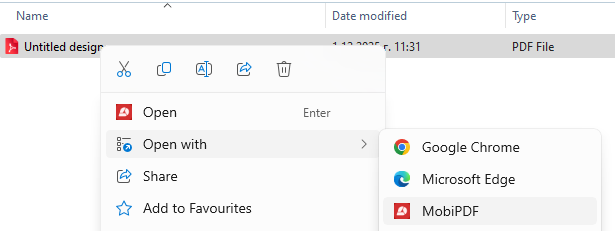
Open the file in the PDF software by right-clicking it and selecting Open with MobiPDF. If you've registered an account, you can also easily upload the file directly from your free MobiDrive storage.
Locate the Quick Sign button from the app's main ribbon, then click on the corresponding icon.

If you haven't had the chance to create and save any signatures yet, you can click Create Signature to begin.
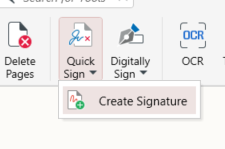
In case you have already saved a signature, it will display in the dropdown menu after you click the Quick Sign button.
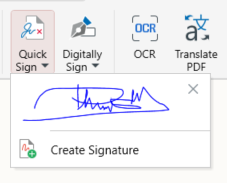
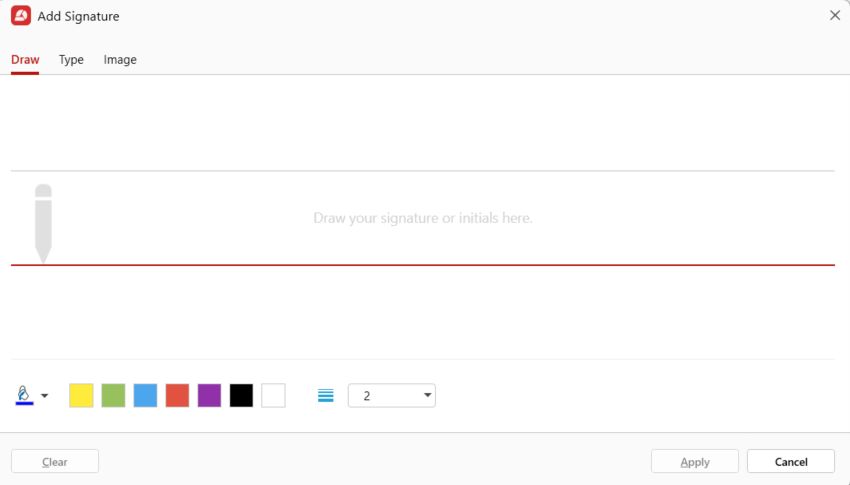
Upon clicking on Create Signature, you will be able to free-draw any signature you wish. The options are:
a. Draw: freely draw your signature by dragging your mouse cursor
b. Type: this feature will let you type your signature in a couple of fonts
c. Image: this feature will let you add an image to use as a signature
Click to where you want to position your signature in the document.
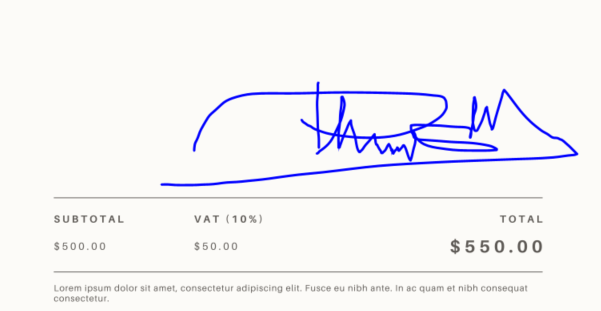
After learning how to place a quick PDF signature in MobiPDF, let’s dive a bit deeper.
Quick signing vs. digital signing – what's the difference?
Using a quick signature means you are simply adding an annotation to your document. When you add a digital signature to PDF documents, the signature is associated with your digital certificate as a user. The latter ensures that nobody has tinkered with your document after you've digitally signed it and the signature cannot be invalidated.
How to digitally sign a PDF on Windows?
To digitally sign a PDF on Windows, open it in MobiPDF, go to Protect → Digitally Sign, choose your certificate, place the signature on the page, and save the file. Digital signatures ensure your identity is verified and the document remains tamper-proof.
Why use a digital signature?
Digital signatures provide encrypted authentication that proves who signed the document and protects it from modifications. They are ideal for contracts, forms, legal files, financial documents, and any .
Step-by-Step: Add a Digital Signature in MobiPDF (Windows)
Open your PDF in MobiPDF.
Select Protect from the top menu and click Digitally Sign.

Choose your certificate type – use a certificate you have saved on your device or connect to a signature provider.
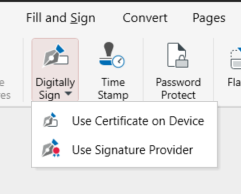
Click anywhere in the document where you want to position the digital signature.
MobiPDF will open a dialog from which you can select:
Your digital signature (automatically issued by the software organization or personally uploaded from your device)
Signature text that you want to add to your digital signature
Once you’ve customized your PDF digital signature, confirm it with the Sign button.
Your digitally signed document is now encrypted against tampering and can be synced to MobiDrive for secure sharing or backup on any device.
How to digitally sign a PDF in Android
MobiPDF for Android supports files with CA (a digital certificate issued by a certificate authority) and self-signed certificates.
To digitally sign your PDF, you need to install your certificate on the device first. You can easily do this from the device settings.
And here is how to digitally sign a PDF on Android step-by-step:
Open the MobiPDF app for Android.
Tap Fill & Sign.
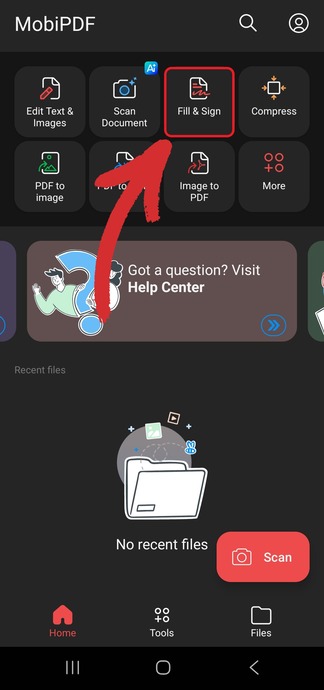
Tap Digital Sign.
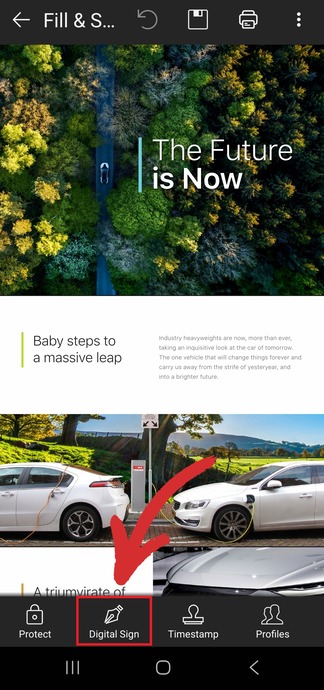
You can choose one of two options to sign your document.
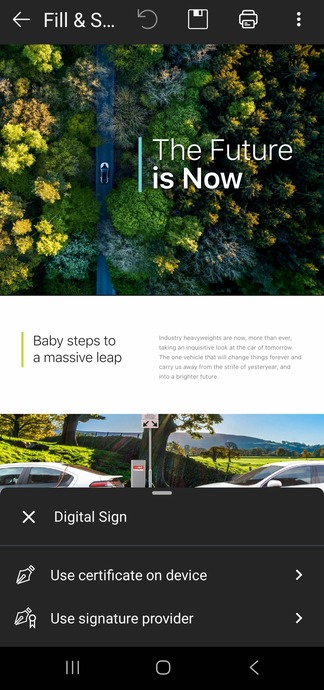
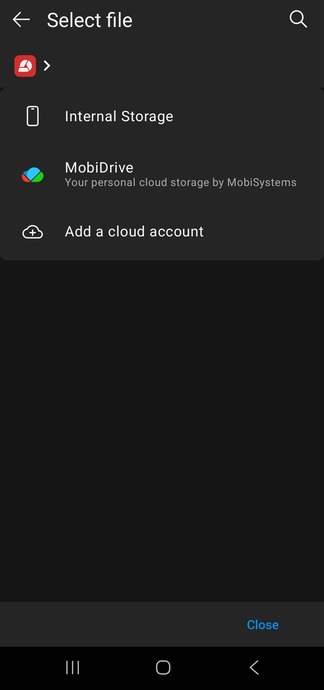
Use certificate on device – load a certificate already stored on your phone.
Use signature provider – sign by logging into your Evrotrust account.
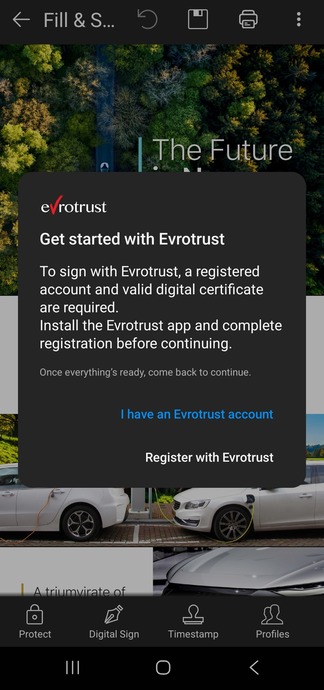
Place your signature.
Tip: If you don't see Fill & Sign on the home screen, open the Tools menu to find it there. 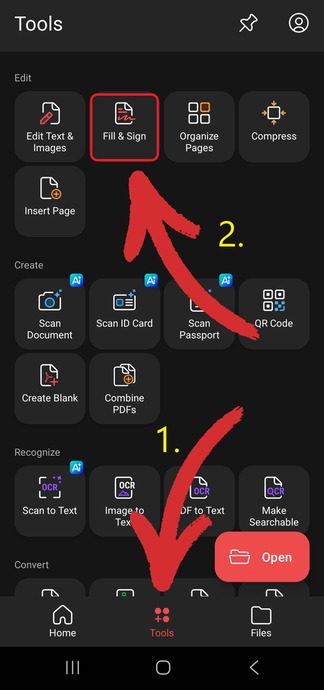
Frequently asked questions
What is the easiest way to sign a PDF for free?
Use an all-in-one PDF tool like MobiPDF to add your signature in just a few taps.
How can I sign a PDF for free?
While MobiPDF doesn’t offer free signing, it provides multiple affordable plans that make signing fast and easy.
How do I sign a PDF on my phone?
Install a mobile PDF editor like MobiPDF, open your document, and use the Fill & Sign feature to sign.
Is it safe to sign a PDF online?
Yes, as long as you use a trusted service that protects your data and documents.
How do I sign a scanned PDF?
Convert or open the scanned file in a PDF editor, then use the Fill & Sign tool to apply your signature.
Final thoughts
The ability to digitally sign documents might not be the thing you immediately reach out for in your everyday use. However, digital signatures should become second nature if you work in a fast-paced business environment and juggle dozens of highly confidential documents.
Luckily, MobiPDF allows you to add both quick signatures and digital signatures with ease on any device you use: Windows, iOS, Android, or from any web browser. This way, you can always ensure that your files are protected and that nobody will change a thing without you knowing anywhere you are – at home, at work, or on the subway ride home.