

Translating Text in Your Documents
In this guide, you'll learn how to translate text in MobiDocs using the Translate feature. You can translate a whole document or just a section, choose from over 50 languages, and keep your original formatting. This is useful when you work with international clients, study in another language, or need to read a document someone sent you.
Before you begin
Make sure you have:
MobiOffice installed on your device. See Installing MobiOffice on multiple devices.
A document open in MobiDocs. See Creating and editing documents.
Signed in to MobiDocs. See Signing in to MobiDocs.
An internet connection. Translation is processed online and won't work offline.
Translate text in a document
Use this when you need the whole document in another language.
1. Open your document in MobiDocs.
2. Find Translate in the ribbon.
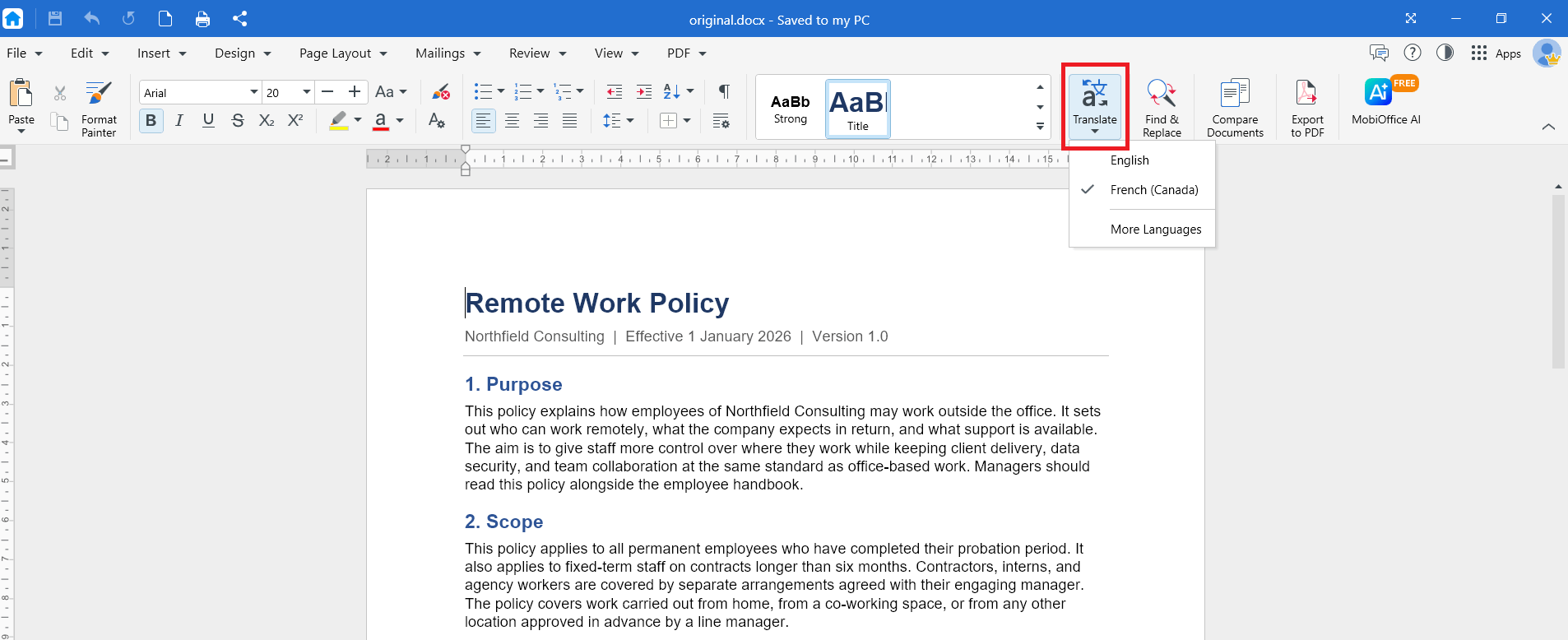
3. Click the dropdown to choose your target language. Click More Languages to see all languages available for translation.
4. Click OK. The translated document opens in a new window.
5. In the new window, you can choose to translate the results to another language, go back to your original document, or download the translated version.
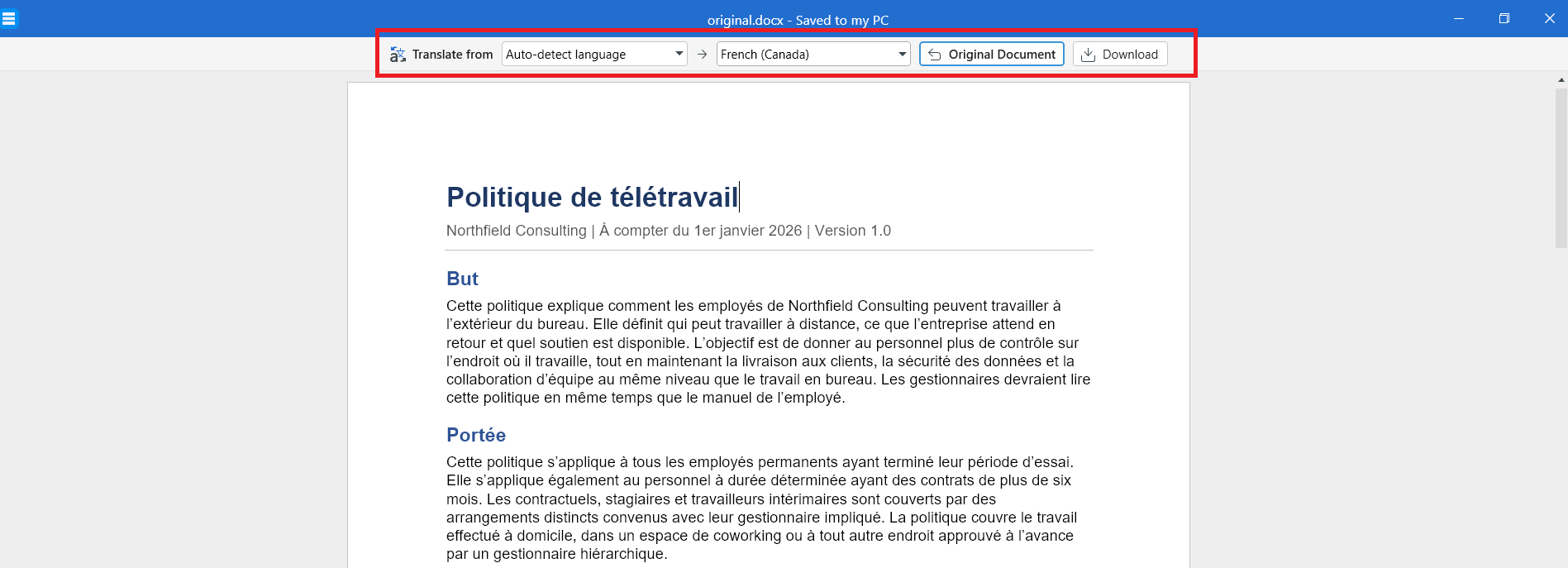
MobiDocs translates the text and keeps your fonts, headings, tables, and images in place.
Tip: Translation may take a few moments on long documents. Leave the document open while it finishes.
Save a translated copy
Save the translation as a separate file so you keep the original document intact.
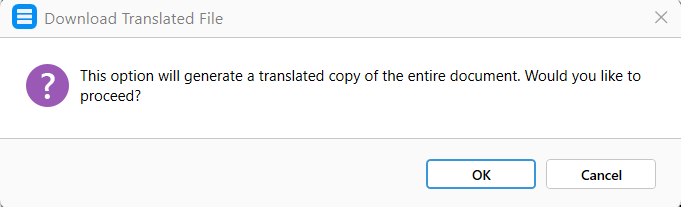
1. On the translated copy window, click Download.
2. In the next dialog box, click OK.
3. Enter a new file name in the next dialog box.
4. Choose a location where to save the file: your device, MobiDrive, or a connected cloud service.
5. Click Save.
Troubleshooting
The Translate option is greyed out. Click inside the document first. If the document opened in read-only mode, switch to editing mode.
I can't find the Translate option. Update to the latest version of MobiOffice, then try again.
My formatting changed after translating. Translated text is often longer or shorter than the original, so line breaks and page breaks may shift. Check your page layout before printing. See Setting up custom page layouts.
Some text wasn't translated. Text inside images is not translated, because it is part of the picture rather than editable text. Retype that text in the document if you need it translated.
Where to go next
You now know how to translate text in MobiDocs. Try one of these next:


