
To add a watermark to a PDF, open it in a PDF editor, choose the watermark tool and type your text or pick an image such as a logo. Set the angle, transparency, and pages, then apply it. Online tools do the same for a one-off file, and Word adds one before you save as PDF.
A watermark marks a document as a draft, a copy or confidential, and it stays visible when the page is printed. This guide covers three ways to watermark a PDF, the settings that suit each job, and the problems people run into most.
Which method should you use?
Use a desktop PDF editor if you watermark PDFs often or want control over every setting. Use an online tool for a single file on a computer that isn’t yours and use Word when you still have the original document. All three produce a watermark that shows on screen and in print. The table compares them at a glance.
Add a watermark with a desktop PDF editor
A desktop PDF editor lets you add a watermark to a PDF already on your computer and change it later. Menu names differ between apps, but the steps follow the same order:
Open the PDF in your PDF editor.
Open the watermark tool. It usually sits on an editing or page tab.
Choose a text watermark and type the wording or choose an image watermark and select the file.
Set the rotation, transparency, and size. A diagonal angle is the usual choice for a draft watermark.
Choose the pages: all pages or a page range.
Apply the watermark and check the preview.
Save the result as a copy, so the unmarked original stays on your computer.
Keeping the original pays off later. If you need a clean version, or a different label for another recipient, you start again from the unmarked file instead of removing a watermark.
If you’re looking for a desktop PDF editor that does all of this on Windows, MobiPDF is one to consider.
Add a watermark online or from Word
Online watermark tools suit a one-off file, and Word suits a document you created yourself and still have as a .docx.
Online watermark tools
Upload the PDF, type your text or add an image, adjust the position and transparency, then download the watermarked file. There’s nothing to install, which helps on a shared or borrowed computer.
The trade-off is that your file goes to the tool’s server. Before you upload a contract, a price list or anything you’d rather keep private, check how long the service keeps uploaded files.
Microsoft Word
In the Word desktop app, go to Design → Watermark and pick a preset such as DRAFT, or select Custom Watermark to choose Picture watermark or Text watermark and set your own. Then save the document as a PDF, and the watermark carries over.
Word for the web can’t add new watermarks, so you need the desktop app. This route also depends on having the original document. For a PDF you received, use one of the other methods: opening a PDF in Word converts it, and the layout can shift.
Choose the right watermark settings
The right settings depend on what the watermark needs to say. A draft label should stay out of the reader’s way, while a mark on a restricted document should be hard to miss. Use the table as a starting point and adjust it to your document.
Transparency, often labeled opacity, controls how much of the page shows through the watermark. The layer decides whether the watermark sits behind the page content or on top of it. Behind the page keeps text sharp, but photos and colored areas can cover it.
For example, a price list sent to three resellers works well with a straight “Prepared for [name]” line on top of every page. Each copy shows whose it is, and the prices stay easy to read.
Make the watermark harder to remove
No setting makes a watermark permanent, but you can make removing it harder. In most PDFs a watermark is a separate element, so anyone with a PDF editor can select it and delete it. Treat a watermark as a visible label, not as a barrier to copying.
Two steps raise the effort needed to remove it:
Restrict editing. A permissions password limits what readers can change in the file. Most PDF editors offer this setting when password-protecting a PDF, alongside an optional password to open it.
Share a read-only copy. Making a PDF read-only before you send it stops casual changes in most PDF apps.
Neither step is absolute. Some PDF apps ignore permission settings, and anyone can still photograph or retype a page. Together, though, they turn removal into a deliberate act, and a watermark with the recipient’s name still shows whose copy it was.
Watermark problems and how to fix them
Most watermark problems come down to transparency, layer or page range, and each one is a quick fix.
The watermark hides the text. Make it more transparent by lowering the opacity or move it behind the page, so the text sits on top.
It doesn’t show on a scanned page. A scan is a single image covering the whole page, so a watermark behind the page is hidden under it. Place it on top of the page with low opacity instead.
The logo looks blurry. Small images are stretched to fit the page. Use a larger, sharper version of the logo.
It landed on the cover page, too. Apply it to a page range that starts after the cover instead of all pages.
It prints darker than on the screen. Screens and printers show light tones differently. Print one test page before printing the whole document.
The watermark appears twice. In some PDF editors, adding a new watermark keeps the old one, so both show. To change a watermark, edit the existing one, or choose to replace it when the app asks. MobiPDF asks whether to replace the existing watermark when you add another.
Alternative: MobiPDF
MobiPDF, an affordable alternative to Adobe Acrobat, adds text and image watermarks on Windows from the Edit tab. Here’s how:
Open the PDF in MobiPDF.
On the Edit tab, click Watermark, then Add.
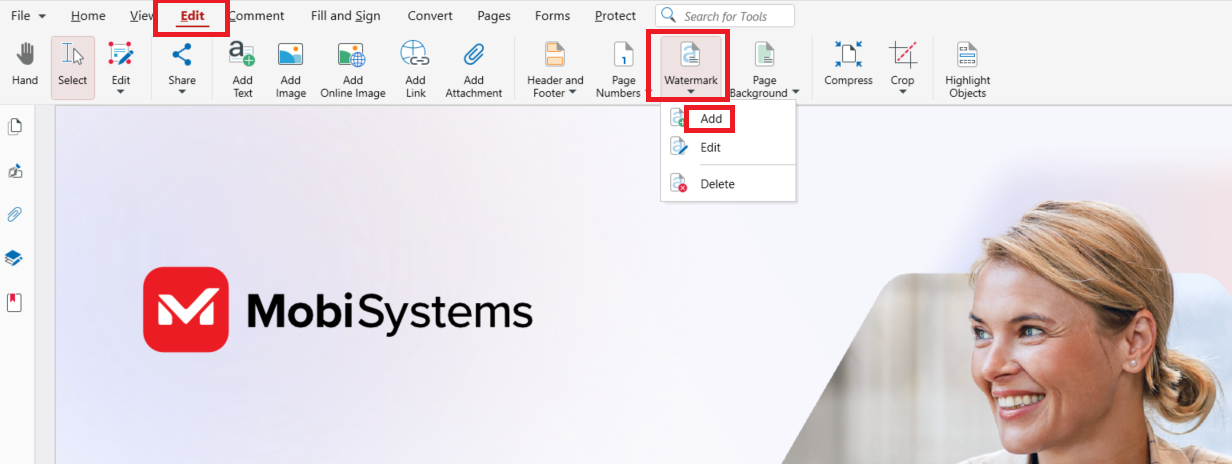
Choose Text Watermark and type the wording, or Image Watermark and pick the image.
Under Appearance, set Rotation, Scale and Opacity, and choose Behind page or On top of page.
Under Page Range, keep All pages or select Page range and enter the pages.
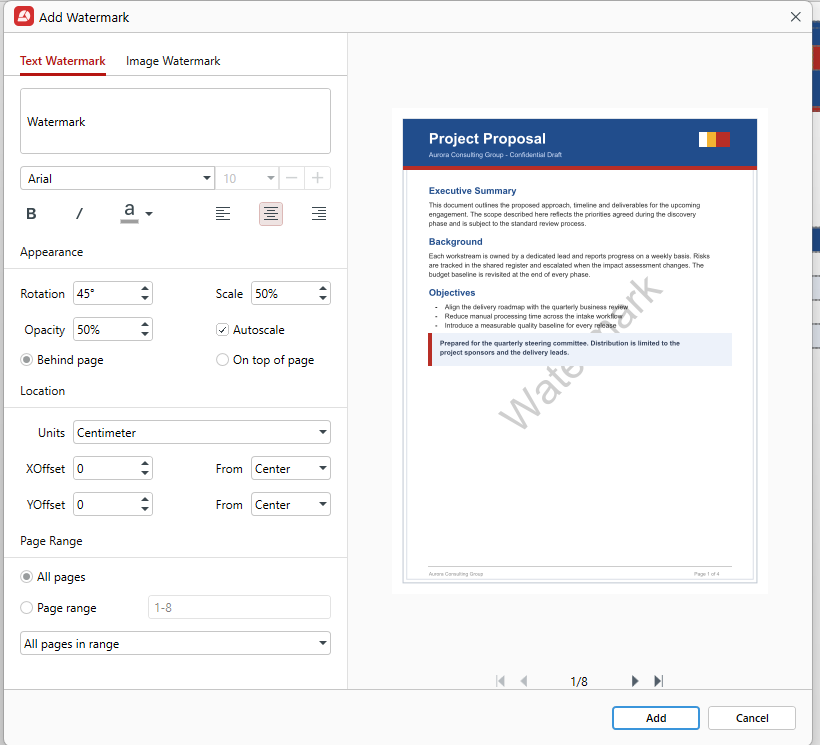
Click Add, then save the file.
To change the watermark later, go to Watermark → Edit, or change its text in the Properties panel on the right. To remove the watermark you added, go to Watermark → Delete and confirm. Because the watermark is a separate element, deleting it leaves the page as it was.
MobiPDF’s watermark tool can also shift the watermark under Location, measured from a reference point such as the center. Every option in the window is explained in the guide to adding watermarks in MobiPDF.
Want to try it on your own documents?
Frequently asked questions
Online watermark tools often let you watermark a single PDF without paying, usually with limits on file size or the number of files per day. If you already have Microsoft Word, you can also add the watermark to the original document and then save it as a PDF.
Yes. A watermark prints along with the text on every page you applied it to. Light shades can look different on paper than on screen, so print a single test page to check how dark it comes out.
Yes. Put the watermark on top of the page and lower its opacity so the scan stays readable. A scanned page is one image that covers the whole page, so a watermark set behind the page can end up hidden under it.
Remove it in the tool you used to add it. In MobiPDF, go to the Edit tab, click Watermark → Delete and confirm. If someone else added the watermark, ask them for an unmarked copy of the document.
A watermark repeats across the pages you choose, behind or over the content. A stamp is placed once, exactly where you click, like an “Approved” mark on a single page. In most PDF editors, stamps are annotations, listed alongside other comments.
No. A header or footer sits in the page margin and usually carries a title, page numbers or a date. A watermark sits across the page content itself, usually larger and more transparent, to label the whole page.
Final thoughts
A watermark takes a minute to add once you know what it needs to say. Pick the method that fits the file, match the settings to the job, and keep an unmarked original. Light and behind the page suits a draft, while on top of the page suits anything that must stand out. If removal is a concern, pair the watermark with restricted editing rather than relying on it alone.
Want one app for adding, editing and removing watermarks on Windows?