To translate a PDF to any language, first check whether its text is selectable. Text-based PDFs can go straight into a desktop, online, or professional translation service. Scanned PDFs need OCR first to turn the page images into text. Then choose the target language, translate, and check names, numbers, and layout before sharing.
This article was updated on October 14, 2026
PDFs are universal containers of modern work. Contracts, manuals, reports, invoices, resumes. They travel across borders just as often as emails do. But when a PDF lands in a language you do not speak, things get tricky fast.
This guide explains whether PDFs can be translated, how to translate a PDF using MobiPDF, and which translation approach makes sense depending on your document type, quality, and privacy needs. We will also cover common translation issues and how to fix them, so your translated PDF stays readable, accurate, and usable.
Is it possible to translate PDF files?
Yes, PDF files can be translated. But the "how” depends on what kind of PDF you are dealing with.
There are two main PDF types:
Text-based PDFs – Created digitally (for example, exported from Word). These are the easiest to translate because the text is selectable.
Scanned PDFs – Essentially images of text. These require Optical Character Recognition (OCR) before translation.
Once the text is accessible, it can be translated using desktop software, online tools, AI-powered translators, or professional services. Each option comes with tradeoffs in speed, accuracy, formatting, cost, and privacy.
How to translate PDFs with MobiPDF
To translate a PDF with MobiPDF for Windows, open the file and click Translate PDF on the Home or Convert tab. Choose the source language, the target language, and the pages to translate. MobiPDF creates the translation as a new document and leaves your original untouched. Scanned PDFs need OCR first.
Translate PDF is included in the MobiPDF Pro plan.
Step 1: Make scanned text readable with OCR
Skip this step if you can already select the text in your PDF. A scanned page is only an image of text, so it needs OCR before it can be translated.
1. Open the scanned PDF in MobiPDF.
2. On the Home or Convert tab, click OCR.

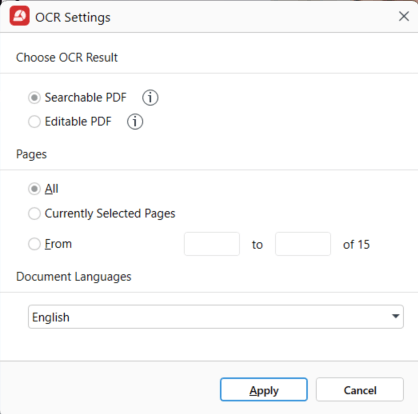
3. In the OCR Settings window, under Choose OCR Result, select Searchable PDF to keep the scan looking exactly as it does and add an invisible text layer, or Editable PDF to rebuild the page from the recognized text so you can correct it. Editable PDF may shift the layout. Searchable PDF is enough for translation.
4. Under Pages, choose All, Currently Selected Pages, or type a page range.
5. Under Document Languages, select every language that appears in the document. The right source languages give cleaner text recognition, especially in multilingual PDFs.
6. Click Apply.
Step 2: Translate the PDF
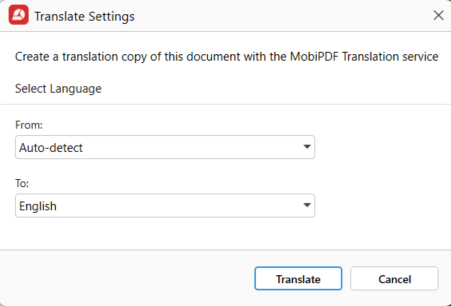
1. With the PDF open, click Translate PDF on the Home or Convert tab.
2. In the settings dialog, set the source language (the language the PDF is written in) and the target language.
3. Choose the page range you want to translate.
4. Click Translate PDF.
MobiPDF opens the translation in a new window and saves it automatically as a new document. Your original PDF stays exactly as it was.
Check names, numbers, dates, and tables against the original before you share the translation.
Benefits of translating PDFs with MobiPDF
OCR and translation in one app: recognize scanned text and translate it without moving files between tools.
Your original stays intact: the translation is a separate document, so you can compare it with the source page by page.
Selective workflows: run OCR on, and translate, only the pages you need.
Cleaner source text: running OCR with the right languages first means fewer missing words and broken paragraphs after translation.
Better layout control: tables, columns, and spacing are easier to preserve when the source text is clean.
Supported languages
MobiPDF’s OCR recognizes many widely used languages, and the OCR Settings window lets you select every language that appears in the document. Availability may vary by version and platform, so check the in-app lists before you process a large or multilingual file.
OCR languages affect text recognition, not translation, but choosing the right ones gives the translation cleaner text to work with. You choose the translation languages separately, in the Translate PDF dialog.
Other ways to translate PDF files
MobiPDF is not the only option. Depending on your priorities, other approaches may be a better fit.
Online translation tools
Online tools let you upload a PDF and receive a translated version in minutes.
Pros
Fast and easy
No installation required
Cons
Privacy risks for sensitive documents
Formatting often breaks
File size and page limits
Best for: short, non-confidential documents where layout is not critical.
Artificial Intelligence (AI) tools
AI translation tools can handle complex language and context better than traditional translators.
Pros
Strong contextual understanding
Good for long-form text
Cons
Inconsistent formatting
Privacy concerns depending on the provider
OCR quality varies for scanned PDFs
Best for: understanding content meaning rather than producing a polished final document.
Manual translation
This involves copying text from a PDF and translating it yourself or with help.
Pros
Maximum control over wording
No automation errors
Cons
Time-consuming
Easy to miss text
Formatting must be rebuilt manually
Best for: short documents or critical passages that require precise phrasing.
Professional translation services
Human translators deliver the highest quality results.
Pros
Excellent accuracy
Industry-specific expertise
Formatting can be handled professionally
Cons
Expensive
Slower turnaround
Best for: legal, medical, marketing, or official documents where accuracy is non-negotiable.
Privacy and security when translating PDFs
Translation often means exposing your document’s contents to another system. That matters more than most people realize.
Key privacy considerations:
Online tools may store uploaded files
Always check whether files are retained, logged, or used for training.AI tools may process data externally
Even if files are deleted, text may pass through third-party servers.Confidential documents require caution
HR files, contracts, financial data, and personal records should not be casually uploaded.
Translate PDF in MobiPDF needs an internet connection to translate your document. For confidential documents, check your organization’s policy on external translation before you translate, whichever tool you use.
Common issues and troubleshooting
Even the best tools encounter problems. Here is how to handle the most common ones.
Formatting shifts after translation
Try translating selected text instead of the entire page. Complex layouts with columns may need minor manual adjustment.
Missing text
Check whether the PDF is scanned. If so, run OCR before translating.
Scanned PDF will not translate
Ensure OCR is enabled and that the scan quality is high enough for text recognition.
Protected or locked PDFs
Password-protected PDFs must be unlocked (with permission) before translation.
Garbled characters or symbols
This is usually a character encoding issue. Re-running OCR or exporting text before translation can help.
Frequently asked questions
You need OCR first. Scanned PDFs are image-based, so text must be recognized before translation.
Simple layouts usually translate well. Complex designs may require light formatting adjustments after translation.
Yes. Translating only what you need often produces cleaner results and saves time.
Use a PDF-native tool like MobiPDF and avoid copy-paste workflows whenever possible.
Only after they are unlocked with the correct password or permissions.
Not always. Before you translate a sensitive document, check where the tool processes the text and whether it keeps a copy.
This usually happens with scanned files, low-quality OCR, or unsupported character encoding.
Translate PDFs with confidence
Before translating a PDF you need to make sure there are no broken layouts, privacy risks, or hours of rework. With the right tool and the right approach, you can get fast, readable pdf documents that you can seamlessly work with.