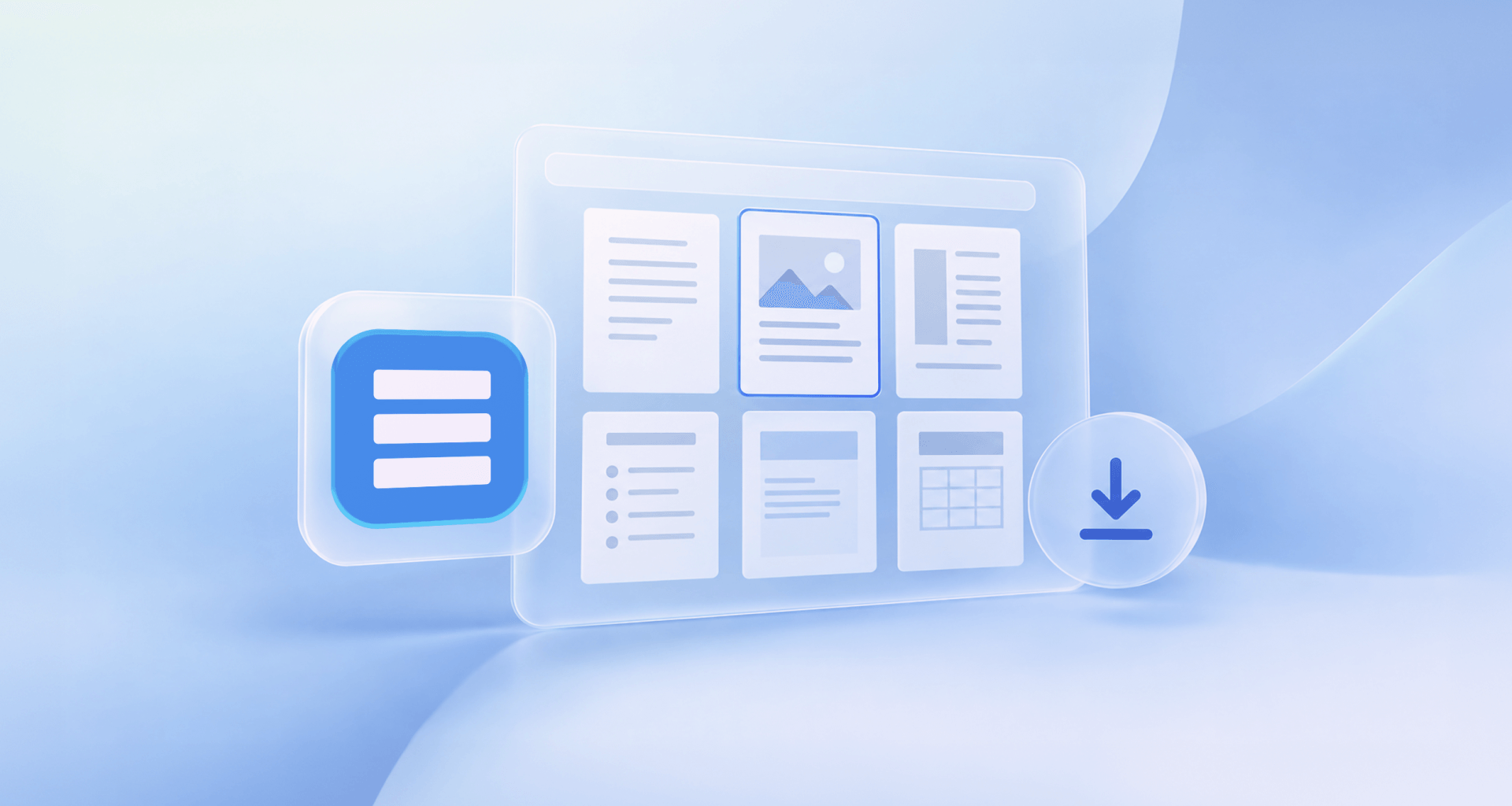
To use a free Word template, download the .docx file for your document type, open it in Word or any Word-compatible editor, and replace the placeholder text with your own. The template opens as a copy, so the original stays clean for next time. Save the result or export it to PDF.
What a Word template is (and what happens when you open one)
A Word template is a ready-made document with its layout, fonts, and styling already set up, and it opens as a copy that you can edit. So instead of building a letter, resume/CV, or report from an empty page, you begin with the main structure already in place.
The copy contains placeholder text that shows where to add names, dates, headings, contact details, or longer sections. Replace those prompts with your own information, then adjust the design if needed. Because you work in a new document, the original template does not change. You can return to the same clean starting point whenever you need another version.
A template is different from a finished document. It provides a reusable framework, while the new file holds the content for one specific task. This makes it useful for documents you create regularly or need to format quickly.
Where to find free Word templates
You can find free Word templates in the MobiSystems templates section or browse Microsoft’s template gallery. Our free templates section offers .docx (and .xlsx/.pptx) files organized by document type, and every one of them downloads free and opens in Microsoft Word, MobiDocs or other popular Word-compatible editors.
Microsoft’s gallery is another large source, although access conditions can vary between templates. Before downloading from either source, check four things:
File type: Choose .docx when you need an editable Word document.
Purpose: Pick a layout made for the document you are creating rather than forcing an unrelated design to fit.
Editability: Make sure the text, images, and main layout elements can be changed.
Recency: Look for a current layout, especially for resumes, forms, and business documents whose conventions may change.
The best template is not necessarily the most decorated one. It is the one that gives your content a clear structure and requires the fewest changes before use.
How to use a Word template, step by step
Once you've found the right one, using it is the same short sequence regardless of which editor you open it in:
Pick the template for your document type. A resume template for a resume, a letter template for a letter — matching the template to the task is what makes it useful.
Download the .docx file to your device.
Open the file. In most Word-compatible editors, like MobiDocs, this is where the template opens as a copy automatically — you're already working in a new file, not the master template.
Replace the placeholder text, working top to bottom so you don't miss anything buried lower in the layout.
Adjust the styling if you need to — fonts, colors, images and tables can all be changed without breaking the underlying structure.
Save your finished document. If you're sending it somewhere that expects a fixed layout, export it to PDF instead so formatting can't shift on someone else's machine.
This whole flow is app-neutral: it works the same way whether you open the .docx in Microsoft Word or in a Word-compatible editor like MobiDocs.
Want a head start instead of building from scratch? The full library is organized by document type.
Which template for which document?
Different documents need different structural decisions built in — spacing, headings, sections — and that's exactly what a template pre-solves. Here's a quick way to match the job to the starting point:
The job application row is where template choice matters most. Recruiters skim a resume in seconds, so pick one of our resume and CV templates with clear section headings, then pair it with a cover letter template in the same style so the two read as a set. For coursework, check your school's formatting rules before you start: essay templates give you the title page and heading styles, but margins and citation style still follow your course requirements. Meeting minutes templates work best when you fill in the agenda and attendees before the meeting, so during it you only record decisions and actions. And since certificate templates are designed for printing, do a test print on plain paper before you use card stock.
Template mistakes and how to avoid them
Editing the template file itself instead of a copy. If your editor doesn't create a new copy automatically, save as a new file the moment you open it — otherwise you'll overwrite the clean original you meant to keep for next time.
Leaving a placeholder behind. It's easy to replace the big blocks of text and miss a bracketed date or name tucked in a header or footer. Search the finished document for stray brackets before you send it.
Fonts that break on another machine. A template built around an unusual font can reflow badly if the person opening it doesn't have that font installed. Stick to standard, widely available fonts for anything you're sending outside your own device.
Picking a design that works against the content. A heavily designed template can crowd out a long resume or bury the actual information in a report. Match the template's density to how much content you actually have, not the other way around.
Using templates in MobiDocs
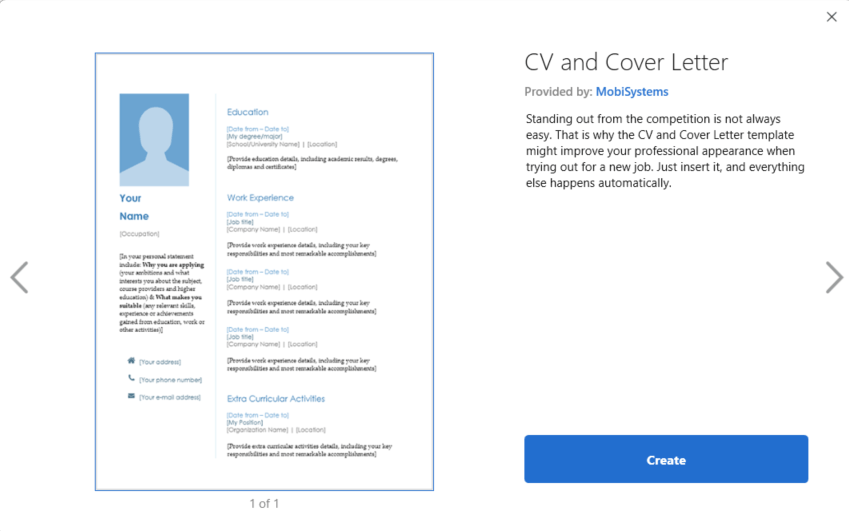
The same free-download templates work inside MobiDocs, since it opens and edits standard .docx files. From the home screen, select New, browse the available templates, and click one — a dialog offers Create, which opens a new file as a copy of the template so your original stays intact.
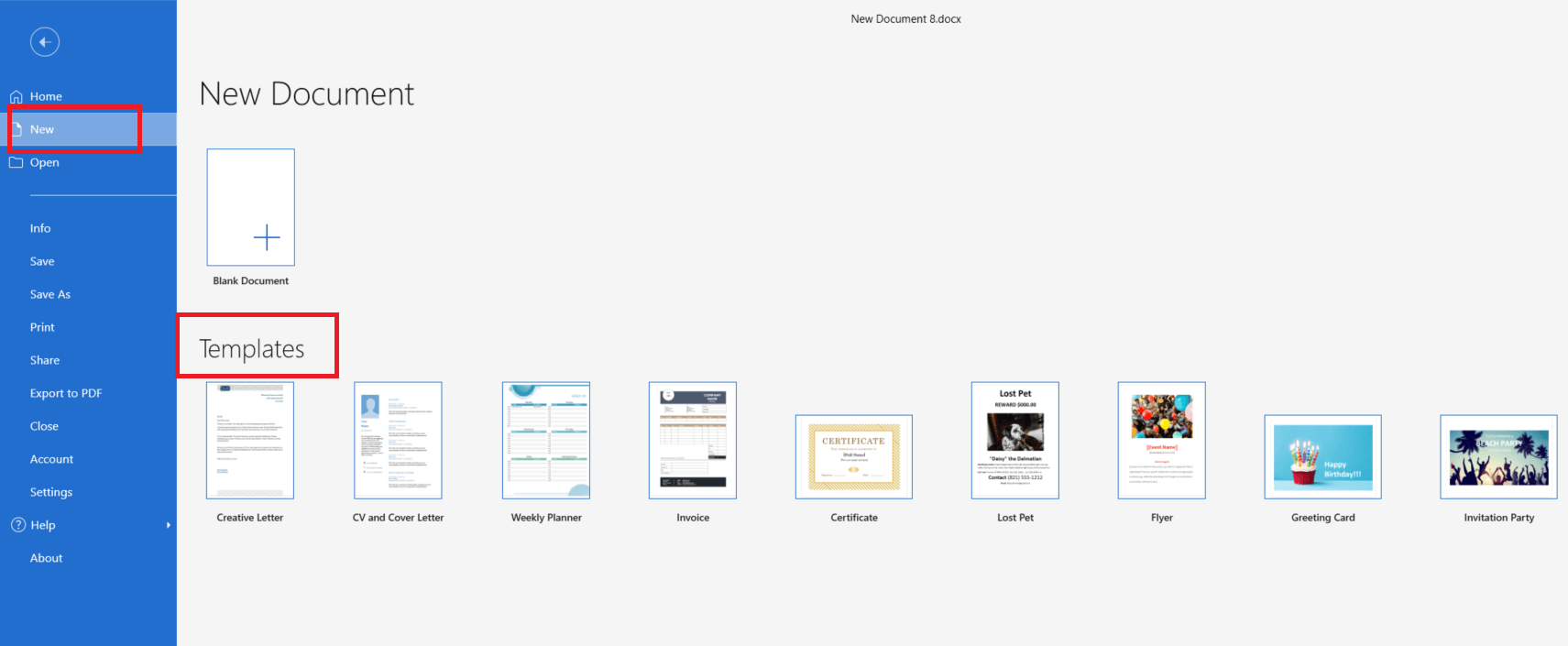
If you'd rather start from scratch, Blank Document skips templates entirely.
It's worth knowing that MobiDocs' own built-in templates are split into two libraries: Free templates open right away, while ones marked Premium prompt an upgrade. That's separate from the web templates section — every file there downloads free and opens the same way in MobiDocs as it does in Word.
Once you've replaced the placeholders and adjusted the styling, save as usual, or export to PDF if you're sending the finished document somewhere.
Prefer to do all of this in one app alongside spreadsheets and slides?
Frequently asked questions
Download the template file, open it, and replace the placeholder text with your own — names, dates, and any sample content. Adjust fonts, colors or images if you want, then save. Because the file opened as a copy, the original template stays untouched and ready to reuse next time.
The templates on our site download free, with no sign-up or hidden step. Microsoft's built-in gallery mixes things up: some templates there are free for anyone, while others are locked behind a Microsoft 365 subscription. Worth checking before you get attached to one.
No. A .docx template opens in any Word-compatible editor, not only in Microsoft Word itself. MobiDocs is one example — it opens the same free templates, lets you replace the placeholder text, and saves back to .docx just like Word does.
That's the intended behaviour, not a glitch. A template is designed to open as a copy rather than as itself, so your edits land in a fresh file while the original template stays clean and ready to reuse the next time you need it.
Yes. Placeholder text, fonts, colors, images and tables can all be changed once the template is open. None of those edits touch the original template file — they apply only to the new copy you're working in, so the template itself stays reusable.
Instead of the usual document format, choose the template format when you save — in Word or MobiDocs, that's an option in the Save As dropdown. Once saved that way, the file becomes a reusable starting point rather than a one-off document.
Final thoughts
A free Word template turns a blank page into a five-minute job: pick the right one, replace the placeholders, save. The template does the layout work; you just fill it in. Whether you're working in Word or a Word-compatible editor like MobiDocs, the process — and the result — is the same.