

Introduction to MobiPDF Reader
MobiPDF Reader is the built-in PDF viewer that comes with MobiOffice on Windows. This guide explains what MobiPDF Reader is, what it can do, and how it fits into the MobiOffice suite. You'll learn how to open, view, and share PDF files, and how to unlock advanced tools like editing and annotation by upgrading to MobiPDF. If you have a valid MobiOffice license, you can start using MobiPDF Reader right away, with no extra download needed.
Before you begin
Make sure you have:
MobiOffice installed on your Windows device. See Installing MobiOffice on multiple devices.
A MobiSystems account, so you can sign in and open your files. See Creating and managing your MobiOffice account.
An internet connection, if you want to open files from the cloud.
What is MobiPDF Reader?
MobiPDF Reader is one of the modules included in the MobiOffice package, alongside MobiDocs, MobiSheets, MobiSlides, and MobiMail. When you install MobiOffice on Windows, MobiPDF Reader is installed with it. Anyone with a valid MobiOffice license can use MobiPDF Reader to open important PDFs, such as documents, reports, and e-books, without installing separate PDF software.
MobiPDF Reader is a lightweight tool. It covers the everyday basics: opening, viewing, and sharing PDF files. Advanced tasks like editing, converting, and signing are handled by the full MobiPDF app.
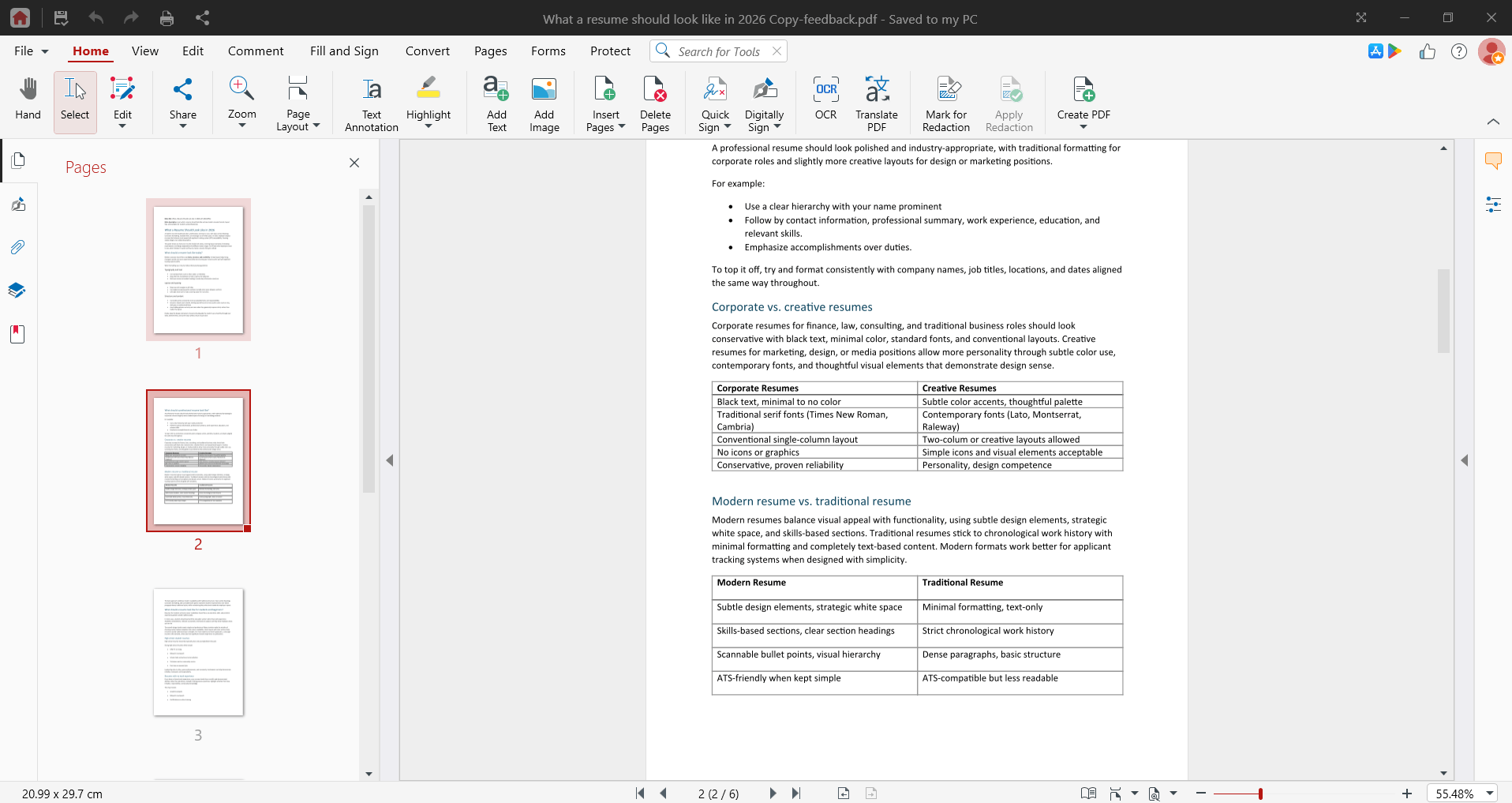
What you can do in MobiPDF Reader
With MobiPDF Reader on Windows, you can:
Open PDFs from your device or a connected cloud service, such as MobiDrive, Google Drive, OneDrive, or Dropbox.
View PDFs clearly, including multi-page documents, reports, and e-books.
Share PDFs with others straight from the app.
These features are available to every MobiOffice license holder at no extra cost.
View, annotate, and manage your PDFs
Your full PDF workflow spans three stages: viewing, annotating, and managing. Here's what MobiPDF Reader handles, and what you gain by upgrading.
Viewing, markup, and signing (included in MobiOffice)
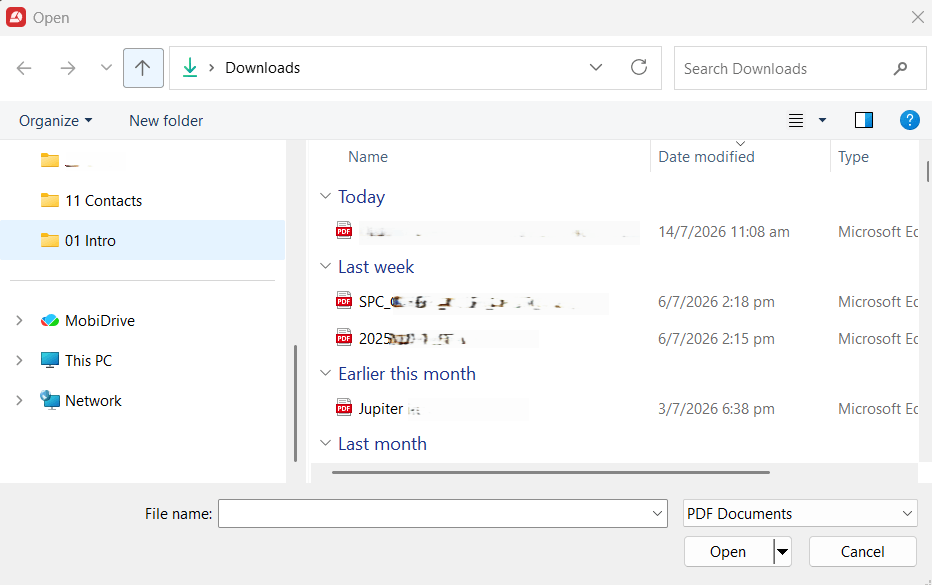
MobiPDF Reader opens and displays any PDF. Click Open in the left menu and choose where to open your file from.
In addition, you can use tools in MobiPDF Reader to:
Markup a PDF: highlight, underline, strikethrough, draw, and add comments — the full markup toolkit is included at no extra cost.
Fill & sign: complete forms and add signatures (Free plan usage is limited — check in-app for your current allowance).
Annotating and managing (with a MobiPDF license)
To do extensive mark up on or change a PDF, you upgrade to MobiPDF. The full app adds:
Optical Character Recognition (OCR): scan physical documents and convert them into fully editable text files.
Digital signatures: add or remove signatures
PDF editing: change text and images, add or remove pages, rearrange content, and combine or split documents.
PDF converter: convert PDFs to and from Word, Excel, PowerPoint, and image files.
Document security: password-protect and encrypt files.
You can activate the full version by purchasing a MobiPDF license, or by signing in with an account that already has one.
How to open MobiPDF Reader on Windows
1. Install MobiOffice on your Windows device, if you haven't already. See Installing MobiOffice on multiple devices.
2. When installation finishes, find MobiPDF in the list of installed apps and click Open app.
3. On the welcome screen, click Account.
4. Click Sign in and log in with your MobiSystems account.
5. Click Open in the left menu, then choose where to open your PDF from.
Once you're signed in, your PDF opens and you can start reading.
MobiPDF Reader vs. MobiPDF
Use this quick comparison to see which tool fits your needs:
If you only need to read and share PDFs, MobiPDF Reader is enough. If you need to edit, annotate, or convert, upgrade to MobiPDF.
Troubleshooting
I can't find MobiPDF Reader after installing MobiOffice. Open the Windows Start menu and search for "MobiPDF" — not "MobiPDF Reader." The app is listed under its base name; "Reader" only appears inside the app itself.
My PDF won't open from the cloud. Check your internet connection, then sign in and try again from the Open menu.
The editing tools are missing. MobiPDF Reader includes the full markup toolkit (highlight, underline, strikethrough, draw, comments) and limited Fill & Sign. Editing text and pages, converting, and digital signatures require the full MobiPDF.
I'm signed in but don't see my license. Make sure you're using the same MobiSystems account you used to buy your subscription. Switching sign-in providers creates a separate account.
Where to go next
You now know what MobiPDF Reader is and how it fits into MobiOffice. Here's where to go from here:


