
Turn PDFs into high-quality images

How to use our free image to PDF converter
1. Upload your file.
If you want to convert an image to PDF, simply drag and drop your image (PNG or JPEG) and the conversion will start automatically. If you are uploading a PDF instead, our converter will instantly transform each page of your file into high-quality JPEGs.
2. Download your file.
Once the conversion is completed, click on “Download your file” and choose where you want to save it.
Reasons to convert with us

Fast & simple converter
Fast & simple converter

Safe & secure service
Safe & secure service

No installation required
No installation required
Get better image conversions with MobiPDF Windows
While convenient, our free online image to PDF converter does have limitations. That is why we also offer MobiPDF - a professional suite of PDF products that you can install on your Windows 10 or 11 device and convert multiple images to a PDF and back in seconds.

Turn PDFs into high-quality images
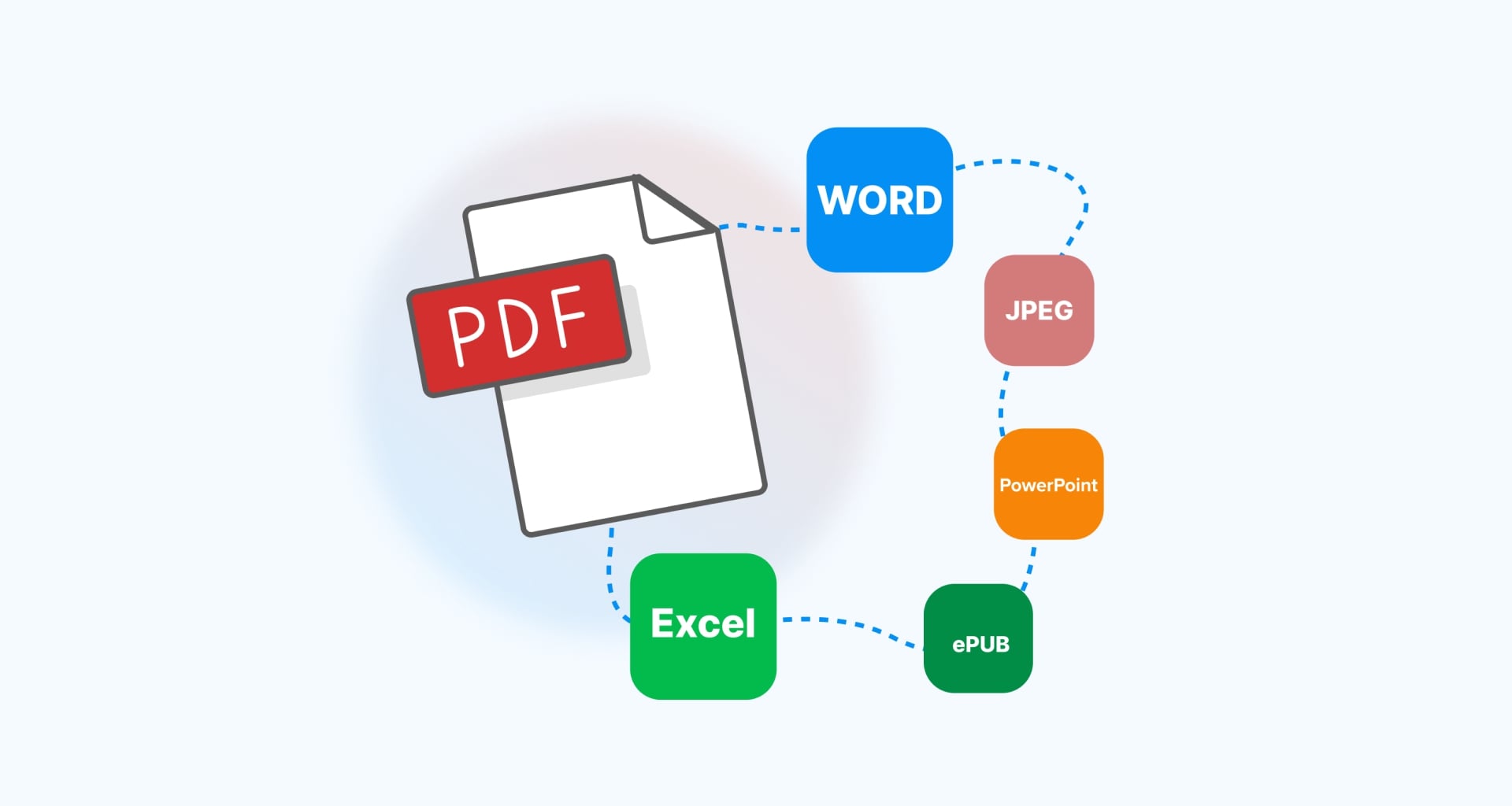
Share your hard work anywhere on the web by converting your PDF file to the popular JPEG or PNG image formats. Choose the quality at which you want your images to be exported: “Low”, “Medium”, or “High”, then simply convert your file. Reduce the size of your PDF even further using our built-in file compression tool.

Bring images together into one PDF
Email multiple pictures as a single organized PDF file by combining images into a PDF. Preview and rearrange the order of your images with quick drag & drop controls or combine them with other PDF files to save time and storage space.

FAQ
While PDFs are extremely popular and can be opened on just about any device, there are cases when you need your PDF pages to be in image format. One such example is when you want to upload your work on social media, which doesn’t support the PDF format, or when you work with institutions that only accept images.
Another benefit of PDF to image conversion is that, in some instances, it could save valuable storage space as PNGs and JPEGs tend to be smaller than PDFs. Lastly, converting PDFs to images allows you to take advantage of powerful image software editors in case you want to apply some creative post-processing effects.
Absolutely! Unlike other free online converters, we always delete your files immediately upon download to protect your privacy. To achieve maximum privacy, however, it’s best to use our desktop PDF editor since then you will be working on your files locally instead of in the cloud.
Resizing an image is as simple as clicking it and dragging its borders inwards or outwards. You can also drag it around the file to position it anywhere you like on the page.
This depends on your individual use case. If you want to preserve the full image quality, it’s best to opt for PNGs, which don’t degrade the quality in any way but take considerably more space than JPEGs. JPEGs, on the other hand, offer a good compromise between size and image quality and you won't notice any difference unless you want to print out your files in high resolution or use them for other tasks that benefit from better image quality.
Sometimes, the size difference between a high-quality PNG/JPEG and a medium-quality PNG/JPEG can be significant while having no visible impact on the actual image quality. When used right, this feature will allow you to get away with image-rich PDFs that are much smaller than usual.
Once you commit to converting your PDF file, all your pages will be transformed into either PNGs or JPEGs in a folder of your choice. To help you make sense of the end result, exported pages will be labeled as “PDF_name_page_1”, “PDF_name_page_2” and so on.
Get more PDF tips straight from our experts


See what else is possible with MobiPDF


