Conditional formatting rules
In this guide, you’ll use conditional formatting rules to change how cells look based on their values. For example, you can highlight sales below a target or shade a column from low to high. Important numbers stand out without you having to scan every row. The steps start with Windows and Mac, followed by a shorter section for Android and iOS.
Before you begin
Make sure you have:
MobiOffice installed on your device. See Installing MobiOffice on multiple devices.
A spreadsheet with data open in MobiSheets. See Creating and editing spreadsheets.
Signed in to MobiSheets. See Signing in to MobiSheets.
Add a conditional formatting rule on Windows and Mac
1. Open your spreadsheet in MobiSheets.
2. Select the cells you want to format.
3. In the ribbon, click the Conditional Formatting.
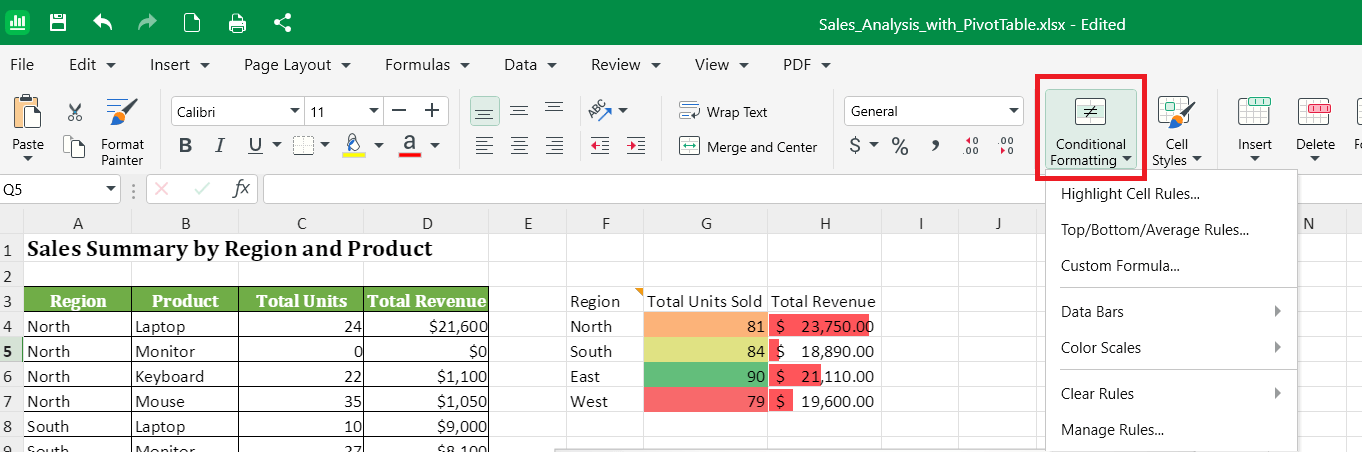
4. Choose a rule type:
Highlight Cell Rules to highlight cells that meet a condition, such as values above a number you set.
Top/Bottom/Average Rules to highlight cells by rank, such as the top 10 values, or by how they compare to the average.
Custom Formula to write your own formula that decides which cells are highlighted.
Color Scales to shade cells with a color gradient based on their values.
Data Bars to add a bar inside each cell. Longer bars show larger values.
5. Set the condition or value for the rule, if asked.
6. Choose a formatting style, then confirm.
The formatting updates on its own when the values in the cells change.
Use a preset style
When you create a rule, you can choose one of the preset cell styles instead of setting the font and fill colors yourself. Pick a preset that makes the cells easy to spot, such as a light red fill with dark red text for values below a target.
Choose the right rule type
Add and manage rules on Android and iOS
On phones and tablets, MobiSheets is part of the MobiOffice app.
1. Open your spreadsheet in the MobiOffice app.
2. Tap Edit.
3. Select the cells you want to format.
4. Tap Home, then choose Format.
5. Tap Conditional Formatting.
6. Choose one of the options.
View or delete rules
1. Open the Format tab and tap Conditional formatting.
2. Tap Rules Manager to see all the conditional formatting rules in the spreadsheet.
3. Select a rule and delete it.
Troubleshooting
The rule didn’t change anything. Check that you selected the cells before you opened the menu. Also check that the cells contain the type of value the rule expects. For example, a rule for values greater than 100 only works on cells that contain numbers.
Numbers stored as text aren’t highlighted. Change the cells to a number format, then re-enter the values. See Formatting cells and data entry.
The colors look wrong after I added more rules. Several rules may apply to the same cells. On Android and iOS, open the Rules Manager and delete the rules you don’t need.
New rows aren’t formatted. Rules only apply to the cells you selected when you created them. Select the new range and apply the rule again.