Creating dropdown lists
In this guide, you’ll create a drop-down list in a MobiSheets cell. A drop-down list lets people choose from a set of options, such as Yes and No or a list of departments, instead of typing. This keeps your data consistent and easy to sort and filter. The steps are for Windows and Mac.
Note: Drop-down lists use Data Validation, which is a Premium feature. On the Free plan, MobiSheets prompts you to upgrade.
Before you begin
Make sure you have:
MobiOffice installed on your device. See Installing MobiOffice on multiple devices.
A spreadsheet open in MobiSheets. See Creating and editing spreadsheets.
Signed in to MobiSheets. See Signing in to MobiSheets.
The options you want in the list. You can type them in or enter them in a range of cells first.
Create a dropdown list
1. Select the cell or range where you want the drop-down list.
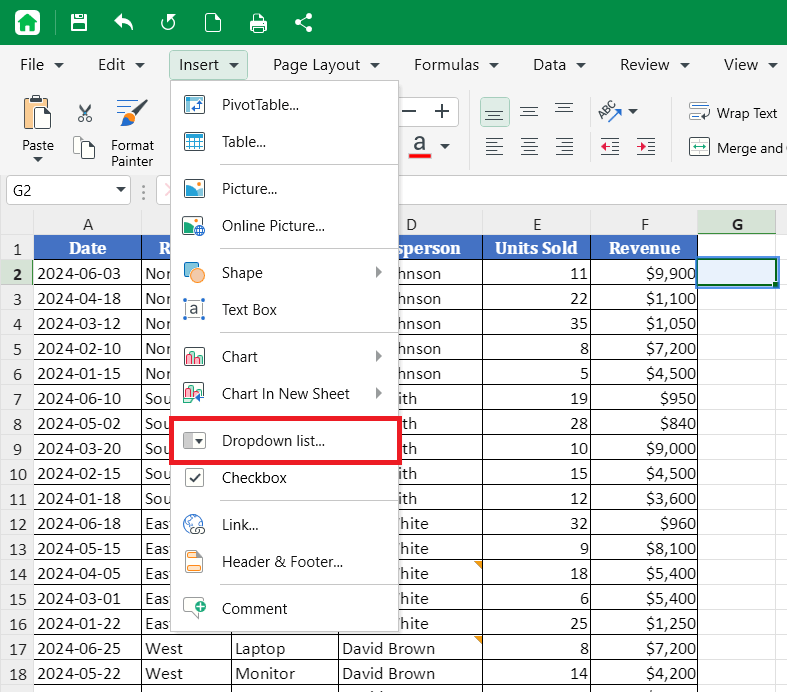
2. Open the Insert menu.
3. Click Dropdown list....
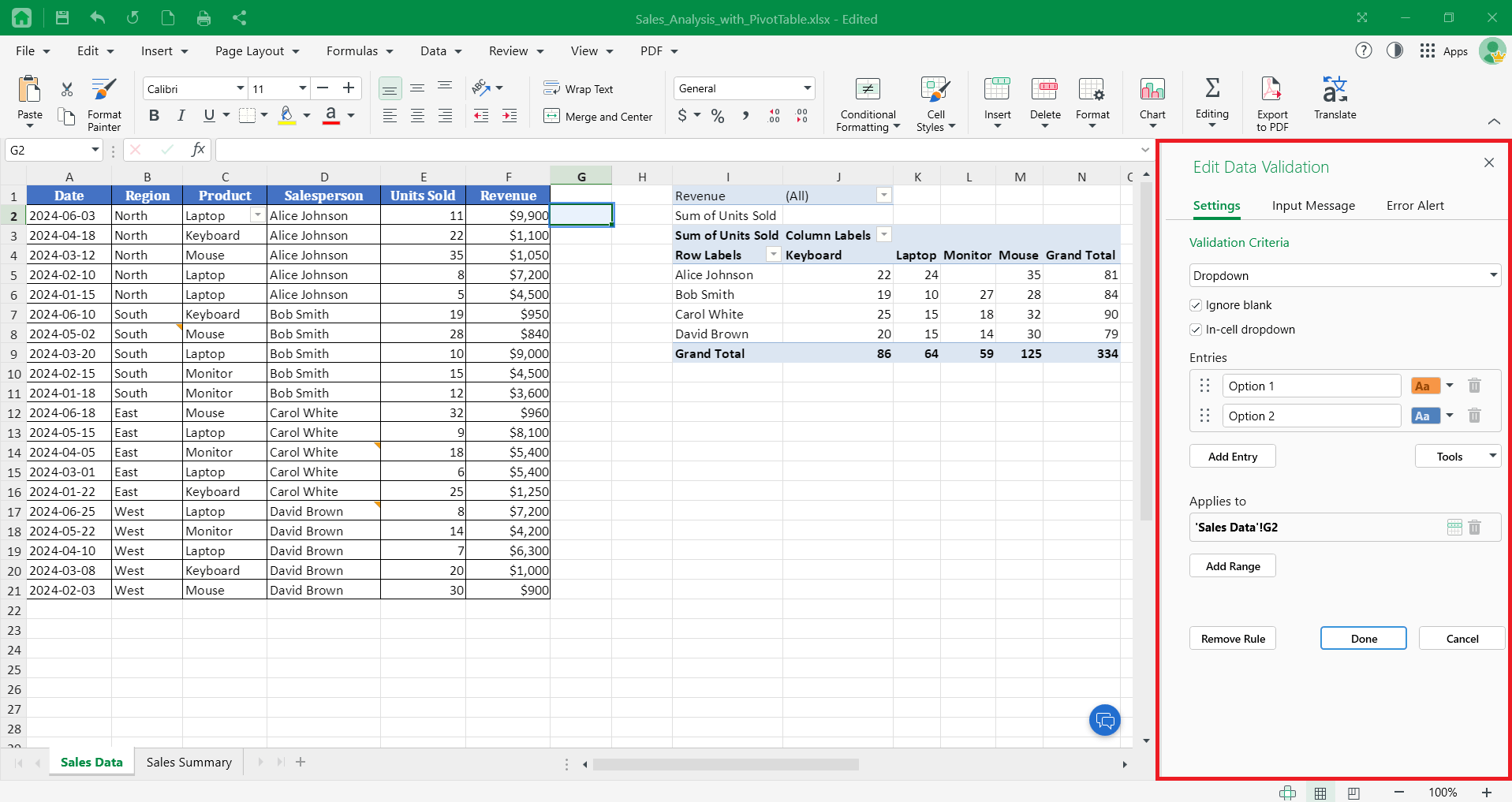
4. The Edit Data Validation pane opens on the Settings tab, with Dropdown already selected under Validation Criteria. Under Entries, replace Option 1 and Option 2 with your own options.
5. To add more options, click Add Entry. To change an option’s colours, click the colour button (Aa) next to it. To remove an option, click the trash icon.
6. Under Applies to, check the cells the list applies to. To add more cells, click Add Range.
7. Optional: To show a message when someone selects the cell, add it on the Input Message tab.
8. Optional: To customize the message people see when they enter a value that isn’t in the list, use the Error Alert tab.
9. Click Done.
When you select a cell with a drop-down list, an arrow appears next to it. Click the arrow and choose an option or start typing to filter the options.
Find entries that don’t match the list on Windows
If a cell already had a value before you added the dropdown list, that value may not match any of the list options. Circle Invalid Data finds those cells for you.
1. Open the spreadsheet that has the dropdown list.
2. Open the Data dropdown menu.
3. Click Circle Invalid Data.
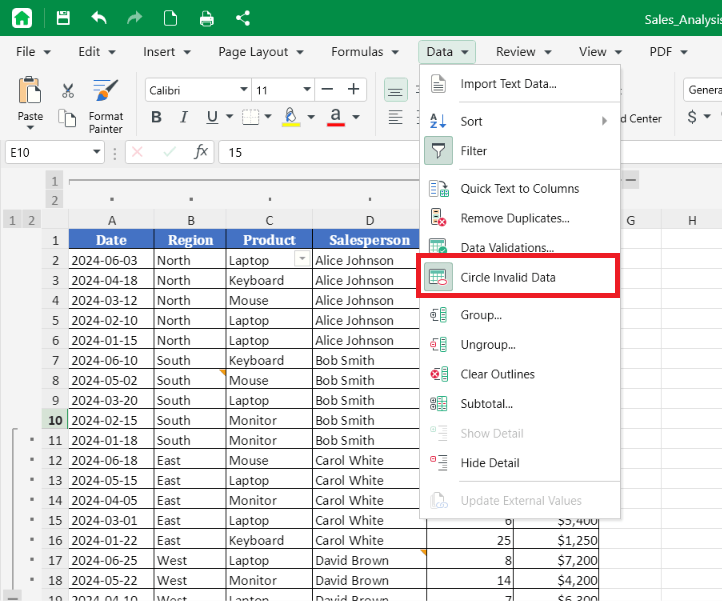
MobiSheets draws a circle around every cell whose value doesn’t match its validation rule.
To fix a circled cell, select it and choose a value from its dropdown list.
Tip: Run Circle Invalid Data after you change the options in a list. Older entries that no longer match will be circled.
Troubleshooting
I can’t find the Dropdown option on Windows. Dropdown lists were added in MobiOffice version 11.70. Update MobiOffice, then try again.
People can still type values that aren’t in the list. Tick Show error message if invalid data is entered in the Error Alert tab of the Data Validation editor.
Circle Invalid Data didn’t circle anything. Every cell matches its rule, or the cells don’t have a validation rule. To check which cells have a rule, open the Edit dropdown menu and click Find & Select > Data Validation.