Using the spreadsheet review tools
In this guide, you’ll use the review tools in MobiSheets to check a spreadsheet and get it ready to share. You’ll add comments to cells, find the cells that have comments, and protect the file with a password so only the right people can open it. The steps start with Windows and Mac, followed by shorter sections for Android and iOS.
Before you begin
Make sure you have:
MobiOffice installed on your device. See Installing MobiOffice on multiple devices.
A spreadsheet open in MobiSheets. See Creating and editing spreadsheets.
Signed in to MobiSheets. See Signing in to MobiSheets.
An internet connection, if you want to save your spreadsheet to MobiDrive and open it on your other devices. See Opening and syncing files with MobiDrive.
Review a spreadsheet on Windows and Mac
Add a comment
Use comments to leave notes or questions on a cell without changing its value.
1. Open your spreadsheet in MobiSheets.
2. Select the cell you want to comment on.
3. Click Review in the menu bar, then click Comment. You can also right-click the cell and choose Comment.
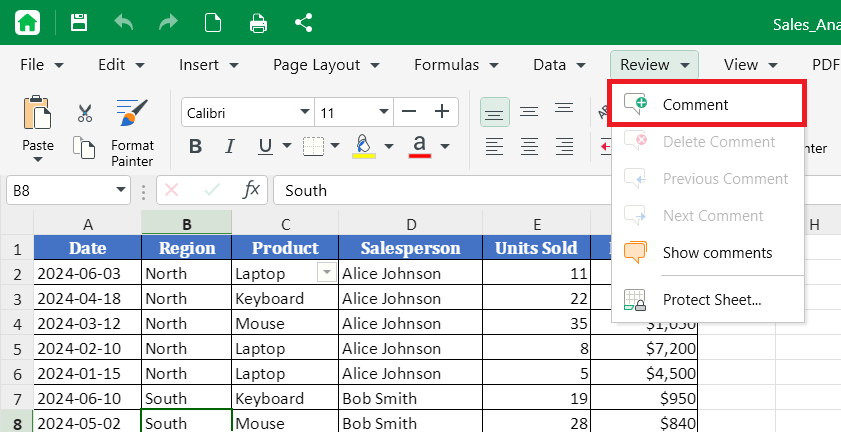
4. Type your comment in the box.
5. Click Post to save your comment.
Find cells with comments
1. Click Review.
2. Click Show all comments.
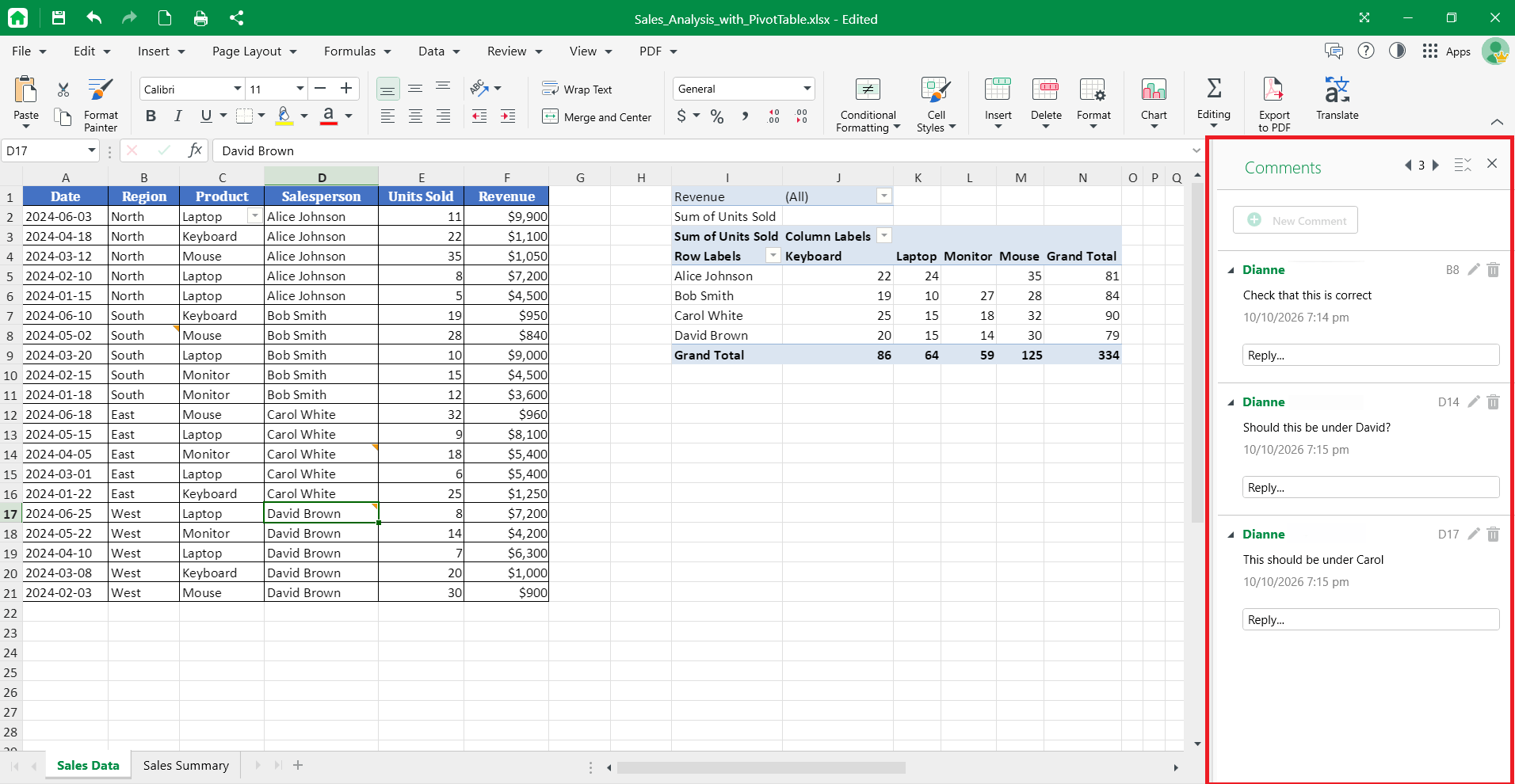
The Comments panel opens on the right and shows all comments in the spreadsheet. For each comment, you can:
Reply to it in the Reply box.
Edit it with the pencil icon.
Delete it with the trash icon.
To move between commented cells without the panel, click Review > Previous Comment or Next Comment. To remove the comment from the selected cell, click Review > Delete Comment.
Protect a spreadsheet with a password
1. On the Review dropdown menu, then click Protect Sheet.
2. In the Protect sheet with a password dialog, enter a password, then enter it again under Confirm password.
3. Under Allow all users of this worksheet to, select what other people can still do on the sheet, for example Format cells or Insert columns. Select locked cells and Select unlocked cells are checked by default.
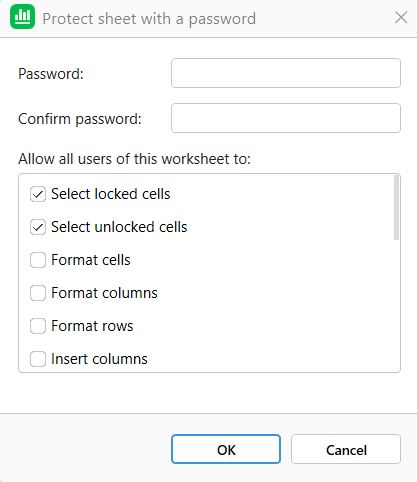
4. Select OK.
Anyone who tries to change a protected part of the sheet sees a message that the sheet is protected. To remove the protection, click Review > Unprotect Sheet and enter the password.
Important: Protect Sheet controls what people can change on that sheet. It doesn’t stop anyone from opening the file, and it applies only to the current sheet, not the whole workbook. Keep your password somewhere safe, because you need it to remove the protection.
Review a spreadsheet on Android and iOS
On Android, MobiSheets is part of the MobiOffice app.
Add a comment on Android
1. Open your spreadsheet in the MobiOffice app.
2. Tap Edit.
3. From the tabs menu, tap Review, then tap Comment.
4. Confirm the author’s name of the commenter is correct. If not, tap Change Name in the dialog box. Otherwise, tap Continue.
5. Type your comment, then tap Done.
Add a comment on iOS
1. Open your spreadsheet in the MobiOffice app.
2. Tap Edit.
3. From the tabs menu, tap Review, then tap Comment.
4. Type your comment. Your name appears above it as the author.
5. Tap Apply to add the comment or tap Clear to delete what you typed.
Use the Review tab
The Review tab has the following tools for checking your spreadsheet:
Delete Comment removes the comment from the selected cell.
Previous Comment and Next Comment move to the previous or next comment in the current sheet.
Protect Sheet limits what people can change on the current sheet.
Cells with a comment show a small marker in the upper-right corner.
Troubleshooting
My comment disappeared on Windows. Click outside the comment box to save it before you select another cell.
I can’t see which cells have comments. Look for the small orange triangle in the upper-right corner of the cell. On Windows and Mac, click Review > Show comments to see them all in one list.
I can’t remove the password. You need the current password to remove the protection. Without it, you can’t unprotect the file.