

Creating and Viewing Files with MobiDrive
This guide shows how to create new files and folders in MobiDrive and how to open and view them. MobiDrive is MobiSystems' cloud storage. It keeps your documents, spreadsheets, presentations, PDFs, photos, and other files in one place and syncs them across your devices. You can work in MobiDrive on Windows, Android, iOS, or any web browser. The steps in this guide start with Windows, followed by mobile and the browser.
Before you begin
Make sure you have:
MobiDrive installed on your device, or open mobidrive.com in a browser.
Signed in with your MobiSystems account. See Managing your MobiSystems account.
MobiOffice installed, if you want to open and edit office files.
An internet connection.
Note: MobiDrive has apps for Windows, Android, and iOS. On Mac, use MobiDrive in your browser.
Create a new file on Windows
The MobiDrive widget sits in your Windows taskbar. Use it to create files that save straight to the cloud.
1. Open the MobiDrive widget from your Windows taskbar.
2. Click + to create a new file.
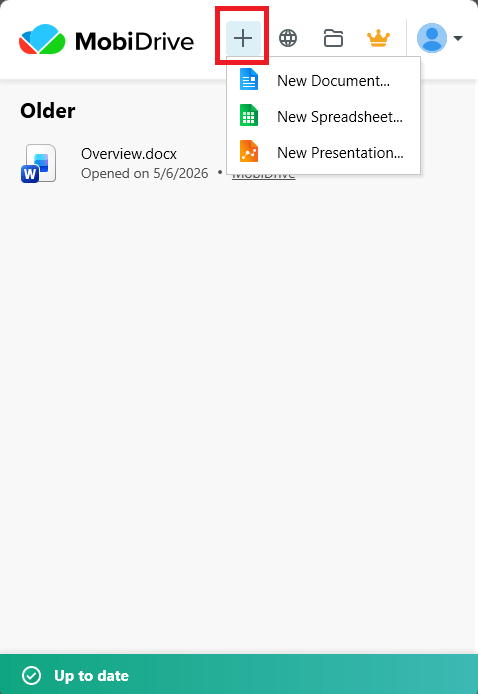
3. Choose the type of file you want to create: a document, spreadsheet, or presentation.
4. The file opens in the matching MobiOffice app. Edit it, and your changes sync to MobiDrive automatically.
Tip: You can also create a file inside a MobiOffice app and save it to the cloud. In MobiDocs, MobiSheets, or MobiSlides, click New, then use File > Save As and choose MobiDrive.
Create a new file on Android and iOS
On phones and tablets, you create files from the MobiDrive app.
1. Open MobiDrive.
2. Tap the + button at the bottom of the screen.
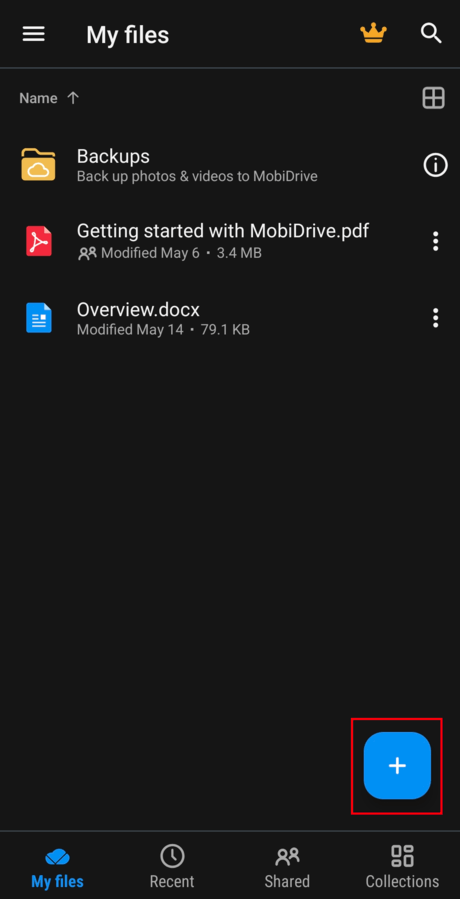
3. Choose what to make. Tap New Document, New Sheet, or New Presentation.
4. Edit your file, then tap Save. The file stays in your MobiDrive.
Create a new file in your browser
You don't need to install anything to use MobiDrive in a browser.
1. Go to mobidrive.com and sign in with your MobiSystems account.
2. Click Create.
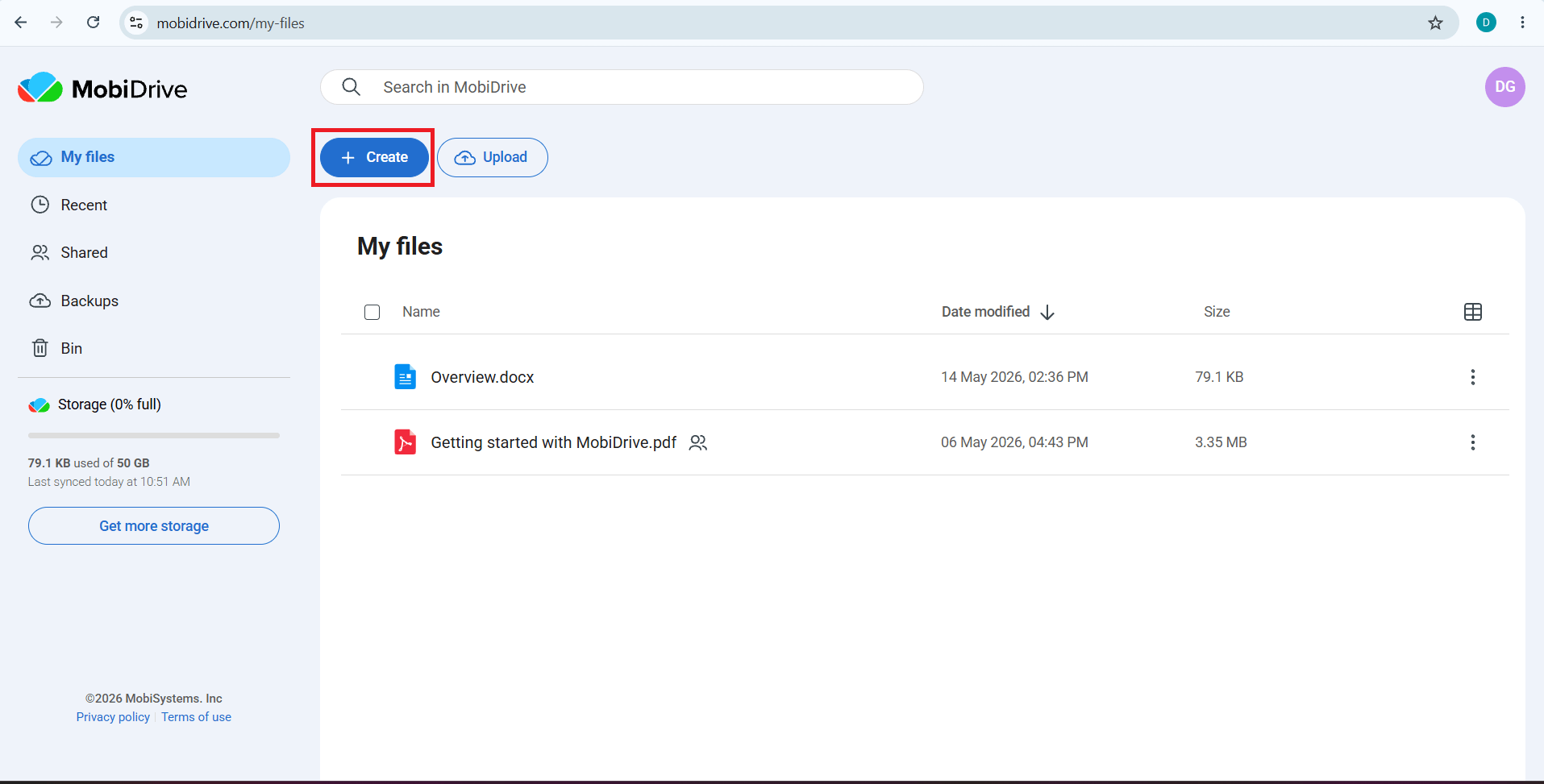
3. Choose the type of file you want to create.
4. The file opens in your browser. Your edits save to MobiDrive as you work.
Create a folder to organize your files
Folders keep related files together. Follow these steps to create a new folder in MobiDrive on Windows.
1. Open MobiDrive.
2. Click the folder icon to open the MobiDrive folder.
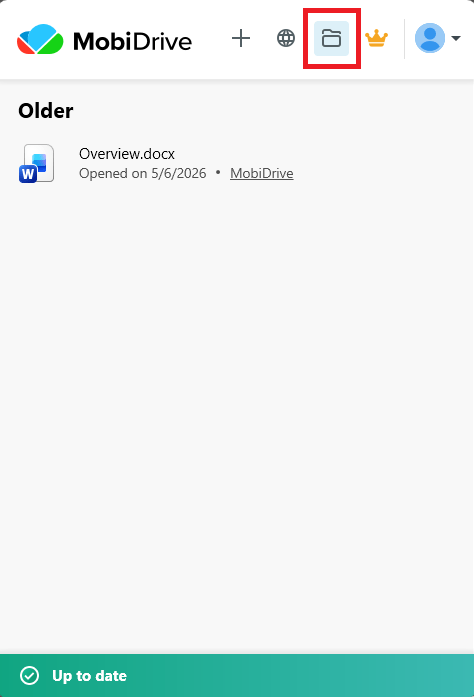
3. Click New > Folder.
4. Enter a name for the folder.
To create a folder in a browser, follow the steps in Create a new file in your browser then choose Folder. Similarly, you can follow the steps in Create a new file on Android and iOS then choose New Folder to create a new folder in your MobiDrive app on Android and iOS.
View and open your files
Your files live in My Files. Open any file to view or edit it.
On Windows or in a browser, click a file to open it. Files open in the matching MobiOffice app, and PDFs open in MobiPDF.
On Android or iOS, tap a file to open it. Tap the menu icon (three dots) next to a file for more options, such as share, convert, or download.
To find files faster, use these sections:
Recent files shows the files you opened most recently.
Collections groups your files by type, such as Pictures, Documents, and Video.
Shared holds files shared to you and you've shared with others.
Switch between list and grid view on mobile
1. Open MobiDrive and go to My Files.
2. Tap the view icon to switch between list view and grid view. Grid view works well for photos and other images.
Troubleshooting
I can't see a file I just created. Check your internet connection, then refresh. Make sure you're signed in with the same MobiSystems account on every device.
My office file won't open. Install MobiOffice so MobiDocs, MobiSheets, and MobiSlides can open your documents, spreadsheets, and presentations. PDFs need MobiPDF.
My changes didn't sync. Open the file again and confirm it saved. If you're offline, your changes upload the next time you connect.
I deleted a file by mistake. Open Bin, select the file, and restore it. Files stay in the Bin for 30 days on the Free plan, or 180 days on paid plans, before they're permanently deleted — restore what you need before then.
Where to go next
You can now create files in MobiDrive and open them from any device. Next, set up MobiDrive on your other devices or start working in the MobiOffice apps.


