

Syncing with MobiDrive and Working Offline
MobiDrive keeps your files in sync across every device signed in to your MobiSystems account, so the latest version is always there. It also lets you mark files for offline use, so you can keep working without an internet connection and sync your changes later. This guide shows how to set up syncing on Windows, save files so they sync automatically, make files available offline on mobile, and what happens when you reconnect.
Note: Individual files are capped at 200 MB on the Free plan — Premium has no per-file limit. Larger files (such as long videos) won't upload past this limit on Free
Before you begin
Make sure you have:
MobiDrive or MobiOffice installed on your device. See Installing MobiOffice on multiple devices.
Signed in with the same MobiSystems account on each device.
An internet connection for setup and to sync your changes.
How syncing works
When you save a file to MobiDrive, it uploads to the cloud and can be accessed on any of your other devices automatically. Edit that file on one device, and the change syncs everywhere you're signed in. You don't need to copy files by hand or email them to yourself.
Set up syncing on Windows
The MobiDrive desktop app adds a synced folder to your PC. Anything you put in that folder syncs to the cloud.
1. Click the MobiDrive widget in your Windows taskbar.
2. Click the account icon then choose Preferences.
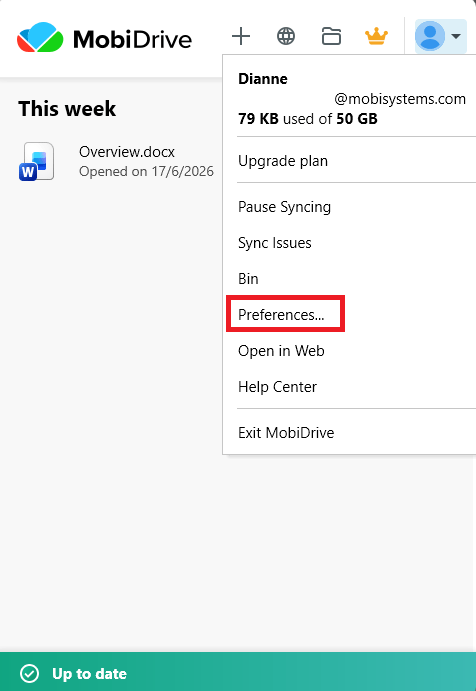
3. Under Folder Location, choose where to put the MobiDrive sync folder on your device, then confirm with OK.
4. To open the folder later, click the MobiDrive widget again and click the folder icon.
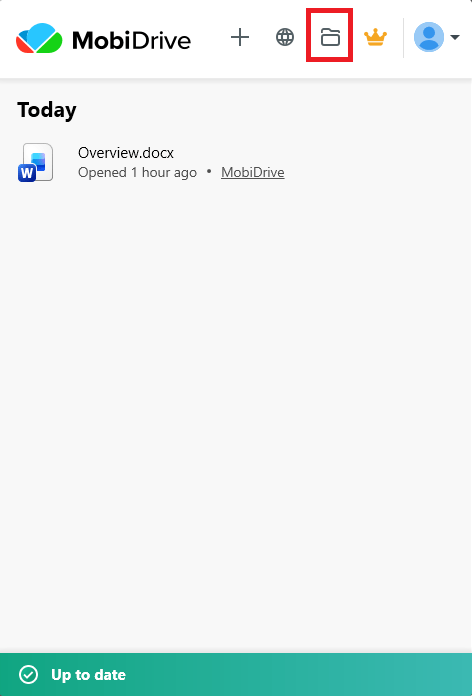
Every file you save in your MobiDrive folder now syncs to the cloud automatically.
Tip: Use Selective sync to keep only certain folders on your PC. This saves space while your other files stay safe in the cloud.
Save a file so it syncs
From a MobiOffice app, save to MobiDrive so your file syncs across devices.
1. In MobiDocs, MobiSheets, or MobiSlides, open or create a file.
2. Click File > Save As.
3. Select MobiDrive.
4. Name the file, then click Save.
Your file now syncs to every device signed in to your account. For more on working with cloud files, see Creating and viewing files with MobiDrive.
Make a file available offline on Android and iOS
Mark a file for offline use so you can open it without a connection.
1. Open the MobiDrive app.
2. On the My files screen, tap the three-dot menu beside the file name.
3. Toggle to on the Available offline option.
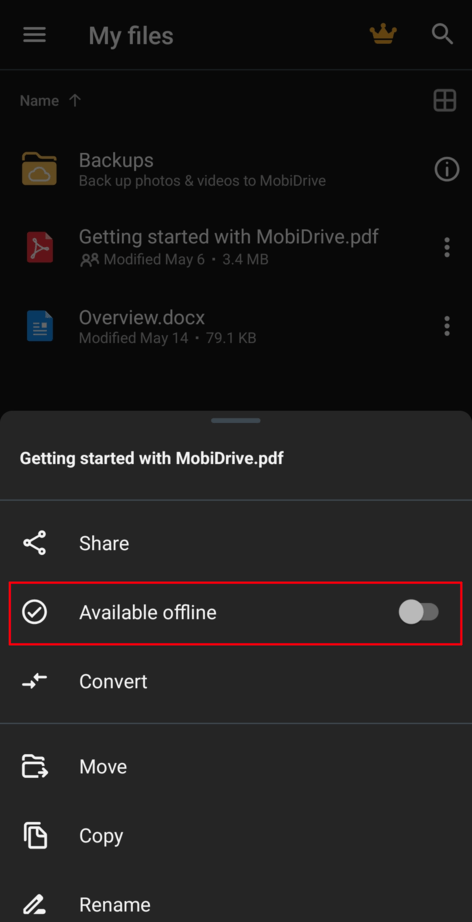
The file stays on your device, so you can open and edit it with no internet.
Work offline and sync later
Open your offline files and edit them as usual, even with no connection.
When you reconnect, MobiDrive uploads your changes automatically.
If the same file also changed on another device while you were offline, MobiDrive keeps your versions so you can choose which one to keep.
Note: MobiDrive keeps deleted files and earlier versions for 30 days on the free plan, or up to 180 days on a premium plan.
Troubleshooting
My file isn't syncing. Check your internet connection and confirm you're signed in with the same MobiSystems account. Make sure the file is saved inside your MobiDrive folder. If the file is larger than 200 MB, and you're on the Free plan, that's likely why — Premium has no per-file size limit.
I can't find my synced folder. Click the MobiDrive widget in the taskbar, then click the folder icon.
My offline file won't open without internet. Open the file once while online and mark it Available offline. Files you haven't marked still need a connection.
My changes didn't appear on another device. Give the sync a moment to finish, then refresh. Confirm both devices are signed in to the same account.
I deleted a file by mistake. Open Bin in MobiDrive to restore it or restore an earlier version from the file's version history.
Where to go next
You can now sync your files and keep working offline. Next, learn more about managing your files and account across devices.


