

Working with MobiOffice on the Go
MobiOffice puts your documents, spreadsheets, and presentations on your phone and tablet, so you can pick up work anywhere. On mobile, MobiDocs, MobiSheets, and MobiSlides live in one app, along with tools to scan paper, convert files, and sign PDFs. This guide shows how to get around the mobile app, create and edit files, scan documents with your camera, and keep working offline. It covers both Android and iOS.
Before you begin
Make sure you have:
The MobiOffice app installed on your phone or tablet. See Installing MobiOffice on multiple devices.
Signed in with your MobiSystems account, so you can save and sync your files.
An internet connection for syncing. You can still edit offline.
Find your way around the mobile app
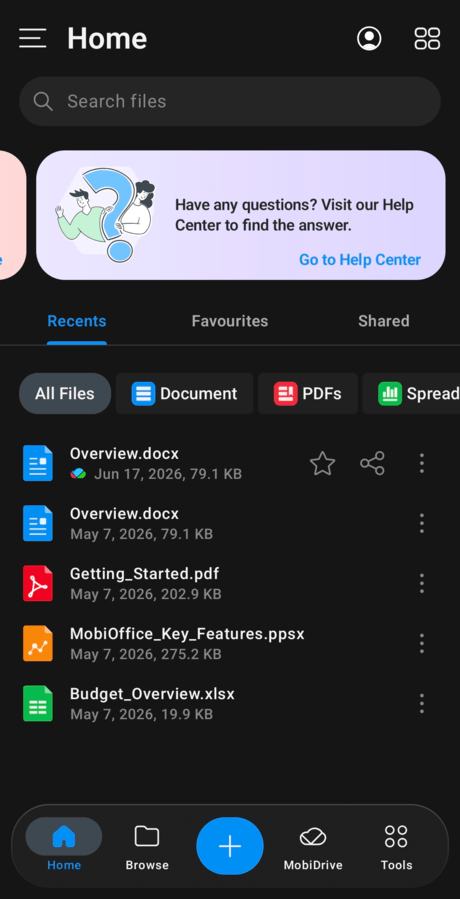
On mobile, MobiOffice opens to the Home screen, where you'll find recent, favourite, and shared files.
Bottom navigation: a row of icons replaces the desktop ribbon for quick access to common tasks.
Menu icon: tap the menu icon (three dots or lines) to open the full list of commands.
Account icon: tap it to manage your account or check your subscription.
From the Home screen, you can open recent files, browse your device or MobiDrive, and create new files.
Create and edit a file on mobile
1. Open the MobiOffice app.
2. Tap the + button, then choose what to create: a document, spreadsheet, or presentation.
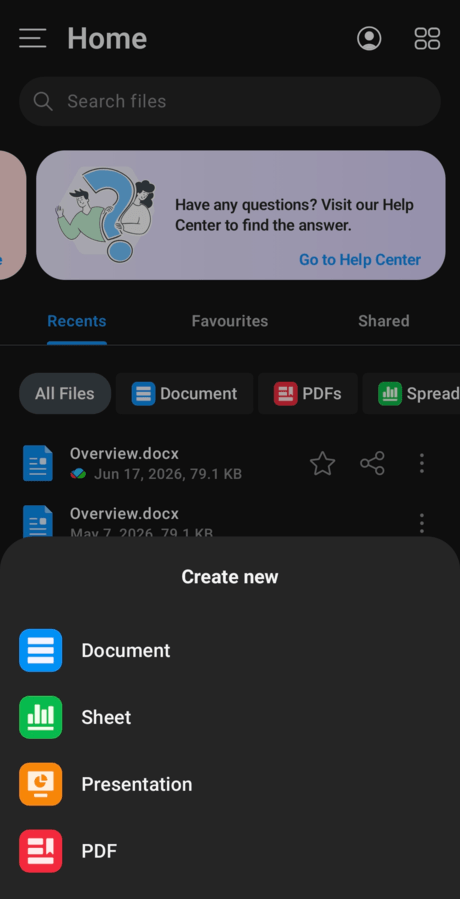
3. Tap Blank to start from scratch or pick a template.
4. Tap where you want to work, then type. Tap a cell or some text again to edit it.
5. Tap Save, then choose where to store the file.
Tip: To open an existing file, tap it on the Home screen, or browse to it in MobiDrive or a connected service such as Google Drive, OneDrive, or Dropbox.
Scan paper documents with your camera
Turn a paper document into a digital file without a desktop scanner. The scan tool may require MobiPDF on your device — check in-app if you don't see it in the menu.
1. Open the MobiOffice app.
2. Tap the menu icon, then choose the scan tool.
3. Choose among PDF, Word, or Excel in the options of files to scan to.
Note: Scanning to PDF is free. Scanning directly to an editable Word or Excel file is a Premium feature.
4. Point your camera at the document and capture it. Add more pages if you need them.
5. Save the scan to MobiDrive or export it to PDF to share.
Tip: Scan receipts, contracts, and notes while you're out, then open them on your computer later.
Convert and share files
Convert a file: open it, tap the menu icon, and choose the export option, such as Export to PDF.
Share a file: on Android, tap the Share icon, then pick how to send it, such as a link or as an email attachment. On iOS, you can find the Share option in the same menu as Export to PDF.
This lets you turn a document into a PDF and send it for review without switching to a computer.
Keep working offline
You don't need a connection to keep working.
1. On the Home screen, press and hold a recent file.
2. Tap Available offline.
The file stays on your device, so you can open and edit it with no internet. Your changes sync to MobiDrive when you reconnect. For more on syncing, see Syncing with MobiDrive and working offline.
Work comfortably on a small screen
Switch to dark mode to reduce glare. Open the MobiOffice app settings and choose a dark theme.
Turn your device sideways for more room when you edit spreadsheets and slides.
On iOS, add a Home Screen widget to open recent files with a single tap.
Troubleshooting
I can't find a tool from the desktop version. On mobile, tap the menu icon (three dots or lines) to see the full command list. Some tools sit inside that menu instead of the bottom bar. Other tools like editing-related actions are found in the document view once you open a file.
My file isn't syncing. Check your connection and confirm you're signed in with the same MobiSystems account.
I can only view, not edit. Some editing needs you to sign in, and some features need a subscription. Sign in with the account you used to buy MobiOffice.
MobiMail isn't on my phone. That's expected. MobiMail is available on Windows only.
My scan only offers PDF, not Word or Excel. Scanning straight to an editable Word or Excel file requires a Premium plan. Scan to PDF instead, or upgrade to unlock the other formats.
Where to go next
You can now work in MobiOffice wherever you are. Next, set up syncing or get to know each app in more depth.


