Yes, a PDF file can contain a virus or malicious code. While PDFs themselves are not inherently dangerous, they can be weaponized to carry malware, execute scripts, or exploit vulnerabilities in PDF readers. The risk comes from embedded content like JavaScript, malicious links, or hidden executable files.
This guide explains how PDFs can carry threats, what risks exist, and how to protect yourself when opening files from email attachments or unknown sources. Tools like MobiPDF help you work with PDFs safely by offering offline viewing and editing without relying on browser-based readers that may have additional vulnerabilities.
Can a PDF file contain a virus?
PDF files can contain viruses through embedded JavaScript, malicious links, executable attachments, or exploit code targeting PDF reader vulnerabilities. The PDF format allows interactive features that, while useful for legitimate purposes, create opportunities for attackers to hide malicious code.
Not every PDF poses a threat. Most PDFs are completely safe – they're just digital documents displaying text and images. The danger arises when someone deliberately embeds harmful elements or when a PDF exploits vulnerabilities in outdated software.
Understanding this distinction matters. PDFs from trusted sources like government websites, established companies, or known contacts are generally safe. PDFs from unknown senders, suspicious websites, or unsolicited emails deserve scrutiny before opening.
How can a malicious PDF infect a device?
A malicious PDF infects your device by exploiting software vulnerabilities, executing embedded scripts, or tricking you into clicking dangerous links. These attacks rely on outdated PDF readers, disabled protection settings, or user actions that trigger the malicious code.
Common infection methods include:
JavaScript execution – malicious scripts run automatically when you open the PDF, downloading malware or stealing data
Link redirection – clicking links inside the PDF sends you to phishing sites or triggers drive-by downloads
Embedded files – hidden executable files (.exe, .bat) disguised as legitimate attachments within the PDF
Exploit code – attacks targeting known vulnerabilities in specific PDF reader versions
Modern PDF readers have protection features that block many of these attacks. However, outdated software or disabled protections leave you vulnerable. Always keep your PDF reader updated and review safety settings.
What types of threats can hide inside a PDF?
PDFs can hide various threats including malware, ransomware, phishing scams, data theft scripts, and system exploits. Each threat type operates differently but shares the goal of compromising your device or stealing information.
Is it dangerous to open a PDF file?
Opening a PDF file is not automatically dangerous if you're using updated software and the file comes from a trusted source. The risk depends on where the PDF came from, whether your PDF reader has current safety patches, and if the file contains executable content.
Low-risk scenarios:
PDFs from known contacts or established organizations
Files from official websites (government, educational institutions, legitimate businesses)
Documents you requested or were expecting to receive
PDFs opened with modern, updated readers that have protection features enabled
High-risk scenarios:
Unexpected email attachments from unknown senders
PDFs downloaded from suspicious or unfamiliar websites
Files with unusual names or extensions (filename.pdf.exe)
Documents prompting you to enable macros or disable protection settings
Trust your instincts. If something feels off about a PDF – the sender, the context, the request – don't open it. Verify with the sender through a separate channel before clicking.
How to check if a PDF file is safe before opening it
Check if a PDF is safe by scanning it with antivirus software, verifying the sender's identity, examining the file properties, and using online virus scanners. These steps help identify threats before you open the file.
Some tips to scan a PDF for viruses:
Right-click the PDF file icon in the folder and select Scan with [your antivirus] – most antivirus software includes this option
Use online scanners that check files against multiple antivirus engines simultaneously
Check file properties – look for suspiciously large file sizes or creation dates that don't match the context
Verify the sender through a different communication channel – call or message them separately to confirm they sent the file
Preview in a sandboxed environment – some email clients or safety tools let you view files in isolated spaces
No single check guarantees safety but combining multiple verification methods significantly reduces risk. When in doubt, don't open the file until you've confirmed its legitimacy.
How can you tell if a PDF file might be dangerous?
Dangerous PDFs often show warning signs: suspicious sender addresses, urgent or threatening language, unexpected attachments, requests to disable protection features, or unusual file behavior. Recognizing these red flags helps you avoid threats:
Sender address doesn't match the supposed organization ([email protected] claiming to be from your bank)
Urgent language pressuring immediate action ("Your account will be closed," "Immediate payment required")
Generic greetings instead of your name ("Dear Customer" from someone who should know you)
Spelling errors, poor grammar, or unprofessional formatting in supposedly official documents
Requests to enable features, disable protection, or download additional software
File extension tricks (document.pdf.exe showing as document.pdf in some viewers)
Context matters too. An invoice you weren't expecting, a resume from someone who didn't apply, or a delivery notification for something you didn't order all deserve scrutiny before opening.
How to safely work with PDF files every day
Work safely with PDFs by keeping software updated, using reputable PDF readers, enabling protection features, and maintaining healthy scepticism about unexpected files. These habits create layers of protection that make infections far less likely.
Commit to practicing these safety tips:
Update your PDF reader regularly – safety patches fix known vulnerabilities that attackers exploit
Keep JavaScript disabled in PDF settings unless you specifically need it for trusted documents
Use trusted PDF software from established developers rather than unknown free alternatives
Enable protected mode or sandboxing features in your PDF reader if available
Back up important files regularly so ransomware attacks don't result in permanent data loss
Maintain current antivirus software with real-time protection enabled
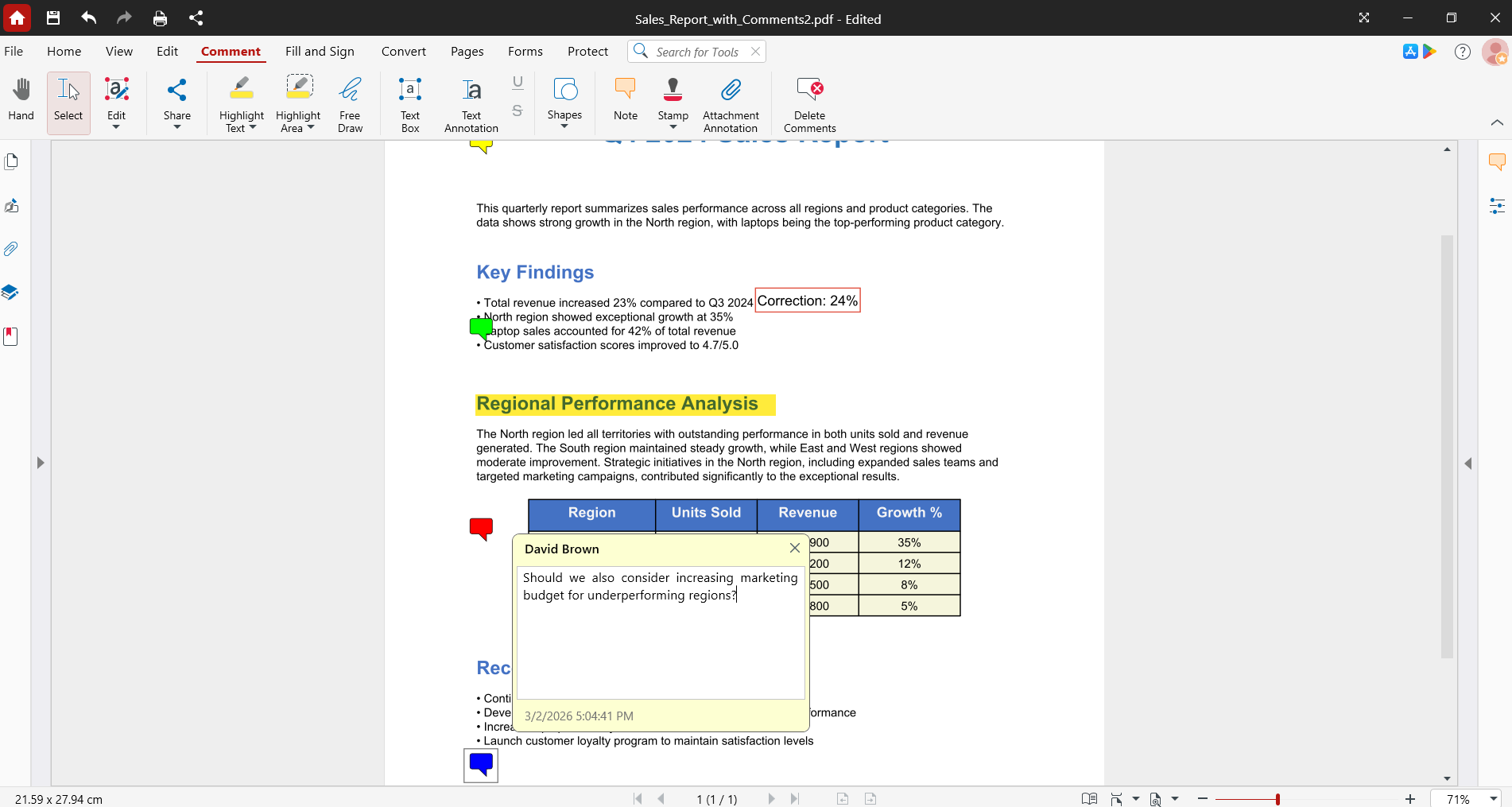
MobiPDF provides offline editing and viewing, reducing exposure to browser-based vulnerabilities while giving you full control over your documents. Compatible with major file formats and easy to use across all devices, it offers a straightforward approach to PDF management.
 Ready to work with PDFs more safely?
Frequently asked questions
Can you get a virus from opening a PDF file?
Yes, you can get a virus from opening a PDF file if it contains malicious code and your PDF reader has vulnerabilities or disabled protection features. However, simply viewing a legitimate PDF with updated software is generally safe. The risk comes from PDFs designed to exploit vulnerabilities or trick you into dangerous actions.
Can a PDF have a virus without opening it?
No, a PDF can’t infect your device without being opened. The file needs to be opened by a PDF reader for any malicious code to run. However, some email systems or cloud storage services automatically generate previews that might trigger certain exploits, so scan suspicious files before opening them.
Is a PDF document safe to open from an email attachment?
PDF attachments from known, trusted senders are generally safe to open. PDFs from unknown senders, unexpected attachments, or suspicious emails should be verified before opening. Always scan email attachments with antivirus software, especially if you weren't expecting the file or don't recognize the sender.
What happens if you open a PDF file from a scammer?
Opening a malicious PDF from a scammer could install malware on your device, steal your personal data, encrypt your files for ransom, or redirect you to phishing websites. If you accidentally open a suspicious PDF, disconnect from the internet immediately, run a full antivirus scan, and change passwords for important accounts.
Can a PDF contain malware that infects your phone?
Yes, PDFs can contain malware targeting mobile devices, though mobile operating systems typically have stronger sandboxing that limits damage. Android and iPhone users should still avoid opening PDFs from unknown sources, keep their PDF apps updated, and use mobile protection software for additional safeguards.
How can you check if a PDF file has a virus?
Check if a PDF has a virus by right clicking the file and selecting "Scan with antivirus," uploading it to online scanners, examining the sender and context for red flags, or using your email provider's built-in scanning features. Combining multiple verification methods provides the best protection.
Confident PDF handling starts here
Understanding PDF safety risks helps you work confidently with documents while avoiding threats. Most PDFs are safe when opened with updated software from trusted sources. Basic precautions – verifying senders, scanning attachments, maintaining current antivirus software – prevent most attacks.
MobiPDF offers a budget-friendly approach to PDF management with offline editing and viewing capabilities. Edit text and images, convert PDFs to Office formats, combine and organize files, and work across all devices without browser dependencies. Download MobiPDF today for easy-to-use PDF tools that put you in control.