To make a PDF read-only in MobiPDF, open your file, go to Protect → Flatten, disable editing options, and save the document with restrictions enabled. Making a PDF read-only helps protect your files from unwanted edits, accidental changes, and version confusion.
Whether you are sharing a contract, report, or finalized form, setting editing restrictions keeps your content intact and professional. This guide explains how to make a PDF read only, how it differs from password protection, and how to manage permissions responsibly using modern tools like MobiPDF by MobiSystems.
Why make a PDF read-only?
Making a PDF read-only prevents others from modifying text, images, or formatting while still allowing them to view the file. It helps maintain document accuracy, supports compliance, and reduces the risk of unauthorized changes.
For business users, making a PDF read-only is especially important when sharing:
Legal contracts and agreements
Financial reports and statements
Approved policies, proposals, or presentations
Internal documents marked as final
In simple terms, read-only mode focuses on editing restrictions rather than full encryption. It is designed for essentially lock-down your PDF.
How to make a PDF read-only without a password
You can make a PDF read-only without a password in MobiPDF by restricting editing permissions while keeping the file accessible. This allows recipients to open and share the document without being able to modify it.
In MobiPDF, this is done through the Password Protect tool and then the User Rights panel, where you can disable editing options without requiring an open password.
Steps in MobiPDF
Open your PDF in MobiPDF.
Click the Protect tab.
Select Password Protect.
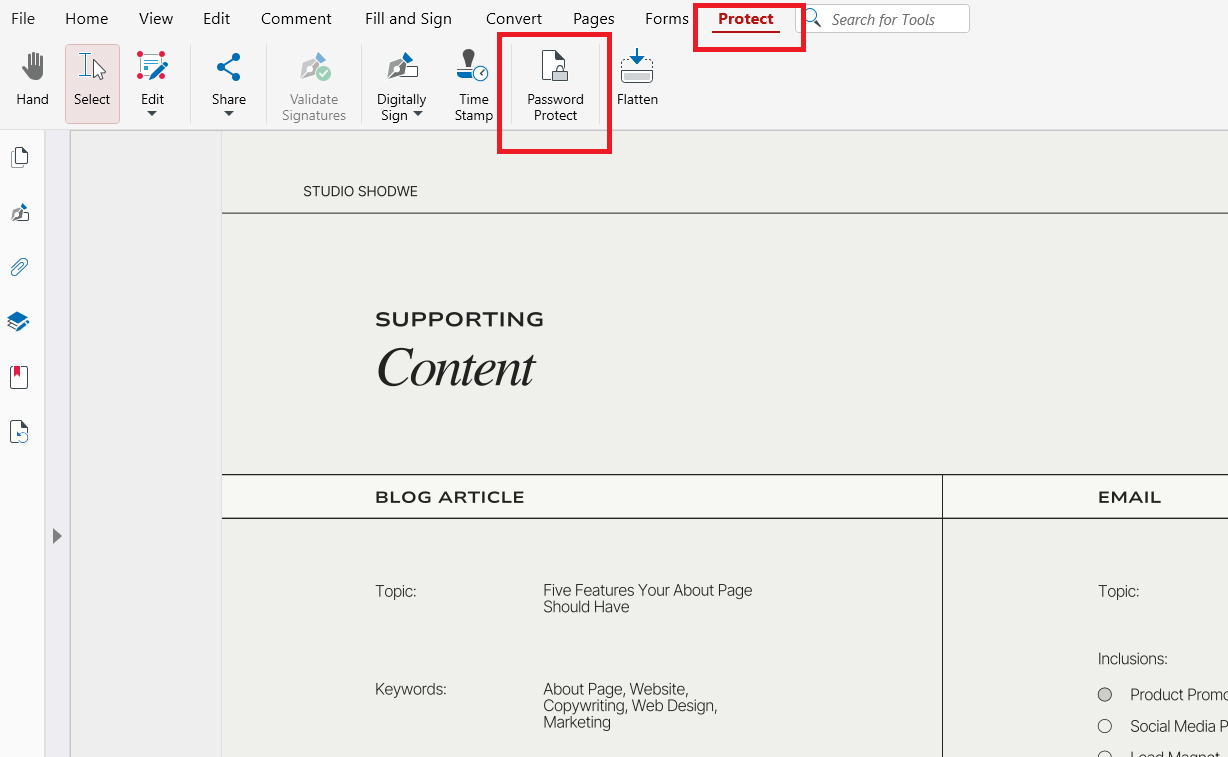
When the Password Protection warning appears, click OK to continue and the User Rights window will open.
In the User Rights window, leave “Require a password to open” unchecked.
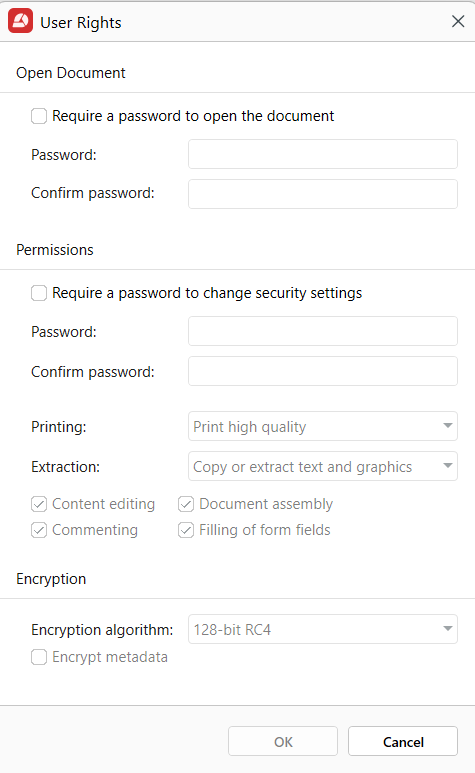
Enable Require a password to change security settings.
Uncheck Content editing and other permissions you want to block.
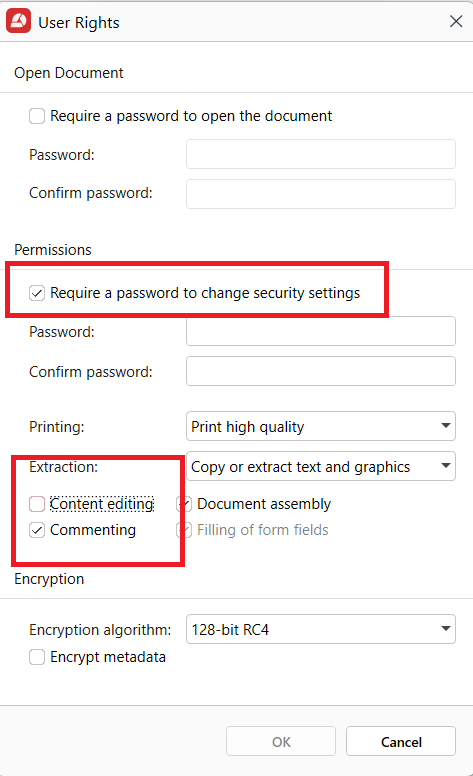
Click OK and save the file.
After saving, the PDF can be viewed and shared but cannot be edited.
Keep in mind that some third-party viewers may handle permissions differently, so always test your file before distributing it.
How to make fillable PDFs read-only
You can make a fillable PDF read-only by flattening the pdf after they are completed. This converts interactive elements into static content that cannot be edited.
MobiPDF’s Flatten tool merges interactive elements into the document layout, turning them into uneditable text and graphics.
Steps in MobiPDF
Open your completed PDF in MobiPDF.
Click the Protect tab.
Select Flatten.
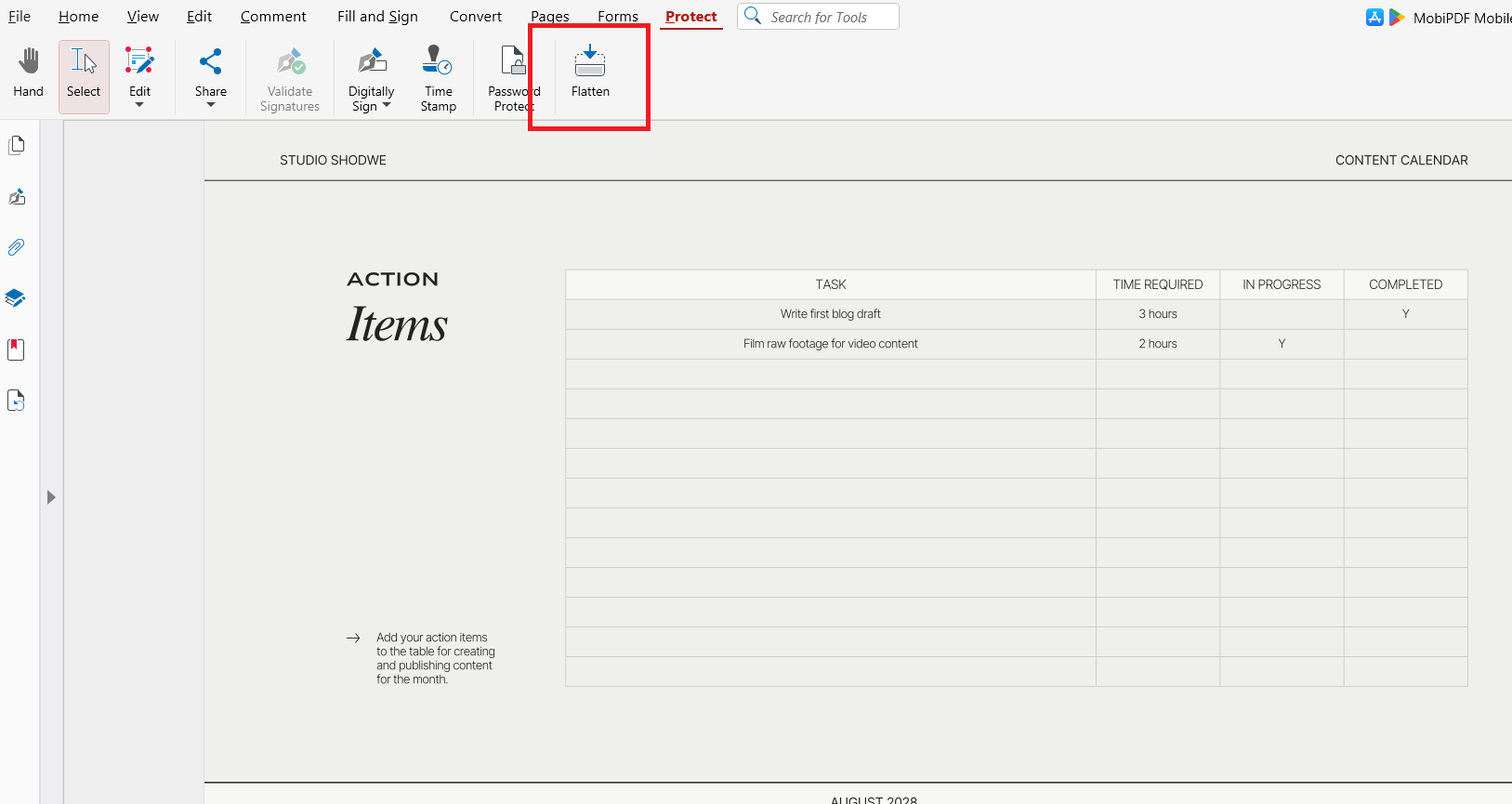
When the confirmation window appears, review the message and click Apply to continue.
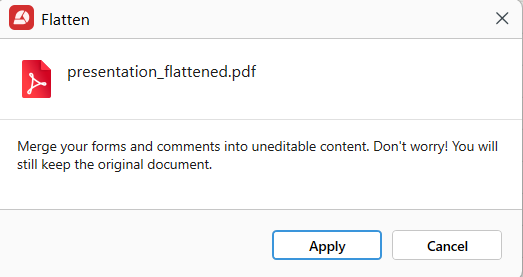
After flattening is complete, choose a file name and location for the new document.
Save the flattened PDF.
Once flattened, form entries and annotations become permanent and cannot be edited.
This method is ideal for applications, signed documents, and approval forms.
How to make a read-only PDF editable again
You can make a read-only PDF editable again only if you have authorization and the correct password. Removing restrictions restores editing tools and document permissions.
In MobiPDF, protection can be removed through the same Protect menu used to apply it.
Steps in MobiPDF
Open the protected PDF.
Click the Protect tab.
Uncheck Password Protect
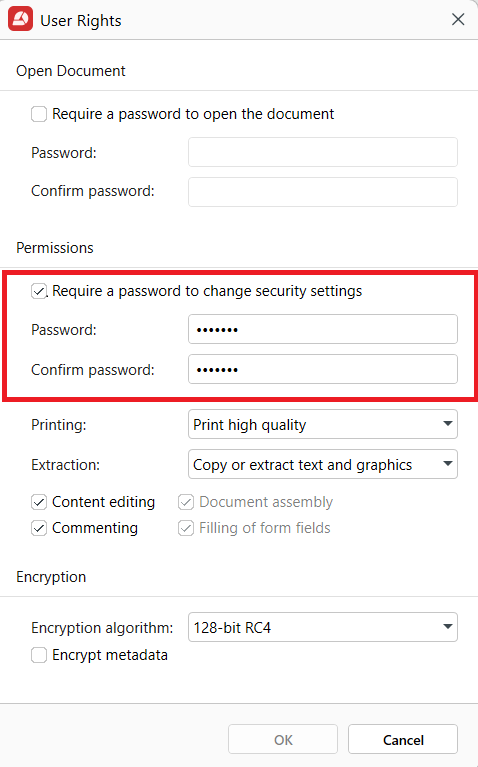
Save the file.
If you do not have the password, contact the document owner before requesting changes.
Read-only vs password-protected vs locked PDFs: what’s the difference?
Many users confuse read-only settings with full security controls. Understanding the differences helps you choose the right protection level.
Read-only PDFs restrict editing but may allow copying, printing, and viewing.
Password-protected PDFs require authentication to open or edit.
Locked PDFs combine encryption with strict permission controls.
Read-only is best for everyday sharing. Password protection suits confidential data. Locked PDFs are recommended for sensitive legal or financial documents.
Selecting the right method improves security while keeping collaboration practical.
Common mistakes when making PDFs read-only
One frequent mistake is assuming “read-only” means “fully secure.” In reality, some PDF viewers ignore basic permissions, especially older or unofficial apps.
Another issue is forgetting to flatten forms after completion. This leaves fields editable despite restrictions. Users may also overwrite protected files with unlocked versions by mistake.
Frequently asked questions
How do I make a PDF read-only without using a password?
You can disable editing permissions in your PDF software without adding a password. In MobiPDF, this is done through the protection or security settings. The file remains accessible but cannot be modified.
Can a read-only PDF still be printed or shared?
Yes, most read-only PDFs can still be printed and shared unless printing is specifically disabled. Sharing does not remove restrictions. However, some viewers may handle permissions differently.
How do I make a fillable PDF read-only after filling it out?
After completing the form, use the flatten or finalize feature in your PDF editor. This converts fields into static content. The entered information can no longer be changed.
Why is my PDF still editable even after I set it to read-only?
Some PDF viewers ignore basic permission settings. The file may also have been saved without applying restrictions correctly. Always verify protection in multiple readers.
Final thoughts: choosing the right protection method
Making a PDF read only is a practical way to preserve document integrity without complicating access. For most professional and everyday use cases, permission-based protection is enough to prevent accidental edits.