You can save a Google Doc as a PDF by opening the file, clicking File → Download → PDF Document (.pdf), and letting it download to your device.
Saving your document as a PDF keeps the layout, fonts, and spacing consistent, making it ideal for sharing, printing, submitting, or archiving. In this guide, you’ll learn the fastest ways to export document Google Docs to PDF on desktop and mobile, how to convert multiple files at once, and how to fix common formatting issues. You’ll also discover how MobiPDF can help you edit, merge, compress, and secure your PDFs after export.
Different ways to save a Google doc as a PDF
Google Docs offers several built-in ways to turn your document into a PDF. Each works best in different situations.
Download as PDF in Google Docs (fastest method)
This is the quickest and most reliable option for most users.
Steps (Desktop):
Open your Google Doc.
Click File in the top menu.
Select Download → PDF Document (.pdf).
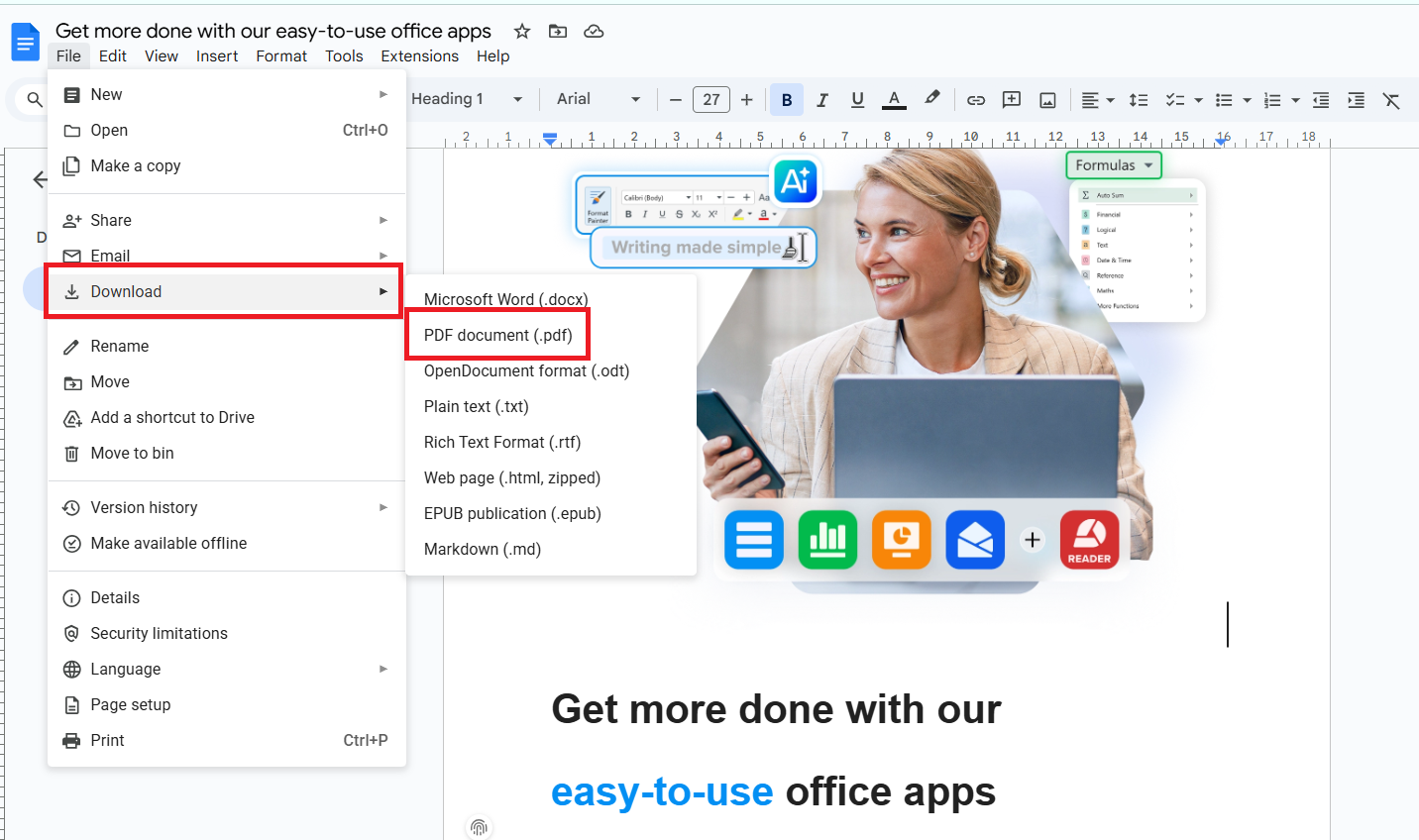
The file will be downloaded to your device.
Best for:
Quick exports, sharing, and printing.
Print to PDF
Printing to PDF gives you more control over layout, margins, and page settings.
Steps (Desktop):
Open your document.
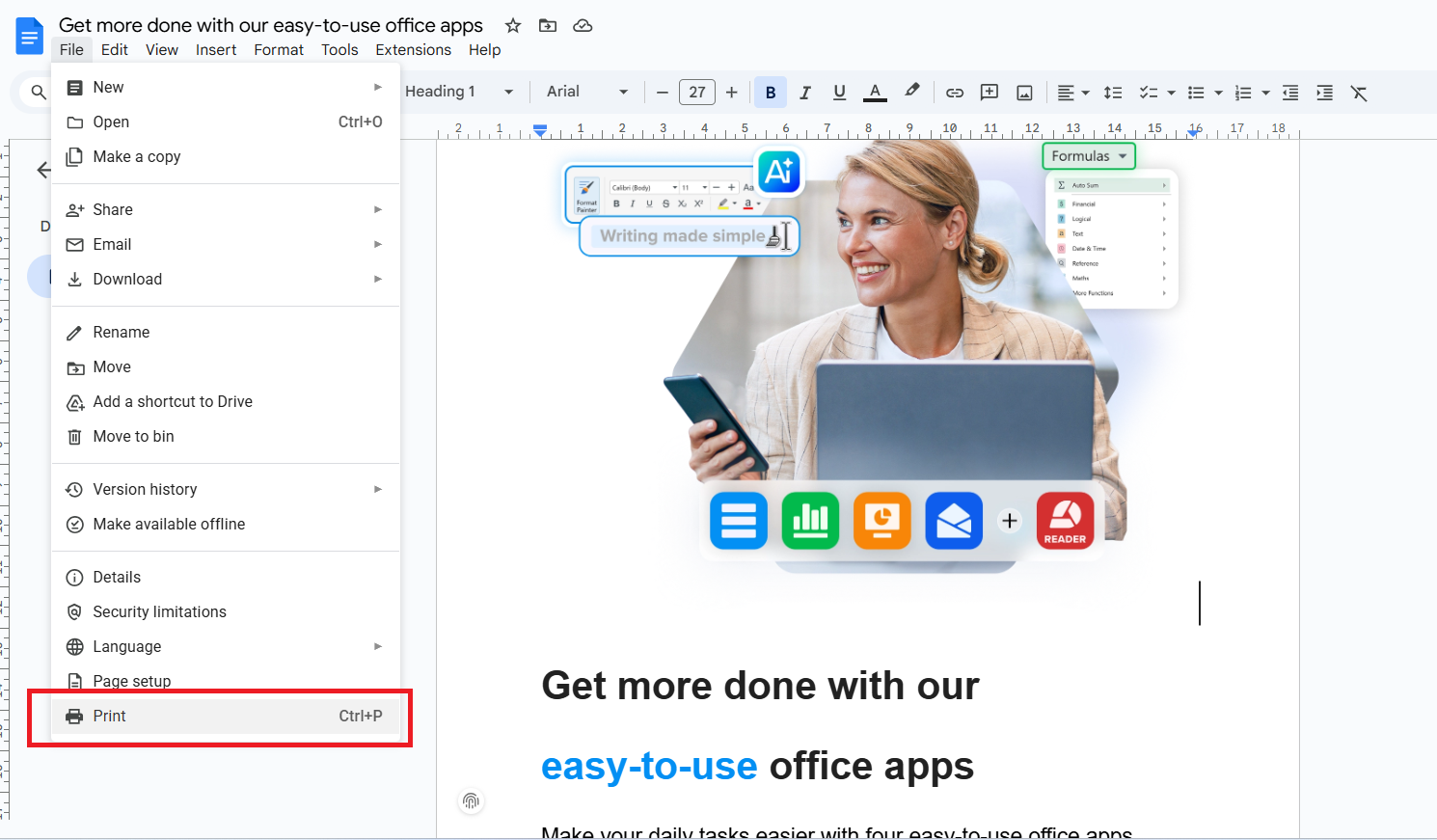
Click File → Print (or press Ctrl + P / Cmd + P).
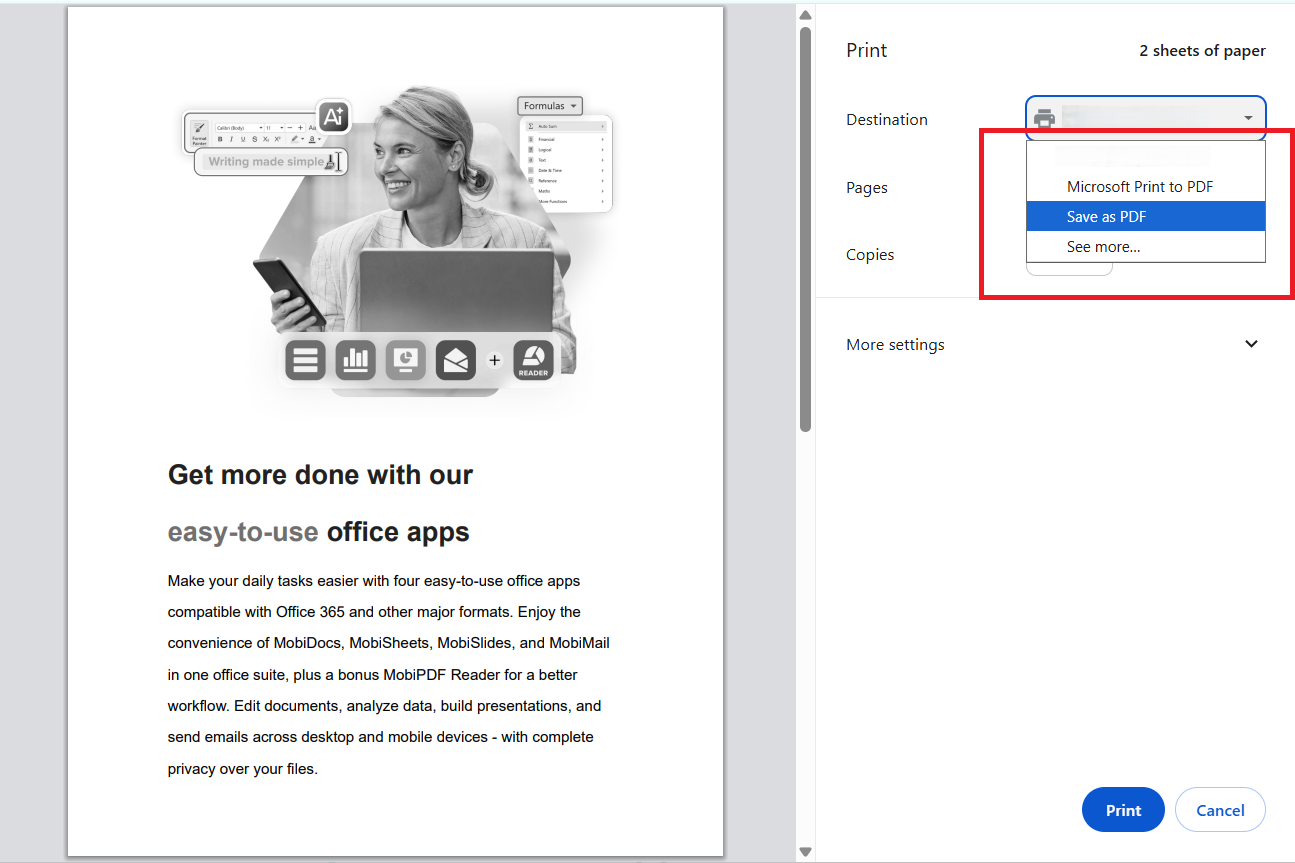
In the printer menu, select Save as PDF.
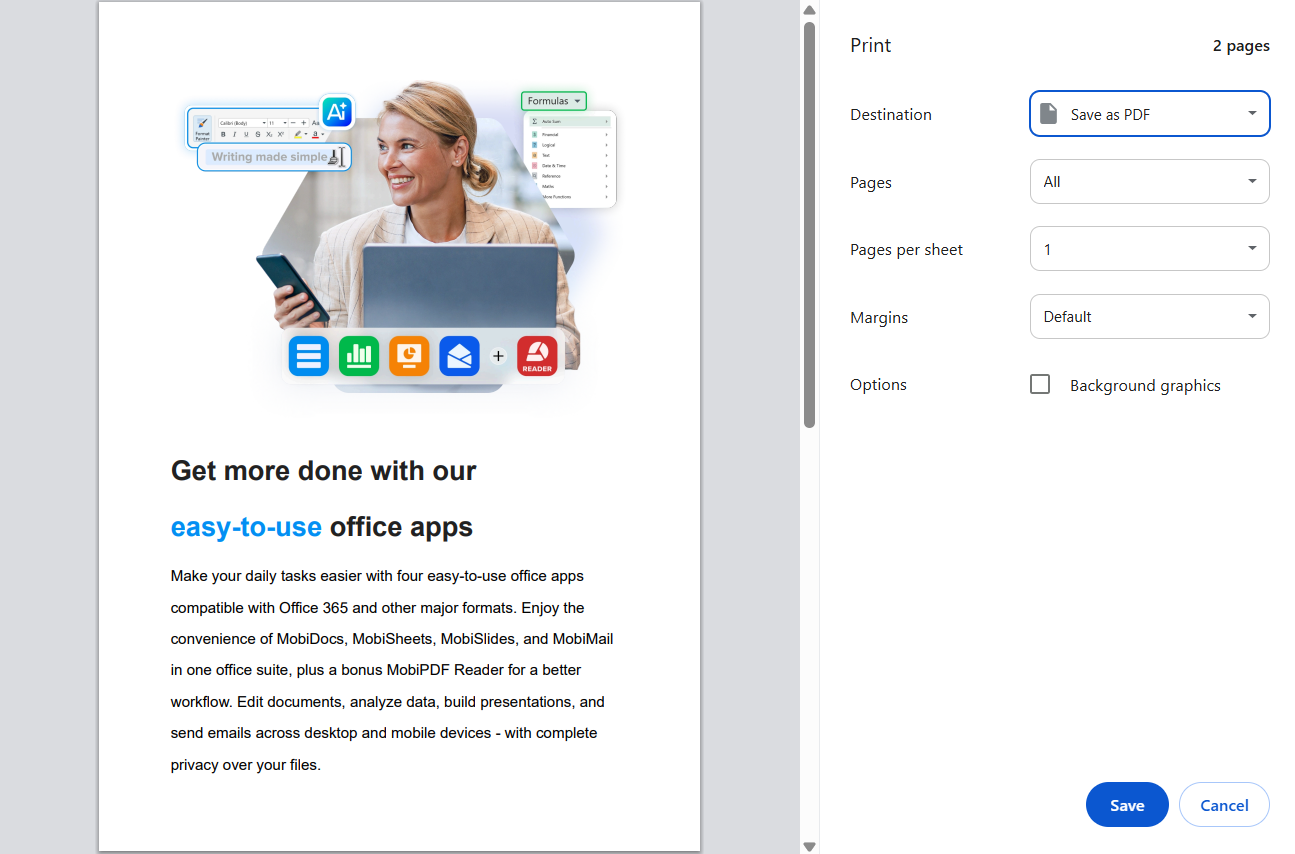
Click Save.
Best for: When you need custom margins, page size, or scaling.
Save a Google Doc as a PDF on mobile
You can export PDFs from the Google Docs app on Android and iOS.
Steps (Mobile):
Open the Google Docs app.
Open your document.
Tap the three-dot menu (⋮).
Select Share & export.
Tap Save as → PDF document.
Tap OK to download.
Best for: Working on the go and quick mobile exports.
When to use each method (table)
Tip: Start with Download as PDF. If the layout looks wrong, switch to Print to PDF.
How to convert multiple Google Docs to PDF at once
A common question is: “How do I convert multiple Google Docs at once?”
Unfortunately, Google Docs does not offer native batch export. You can’t select multiple files and download them as PDFs in one click.
Here are three realistic ways to handle multi-file workflows.
Option 1: use a Google Workspace add-on
Some add-ons from the Google Workspace Marketplace can automate PDF exports.
How it works:
Install a batch export or PDF converter add-on.
Grant access to your Drive files.
Select multiple documents and export them as PDFs.
Pros:
Works inside Google Docs/Drive
No manual downloads
Cons:
Many are paid
Privacy and security vary
Features differ by provider
Best for: Teams that regularly export large volumes.
Option 2: use Google Drive + third-party automation (Google Apps script)
If you’re comfortable with automation, Google Apps Script can convert files in bulk.
How it works:
Create a script that loops through selected Docs.
Convert them to PDFs automatically.
Save them to a Drive folder.
Pros:
Fully customizable
Free if self-managed
Cons:
Requires technical skills
Setup takes time
Best for: Power users and IT teams.
Option 3: download your documents and convert with MobiDocs
This is one of the most reliable options if you need to convert multiple Google Docs into PDFs and manage them offline.
How it works:
Download your Google Docs as DOCX files.
Open with MobiDocs.
Go to File and choose Export to PDF.
Open the exported PDFs in MobiPDF.
Edit, merge, compress, or secure your documents as needed.
Pros:
Clear, step-by-step workflow
Works without an internet connection
Greater control over formatting and output quality
Easy transition from editing (MobiDocs) to PDF management (MobiPDF)
Cons:
Requires downloading files to your device first
Best for: Freelancers, students, and office users who want reliable batch processing.
Common Google Doc to PDF formatting issues (and how to fix them)
Sometimes PDFs don’t look exactly like your original document. Here’s how to fix the most common problems.
Page size mismatch, margins, and scaling
Problem:
Text is cut off, too small, or shifted.
Fixes:
Go to File → Page setup in Google Docs.
Match your target size (A4 or Letter).
Set margins to at least 0.5 inches (1.27 cm).
Use Print to PDF and adjust scaling to 100%.
Tip: Always match page size before exporting.
Fonts and special characters changing in the PDF
Problem:
Fonts look different or symbols disappear.
Fixes:
Use standard fonts (Arial, Times New Roman, Roboto).
Avoid rare or custom fonts.
Check File → Download → PDF instead of Print if fonts shift.
If needed, embed fonts via Print to PDF.
Tip: Standard fonts reduce compatibility issues.
Images shifting, disappearing, or looking blurry
Problem:
Images move, overlap, or lose quality.
Fixes:
Set images to In line with text.
Avoid “Wrap text” for critical layouts.
Upload high-resolution images (at least 150–300 DPI).
Re-export using Print to PDF for better rendering.
Тip: Inline images export more reliably.
Tables breaking across pages or overflowing the margin
Problem:
Tables split awkwardly or run off the page.
Fixes:
Resize columns manually.
Reduce font size inside tables.
Use Format → Line & paragraph spacing → smaller spacing.
Insert manual page breaks before large tables.
Tip: Resize tables before exporting.
Links, headers/footers, and page numbers not appearing as expected
Problem:
Missing or misaligned headers, footers, or links.
Fixes:
Double-check Insert → Headers & footers.
Make sure “Different first page” is disabled (if not needed).
Reinsert page numbers.
Test export with Download as PDF and Print to PDF.
Tip: Preview headers in Print view first.
How MobiPDF can help after you convert your Google Docs to PDF
Once your document is in PDF format, your workflow doesn’t have to stop. MobiPDF helps you refine, secure, and prepare files for real-world use.
Edit the PDF without going back to Google Docs
Need to fix a typo or update a section?
With MobiPDF, you can:
Edit text and images directly
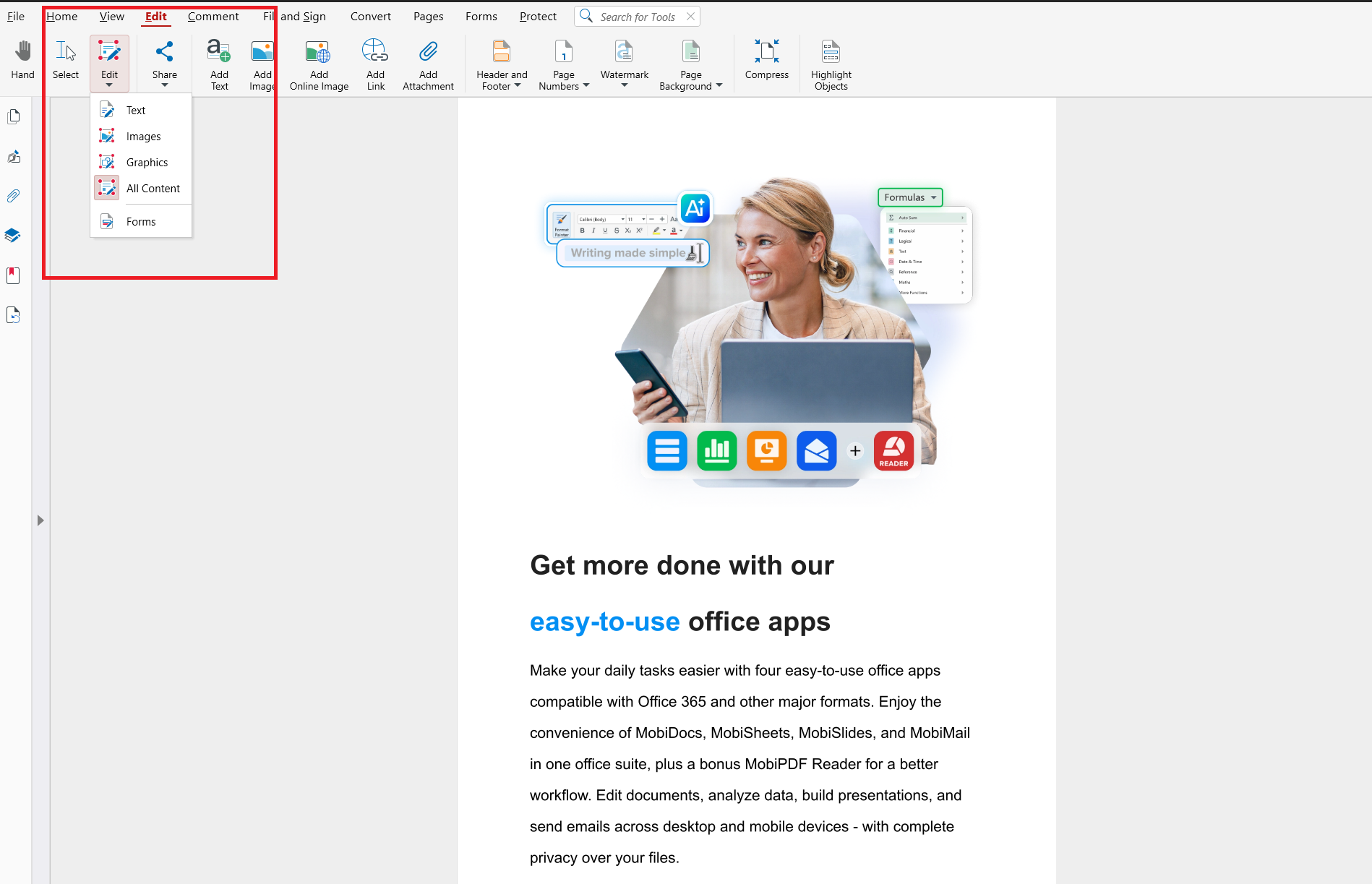
Adjust layout
Add notes and highlights
Merge multiple PDFs into one deliverable
Perfect for:
Reports
Portfolios
Submissions
Combine multiple exported files into one clean document in seconds.
Compress the PDF
Large PDFs are hard to email or upload.
MobiPDF lets you:
Reduce file size
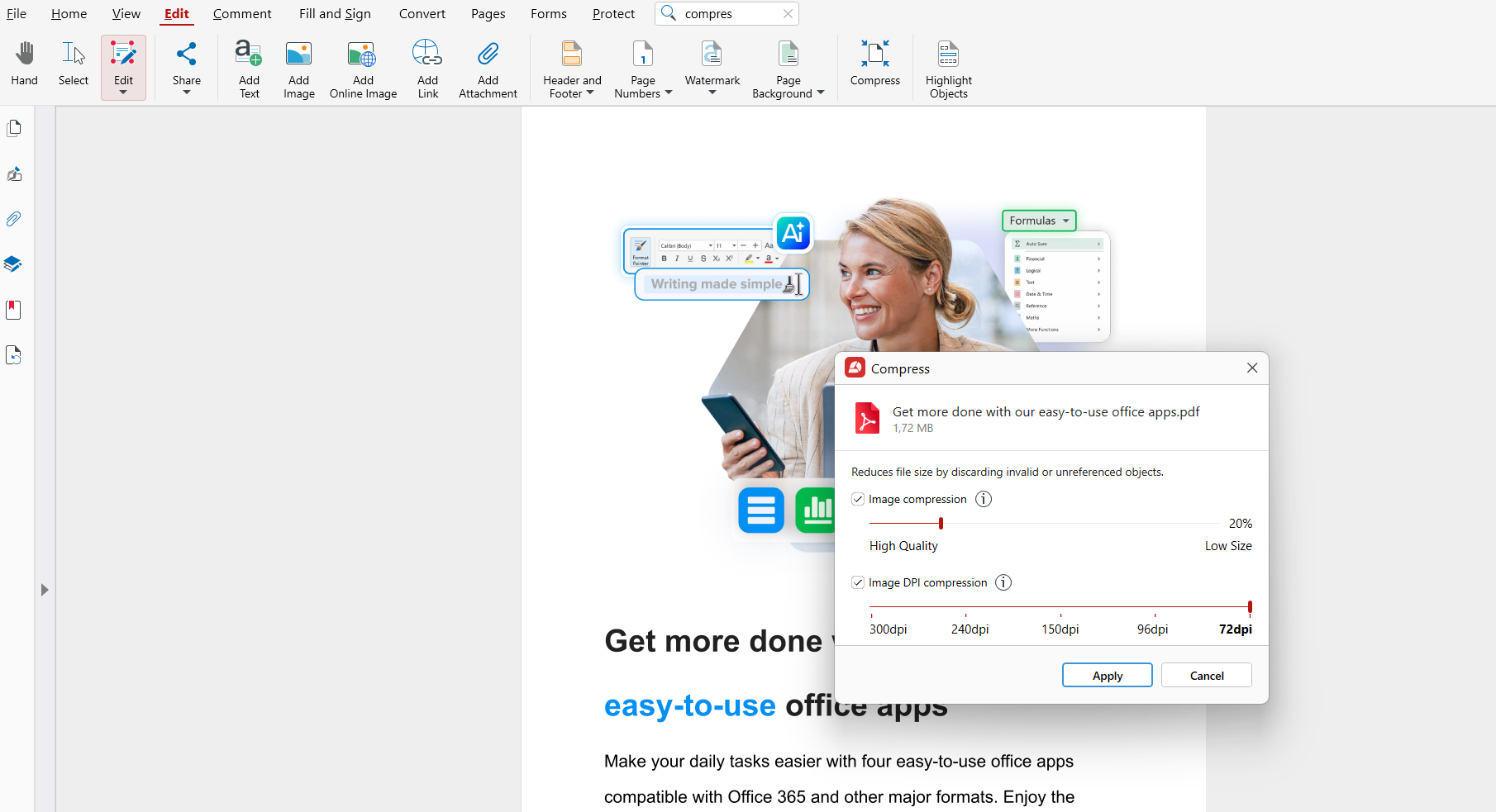
Keep readable quality
Optimize for sharing
Add a signature or fill out forms
For contracts, applications, and approvals, you can:
Add digital signatures
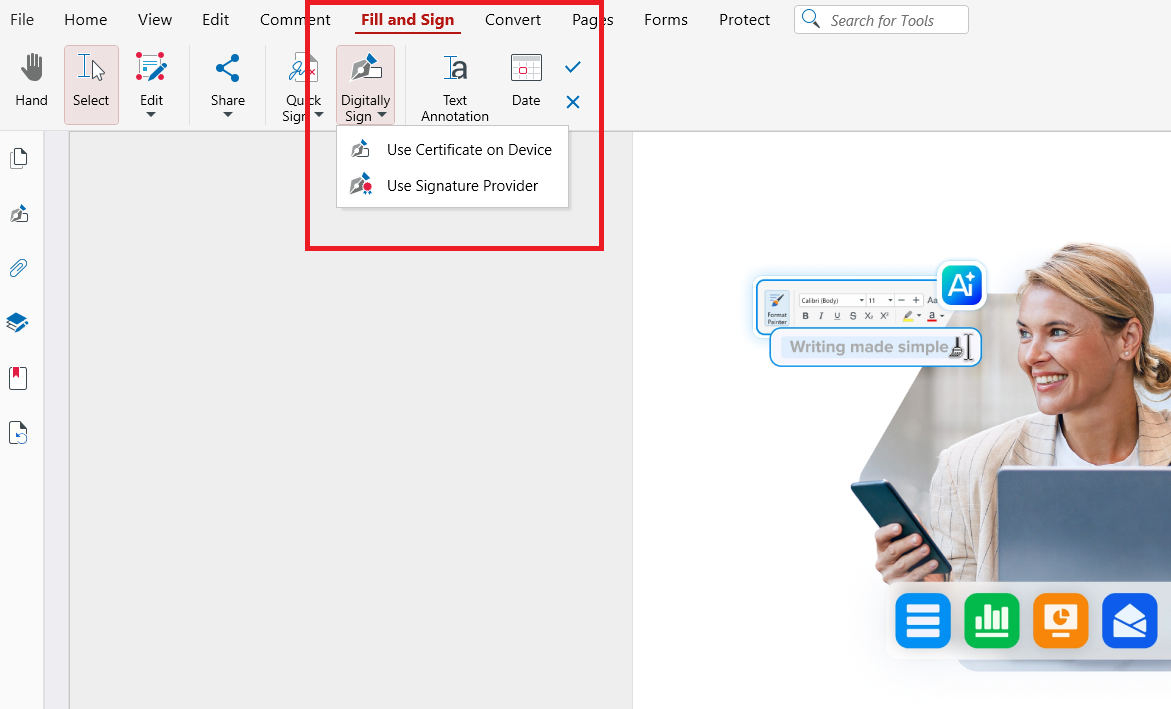
Fill interactive fields
Save completed forms securely
Work offline and keep your files secure
Unlike cloud-only tools, MobiPDF lets you:
Work without internet access
Keep files on your device
Apply password protection and encryption
Ideal for sensitive documents.
Frequently asked questions
Can I save a Google Doc as a PDF if I only have view access?
Yes, if the owner allows downloads. Click File → Download → PDF. If the option is disabled, you’ll need to request permission.
What’s the best way to save a Google Doc as a PDF without losing formatting?
Use Download as PDF first, and switch to Print to PDF if you need to fix layout issues.
Can I convert multiple Google Docs to PDF at once?
No, Google Docs doesn’t support batch export, so you’ll need an add-on, automation, or a tool like MobiPDF.
Why does my Google Doc look different after exporting to PDF?
This usually happens because of page size, font compatibility, image placement, or table layout issues.
What should I do if the PDF won’t download from Google Docs?
Refresh the page, clear your browser cache, try another browser, or use Print to PDF instead.
How can MobiPDF help me work with my exported files?
MobiPDF lets you edit, merge, compress, sign, and secure your PDFs after export.
Final thoughts: from Google Docs to professional PDFs
Saving a Google Doc as a PDF is simple. For most users, File → Download → PDF does the job in seconds. When you need more control, batch processing, or post-export editing, combining Google Docs with MobiPDF gives you a flexible, professional workflow.
Ready to try MobiPDF?