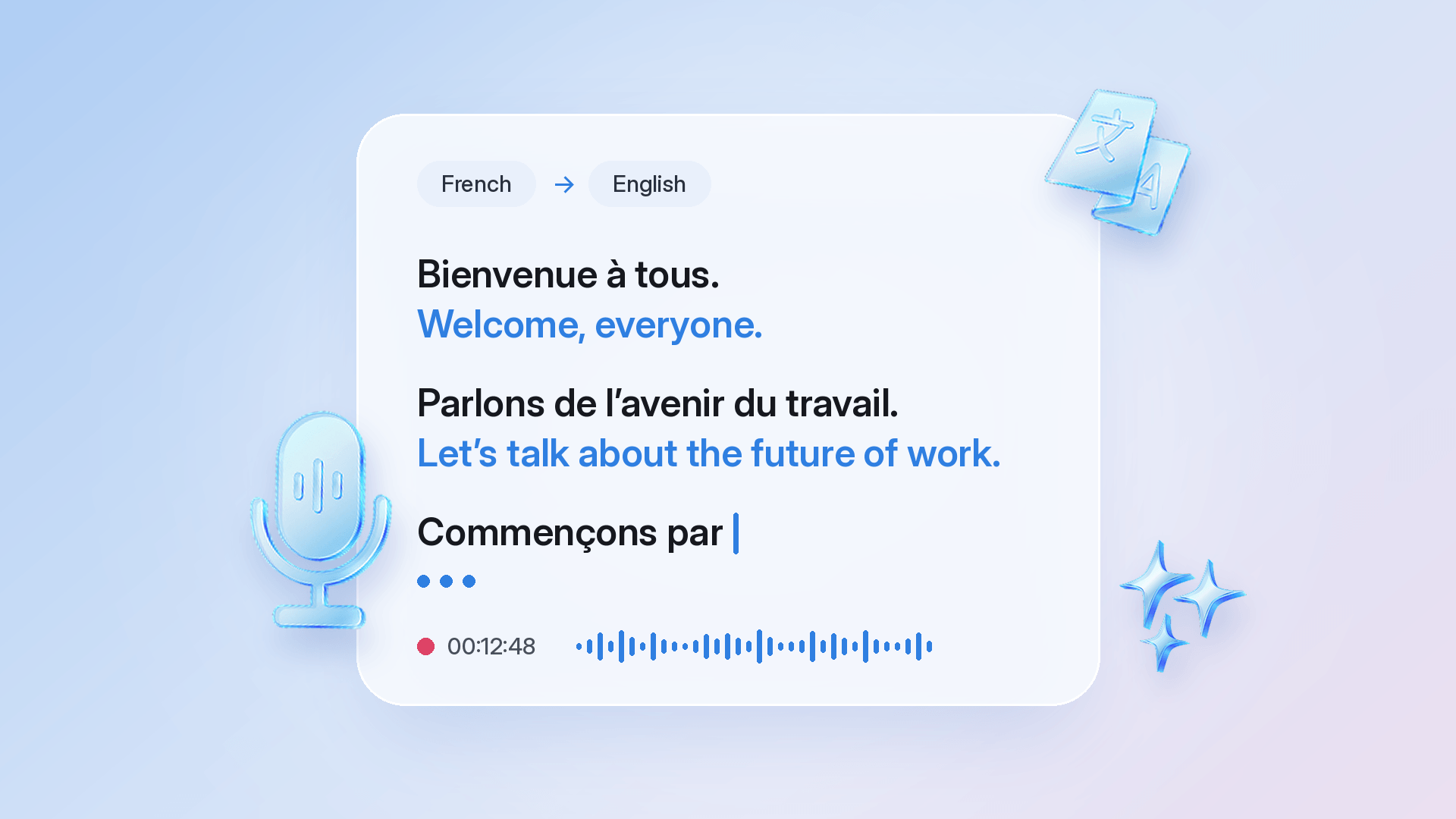
To transcribe and translate speech in real time, open the Transcribe tab in Talk & Translate, set the language being spoken and the language you want to read, and tap the microphone. Each sentence appears as it’s spoken, with its translation underneath. When the talk ends, the full session saves to Recents.
Live Transcription and Translation is made for the moments when there’s a lot to follow: a conference keynote, a panel discussion, a lecture in your second language, or an hour-long team meeting. It works in 100+ languages, with full offline mode on Premium, and it’s available on iOS now, with Android on the way. Here’s how to use it.
What is Live Transcription and Translation?
Live Transcription and Translation is a Talk & Translate mode built for long stretches of speech. It listens continuously and adds each new sentence to a scrollable log, with the original and the translation together. It doesn’t wait for a reply or stop between sentences. It keeps listening until you pause or end the session.
You read along as people talk, with no need to ask anyone to slow down or scribble notes to keep up. Afterwards, you can come back to the whole session.
How do I transcribe and translate a meeting in real time?
Set your languages, tap the microphone, and save the session when the talk ends. Here are the steps:
1. Open Transcribe and set your languages – the language being spoken and the language you want to read. Not sure which language the speaker will use? Talk & Translate can detect it.
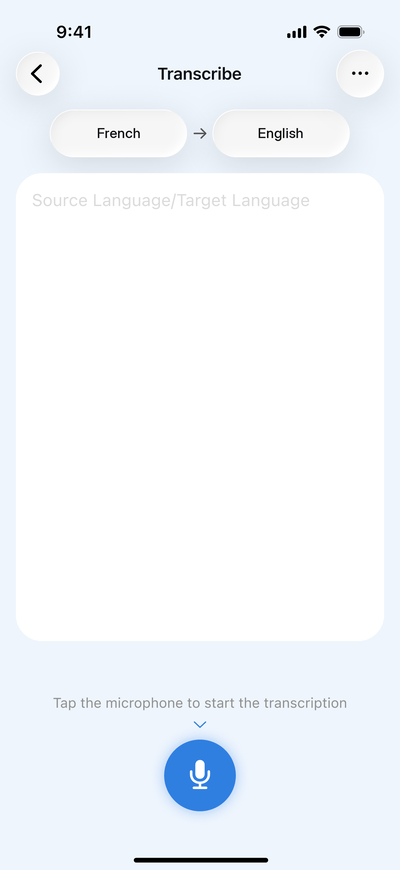
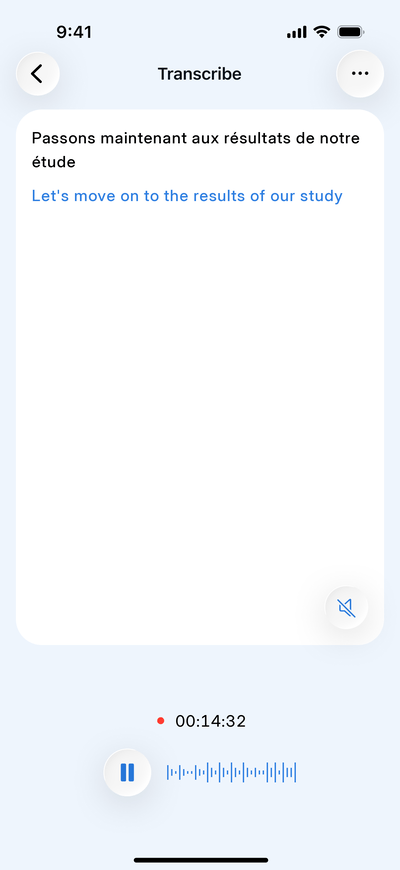
2. Tap the microphone. A timer starts, and each sentence appears as it's spoken, with its translation underneath.
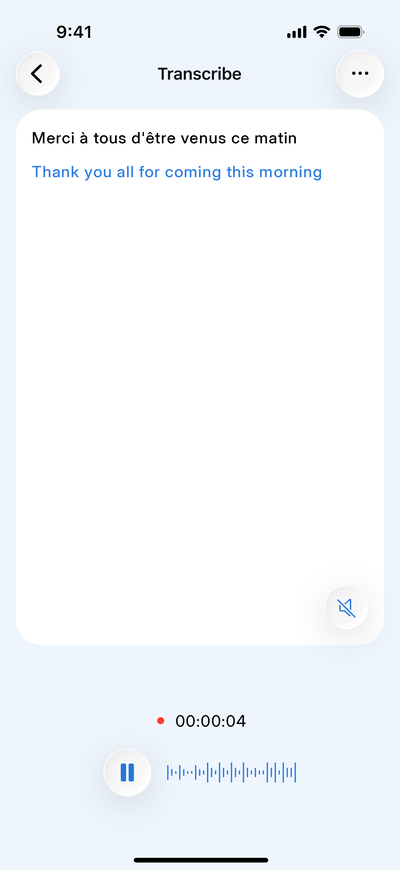
3. Pause during a break, then tap Resume to continue in the same session. To start over, tap the bin to clear the transcription.
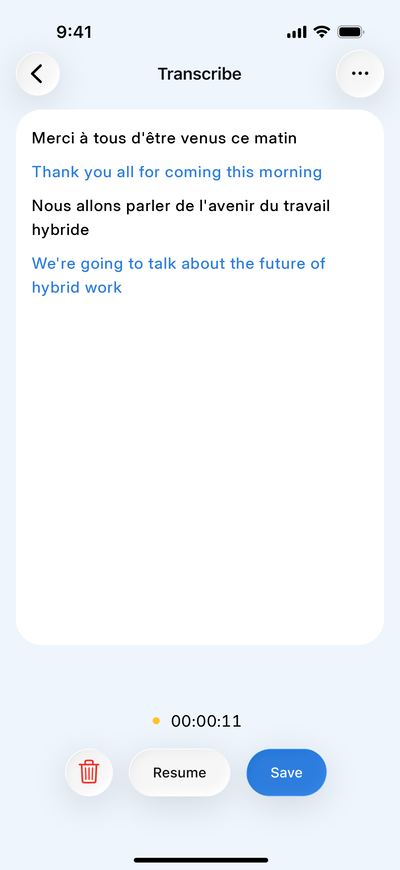
4. When the talk ends, tap Save. The full session goes to Recents.
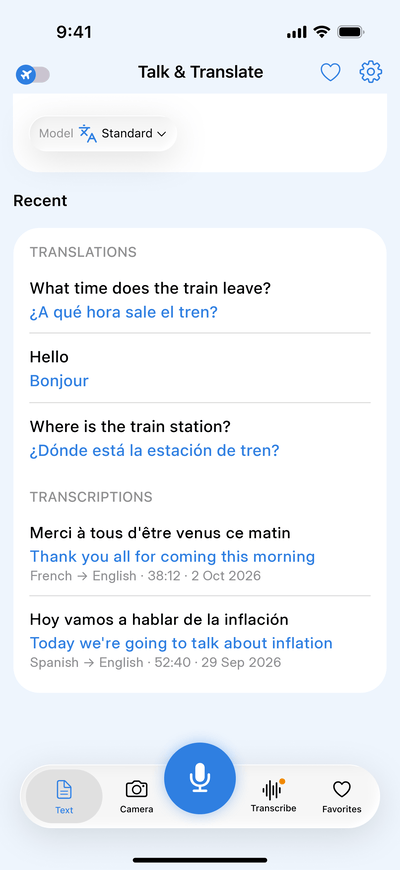
Two of our colleagues put it to the test at an international conference in Dublin. One of the sessions was in French, and they followed it in English as the speaker talked – each sentence in the original, with the translation right underneath. No interpretation headset, no extra hardware – just their phones. Instead of scrambling to take notes, they could stay with the speaker. When it ended, the full session was already saved in Recents. Back home, they opened it during the team debrief, replayed the key points, and quoted the speaker's own words instead of working from memory.
Try it at the next talk you attend in another language.
What can I do with the transcript?
You can read it in three views, replay it later, and copy, save, or share any line:
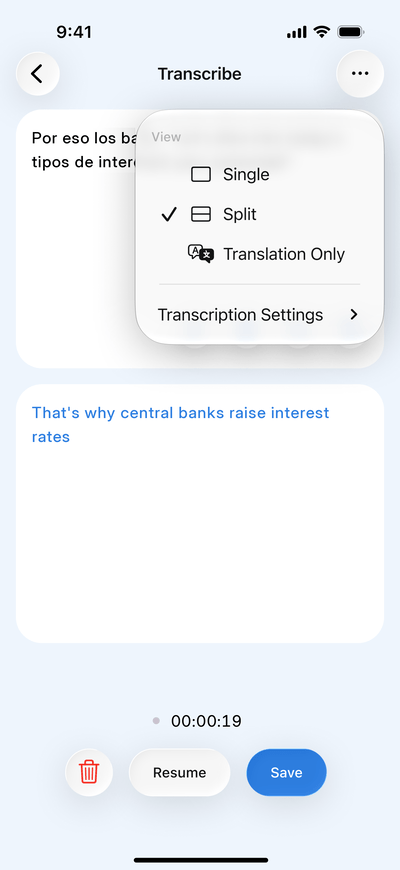
Read it your way. As the session runs, the transcript builds on your screen line by line – each sentence in the original, with its translation in blue right underneath. Prefer to keep the two apart? Switch to Split view: the original fills the top half of the screen, and the translation runs in the bottom half. If you only need the meaning, Translation Only shows just your language – the closest thing to reading subtitles. Switch views from the menu at any point, or set your favorite as the default in Transcription Settings.
Go back to it later. Every session you save lands in Recents, so the talk you heard this morning is one tap away tonight. Open it and scroll through the whole thing, or press play – hear the speaker's own voice again, or switch to the translation and listen to the talk in your language. In Transcription Settings, you choose whether to keep both recordings or just the translation.
Pull out what matters. Copy, save to Favorites, or share straight from the transcript – a quote for your report, a point you want to come back to, or the key takeaways for a colleague who couldn't make it.
Any tips before I start?
Sit close to the speaker, rest your phone with the microphone uncovered, download your languages, and free up some storage. In more detail:
Find a good spot. Live Transcription works best within earshot of the speaker, so a seat near the front beats the back row. If the room gets noisy, the app lets you know, so you can move closer before you miss anything.
Let the phone rest. Set it on the table with the microphone uncovered. There’s no need to hold it up for the whole session.
Download your languages before you go. With the language packs on your phone and Premium, Live Transcription works without a connection. That covers a plane, a basement lecture hall, or a venue with patchy Wi-Fi.
Make room for long sessions. Recordings are saved on your phone, so some free storage leaves room for longer talks. If space is short, the app tells you before you start.
Can I use it to follow a lecture in another language?
Yes. A lecture is long and full of subject terms – the kind of speech Live Transcription is built for. If you're studying in a second language, you can follow the lecture as it happens instead of catching every other word. Then review the full session from Recents before a seminar or an exam.
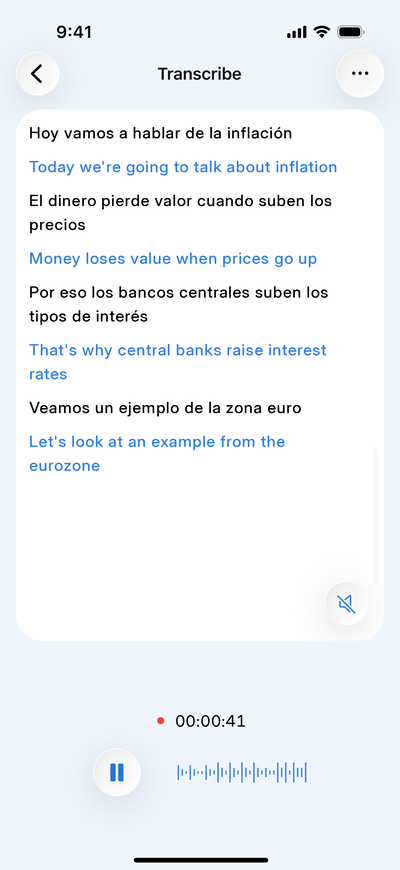
Split view helps when you want the original terms next to their translation, which is useful for picking up subject vocabulary in the new language. And if you're learning the language too, your transcripts double as study material alongside other ways to learn a language with a translation app.
Can I use it outside work and study?
Live Transcription isn’t only for keynotes. It also works when the conversation around you drifts into another language – the office kitchen, the family reunion, the hairdresser who’s clearly mid-story. Read along, catch the punchline, and laugh at the right moment for once. Just tell people your phone is following along: being in the loop is charming, and secretly recording dinner isn’t.
Live Transcription or Live Voice Translation: which Talk & Translate feature do I need?
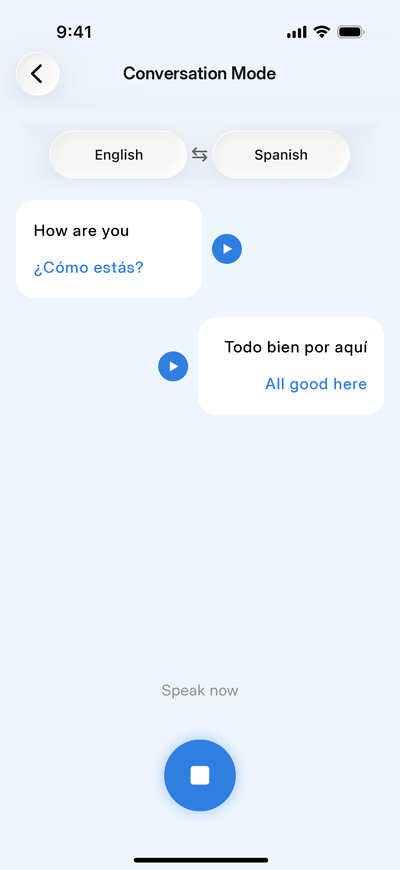
Talk & Translate gives you both, and each one fits a different moment. The Live Voice Translation is for conversations: you speak, it translates and plays the result aloud in the other person's language, then listens for the reply. Live Transcription is for listening: you need to follow what's being said and keep a record of it.
Use the Live Voice Translation for a quick exchange at a hotel desk, a one-to-one with a client, or any back-and-forth between two languages.
Use Live Transcription for a presentation, a lecture, a panel, or a meeting you're there to follow rather than lead.
Each Live Transcription session translates from one language into another. If people in a meeting speak different languages and need to reply to each other, the Live Voice Translation is the better fit – here's how it works as a translation app for business meetings.
Try both – on your next trip, at your next meeting, or wherever the language changes.
Live Transcription at a glance
Continuous transcription: every sentence written down as it's spoken, with its translation.
Three views: Single, Split, or Translation Only.
Saved sessions: every session goes to Recents, ready to read or replay.
Audio playback: listen to the original recording or the translation.
Offline mode: works without a connection once your languages are downloaded.
Transcription only: set the same language in both fields for a plain transcript.
Frequently asked questions
Yes, with Premium. Download the language pack before you need it, and Live Transcription works with no signal and no Wi-Fi. That makes it reliable on a plane, in a basement lecture hall, or at a venue where the connection drops.
Yes. If you’re not sure which language the speaker will use, Talk & Translate can detect it, so you don’t have to guess before the session starts. That’s useful at international events where speakers switch from one session to the next.
Yes. Set the same language in both fields, and you get a plain transcript, like subtitles for whatever is being said. It’s useful for lecture notes or meeting minutes in your own language.
Live Transcription is available on iOS now, with Android on the way.
Talk & Translate is free to download on iOS and Android. Premium unlocks unlimited live transcription with translation, unlimited voice-to-voice translations, unlimited camera-to-text translations, advanced AI models, and full offline mode.
The bottom line
Live Transcription and Translation turns a talk in another language into something you can follow in the moment and come back to later – sentence by sentence, saved in Recents, and available offline. It covers the long stretches of speech that a quick back-and-forth can't. It's available on iOS now, with Android on the way. If you're still comparing apps, see how Talk & Translate stacks up in our guide to the best translation app in 2026.