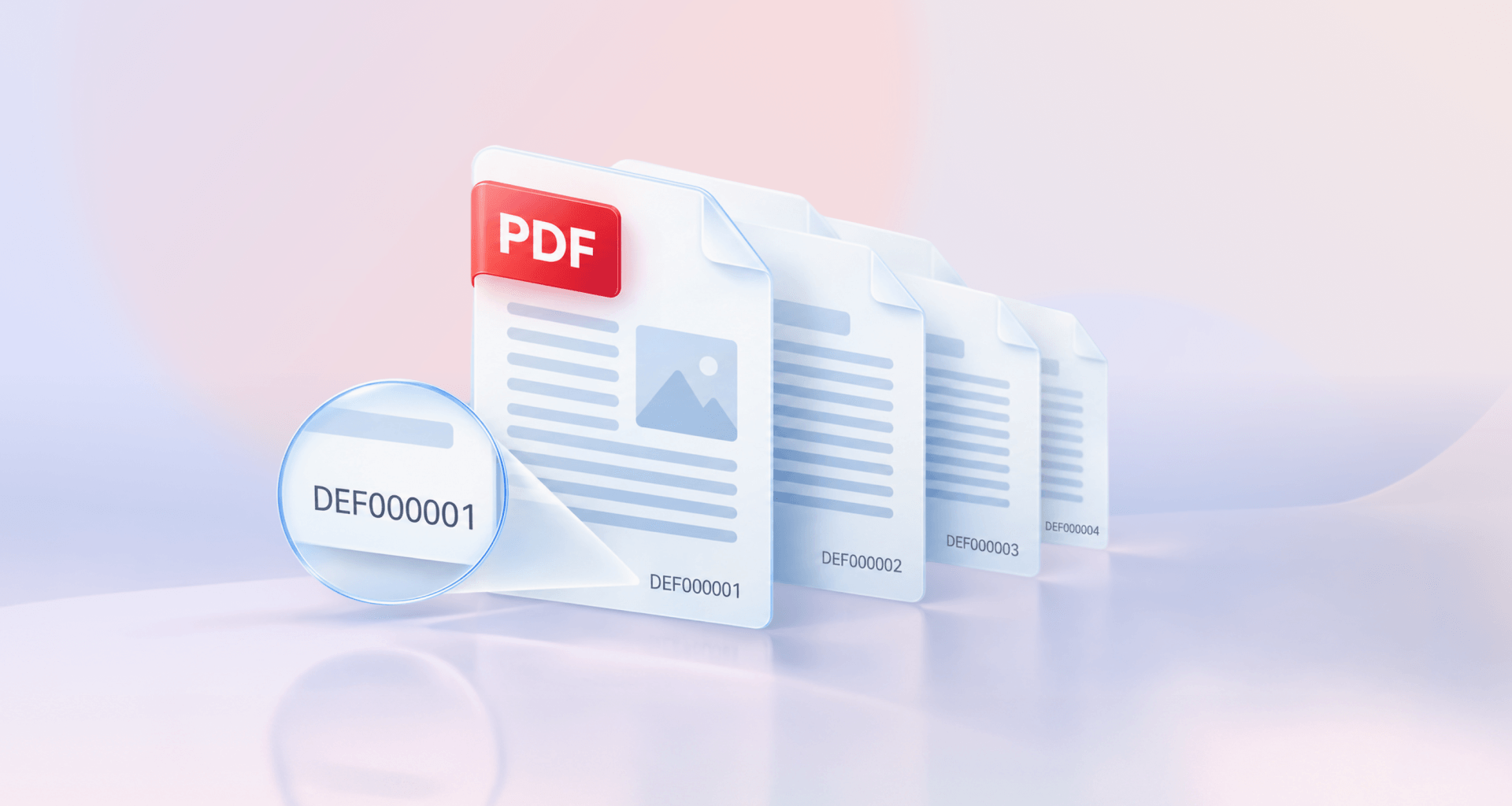
Bates numbering gives every page in a set of documents its own unique, sequential ID, usually a prefix plus a fixed-length number, such as ACME-000001. Law firms and records teams use it to cite exact pages. You add Bates numbers to a PDF through the header and footer tool of a PDF editor.
This article covers what each part of a Bates number does, how it differs from page numbers, the steps for any PDF editor, and the mistakes that force a set to be numbered again.
What is Bates numbering?
Bates numbering is a method of labeling every page in a document set with a unique identifier that runs in one unbroken sequence. Once a page has its number, anyone working with the set can point to that exact page, whichever file it sits in.
It is most common in legal discovery, where parties exchange large volumes of documents and need a shared way to refer to them. Medical and business records teams use it for the same reason, and audit teams use it to reference the pages they review.
The method is also known as Bates stamping. The name comes from Edwin G. Bates and the hand-operated numbering stamp he patented in the late 1800s.
What a Bates number looks like
A Bates number combines a prefix and a fixed-length number, with an optional suffix at the end. Together they read like ACME-000123.
The prefix tells the reader whose documents these are, often a client, a party or a case code. The number is unique to its page and goes up by one on each page that follows. Leading zeros keep pages in order when a system sorts them as text; without them, page 10 would sort before page 9. Six digits is a common default and leaves room for up to 999,999 pages.
Bates numbers vs page numbers
Bates numbers and page numbers both sit in the margin, but they answer different questions. A page number tells you where a page falls within one document. A Bates number tells you which page it is within the whole collection, so it never repeats and never restarts.
If you only need numbering inside a single report or manual, our guide to adding ordinary page numbers covers Word, PDF and other formats.
How to add Bates numbers to a PDF
To add Bates numbers to a PDF, open the header and footer tool of your PDF editor, insert a Bates number into the footer, check the preview and save the result as a copy. The sequence below works in most editors:
Finalize the set. Put the documents in their final order and finish any page removals or redactions first.
Decide the format. Choose the prefix, the number of digits and the start number, and write them down so every file uses the same values.
Open the header and footer tool. In most PDF editors, Bates numbering is an option within this tool rather than a separate feature.
Insert the Bates number in the footer. Click the footer position you want, usually the bottom right, and insert the Bates number there.
Check the preview. Look at your busiest page as well as a plain one, so the number stays clear of text, tables and signatures.
Save as a copy. Keep the unnumbered original and save the numbered version under a new file name.
In Adobe Acrobat Pro, the tool is under Edit > More > Bates numbering > Add.
Looking for an Acrobat alternative that keeps Bates numbering in its header and footer tool?
Numbering a whole set of documents
To number a whole set, keep one continuous sequence from the first page of the first file to the last page of the last file. There are two ways to do that:
Combine the files first. Merge everything into one PDF in the final order, then number it in a single pass. This is the simplest route and leaves no gaps. Our guide to combining files into one PDF walks through the merge.
Number each file in turn. If the files must stay separate, set each file’s start number to the last number of the previous file plus one. If the first file ends at ACME-000248, the second starts at ACME-000249.
Whichever route you choose, keep a short log with each file name and its first and last Bates number, for example: Contracts.pdf, ACME-000001 to ACME-000248. That log becomes the index people use to find a page later. It also lets you confirm at a glance that no range overlaps or skips a number.
Bates numbering mistakes and how to avoid them
Most Bates numbering mistakes come from numbering too early, breaking the sequence or losing track of it. Each one can mean producing the whole set again, so check them before you start:
Numbering before the set is final. Adding, removing or redacting pages afterward breaks the sequence. Settle the page order and finish redacting text before you number.
Restarting at 1 in each file. Two pages end up with the same ID, and the set loses its unique numbers. Combine the files first, or start each file at the previous file’s last number plus one.
Changing the format halfway. A new prefix or a different number of digits splits one set into two. Decide the format once, before the first file, and reuse it.
Covering page content. A number placed over text, a stamp or a signature can make a page harder to read. Check the preview on your densest page and widen the margins if needed.
Numbering the only copy. If something goes wrong, there is no clean version to start from. Keep the original unnumbered and save the numbered production set as a copy.
Keeping no record of the ranges. Without a log, finding a cited page means opening file after file. Note the first and last number of every file as you go.
Where a court or an agreement sets the placement or format, check the court rules or the agreement you are producing under before you begin.
Alternative: MobiPDF
MobiPDF, an affordable alternative to Adobe Acrobat, adds Bates numbers from its Header and Footer window, one of MobiPDF’s editing tools.
Open the PDF in MobiPDF. For a set, combine the files into one PDF first with Combine on the home screen.
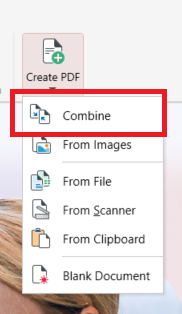
On the Edit tab, click Header and Footer, then Add.
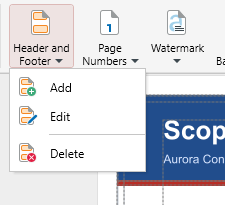
Click Numbering and Date Settings, open the Bates Number tab, and set Number of Digits, Prefix, Suffix if you need one, and Start Number. Click OK.
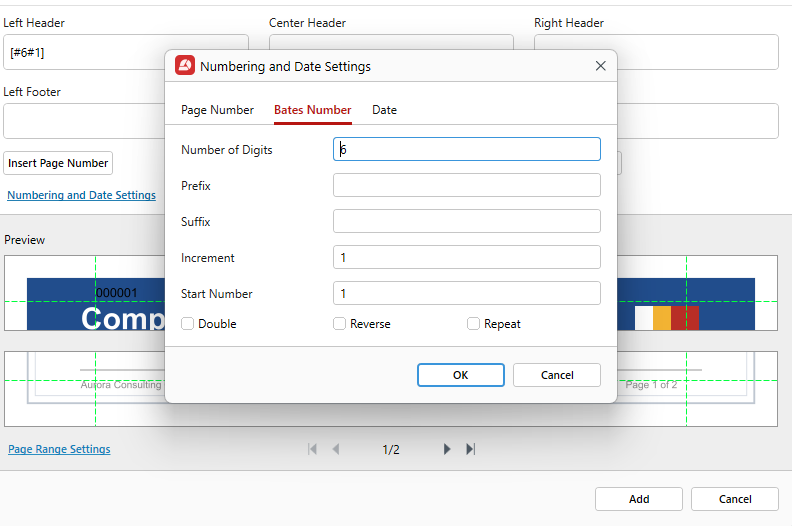
Click the box where the number goes, Right Footer, then click Insert Bates Number. A code such as [#6#1] appears in the box.
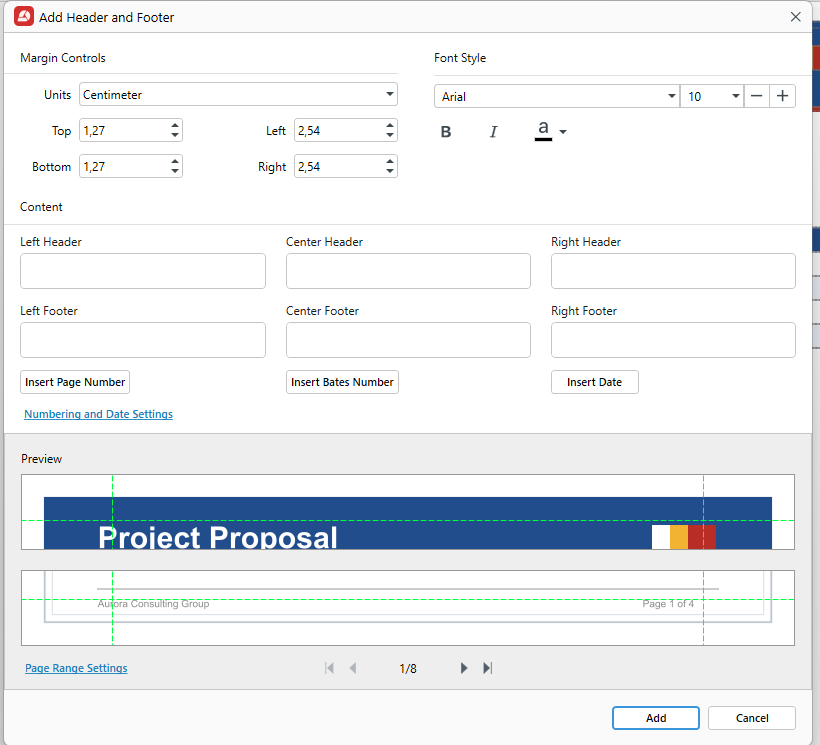
Check the Preview, adjust the font and margins, and use Page Range Settings if only some pages need numbers.
Click Add, then use Save As to keep a numbered copy.
For the next file in a set, set Start Number to the previous file’s last number plus one. To change or remove the numbers, go to Header and Footer, then Edit or Delete. Bates numbering is in MobiPDF’s Lifetime and Pro plans.
Ready to number your next document set?
Frequently asked questions
It is named after Edwin G. Bates of New York City and his Bates Automatic Numbering-Machine, a hand stamp that moved to the next number each time it was pressed. His 1891 patent improved on earlier numbering machines, and the original model counted from 0000 to 9999. Courts and law firms adopted the system quickly.
A Bates stamp is another name for a Bates number. The term comes from the original hand stamp, which inked a number onto each sheet of paper. Today the number is added digitally to a PDF, usually in the footer, but the old name has stayed in everyday use.
No. Any PDF editor that offers Bates numbering in its header and footer tool can do the job, as long as it lets you set the prefix, the number of digits and the start number. MobiPDF is one of them, with Bates numbering in its Header and Footer window.
Most often in the bottom right corner, in the footer, where it is least likely to cover text. Keep it in the same position on every page so readers know where to look. If a court rule or the agreement you are producing under sets the position, follow it.
In MobiPDF, go to Header and Footer on the Edit tab and choose Edit or Delete. Edit changes the header or footer as a whole, not a single page’s number. Once a set has been shared and cited, produce a corrected set rather than renumbering quietly.
No. Bates numbering is part of MobiPDF’s Lifetime and Pro plans, together with headers, footers and page numbers. In the free app, clicking the tool opens a window that describes the feature, with a Start Trial button if you want to try it first.
Final thoughts
Bates numbering is straightforward once the order is right: finalize the set, choose one format, keep a single sequence across every file and log the ranges as you go. Those habits keep a document set easy to cite and save you from numbering it twice. Whichever PDF editor you use, the header and footer tool is where the work happens, and the preview is where you catch problems before anyone else sees them.
Want a simpler alternative for your next set?