

Activating Your MobiOffice License and Checking Product Version
To unlock the full feature set of your purchased MobiOffice plan, you need to activate your license. This guide covers how to activate MobiOffice with an activation key or by signing in to your MobiSystems account, and how to check which version of MobiOffice you're running.
Before you begin
Make sure you have:
MobiOffice installed on your device.
A MobiSystems account.
Your activation key, if you bought a Lifetime licence or received a key from a retailer.
An internet connection.
How activation works
How you activate MobiOffice depends on where you bought it.
Subscription plans (Premium, Multi-user): Your licence activates automatically when you sign in to MobiOffice with the account you used to subscribe. There is no activation key.
Lifetime licence: You receive an activation key on the purchase confirmation page and by email. You enter this key once to activate the licence, then sign in to link it to your account.
App store subscriptions (Microsoft Store, Google Play, Apple App Store): Activation happens automatically through the store. Sign in to MobiOffice with your account so the licence is linked to your profile.
Retail or partner store (Amazon and others): You receive an activation key (an individual code). Use it to activate MobiOffice from the website or in the app.
How to activate a subscription licence
If you bought MobiOffice Premium or Multi-user from the MobiSystems website, your licence activates the moment you sign in.
1. Open MobiOffice.
2. Click the face icon in the top-right corner or choose Account from the options on the left pane.
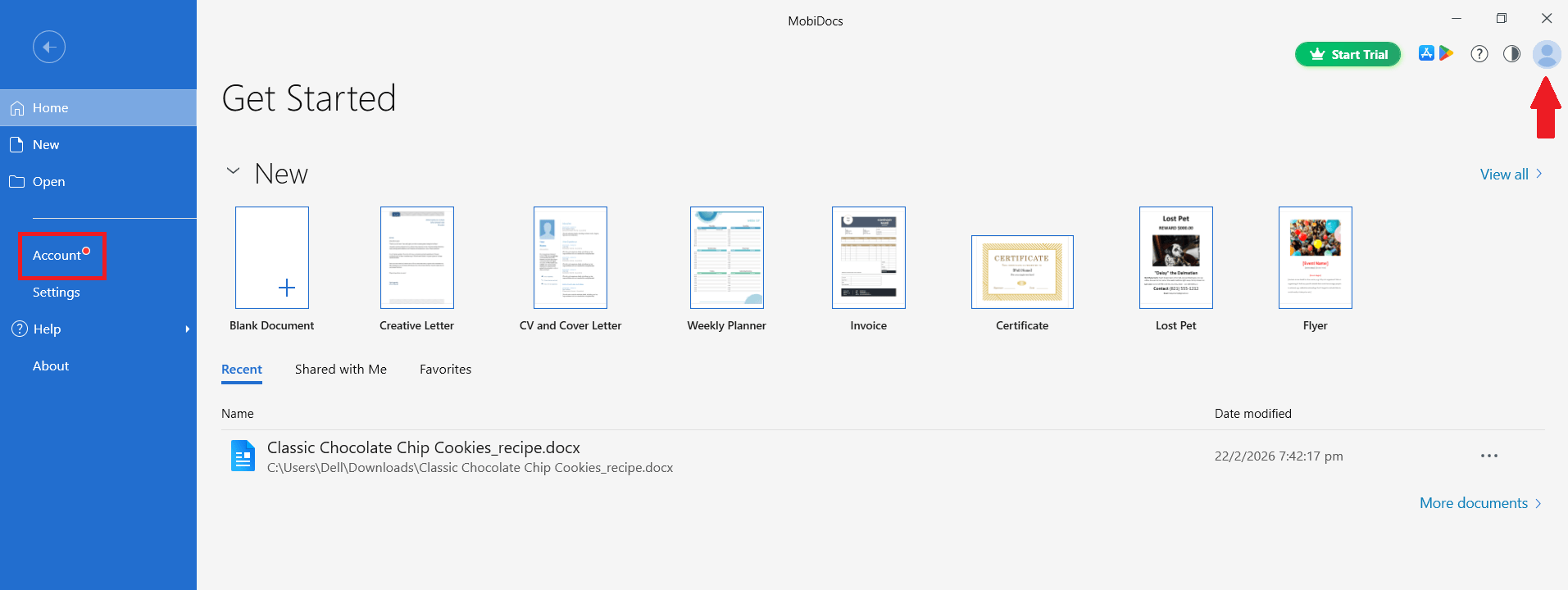
3. Enter the email and password for the MobiOffice account you used to subscribe.
4. Click Continue.
Your premium features are now active. If you don't see them, see the troubleshooting section at the end of this article.
How to activate with a key
Use these steps if you bought MobiOffice Lifetime or received an activation key from a retailer.
Activate from the activation page
1. Go to the MobiOffice activation page.
2. Select your platform: Windows, Mac, iOS, or Android.
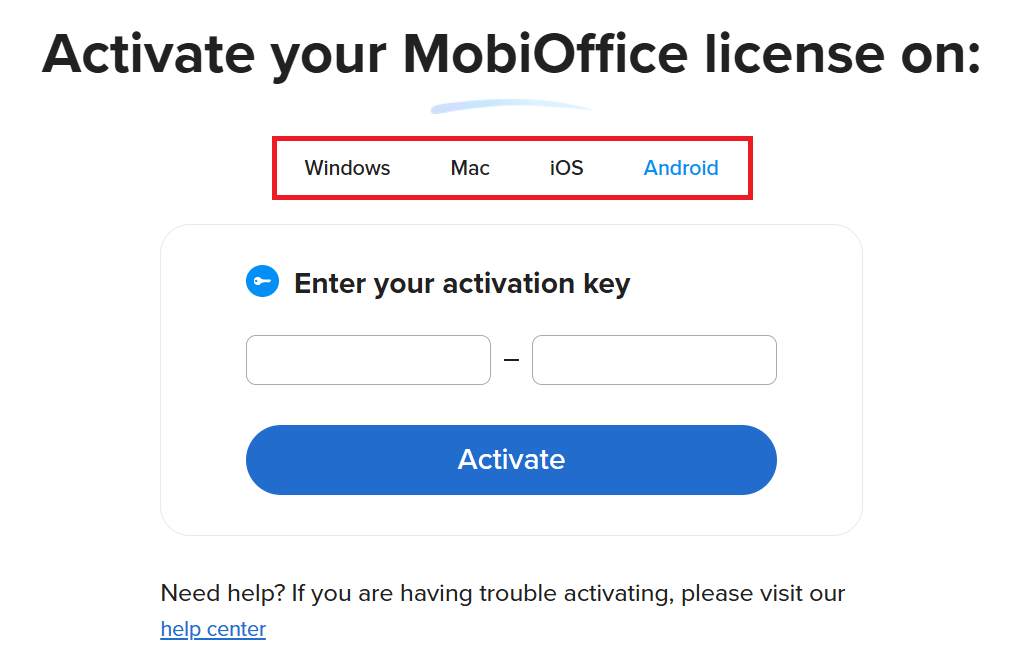
3. Enter your activation key in the boxes provided.
4. Click Activate.
5. When prompted, sign in to your MobiOffice account so the licence is linked to your profile.
6. Download and install MobiOffice if you haven't already.
7. Open MobiOffice and sign in with the same account.
Activate from inside MobiOffice (Windows)
1. Open MobiOffice.
2. Click File.
3. Click Activate.
4. Enter your activation key.
5. Click Activate to confirm.
6. Choose a sign-in method and click Continue.
Activate from your MobiOffice account
You can also enter your key from your account dashboard.
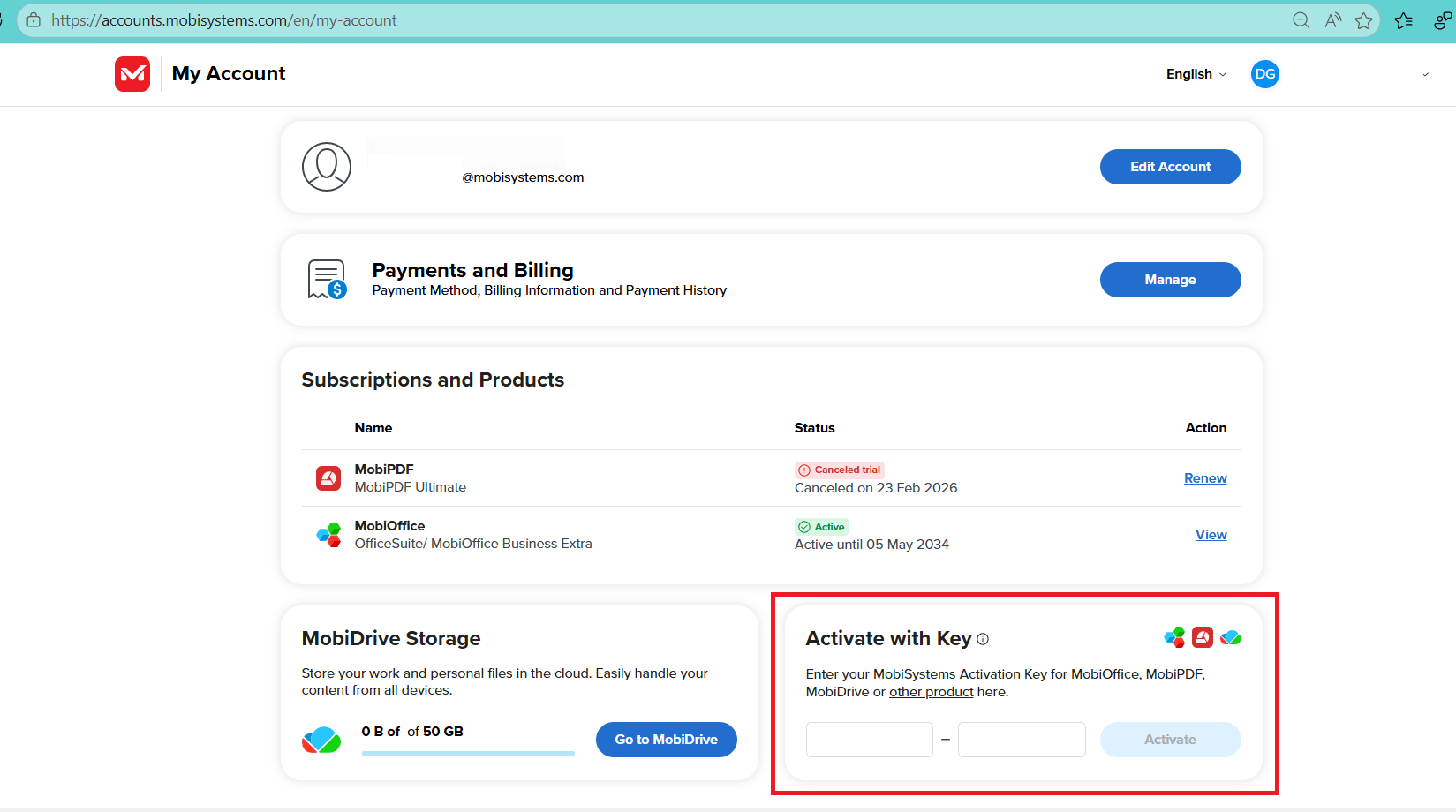
4. Enter your activation key and click Activate.
Your licence is now linked to your MobiOffice account.
How to transfer a licence to a new device
Your MobiOffice licence is tied to your MobiSystems account, so moving to a new device is straightforward.
1. Install MobiOffice on the new device.
2. Open MobiOffice and click Sign In.
3. Use the same MobiOffice account credentials you used during activation.
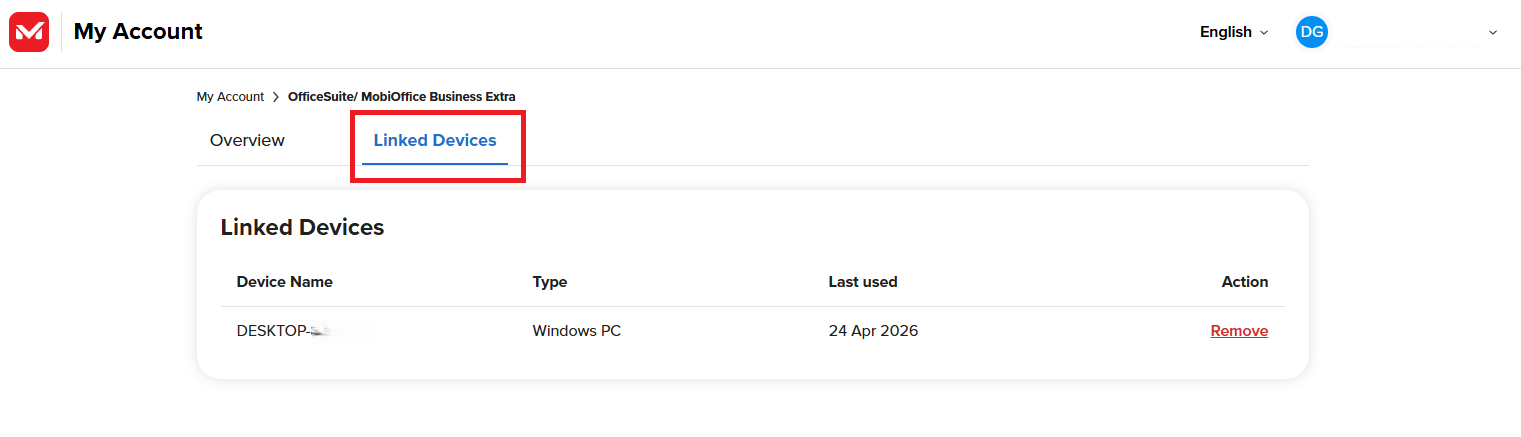
4. If you've reached your device limit, open My Account, go to the Linked Devices tab, and click Remove next to a device you no longer use.
You don't need to re-enter your activation key on the new device. Signing in is enough.
How to check your MobiOffice version
Knowing your version is useful when you contact support, follow a guide that requires a specific version, or troubleshoot an issue.
Check the version on Windows
1. Open MobiDocs, MobiSheets, MobiSlides, or MobiMail.
2. Click File & About.
3. Find the version number listed under the product name.
Check the version on Mac
1. Open MobiDocs, MobiSheets, or MobiSlides.
2. From the menu bar, click the app name (for example, MobiDocs).
3. Click About MobiDocs.
4. The version number appears in the dialog.
Check the version on Android or iOS
1. Open the MobiOffice app.
2. Tap the menu icon, then tap Settings.
3. Scroll to About or App version.
Troubleshooting
My activation key isn't working. Double-check the key for typos. Confirm that the key matches your platform – a Windows key won't activate a Mac install. If the message says the key has already been used, sign in with the account linked to the original activation instead of re-entering the key.
I can't see my premium features after signing in. Make sure you're signed in with the same MobiSystems account you used to buy the subscription. Switching social sign-in providers (for example, Google to Apple) creates a separate account.
I've reached the device limit. Open My Account, go to Linked Devices, and remove a device you no longer use. MobiOffice will activate your license on the current device automatically.
My license shows the wrong product edition. This can happen if you've installed a newer release on top of an older license (for example, installing a current MobiOffice build with a 2021 OfficeSuite key). Contact support with your purchase confirmation for help.
I never received my activation key by email. Check your spam or junk folder. If it's still missing, sign in to your MobiSystems account – the key is also listed in the order details.
Where to go next
Your license is active and you know how to check your version. Next, set up MobiOffice the way you want and start working.


